

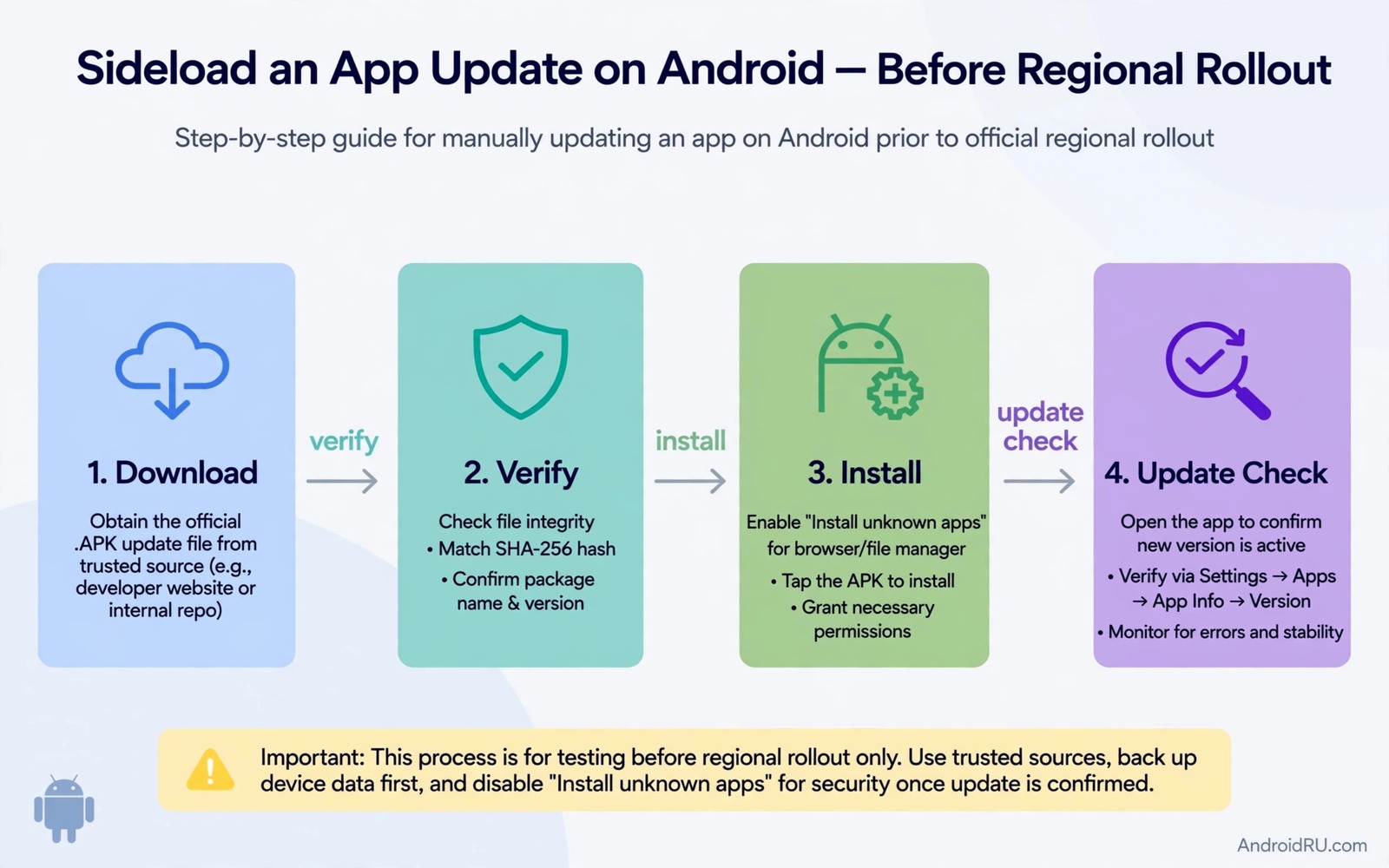
Regional rollouts can feel unfair. A friend in another country gets a new app version and you wait days or weeks for the same update. The feature you want is already live somewhere else. Your store page still shows the old version. Sideloading the update lets you skip that wait. It also puts the checking work on you. The store will not vet the file for your region and it will not guarantee that the new version fits your phone.
The safe way to sideload an update is boring on purpose. You check the version and you check the source and you check the file type and you keep a rollback plan. That routine takes a few minutes and it prevents most early update problems. Skipping those checks to save two minutes is a poor trade. A bad early build can break login or drain battery or crash on launch. If you are still learning outside installs then start with how to sideload apps safely before you chase an early version.
Why Rollouts Arrive At Different Times
Developers release new versions in stages to limit risk. A small group gets the update first and the developer watches for crashes. If the crash rate stays low then more users get the update. If a bug appears then the rollout pauses and a fix goes out. That staged plan protects most users from a bad build. It also means that early users act as testers whether they planned to or not.
Region also matters because app features can depend on local services or laws or payment systems. A feature that works in one country may need extra work in another. A developer may hold a version back in a region until that work is done. Sideloading a version from another region can bring a feature that is not ready for your local service. Test local features after an early install and do not assume that everything will work the same way.
Find The Correct Update File
Start from the app you already have. Note its current version and its package name. The update file must match that package name exactly. A file with a different package name is a different app even if the icon looks the same. Next check the version code if it is shown. The new version code should be higher than your current version code. A lower version code is a downgrade and it can cause data problems.
Check the file type too. A single APK is simple to install. A split set needs all parts to install together. A bundle file needs a proper installer that can handle splits. Many early update failures come from installing only one part of a split set. If you see multiple files for one app then do not install them one by one. Use an installer that handles the full set at once. For split handling read how to install split APK files so you do not end up with a half installed app.
A Step By Step Early Update Routine
Back up the app data if the app offers an export or a cloud sync. Turn on sync and wait for it to finish before you update. That backup is your safety net if the new version has a bug. Then download the update from a trusted source and check the version and the size. Install it and open the app and test login and the main feature. Do not test every feature at once. Test the core job first and then test the new feature that made you want the update.
- Record the current version and confirm sync or export is complete.
- Download an update file that matches the exact package name.
- Check that the new version code is higher than the current one.
- Install the full split set together if the update uses splits.
- Test login and the main feature before you test new features.
- Keep the old installer until the new version proves stable.
If the new version crashes then do not keep tapping it in hope. Clear the app cache once and try again. If it still crashes then roll back to the old version. A rollback is not a failure. It is the plan working as designed. Early updates are experiments and experiments sometimes need a retreat.
Handle Split Files And Architecture
Modern apps often ship as split files for screen density and processor type and language. Your phone needs the splits that match its hardware. An update file built for a different processor will fail or crash. Check your processor type before you download a split set. Most modern phones use arm64. Older or cheaper phones may use a different type. A trusted source will list the supported types for each file.
Do not mix splits from different versions. A base file from one version and a config file from another version can create strange bugs. Download the full set for one version from one source. Install that set together. If the installer reports a missing split then stop and get the full set. A partial install is worse than waiting for the official rollout.
Verify The File Before You Tap Install
The commands below help you confirm the installed version after an update. They list packages and show details for one app. They do not install anything by themselves. They are useful after an early update to confirm that the version you wanted is the version that actually installed.
adb shell pm list packages -f
adb shell dumpsys package com.example.app
adb shell pm path com.example.app
adb shell cmd package list packages
The commands above are original examples written for this guide. They show safe checks you can run on your own device. They do not come from any outside publication.
What To Do When An Early Build Breaks A Feature
An early build can break a feature that worked fine yesterday. Start by naming the broken feature in plain words. Is login failing or is a button missing or is a video not playing. A clear name helps you search for the cause and it helps you explain the problem later. Do not assume that the whole app is broken because one feature failed. Test the main job of the app separately from the broken feature.
Next clear the app cache and restart the app once. A cache clear can fix a stale layout or a stuck setting after an update. It does not delete your account data in most apps but check the app settings first if you are unsure. If the feature still fails then check whether other users report the same issue. A widespread report points to a bug in the early build. A single report points to a problem on your device or with your account.
If the bug is widespread then roll back and wait for a fix. Do not try random older files from unknown sources to fix the problem. A rollback to the version you kept is the safest move. Restore your data from sync and test the main feature again. Note the broken version in your log so you do not install it again by accident. That note saves you from repeating the same experiment next week.
When a fixed version appears test it the same careful way. Install the fix and test login and the main feature and the feature that broke before. If all three pass then you can delete the old installer. If the fix fails again then stay on the stable version and wait for the official rollout. The official rollout exists for a reason. It arrives after the developer has seen enough early reports to trust the build.
Teach yourself to read version notes before every early update. A short note often names the exact change that matters to you. It may also name a known issue that you can avoid. Reading that note takes a minute and it sets a fair expectation. An update with no notes deserves extra caution. You are testing blind when you install it.
Another practical point is timing. Do not install an early update just before a trip or a deadline or an important call. A new build can fail at the worst moment even when it passed a quick test. Install early updates when you have time to roll back and when you do not need the app urgently. That timing rule alone prevents many stressful failures. It also makes testing feel relaxed instead of rushed.
Finally remember that waiting is also a valid strategy. The official rollout will reach you in time and it will arrive with more bug reports already fixed. Early access is fun but it is not required for most apps. If an update only adds a cosmetic change then waiting costs you nothing. Save early installs for updates that fix a bug you face or add a feature you need daily. That filter keeps your phone stable and your time free.
Common Mistakes
The most common mistake is installing an update without a backup. A new version can change how data is stored. If the new version fails then you may lose local data that was never synced. Always sync or export before an early update. Another mistake is trusting a version number alone. A fake file can claim a high version number while carrying old code or harmful code. Check the source and the package name too.
- Updating without syncing or exporting app data first.
- Installing only one part of a split update set.
- Mixing split files from different app versions.
- Trusting a version number without checking the source.
- Deleting the old installer before the new version is tested.
People also update many apps early at the same time. That habit makes it hard to find which update caused a problem. Update one app early and live with it for a day. If it stays stable then update the next one. That slow pace feels boring but it keeps troubleshooting simple.
Frequently Asked Questions
Will sideloading an early update break future store updates?
Usually not if the signature matches the store version. The store can update a sideloaded app when a newer store version appears. If the signature differs then the store may refuse the update and you will need to reinstall.
Is an early update from another region safe to use?
It can be safe if the file matches the package and the source is trusted and the version is genuine. Region features may still differ. Test local features such as payments and language after the install.
How do I roll back if the early update crashes?
Uninstall the new version and reinstall the old installer you kept. Restore data from sync or export if needed. If you deleted the old installer then you may need to wait for a store version or find a trusted old build.
Conclusion
Early updates reward patience more than speed. The users who enjoy them most are the ones with a backup and a version check and a rollback plan. Those three habits turn a risky shortcut into a controlled test. Do not chase every early version. Chase the updates that fix a bug you face or add a feature you will use daily. Your concrete next step is to pick one app and record its current version and sync its data today so you are ready when its next update appears early elsewhere. For a wider safety base explore how to check if sideloading is safe before your first early install.

