

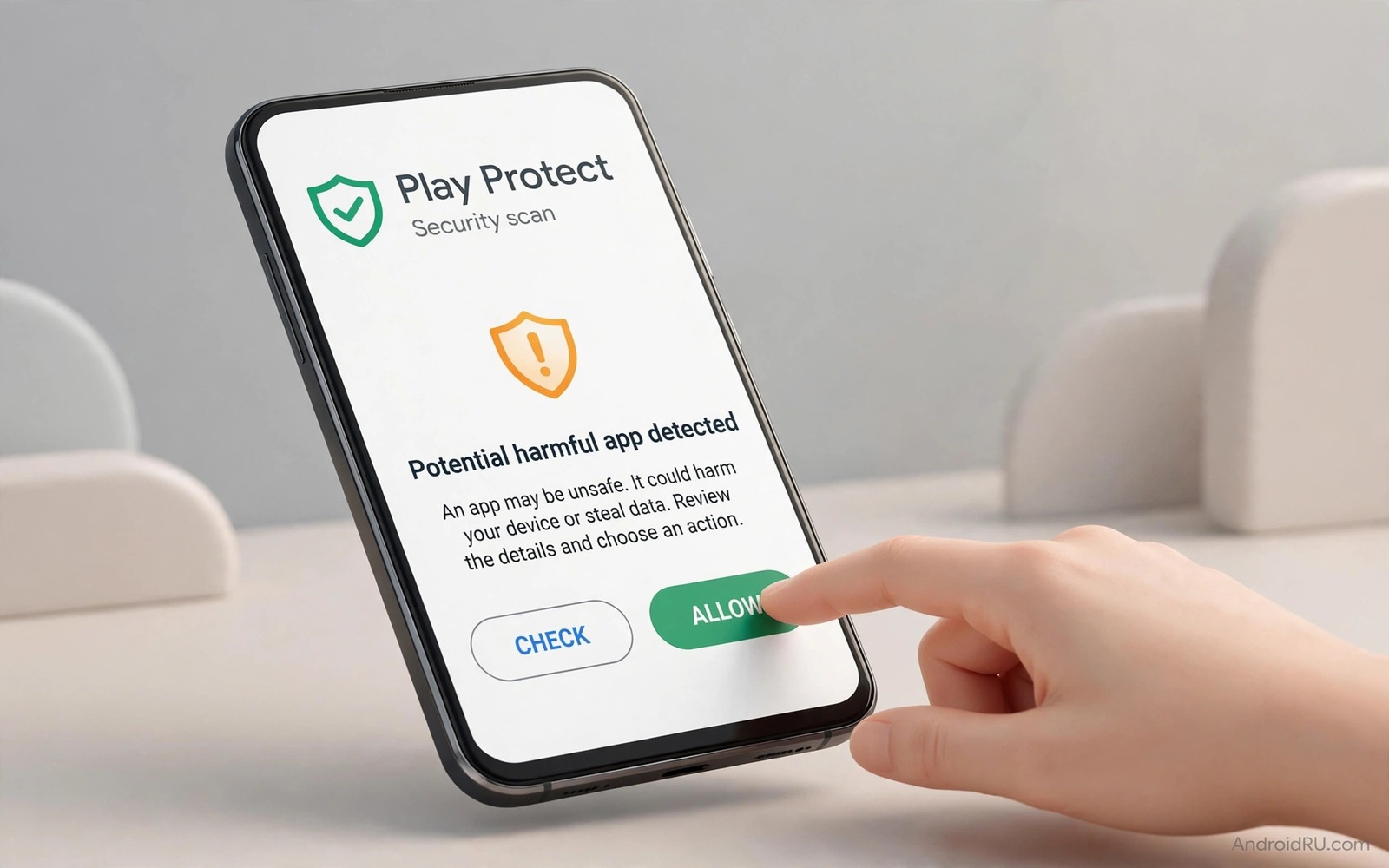
A warning on your phone can feel like an accusation. You tap install and a shield appears and the phone asks if you are sure. Your hand pauses even when you trust the app you chose. That pause is useful. It is also easy to misunderstand. Play Protect is not saying that every file outside the store is dangerous. It is saying that the file has not gone through the same store review and that you should check it yourself before you continue.
Many Android users only meet this system when they install an app for the first time from a browser or a file manager. The screen uses strong words and a short message. It rarely explains what was scanned or what was found. That gap creates fear and it also creates the opposite problem. Some users tap through every warning without reading it. A calm method sits between those two habits. You learn what each message means and you follow the same checks every time. If you want a wider safety routine then read how to sideload apps safely before you change any setting.
What Play Protect Actually Scans
Play Protect looks at apps on your device and it checks new apps during installation. It compares app behaviour and code patterns with known harmful patterns. It also looks for apps that try to steal data or send premium messages or take control of your phone. The scan does not read your private photos or your messages for fun. It focuses on app behaviour and on signals that match known threats. A clean result means that no known harmful pattern was found at scan time. It does not prove that an app will always behave well in the future.
The system also keeps watching after installation. An app can be flagged later if its behaviour changes or if new threat data appears. That is why a warning can appear days after you installed an app. The delay does not mean that your phone was unsafe from the first day. It means that the protection system learned something new. You should treat a late warning as a fresh check and not as a reason to panic. Open the details and read the exact reason before you decide to keep or remove the app.
How To Read Each Warning Without Panicking
Start with the app name and the package name if it is shown. A trusted app should match the name you expected and the developer you expected. A small change in spelling can signal a fake copy. Next read the action that the system suggests. Some warnings only ask you to confirm the install. Others block the install or suggest removal. Those levels are different and your response should be different too. A simple confirmation is not the same as a block for harmful behaviour.
Ask three questions before you tap anything. Did you download the file from a place you trust. Does the app need the permissions it asks for. Does the version match the app you wanted. If any answer is unclear then stop and verify the file again. A safe habit is to close the installer and check the file size and the source and the version. That short pause costs less than a minute and it prevents most rushed mistakes. For file checks you can also learn how to verify APK checksum hashes so a changed file stands out.
A Safe Routine For Every Sideloaded Install
Build one routine and use it for every app that comes from outside the store. The routine should be short enough that you will actually follow it. It should also be strict enough that a fake app cannot slip past it on a busy day. Write the steps down once and keep them near your phone until they become habit. The steps below cover source and scan and permissions and testing. They do not require root access and they do not require paid tools.
- Download only from a source you have used before or a source with a clear reputation.
- Check the app name and the version and the file size before you open the installer.
- Read the Play Protect message in full and note whether it confirms or blocks the install.
- Grant only the permissions that match the job the app is meant to do.
- Open the app once and watch for strange popups or requests for extra access.
- Remove the app at once if it asks for access that makes no sense for its purpose.
After installation go to the app info screen and review the permissions again. Many apps ask for broad access during setup and then never need it again. You can turn off a permission later without breaking the main feature in most cases. Test the app after each change. If a feature stops working then you will know which permission mattered. That test teaches you more than any generic permission list ever will.
When To Allow A Scan Warning And When To Stop
Allow an install only when the source is known and the app matches your expectation and no harmful behaviour is reported. A warning that simply says the app is unknown is common for apps that are new or rare or built by a small team. Unknown does not mean harmful. It means that the protection system has little data about that app. In that case your own checks carry more weight. Verify the developer and the file and the permissions before you proceed.
Stop at once if the warning names harmful behaviour or if the app name looks copied or if the permissions look extreme. A torch app does not need your contacts. A wallpaper app does not need your call logs. A simple game does not need device admin access. Those mismatches are strong signals even when the app looks polished. Delete the file and do not try a second copy from the same source. A second copy from the same place will carry the same risk.
Check Your Play Protect Settings
Open the store app and open Play Protect from its menu. Check that scanning is turned on for apps on your device. Check that the option to improve harmful app detection is set the way you want it. Some users turn this off for privacy reasons. That choice is valid but it also reduces the data that helps the system catch new threats. If you sideload often then keep scanning on. You can still review each result yourself and you keep the final decision.
The commands below show safe checks you can run from a computer with developer tools enabled. They list installed packages and show the verifier setting. They do not change your phone and they do not bypass any protection. Use them to confirm what is installed after a sideload session.
adb shell settings get global package_verifier_enable
adb shell pm list packages -f
adb shell dumpsys package com.example.app
adb shell pm list packages -u
The commands above are original examples written for this guide. They show safe checks you can run on your own device. They do not come from any outside publication.
Keep A Simple Install Log
A short log turns vague worry into clear evidence. Write the app name and the version and the source and the date for each sideload. Add one line about the warning you saw and one line about the permissions you granted. That record takes less than a minute and it answers most later questions. When a warning appears again you can compare it with the first install. You will see at once whether anything changed.
Review your log once a month and look for apps you no longer use. Remove stale apps and delete their installer files. A smaller app list is easier to protect and easier to update. It also frees storage and reduces background activity. If an app in your log has not been updated for a long time then check its developer page again. A quiet developer page plus a late warning is a good reason to find a maintained replacement.
Share your log method with family members who sideload too. A simple shared habit helps everyone spot a fake app sooner. When one person notes a strange warning the others can check their own phones. That small network effect beats any single security tip. It also makes it normal to pause before an install. Pausing is not fear. Pausing is control.
One more habit helps on phones shared with family. Create a separate profile or a separate folder for experimental apps when your phone supports it. That separation keeps a test app away from your main accounts and your main files. If the test app misbehaves then you can remove the whole profile without touching your daily apps. It is a small setup step that pays off the first time a test goes wrong and it keeps your main profile calm and predictable.
Finally remember that warnings are part of a healthy phone and not a sign that you did something wrong. Every careful user sees them. The difference is not whether warnings appear. The difference is how you respond to them. A calm check and a clear log and a tidy app list will serve you for years. Those habits matter far more than any single setting tweak.
Common Mistakes
The most common mistake is turning off Play Protect for every app just to stop warnings. That move removes a safety net and it hides future problems too. A better move is to keep scanning on and to learn the warning levels. Another common mistake is trusting a file because it came from a friend. A friend can share a fake file without knowing it. Always check the file yourself even when the sender is someone you trust.
- Disabling all scanning because one warning felt annoying.
- Granting every permission during setup to reach the app faster.
- Installing a second copy after the first copy was blocked.
- Ignoring a late warning because the app worked fine for days.
- Judging safety only by how professional the app icon looks.
Another mistake is keeping an installer file on your phone forever. Old installer files can be opened by accident later. They can also be old versions with known flaws. Delete installer files after a successful install unless you have a clear backup plan. If you do keep backups then store them in one folder and label them with the app name and the version.
Frequently Asked Questions
Does a Play Protect warning mean my phone is already infected?
No. A warning during installation means that the system wants you to review the app before it runs. It does not mean that malware is already active on your phone. Read the message and check the app and decide based on the details.
Should I turn off Play Protect to install apps faster?
No. Turning it off removes a useful check for every future install. Keep scanning on and use a short personal checklist instead. Speed is not worth losing a warning that could catch a harmful app.
What should I do if Play Protect blocks an app I trust?
Stop and verify the file from a second trusted source. Check the developer and the version and the checksum if one is available. If the file still fails the check then do not force the install. Find an official version or a trusted alternative instead.
Conclusion
Play Protect warnings are tools and not verdicts on your judgement. They work best when you pair them with your own checks for source and permissions and behaviour. Keep scanning on and keep your routine short and keep installer files tidy. That combination gives you freedom to sideload and still keeps your phone under your control. Your concrete next step is to open Play Protect today and confirm that scanning is on and then test your routine on one app you already trust. If you want to broaden that routine then explore how to check if sideloading is safe for your own use case.

