

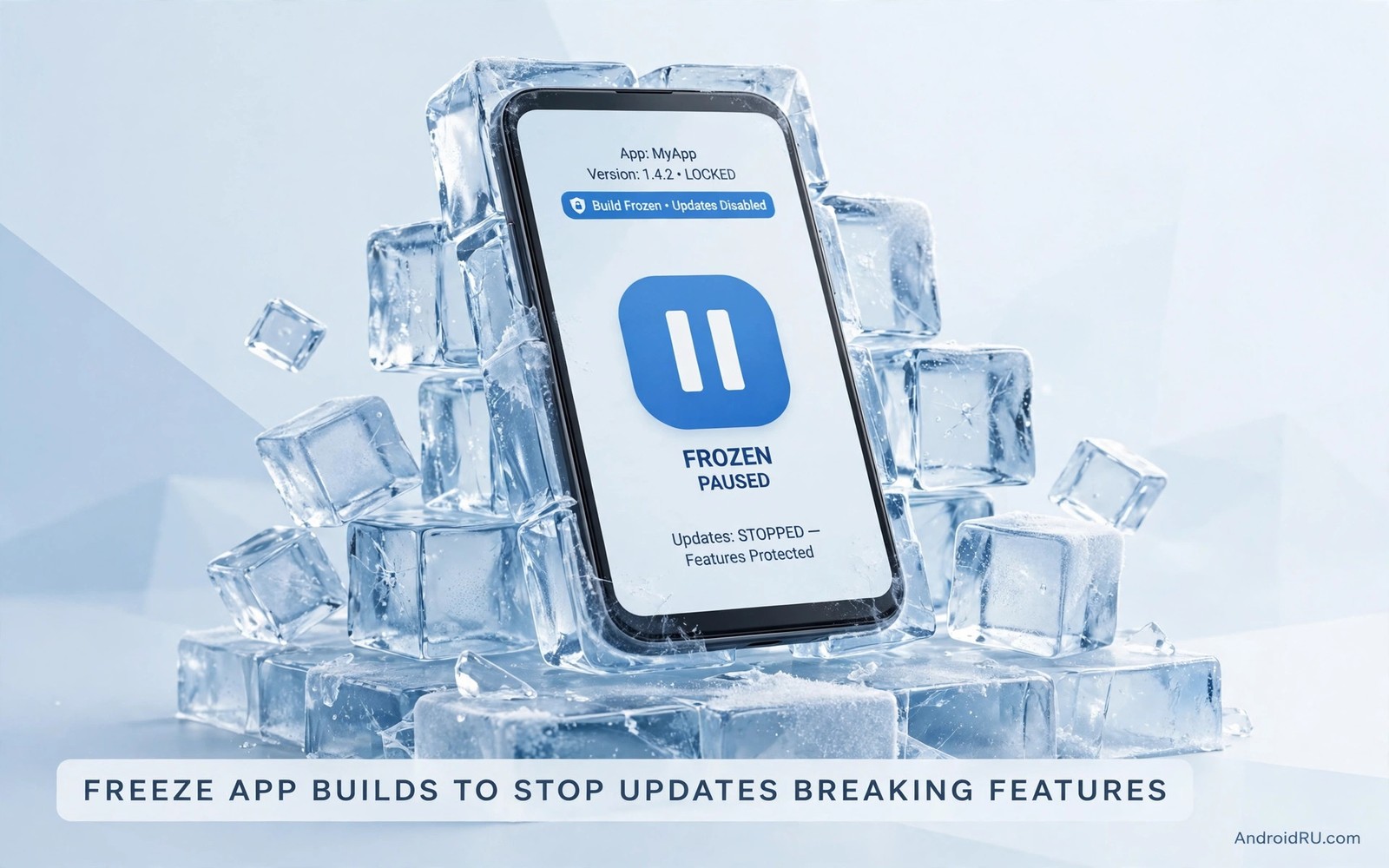
App updates sometimes break features that you rely on every day. A redesigned interface can hide a tool you used hourly. A performance change can slow an older phone. A new permission request can raise privacy concerns. Freezing an app build stops automatic updates for that app so a working version stays working until you decide otherwise.
Freezing is a deliberate tradeoff. A frozen app misses security fixes and new features while it keeps its current behaviour. That tradeoff suits apps where a specific feature matters more than the newest changes. It does not suit banking apps or messaging apps where security fixes matter most. Choose freezing candidates carefully rather than freezing everything.
This guide explains how to freeze builds safely using store settings and system controls. It covers per app update control and backup before freezing and periodic review. Freezing pairs with downgrading apps to older versions because both techniques protect a working version from unwanted change.
Understand what freezing actually does
Freezing a build means preventing the store from updating that app automatically. The installed version remains on the phone unchanged. Manual updates remain possible when you choose them. Freezing does not block the app from running or from accessing the network. It only controls the update channel for that package.
Different stores implement freezing differently. Some offer a per app auto update toggle. Others require you to disable auto updates globally and update apps manually. System settings may also offer update controls for certain stores. Check each store that manages the app because a single missed toggle can undo the freeze.
Freezing is not the same as disabling an app. A disabled app cannot run at all. A frozen app runs normally with its current version. That distinction matters for daily tools that you still need. Freeze the version while keeping the app fully usable.
Pick apps worth freezing
Freeze apps where a specific version provides unique value. A photo editor with a beloved filter set qualifies. A launcher with a perfect layout qualifies. A utility with a simple interface before a redesign qualifies. In each case the current version does something that newer versions may not do as well. Document the reason for freezing in a note so future you remembers why the app stayed old.
Do not freeze apps that handle money or sensitive messages. Banking and payment and primary messaging apps need security updates promptly. A frozen financial app accumulates risk with every missed patch. Keep those apps on automatic updates even when an update changes the interface. Security outweighs convenience for sensitive categories.
Limit frozen apps to a small set. Five frozen apps are manageable. Fifty frozen apps create a maintenance burden and a large security debt. Review the frozen list monthly and unfreeze apps when newer versions restore the missing feature. A small frozen set is a tool. A large frozen set is a liability.
Freeze through store settings step by step
Open the store page for the app you want to freeze. Look for auto update settings in the app menu. Turn off automatic updates for that app only. Confirm that other apps still update automatically. That per app setting is the cleanest freeze method when available. It isolates the freeze to one package.
When per app settings are unavailable disable automatic updates globally and switch to manual updates for all apps. That method requires more discipline because you must check updates manually each week. Set a weekly reminder to review updates. Manual review actually improves awareness because you see every update before it installs.
Check for other update sources after freezing. An app may appear in multiple stores. Disable updates in each store that lists the app. A single store left on automatic updates can overwrite the frozen version overnight. Cross store checking is an essential freeze step that many users miss.
Back up before you freeze
Back up the frozen app data and the app file when possible. Export settings and copy local files to a safe folder. A backup lets you restore the frozen version after a phone reset or accidental update. Without a backup a freeze lasts only until the next device change. Backups make freezing durable.
Note the frozen version code and date in your backup note. Version codes help you identify the exact build later. A version name alone may cover several builds with different codes. Precise notes prevent reinstalling the wrong build when you restore.
Test the backup restore on a secondary profile when possible. A restore test confirms that exported data opens in the frozen version. An untested backup may fail when you need it most. Testing takes time but it validates the whole freeze strategy.
adb shell pm list packages | grep frozen
adb shell dumpsys package frozen.app | grep version
adb shell pm list packages -f | grep frozen
The code block above uses the standard Android Debug Bridge command pattern to confirm a frozen package version and its file path. It is included so you can confirm the frozen package version and file path before you rely on the freeze.
Review frozen apps on a schedule
Review frozen apps monthly. Check whether newer versions restored the missing feature or fixed the regression. Read changelogs for the frozen apps during the review. A changelog that mentions your missing feature is a signal to test the new version. Testing a new version does not commit you to keeping it when a backup exists.
Check security news for frozen apps during the same review. A serious vulnerability in a frozen app changes the tradeoff at once. Unfreeze and update immediately when a critical flaw appears. No feature justifies keeping a critically vulnerable app on a phone that holds personal data.
Unfreeze apps that no longer need protection. An app frozen for a redesign that you later accepted should return to automatic updates. Keeping it frozen out of inertia only adds security debt. Active review keeps the frozen list honest and small.
Recover when a freeze fails
A freeze can fail when a store updates the app despite settings or when another store overwrites it. When failure happens do not panic. Check which store performed the update and fix its settings first. Then downgrade back to the frozen version using your backup if needed. Fixing the source prevents repeated failures.
If the frozen version data no longer works after an unwanted update then restore from backup. Import data gradually and test core features. A gradual restore isolates format problems between versions. When restore fails partially keep the newer version and accept the change rather than forcing incompatible data.
Document the failure cause in your freeze note. A note about which store overwrote the freeze prevents the same mistake next time. Freeze failures teach you about your update landscape. Each documented failure makes the next freeze more reliable.
Combine freezing with a test profile
A test profile lets you try a new version without unfreezing your main app. Install the new version in the test profile and use it for a few days. That trial reveals whether the update truly fixes the regression or restores the feature. If the new version passes the trial then you can unfreeze the main app with confidence. If it fails then the main app stays frozen and you lost no working setup. Test profiles turn update decisions from guesses into evidence.
Keep the test profile clean and separate from main data. Use a test account for apps that require sign in. That separation prevents test data from mixing with real data. A clean test profile also makes it easier to judge performance because no old caches distort results. Evidence from a clean profile is more reliable than evidence from a cluttered main setup.
Keep frozen apps visible in your routine
Frozen apps fade from attention because they stop changing. Add a monthly calendar reminder titled frozen app review so the list stays visible. During that review open each frozen app and confirm it still works for its main job. A frozen app that silently breaks due to a server change needs attention even though its version never changed. Visibility prevents a frozen app from becoming a forgotten liability on your phone.
Common mistakes
The most common mistake is freezing a sensitive app for convenience. Financial and messaging apps need prompt security updates. Convenience freezing for those categories creates risk that outweighs any interface preference. Keep sensitive apps updating automatically.
Another mistake is freezing without a backup. A phone reset or accidental update then loses the frozen version permanently. Backups make freezing meaningful across device changes. Freeze and backup belong together as one routine.
A third mistake is forgetting to check other stores for the same app. A freeze in one store means nothing when another store updates the app. Audit every store that lists the app. Complete auditing is what makes a freeze actually hold.
Frequently asked questions
Does freezing an app stop it from working?
No freezing only stops updates. The app continues to run normally in its current version. Some apps may eventually require a minimum version for server features. Check server dependent features during monthly reviews.
Can I freeze system apps too?
System app updates depend on system update channels rather than store toggles in many cases. Freezing system apps is less reliable and can affect device stability. Focus freezing on user installed apps where store controls work predictably.
How long should I keep an app frozen?
Keep an app frozen only while the newer version lacks a feature you need or contains a regression you cannot accept. Review monthly and unfreeze when the reason disappears. Indefinite freezing accumulates security risk without benefit.
Note the reason for each frozen app
A frozen app without a written reason becomes a mystery within months. Write the reason beside the app name in your freeze list. Record the feature that broke and the version that worked and the date you froze it. That note lets future you judge whether a new version deserves a test. Without the note you may keep an app frozen long after the original problem was fixed. Reasons expire and notes help you notice when they do.
Conclusion
Freezing app builds protects working versions from updates that break features when you choose candidates carefully and back them up and review them monthly. Your concrete next step is to list one app whose latest update hurt your workflow and turn off its automatic updates today. Back up its data and note the frozen version before the week ends. Related techniques include extracting apps as backup APKs and archiving downloaded APKs and installing split APK files.

