

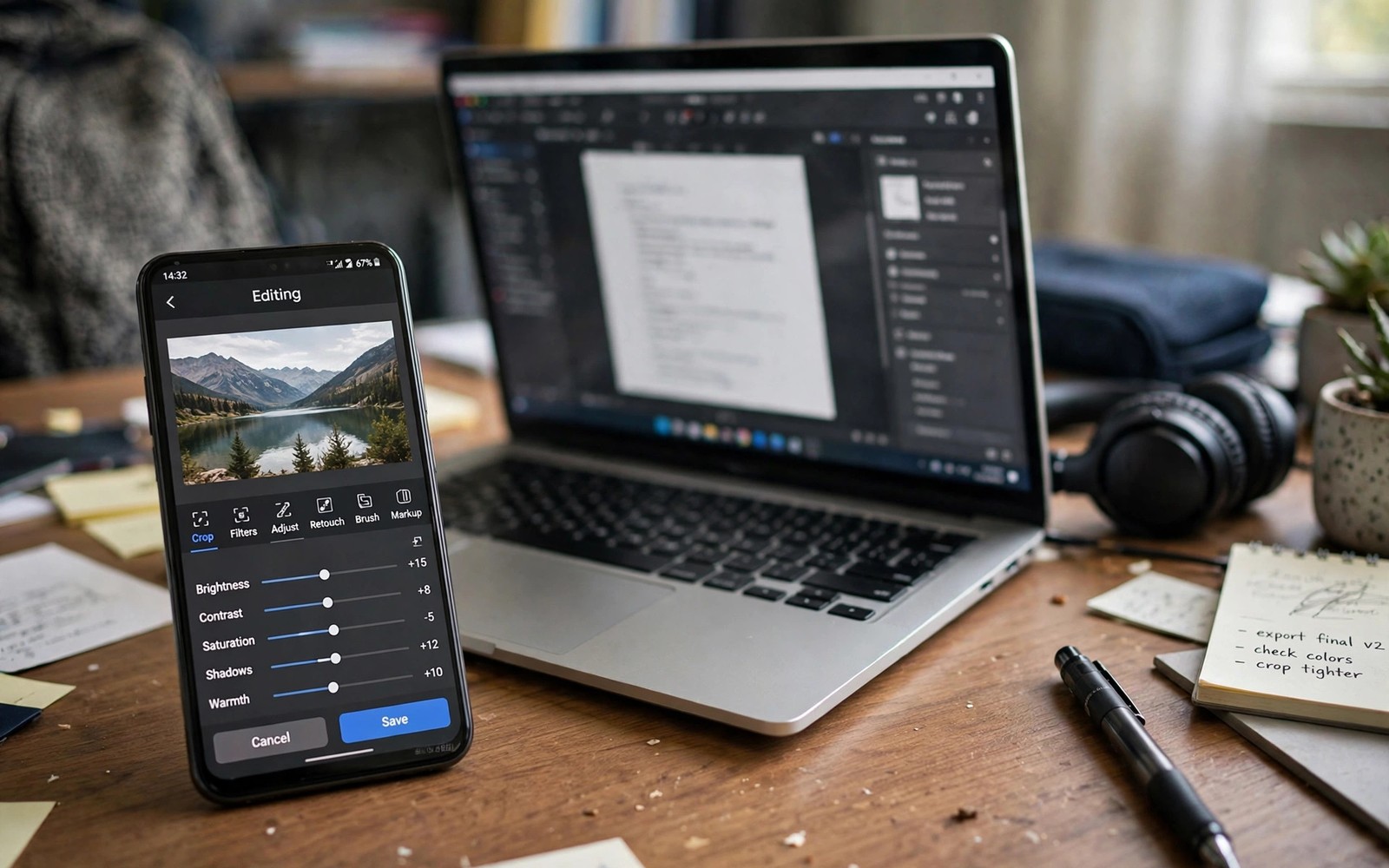
5 Free Photo Editing Apps That Outperform Adobe Lightroom Mobile
Lightroom Mobile sets a high bar for photo editing, but its best features sit behind a subscription that many photographers do not need. Free editors have grown powerful enough to handle RAW files, layers, and selective edits without monthly fees. The right free app depends on your editing style rather than on a single ranking.
This guide compares five strong free options by what they actually do best. Outperform does not mean every free app beats Lightroom at everything. It means each app below wins in a specific area, such as local editing, layer control, or speed. Choose the app that matches your biggest need and keep a second app for specialised tasks.
Test free apps with the same photo before you settle, because interface comfort matters as much as feature lists. Spend twenty minutes editing one landscape and one portrait in each candidate. The app that feels fastest in that test usually becomes your daily editor.
What Makes a Free Editor Truly Capable
Four tests separate serious free editors from filter toys. RAW support comes first, because JPEG-only editors cannot recover highlight and shadow detail properly. A capable free editor opens DNG files and offers white balance and tone controls that work on raw data. Check whether the app exports at full resolution without watermarks, because a free app that limits exports is not truly free for serious work.
Local editing is the second test, because selective adjustments separate professional results from global filter looks. Non-destructive editing matters because it lets you revisit and change edits without harming the original file. Layer support matters for compositing, text, and advanced masking work. Speed matters too, because a slow editor discourages the daily practice that improves skill.
Privacy deserves attention as well. Some free apps upload photos to servers for processing or advertising. Prefer apps that edit locally on your device when you work with personal photos. Read permissions before install and deny cloud backup when you do not need it. Local editing also works offline, which helps during travel without reliable internet. Readers learning RAW editing should also read the guide to editing RAW photos like a professional photographer, because RAW support separates serious editors from simple filter apps.
The Four Tests in Short
Test one is RAW support with full-resolution export. Test two is selective local editing with brushes or masks. Test three is non-destructive editing that protects the original file. Test four is honest pricing: the free tier must actually do the job, not dangle it behind a trial. An app that passes all four earns a place on your home screen.
Why Export Quality Decides Everything
An editor can have beautiful tools and still fail you at export. Some free apps quietly downsize images or add a watermark. Export the same edit at full resolution from each candidate and compare file sizes and detail on a larger screen. A free app that secretly downsizes exports wastes your editing effort.
The 5 Free Photo Editing Apps That Beat Lightroom Mobile
Here are the five editors, each a winner in its own area, followed by two honourable mentions for special cases. Every app below has a genuinely usable free tier. Prices and free-tier limits change, so check the current listing before you commit to one for a project.
1. Snapseed: Best Free RAW and Tone Control
Snapseed, made by Google, is completely free with no ads and no subscription. It opens DNG RAW files, offers precise tone curves, a histogram, white balance controls, and the selective adjustment tool that lets you brighten one area of a photo without touching the rest. Its healing tool removes small distractions, and its perspective tool straightens buildings.
What it does best is careful, desktop-style editing on a phone. Photographers who learned on desktop editors will feel at home with its slider interface. It lacks fancy filters and layered compositing, but its core editing quality rivals paid apps. Export is full resolution with no watermark. Pros: totally free, no ads, strong RAW and selective tools, non-destructive stacks. Cons: no layers, no cloud sync, dated interface. Who it is for: photographers who want precise tone and colour control without paying anything.
2. Pixlr: Best Free Layers and Creative Tools
Pixlr offers layered editing in a free package, which is rare. You can stack images, blend them, add text, and paint masks with your finger. That layer power suits product photos and artistic edits that single-layer editors cannot attempt. It also includes AI cutout tools, background removal, and a large sticker and overlay library in its free tier.
Learning layers takes longer, but the creative ceiling rises dramatically once you understand masks. The free tier shows ads and reserves some premium filters for the paid plan, so check which tools sit behind the paywall before relying on them. Pros: real layers, background removal, huge creative library. Cons: ads in the free tier, some tools locked to paid plans. Who it is for: creators who composite images, design social posts, and want layers without a subscription.
3. Picsart: Best Free Presets and Social Styles
Picsart offers a huge filter and preset library with gentle controls for quick stylised looks. It suits creators who want a consistent feed style without manual grading. Use presets as a starting point and adjust strength so the look stays believable. A preset at full strength often looks dated, while the same preset at half strength looks intentional.
Beyond filters, Picsart includes collage makers, drawing tools, stickers, and a remix community. Its free tier is generous for casual editing, though the best AI tools and some premium presets need the paid plan. Pros: enormous preset library, collage and sticker tools, strong community. Cons: ads, premium tools locked, interface can feel busy. Who it is for: social creators who want fast, consistent looks for a feed.
4. Polarr: Best Free Selective Edits and Face Tools
Polarr wins on selective local edits with brush and gradient tools. It lets you brighten a face without touching the background or darken a sky without affecting the ground. That selective power fixes uneven light that global sliders cannot solve. Its face tools adjust skin tone and lighting carefully, and its mask system is unusually good for a free app.
Portrait and landscape photographers both benefit from local control. The free tier covers most editing needs, with some advanced filters and overlays reserved for the paid plan. Pros: excellent masks and brushes, strong face tools, clean interface. Cons: some filters paid, cloud features push sign-in. Who it is for: portrait and landscape shooters who fix light locally.
5. Photopea: Best Free Desktop-Class Editor in a Browser
Photopea is a free web editor that runs in the mobile browser and behaves like a desktop app. It supports layers, PSD and XCF files, RAW files, smart objects, and advanced selection tools. There is nothing to install, no account needed for basic use, and it works on any Android phone with a browser.
That desktop-class power comes with a phone-sized compromise: the interface is dense on a small screen, and a tablet or a phone with a stylus works better for long sessions. For compositing, retouching, and file-format work, nothing else free on Android comes close. Pros: full layer editing, PSD support, no install, no account. Cons: cramped on small phones, ads unless you pay, needs internet. Who it is for: editors who need real Photoshop-style tools without paying.
Honourable Mention: Canva for Templates and Text
Canva is not a photo editor in the traditional sense, but its free tier handles templates, text overlays, and quick social graphics better than any editor above. Use it after your tone edit, when the photo needs a caption, a frame, or a story layout. Pros: huge template library, easy text tools. Cons: weak tone controls, many assets paid. Who it is for: creators who finish photos with text and layouts.
Honourable Mention: Adobe Photoshop Express for Quick Adobe Fixes
Photoshop Express gives you Adobe’s one-tap fixes, blemish removal, and collage tools in a free tier. It is the fastest way to clean up a snapshot, and it pairs naturally with Lightroom if you ever do pay. Its free tier is narrower than the apps above, which is why it sits here rather than in the top five. Pros: fast one-tap fixes, Adobe quality. Cons: limited free tier, needs an Adobe account. Who it is for: quick cleanups and Adobe ecosystem users.
Compare the Apps on the Same Photo
Choose a challenging photo with a bright sky and a dark foreground for a fair comparison test. Edit it in each app with the same goals of balanced exposure and natural colour. Note which app recovers sky detail cleanly and which app introduces banding or noise. That single test reveals engine quality better than any feature list.
| App | Best for | RAW support | Layers | Ads in free tier |
|---|---|---|---|---|
| Snapseed | Tone and RAW control | Yes | No | None |
| Pixlr | Creative layers | Limited | Yes | Yes |
| Picsart | Presets and social | Limited | Yes | Yes |
| Polarr | Selective edits | Yes | No | Light |
| Photopea | Desktop-class work | Yes | Yes | Yes |
Test portrait editing separately, because skin handling differs greatly between apps. An app that excels at landscapes may oversmooth skin or shift skin colour. Edit a portrait in each candidate and check skin texture at full zoom. Keep the app that preserves pores and natural tone while cleaning temporary blemishes.
Build a Two-App Workflow
Most photographers benefit from two free apps rather than searching for one perfect app. Use a RAW-capable editor for tone and colour work first. Move to a layer or selective editor only when the photo needs compositing or local fixes. That division keeps daily edits fast while preserving advanced power for special photos. Keep original files safe in a separate folder and export edited copies with clear names, so experiments never overwrite originals.
Avoid Subscription Traps in Free Apps
Free apps often hide key features behind trials that convert to paid plans silently. Check subscription settings after install and cancel any trial you do not want. Read the free tier description carefully before relying on an app for a project. An app that locks RAW export behind pay is not a free RAW editor in practice.
Advertisements in free apps can interrupt editing, and some ads mimic buttons dangerously. Prefer apps with modest ads or a one-time purchase to remove them. Never tap an ad that promises to speed up your phone or clean storage, because those ads often install junk. Cloud features may upload your photos without clear consent in the fine print. Disable automatic cloud sync for personal albums and use local folders instead.
Organise Edited Photos for Future Use
Organisation matters because edited photos lose value when you cannot find them later. Create folders by year and event rather than dumping every edit into one camera folder. Name edited files with the event and a short description so search works. Back up edited photos separately from originals, because an edited master represents hours of work.
Version control helps when you revisit an edit months later with new taste. Save a new version rather than overwriting the previous edit. Print your best edited photos occasionally, because prints reveal flaws that screens hide. A printed photo shows colour and sharpness honestly at a fixed size. For deeper colour work, the guide to colour grading mobile footage with custom LUTs extends the same grading ideas to video.
Frequently Asked Questions About Free Photo Editors
Can free apps really replace Lightroom?
Yes for most mobile photographers, because free apps now handle RAW and local edits well. Lightroom still wins for cloud sync and desktop integration, but many users do not need those features. If your workflow is phone-only and your edits are tone, colour, and selective fixes, a free app covers it.
Do free editors add watermarks?
Some free editors add watermarks on export while others do not. Snapseed never does. Check export settings before committing to an app for client or print work, and export a test image at full resolution to confirm.
Should I pay for one app instead?
Pay only when a specific paid feature solves a real problem in your workflow. Free apps cover most needs, and paying for unused features wastes money. If you hit the same paywall three times in a week, that feature is worth buying. If you never hit it, the free tier is enough.
Which free editor is best for portraits?
Polarr leads for portraits because of its face tools and local brushes, with Snapseed close behind for skin tone work. Test both on the same portrait at full zoom and keep the one that preserves natural skin texture. Avoid apps that oversmooth skin into plastic.
The Bottom Line: Pick One Editor and Learn It Deeply
Five free photo editing apps can outperform Lightroom Mobile in specific areas such as RAW control, layers, speed, and local edits. The biggest mistake is installing ten editing apps and learning none of them deeply. Two well-learned apps beat ten superficially tried apps, because skill grows with familiarity. Commit to one primary editor for a month before judging it fairly.
Your concrete next step is to pick one free RAW-capable editor today and edit the same landscape in it tonight. Compare the result with your current editor tomorrow and keep the winner for a month. Then explore 5 photo editing tricks that will make your Instagram feed viral to extend what you set up here.

