

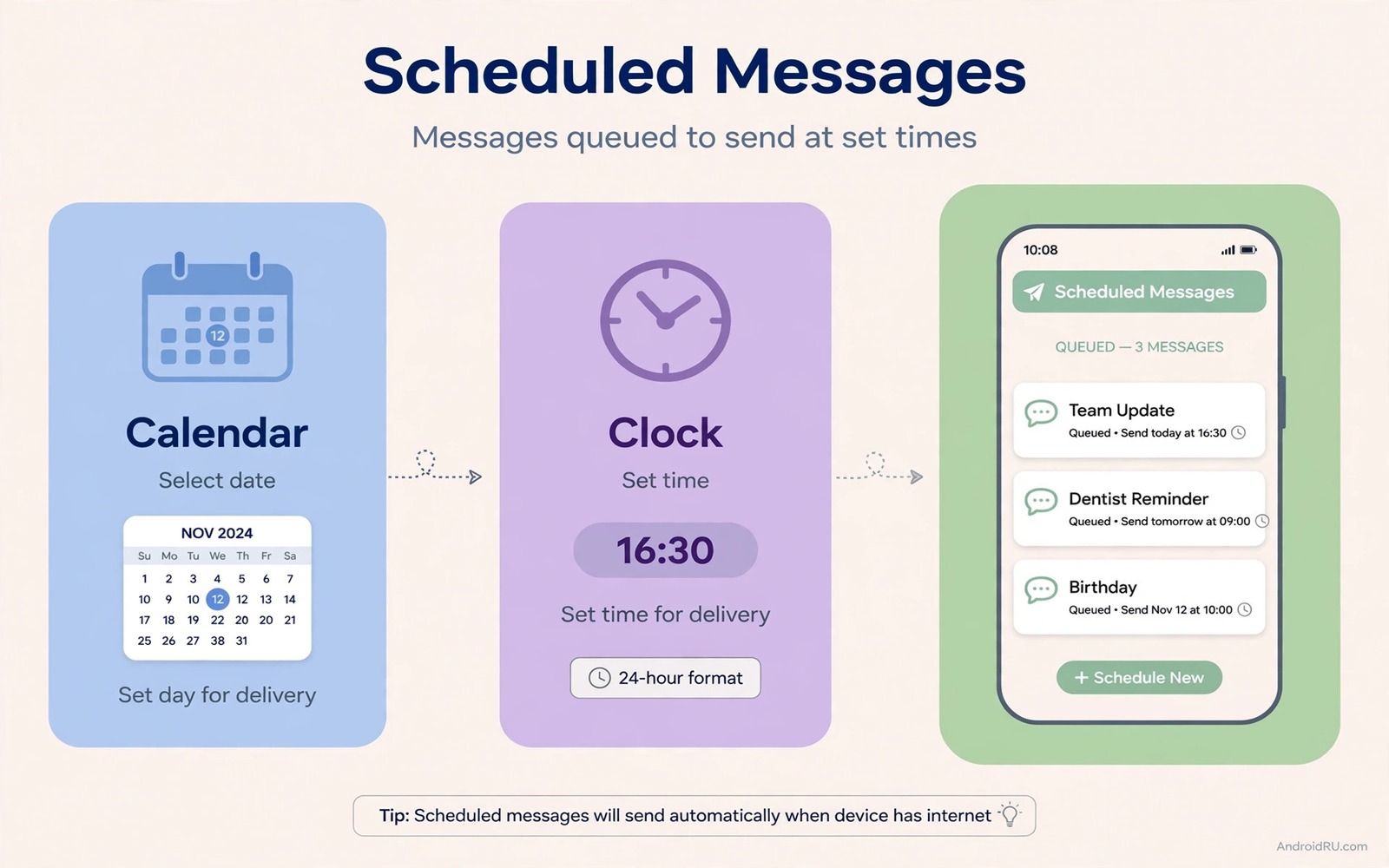
A message that must arrive at a precise time is easy to forget. A birthday wish at midnight and a work reminder at nine in the morning both need timing that memory cannot guarantee. Scheduling a WhatsApp message solves that problem because the message sends itself at the set time. You write it once when you think of it and the phone delivers it later. That reliability helps for birthdays and reminders and work follow ups.
WhatsApp itself offers limited native scheduling in many versions. That limit is why owners use automation apps or reminder tools to send scheduled messages. An automation app can open WhatsApp at the set time and send a prepared text. A reminder tool can alert you to send the message yourself at the set time. Both approaches work but they differ in reliability. An automated send is more reliable than a reminder that you might miss.
Scheduled messages pair well with other automation routines because timing is a common trigger. automation routines for a smarter daily phone shows how time triggers can run many useful actions. Start with one scheduled message for a real event rather than a test. A real event gives you a clear reason to check whether the send worked on time.
Choose A Scheduling Method That Fits You
An automation app method can send a message without your input at the set time. That method needs accessibility permission and it needs the phone awake at the send time. It works well for a phone that stays charged and unlocked by a routine. It can fail if the phone is off or if battery optimisation kills the app. Test it with a message to yourself before you trust it for a birthday.
A reminder method alerts you at the set time and you tap to send the prepared text. That method needs your attention at the send time but it needs no special permission. It works well for messages that benefit from a last check before sending. A reminder method is safer for sensitive messages because you can edit the text at the last moment. Choose reminder for sensitive messages and automation for routine wishes.
A business tool method can schedule messages through an official business account when available. That method suits a small business that sends appointment reminders to many customers. It needs a business account setup and it may cost a fee for large volumes. A personal owner rarely needs a business tool for a few birthday messages. Choose the simplest method that fits your volume.
Set Up A Scheduled Message Step By Step
Write the message text in full before you set a time. A message written in a hurry at the send moment can contain a typo or a wrong name. A message written calmly in advance reads better. Save the text in the scheduling app with the recipient name and the date and time. Double check the recipient before you save because a scheduled message to the wrong person is hard to recall after it sends.
Set the date and time carefully with attention to time zone. A birthday at midnight in your time zone may fall on a different date for a recipient abroad. Check the recipient time zone when the message is time sensitive. A time zone mistake can send a birthday wish a day early or a day late. A quick time zone check prevents that embarrassment.
Test the method with a message to yourself or to a close friend who knows it is a test. Set the test for a few minutes ahead and watch whether it sends on time. A test that succeeds proves the automation permission and the phone awake state. A test that fails reveals a battery or permission problem before a real event depends on it. Never trust a first schedule without a test.
A Schedule Definition Example
The code below is a small developer example that shows how a scheduled message can be described in a readable format. It names a recipient and a text and a send time. It does not send a real WhatsApp message and it does not replace a scheduling app. Use it only to learn how a schedule can be described in a clear structured way. A real app stores schedules in its own format but the idea stays the same.
schedule:
  to: "Asha"
  text: "Happy birthday!"
  at: "2026-11-02 00:00"
Attribution: the code above is an original example written for this guide. It follows the standard command interface shipped with the Android platform tools and it uses only public commands that work on a normal developer setup.
After the example you can map each line to a field in your scheduling app. The recipient line matches the contact picker and the text line matches the message box and the time line matches the date picker. That mapping helps when you move a schedule idea from a note into an app. Write the schedule in plain words first and then build it in the app step by step.
Handle Time Zones Recurring And Edits
A recurring scheduled message can send a weekly reminder or a monthly check in without a new setup each time. Set a recurrence only when the message truly repeats with the same text. A birthday message does not recur weekly and a weekly team reminder does. A wrong recurrence can send a birthday wish every week and that mistake is embarrassing. Check recurrence settings twice before you save.
An edit to a scheduled message should happen well before the send time. Open the schedule and change the text or the time and save again. Check that the app shows the updated time after the edit. An edit made minutes before send time may not save in time if the app already queued the message. Edit early for safety and cancel and recreate the schedule when an edit feels uncertain.
A cancel for a scheduled message should also happen early. Open the schedule list and delete the schedule that you no longer need. Check that the list no longer shows it after deletion. A schedule that you thought you cancelled but that still sends can cause confusion. A quick list check after deletion prevents that surprise.
Keep Scheduled Messages Private And Appropriate
A scheduled message should never contain sensitive data such as a password or a bank detail. A message that sits queued on a phone or in an app could be seen by another user. Keep scheduled messages to wishes and reminders and public updates. A sensitive message should be sent live by you at the moment that it is needed. That live send gives you control over timing and audience.
A scheduled message to a group needs extra care because many people will read it at once. Check the group member list before you schedule a group message. A group that changed members since you last checked may include a person who should not see the message. A group message sent to the wrong audience is hard to recall. Check the audience at schedule time and again before the send time when possible.
A scheduled message for work should stay professional even when it sends outside work hours. A work reminder sent at midnight can disturb a colleague even when the content is polite. Schedule work messages for work hours unless the recipient expects a night message. A work hours rule respects boundaries and it keeps scheduled messages welcome rather than annoying.
Fix Failed Sends And Battery Blocks
A failed send usually points to a battery optimisation block or a phone that was off at the send time. Exclude the scheduling app from battery optimisation after setup. Keep the phone charged on the night of an important scheduled send. A phone that dies before midnight cannot send a midnight birthday wish. A charged phone plus an excluded app covers most failures.
A failed send can also come from a WhatsApp update that changes the send button layout. An automation app that taps a button by position can fail after an update. Test the automation after a WhatsApp update with a test message to yourself. A test after each major update catches a layout change before a real event depends on it. A reminder method avoids this risk because you tap send yourself.
A failed send list should be checked the morning after an important schedule. Open the scheduling app and confirm that the message shows as sent. Open WhatsApp and confirm that the chat shows the message at the right time. A double check the next morning catches a silent failure while you can still send a late wish with an apology. That morning check is a small habit with a large payoff. The same check habit helps other automation and auto answer for handsfree calls with headphones needs a morning check after a first test too.
Common Mistakes
One common mistake is to schedule without a test send first. A test send reveals battery and permission problems before a real event. Another mistake is to ignore time zone for a recipient abroad. A time zone check prevents a birthday wish on the wrong date. A third mistake is to schedule a sensitive message with private data. Keep scheduled messages to wishes and reminders only.
A further mistake is to set a wrong recurrence for a one time message. A birthday message should not recur weekly. Check recurrence twice before you save. A further mistake is to edit a schedule minutes before send time. An edit may not save in time. Edit early or cancel and recreate the schedule.
A final mistake is to trust a scheduled message without a morning after check. A silent failure can go unnoticed for days. Check the schedule list and the chat the next morning. That check lets you send a late message with an apology while it still matters. The same check habit applies to other scheduled tools and a macro that turns off Wi-Fi when leaving home needs a check after a first run too.
Frequently Asked Questions
Can WhatsApp schedule messages natively?
Native scheduling is limited in many versions. An automation app or a reminder tool can fill the gap. An automation app can send without input at the set time. A reminder tool alerts you to send the prepared text yourself.
Will a scheduled message send if my phone is off?
No. A phone that is off cannot run an automation app at the send time. Keep the phone charged and on for an important scheduled send. Check the send status the next morning to catch a failure early.
Can I edit a scheduled message before it sends?
Yes when you edit well before the send time. Open the schedule and change the text or time and save again. Check that the updated time shows correctly. Cancel and recreate the schedule when an edit feels uncertain.
Conclusion
Schedule one real message today with a test send first. Write the text in full and double check the recipient and the time zone. Set the schedule and watch the test send at the right time.
After the test passes schedule a birthday or a work reminder for a real event. Check the send status the next morning and note any failure. That check plus a test gives you a reliable scheduling habit.
Keep scheduled messages to wishes and reminders and keep sensitive messages for live sending. A clear scope plus a tested method makes scheduling a trusted tool rather than a risky trick. Start with one message today and grow from that proof.

