

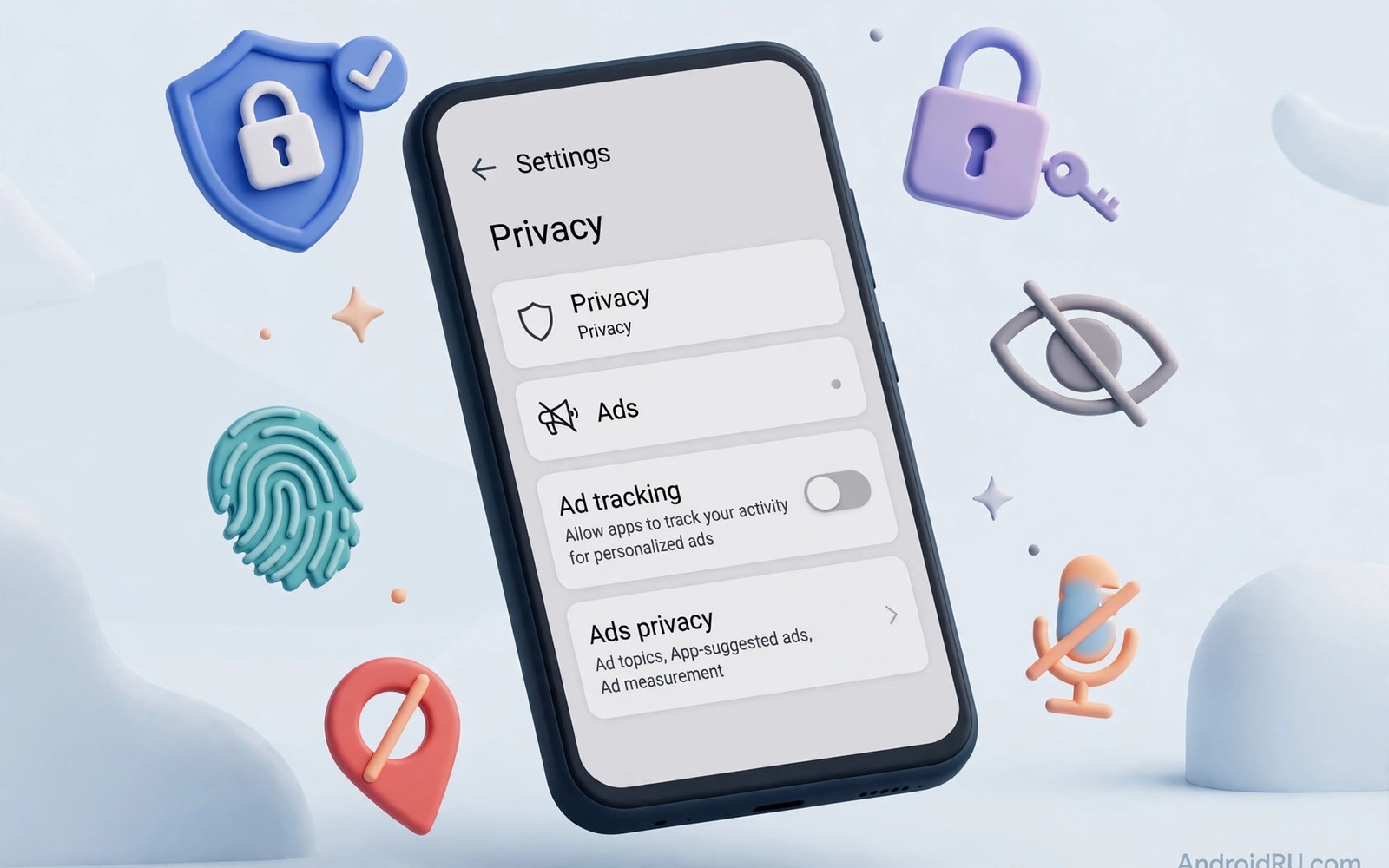
Google Ad ID is a resettable identifier that apps use to build an advertising profile about you. That profile can link your app activity and your interests across many different apps. Turning off personalised ads does not remove every ad yet it stops that identifier from feeding targeted profiles.
Many owners never notice the setting because it sits deep inside privacy menus rather than on the main settings screen. The toggle is easy to miss and the default state favours advertisers rather than privacy. A few minutes in the right menu gives you back control over that identifier.
This guide walks through the exact steps and explains what changes after you switch the setting off. You will also learn how to delete the existing Ad ID and how to check related personalisation settings. The result is fewer creepy ads that follow you from one app to another. Pairing that change with private DNS blocking can cut off another route trackers use to follow you across apps.
Find the Ad ID setting on your phone
Open Settings and open Privacy and look for Ads or for a personalisation entry depending on your phone model. Some phones place the setting under Google services rather than under general privacy. Use the Settings search box and type Ads when the menu path is unclear.
Tap the Ads entry to open the advertising controls for your device. You should see a toggle for personalised ads and an option to delete the advertising ID. Read the short description on that screen before you change anything so you understand the effect.
When the entry is missing your phone maker may have moved it into a Google account menu. Open the Google settings app or open your Google account privacy page from a browser. The same Ad ID control lives there for phones that hide it from the main settings list.
Turn off personalised ads and delete the ID
Switch off the personalised ads toggle first so apps can no longer use the ID for targeting. The phone may warn that ads will become less relevant after the change. Less relevant ads are the point of the change because relevance comes from tracking.
Tap Delete advertising ID after you switch the toggle off. Deleting the ID forces apps to start without the old profile attached to your device. A new ID may be created later for technical reasons yet the old profile link breaks at that moment.
Confirm the deletion on the prompt that appears and wait for the screen to return to the settings list. A confirmation message proves the action completed rather than merely closing the menu. Take a screenshot of the final state for your own records when you want proof later.
Check related personalisation settings
Ad personalisation also lives inside individual apps that use their own tracking. Open the privacy settings inside social apps and shopping apps and turn off personalised ads there too. A device level switch cannot override an app that builds its own profile from your activity inside that app.
Review location history and activity controls in your Google account when you want a broader cleanup. Those controls affect ads and recommendations across Google services. Turning them off reduces the data that feeds advertising profiles over time.
A device switch works best alongside privacy apps that security conscious owners rely on because those tools add tracker blocking and permission control. A single toggle cannot block every tracker inside every app. A layered approach gives you a far stronger privacy posture.
Test whether ads actually change
Open a free app that shows ads and browse for a few minutes after the change. Ads should look generic rather than tailored to recent searches or recent purchases. Generic ads may still mention broad topics yet they should not mirror your private browsing history.
Wait a full day before you judge the result because cached profiles can persist for a short time. An ad network may still serve older targeted ads from a cache until it refreshes. A change after a day proves the new setting took effect.
Repeat the Ad ID check after a major system update because updates sometimes reset privacy toggles. A quick check after each update takes seconds and prevents a silent return to personalised tracking. Add that check to your routine for system updates.
A small code check for advertising settings
A quick command can show advertising related settings on a phone with debugging enabled. Connect the phone and run the command below once to view the current values. The output helps you confirm the toggle state without hunting through menus again.
adb shell settings get secure advertising_id
adb shell settings list secure
The snippet above was written for this article to show a safe read only check for advertising settings. It changes no setting while it reports the advertising values. You can run it again after an update to confirm that personalised ads remain off. Keep a note of the output when you compare settings across phones.
Review ad settings inside the browser
A browser can build its own advertising profile from sites you visit even after a device Ad ID change. Open browser privacy settings and turn off personalised ads and third party cookies where possible. A browser setting complements the device setting rather than duplicating it.
Clear advertising cookies once a month to break old profiles that persist in the browser. A monthly clear removes trackers that accumulated during normal browsing. A clear also resets recommendations that feel too personal.
Use a private browsing mode for searches you do not want linked to an advertising profile. Private mode still leaves a local history in some cases yet it reduces long term tracking. Combine private mode with cookie clearing for a cleaner result.
Check connected apps in your account
Connected apps in a Google account can access advertising and activity data through permissions you granted long ago. Open account settings and review third party access in one list. Revoke access for apps you no longer use or no longer recognise.
A connected app that you forgot can keep receiving data long after you stopped opening it. That silent access feeds advertising profiles without any visible sign. A quarterly review of connected apps closes those silent channels.
Readers who want a full privacy plan will benefit from a complete mobile privacy blueprint for Android because Ad ID control is one layer in a wider plan. A blueprint orders account checks and device checks into a routine. Follow the blueprint after you finish the Ad ID steps.
Monitor ads after a device change
A new phone starts with a fresh Ad ID yet old account activity can rebuild a profile quickly. Check Ad ID settings on a new phone before you sign into many apps. An early check prevents a new profile from forming during setup.
Review ad personalisation after you restore a backup to a new phone. A restore can carry old settings that re-enable personalised ads. A quick post restore check takes seconds and preserves the privacy you set on the old phone.
Note the date you turned off personalised ads in a simple reminder. A dated note helps you remember when to recheck after updates. A reminder set for each major update keeps the setting from silently reverting.
Limit ad tracking in free games
Free games often include several advertising trackers that run even when you are not playing. Those trackers can build a profile from play time and purchase behaviour. Open game settings and look for personalised ad options inside the game itself. A game level switch complements the device level Ad ID control.
Check the data usage for a free game after a week of play. High background data for a simple game suggests aggressive tracker activity. A game that sends large amounts of data while idle deserves removal or replacement with a paid version. Data use is a visible clue to hidden tracking.
Use a separate account for free games when the game allows guest play. A guest account limits the profile that trackers can link to your main identity. Guest play also protects your main account from a game data breach. That separation is a simple privacy win for casual gaming.
Review game permissions after each update because an update can add tracking permissions quietly. A game that once needed only storage may later request location or contacts. Revoke permissions that do not match the game purpose. A post update review keeps a fun game from becoming a tracking tool.
Common mistakes
The biggest mistake is turning off the toggle yet forgetting to delete the existing ID. A disabled toggle stops future targeting yet the old ID can still link past activity until you delete it. Always complete both steps in the same session.
Another mistake is assuming that turning off Ad ID stops all tracking. Apps can still use other signals such as device model and network data for broad targeting. A device toggle reduces personalisation yet it cannot make a phone invisible to every tracker.
People also forget to repeat the check inside individual apps. A social app may keep its own ad personalisation switch turned on even after the device switch changes. Review the top apps you use daily and switch off their personal ad settings too.
Frequently asked questions
Will turning off Ad ID remove all ads?
No. Free apps will still show ads because ads fund those apps. The change only stops ads from using your personal profile for targeting. Expect generic ads instead of ads that follow your recent activity.
Can I get my old Ad ID back after deletion?
Deletion breaks the link to the old profile and a new identifier may be generated for technical use later. The old profile does not return automatically. That break is the privacy benefit of the deletion step.
Does this setting affect Google search results?
Ad personalisation mainly affects advertising rather than search ranking. Search results may still reflect your location and your past searches when those settings remain on. Turn off activity controls separately when you want broader privacy.
Conclusion
Turning off Google Ad ID tracking is a simple privacy win that takes only a few minutes. A disabled toggle plus a deleted ID breaks the link between your device and your advertising profile. Related app settings and periodic checks keep that win from fading over time.
Your concrete next step is to open Settings today and search for Ads and switch off personalised ads. Delete the advertising ID in the same session and check one social app for its own ad switch. Readers who want a full lockdown will benefit from a complete mobile privacy blueprint for Android as a natural next read.

