

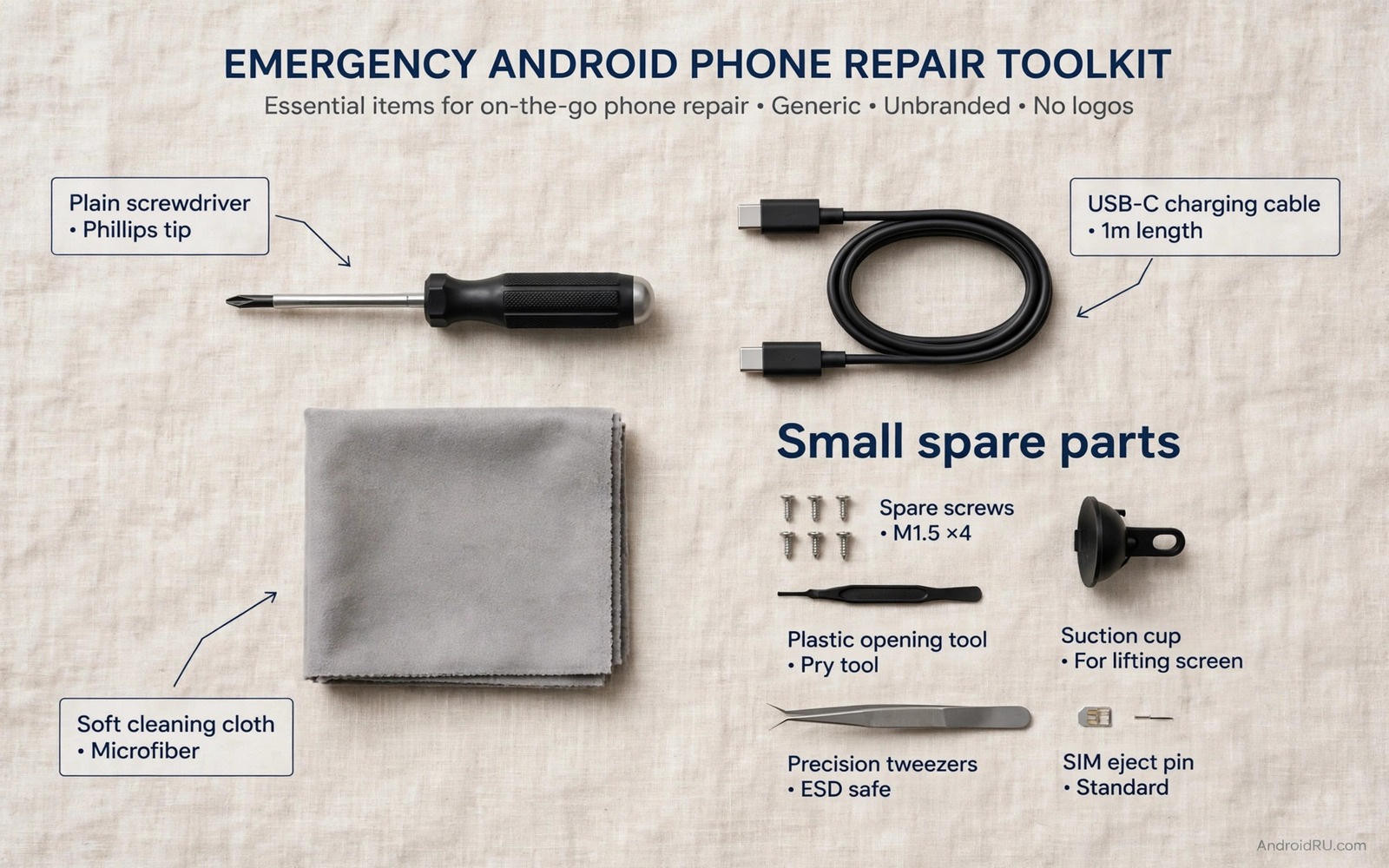
Every troubleshooter needs a kit ready before trouble arrives. A phone fault at midnight or on a trip leaves no time to hunt for tools. A repair kit is not a box of spare parts. It is a prepared set of backups and cables and settings knowledge that lets you act calmly. The kit in this guide covers the faults that appear most often. It helps you diagnose quickly and it protects data before any risky step.
Think of the kit in layers. The first layer is information about your phone. The second layer is backups that make resets survivable. The third layer is physical tools that solve connection faults. The fourth layer is diagnostic habits that separate hardware faults from software faults. Each layer costs little to prepare and each layer pays off during a real fault. A kit without backups is incomplete because a repair that erases data is a failure even when the phone works again. A kit for storage emergencies should cover repairing a corrupted SD card without data loss before any reset.
Start the kit today while the phone works normally. A working phone lets you record model details and test backups and organise cables. A broken phone makes every preparation step harder. Spend an hour on the kit now and you will save many hours during the next fault. The checklist below is practical rather than theoretical. Every item earns its place by solving a real fault from the troubleshooting guides.
Record phone identity and baseline health
Write down the exact model name and model code and Android version. Note the storage size and the free space baseline. Note the battery health if your phone reports it. Store that record outside the phone in a notebook or a cloud note. A model code matters when you download firmware or check for updates. A baseline free space number matters when storage starts shrinking daily. Without a baseline you cannot tell whether a change is new or normal.
Record the accounts signed in on the phone and the backup status for each. Note whether photos sync to the cloud and whether contacts sync to the cloud. Note the last successful backup date. A kit that claims backups exist without a date is a guess rather than a plan. Verify the backup by opening the cloud copy from another device. That verification turns a hope into a proven safety net. A kit for install emergencies should also cover an app installation blocked by Play Protect as a common blocker.
Assemble physical tools and cables
Keep the original charger and cable if you still have them. Add a second high quality cable that supports your phone fast charge standard. A cable fault mimics many software faults and a known good cable eliminates that variable instantly. Add a SIM eject tool and keep it with the cables. A paperclip works in an emergency but the proper tool fits cleanly and avoids tray damage.
Add a dry soft cloth and a soft brush for port and speaker cleaning. Add a reliable card reader for SD card recovery work. A card reader lets you image a corrupted card on a computer instead of risking phone based repairs. Keep these tools together in a small pouch so you can find them during a fault. A kit scattered across drawers is not a kit during an emergency. When a SIM fault appears the method in fixing a SIM not detected fault shows why a proper eject tool and a spare card test matter.
Prepare software tools and diagnostic habits
Enable developer options only if you understand their risks and keep debugging off when not in use. Install platform tools on a trusted computer before you need them. Platform tools provide diagnostic commands that reveal sensor state and battery health and package lists. Test the computer connection once while the phone works so a fault does not become a setup lesson. Keep a simple fault log template ready. Record the fault and the time and the last change before the fault. That log often names the cause faster than any tool. A kit for travel faults should include contactless payment failures at terminals among its hardware checks.
Prepare a second device or a computer that can receive verification codes and check cloud backups. A locked phone cannot receive a code on its own screen. A second device breaks that deadlock. Also prepare a list of trusted support channels for your phone maker and your carrier. A scammer support number from a popup is not a support channel. A maker support page saved in advance is a safe channel during panic.
Practice the core diagnostic sequence
Practice a calm sequence that applies to almost every fault. First observe and record the exact message and timing. Second test with accessories removed. Third restart cleanly and test again. Fourth isolate the faulty app or setting with safe mode or a second device. Fifth check storage and updates and account sync. That sequence appears across many specific guides because it works. A kit is partly a habit. Rehearsing the habit while calm makes it automatic during stress.
Include a decision rule for resets in the kit. A cache clear comes before a data clear. A network reset comes before a factory reset. A factory reset comes only after backup verification. Write that rule down. During a fault the temptation to reset everything is strong. A written rule slows that impulse and protects data. When a phone overheats during testing the steps for cooling a hot phone during video remind you to remove the case and lower load before any drastic step.
Verify the kit with a diagnostic command
A device information dump confirms model and version details for your kit record. Connect the phone with debugging enabled and query basic device properties. Compare the output with your written record. A match proves the record is accurate. A mismatch means the record needs updating before the next fault.
adb shell getprop ro.product.model
adb shell getprop ro.build.version.release
The commands above are part of the standard platform tooling used to read device properties on Android devices. They only read state and they do not change settings. Use the output to fill your kit record with exact model and version values. Store that record outside the phone.
Related diagnostic faults that every kit should cover
Rotation faults test your sensor diagnostic habit. The steps for slow or unresponsive screen rotation compare sensor values in open air and in a case. Add a sensor test app to your kit preparation. A kit that includes sensor testing handles rotation and proximity faults with the same habit. A kit without sensor testing leaves sensor faults to guesswork.
Contacts loss tests your backup habit. The guide on restoring lost contacts after a software upgrade verifies the cloud copy from another device. Add a backup verification step to your kit routine. A kit that verifies backups monthly catches sync failures early. A kit that assumes backups work discovers failure during a crisis.
Review the kit after every major update. Updates change settings locations and backup behaviour. A short review keeps the kit record accurate. An outdated kit record can mislead you during a fault.
What to do when the kit itself needs testing
A kit that has never been tested may fail during a real fault. Test the kit once a month with a simple drill. Pick one fault scenario and walk through the kit steps without actually resetting anything. A drill reveals missing cables and outdated records quickly. A drill that finds a missing cable costs minutes. A real fault that finds the same gap costs hours.
Test backups by restoring a single file or contact from the cloud to a second device. A restore test proves the backup is readable rather than merely present. A backup that cannot restore is not a backup at all. Schedule restore tests after every major update. An update can change backup formats and break older restore paths.
Review kit records after any phone change such as a new SIM or a new account. A new SIM changes carrier details in the record. A new account changes backup locations. An outdated record can mislead you during a fault. Update the record on the same day as the change to keep it accurate.
- Run a monthly kit drill with one fault scenario and no actual reset.
- Restore a single file from the cloud to a second device as a backup test.
- Update kit records on the same day as any SIM or account change.
- Check that spare cables still support fast charging for your model.
- Store the kit pouch in one place that every household member can find.
Before you call the kit finished
When emergency Android repair kit preparation feels complete the final test is a drill. Choose a fault scenario and walk through the kit without resetting anything. A drill that finds a missing cable or an outdated record proves the kit needed testing. A drill that runs smoothly proves the kit is ready. Schedule drills monthly so the kit stays ready rather than decaying silently.
Check that every kit record matches the current phone state after the drill. A record with an old Android version or an old account misleads during a real fault. Update the record immediately after any change. A record updated on the day of a change stays trustworthy. A record updated months later relies on memory and errors creep in.
Share the kit location with anyone who may need to help you during a fault. A kit that only you can find fails when you cannot reach it yourself. Tell a household member where the pouch and the note live. A shared kit location turns a personal plan into a household safety net. That sharing step completes the kit more than any tool purchase.
- Run a monthly drill with one fault scenario and no actual reset.
- Update kit records immediately after any phone or account change.
- Share the kit pouch and note location with a household member.
Common mistakes
- Building a kit only after a fault occurs. Preparation during a fault is slower and more error prone.
- Claiming backups exist without verifying them. An unverified backup may be empty or outdated.
- Keeping only one cable. A single cable fault can mimic a charger fault and a port fault at once.
- Skipping the fault log. A missing log forces you to repeat tests and guess at timing.
- Resetting before backup verification. A reset without a verified backup turns a repair into data loss.
Frequently asked questions
What is the single most important kit item?
A verified backup is the most important kit item. Backups make every other repair safe because a failed repair can be recovered. Verify the backup date and the cloud copy before you call the kit complete.
Do I need root access for a repair kit?
Most common faults resolve without root access. Diagnostic commands and cache steps and account checks cover the majority of cases. Root access adds risk and it can void support options so it is not part of a basic emergency kit.
How often should I update the kit?
Update the kit after every major system update and after any account change. A new Android version can change settings locations and backup behaviour. A quick kit review after an update keeps the record accurate.
Conclusion
An emergency repair kit is preparation rather than equipment alone. Record model details and backup dates outside the phone. Keep original and spare cables together with a SIM tool and a card reader. Practice a calm diagnostic sequence that removes accessories and restarts cleanly and isolates the fault. Follow a written reset rule that protects data.
Your concrete next step is to write down your model code and Android version and last backup date in a note outside the phone. Then place the original charger and a spare cable and the SIM eject tool in one pouch. That pouch plus that note is the foundation of your kit.

