

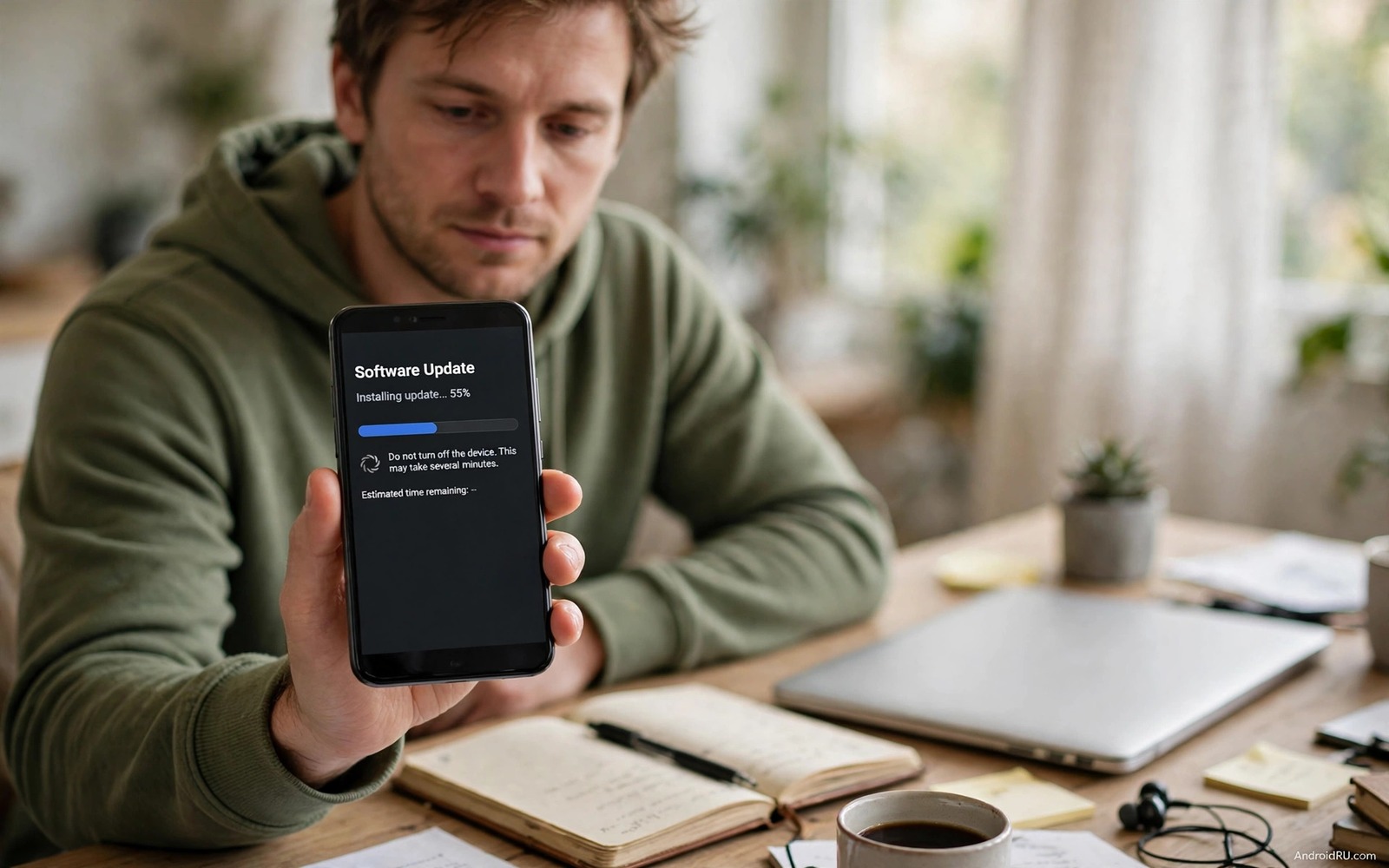
A system update that sticks feels dangerous. The progress bar freezes at the same percent for hours. The phone may restart and return to the same stuck screen. You worry that interrupting the update will brick the phone. That worry is valid for the final installation phase but less valid for the download phase. Knowing which phase is stuck determines whether a safe restart helps or harms.
Updates pass through download and verification and installation phases. Download stuck means the file has not arrived fully. Verification stuck means the phone checks the file integrity. Installation stuck means the phone writes the new system. Download and verification phases tolerate a restart far better than installation. A phone stuck on a download progress bar can usually be restarted safely. A phone stuck mid installation needs more caution and patience. Update stalls can leave side effects such as fast charging not working after a software update on the next charge.
Do not pull the battery or force a hard reset during installation without waiting first. Installation can appear stuck while it writes large partitions silently. Give the phone at least an hour on a charger before you conclude that installation has truly frozen. A phone that is hot or shows a progress animation is still working. A phone that is cold and completely unresponsive for hours is more likely truly stuck.
Identify the stuck phase and free space
Note the exact screen and percentage where the update sticks. A download screen with a percent and a cancel option is a download phase fault. An installation screen with a gear icon and no cancel option is an installation phase fault. Check storage space if you can reach Settings. Updates need several gigabytes of free space beyond the update file size. A nearly full phone can stall verification or installation without a clear error message.
Free space by deleting large videos or unused apps if the phone still boots normally. Do not delete system files. After freeing space restart the download from the update settings page. A fresh download after freeing space often passes the point where the old download stuck. If the phone boots normally but the update refuses to start then clear cache for the system update app through Settings then Apps if it appears. Low space stalls updates first, so storage that disappears every day deserves a check before retrying.
Fix network stalls during download
Download stalls often come from an unstable connection rather than a faulty update file. Switch from a weak WiFi network to a stronger one or to a stable mobile connection if your plan allows large downloads. Forget and rejoin the WiFi network to clear a stale route. Restart the router if other devices also download slowly. A stable connection lets the update file arrive without corruption that forces verification to repeat.
Pause the update and resume it after a restart if the update settings offer a pause option. Pausing clears a stuck download session cleanly. After restart start the download as the only large task on the phone. Avoid streaming video during the download because streaming competes for bandwidth and can starve the update. When other downloads also stall the steps for store downloads stuck on pending help you separate an update fault from a general download fault.
Recover a phone stuck during installation
If the phone is stuck on an installation screen for hours then keep it on a charger and wait longer before any forced action. Installation writes can take far longer on older phones with slower storage. After several hours with no progress and a cold phone try a forced restart by holding the power button for at least thirty seconds. A forced restart during a failed installation often returns the phone to the previous system version because modern updates use a fallback partition. An update stall can also freeze the store, showing store downloads stuck on pending for other apps.
If the phone boots to recovery after a forced restart then choose Reboot system now first. Do not choose factory reset in recovery unless all other options fail. Recovery also offers a cache wipe option on some phones. Wiping cache in recovery removes temporary update data without deleting personal files. After a cache wipe try the update again from Settings. A second update attempt after a cache wipe often succeeds where the first attempt stuck.
Inspect update state with a diagnostic command
An update engine query can show the current update state when the phone boots normally. Connect the phone with debugging enabled and query update engine status. The output shows download progress and error codes. An error code naming storage or network trouble guides the next fix precisely.
adb shell dumpsys update_engine
adb shell df -h /data
The commands above are part of the standard platform tooling used to inspect update and storage state on Android devices. They only read state and they do not modify the update. Use the output to confirm free space and update phase. If free space is low then free space before you retry the update.
Related charging faults that can mask a stuck update
Fast charging behaviour can reveal whether an update changed power profiles. The steps for fast charging not working after a software update test the original charger with the screen off. Check charging after an update recovery. A phone that charges fast after recovery likely completed the update cleanly. A phone that charges slowly after recovery may still hold a mixed power profile.
Storage pressure can stall an update before installation even begins. The method for storage that disappears every day finds the app that eats free space. Free several gigabytes before you retry a stuck update. An update that starts after freeing space proves storage was the blocker. An update that still sticks proves a network or installation fault.
Keep the phone on a charger throughout installation. Power loss during installation is far riskier than a slow installation. A charger also prevents a low battery shutdown from interrupting a recovery attempt.
What to do when an update stays stuck after a cache wipe
An update that stays stuck after a cache wipe may need a network change rather than another wipe. Download the update over a different WiFi network or over mobile data if your plan allows it. A network that blocks update servers can stall every attempt identically. A different network that succeeds proves the first network was the blocker. A different network that also stalls proves a phone or file fault.
Check whether the update file itself is corrupt by starting a fresh download after deleting the partial file. Some update settings offer a delete downloaded update option. Deleting the partial file forces a clean download from scratch. A clean download that completes proves the earlier file was corrupt. A clean download that stalls at the same percent proves a storage or server fault.
Consider waiting for a revised update if the same version stalls repeatedly. Manufacturers sometimes withdraw a faulty update and replace it with a fixed version. A revised version may appear within days. Waiting avoids repeated failed attempts that consume time and battery. Check the update page daily rather than retrying every hour.
- Download the update over a different network to rule out a server block.
- Delete any partial update file and start a clean download from scratch.
- Free several gigabytes of storage before you retry a stuck update.
- Keep the phone on a charger throughout any installation attempt.
- Wait for a revised update version if the same version stalls repeatedly.
Before you sideload an update manually
When Android system update installation stuck repeats the sideload temptation grows. Resist sideloading until you have tried a different network and a clean download. Sideloading a wrong model file can brick the phone permanently. A network change or a clean download often fixes the same fault without that risk. Patience with official channels protects the phone.
Verify the exact model code twice if you ever consider a manual file. Model codes differ by a single letter between regions. A file for a neighbouring region can fail verification or cause faults. Check the model code in Settings and on the phone box if you still have it. A matching code is the minimum safety check for any manual file.
Wait for a revised official update if the current version stalls for many users. Makers withdraw faulty updates and replace them quickly in most cases. A revised version may appear within days of the original fault. Checking the update page daily is safer than forcing a manual file. A revised official update installs through the normal path without extra risk.
- Try a different network and a clean download before any sideload.
- Verify the exact model code twice before you consider a manual file.
- Wait for a revised official update if many users report the same stall.
Common mistakes
- Forcing a restart minutes into installation. Installation can look frozen while it writes partitions silently.
- Choosing factory reset in recovery first. A cache wipe or a normal reboot often recovers the phone without data loss.
- Downloading an update on a weak connection repeatedly. Corrupt downloads repeat verification failures.
- Ignoring free space requirements. Updates need space beyond the file size for verification and installation.
- Removing the charger during installation. Power loss during installation is far riskier than a slow installation.
Frequently asked questions
How long should an update installation take?
Installation time varies by phone and update size. Small patches may finish in minutes while major upgrades can take an hour or more. A progress bar that moves slowly is still working. Judge a stall only after hours without movement on a charger.
Will a failed update delete my data?
A failed update usually leaves personal data intact because the previous system remains available. A factory reset in recovery is the action that deletes data. Avoid that option until reboot and cache wipe have failed.
Should I sideload the update manually?
Manual sideloading is an advanced step that can help when the official download repeatedly fails. Use only the official update file for your exact model. A wrong model file can brick the phone so verify the model code twice.
Conclusion
A stuck system update is usually a download fault or a storage fault or a slow installation rather than a bricked phone. Identify the phase and free storage space. Stabilise the network and pause and resume the download cleanly. Keep the phone on a charger during installation and use recovery reboot and cache wipe before any reset.
Your concrete next step is to note the exact stuck screen and percentage and keep the phone on a charger for one hour. If no progress appears then force a restart with a long power press and choose Reboot system now in recovery if it appears.

