

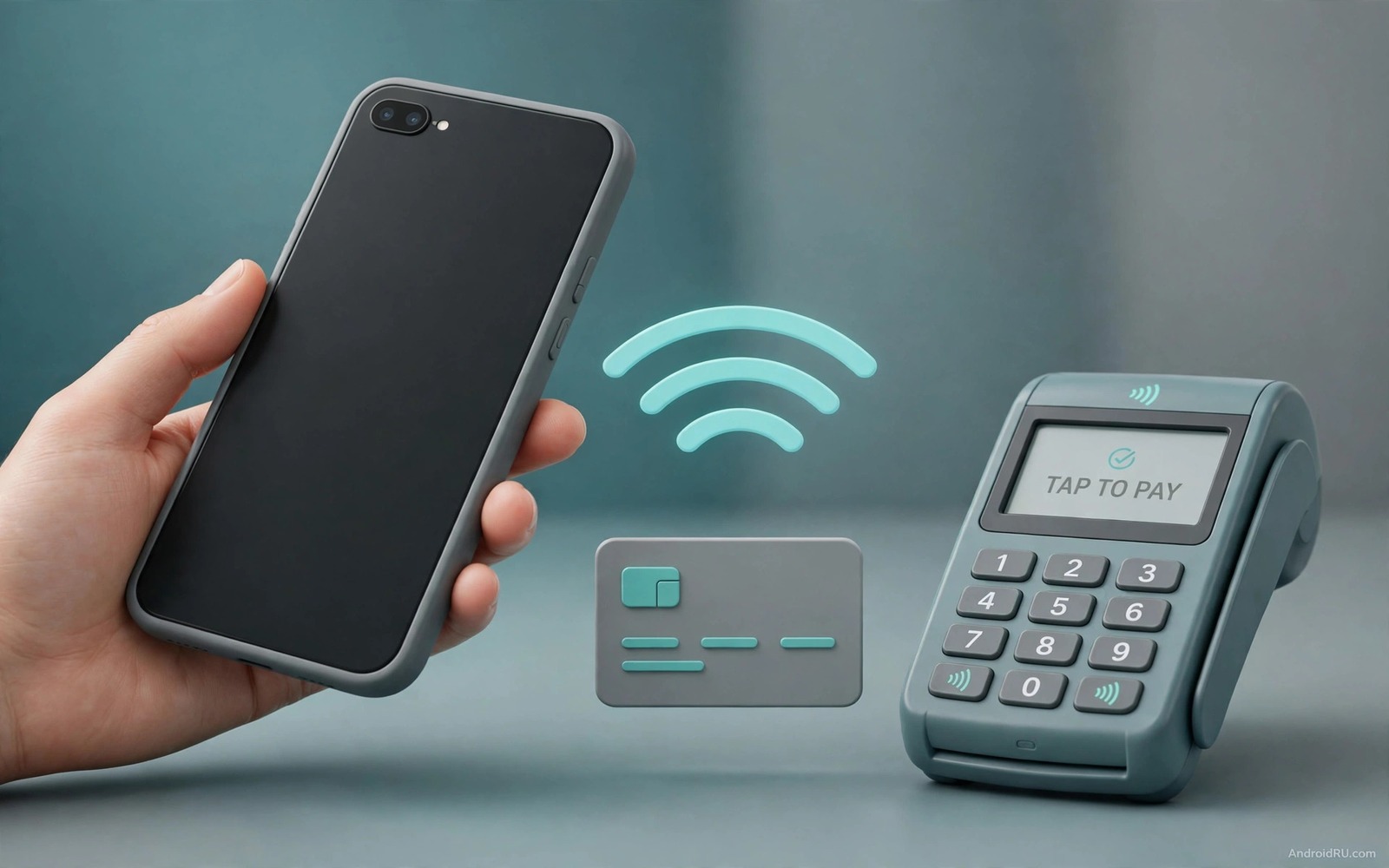
A declined tap at the checkout feels embarrassing. The terminal beeps and the payment fails while a queue forms behind you. The phone may show a generic declined message with no reason. The card may work fine when inserted as a chip card. That contrast points to a contactless specific fault rather than a lack of funds. NFC payment involves the phone antenna and the secure card token and the terminal reader. A fault in any link can decline the tap.
Start by separating a phone fault from a card fault and a terminal fault. Try the same phone at a different terminal. Try a different card on the same phone at the same terminal. A phone that fails everywhere points to phone settings or NFC hardware. A card that fails on multiple phones points to the card token. A terminal that fails for many phones points to the terminal itself. Those three tests take minutes and they prevent a long settings hunt for a terminal fault. Payment faults on a phone with weak service can overlap with SIM not detected and no signal as a hardware clue.
Check the basics before deeper steps. Confirm that NFC is switched on in quick settings. Confirm that the correct payment app is set as default for tap to pay. Confirm that the phone is unlocked at the moment of the tap. Many payment apps require an unlocked phone for security. A locked phone may still wake the terminal but the payment will decline. Hold the phone steady against the terminal reader for a few seconds rather than waving it quickly.
Verify card token and default payment app
Open the payment app and check the card status. A card that shows suspended or needs verification cannot pay by tap even when the physical card works. Complete any verification step the app requests. That step may involve a code from the bank or a confirmation in the banking app. After verification make a small test payment at a familiar terminal. A small success proves the token works again.
Check the default payment app setting in Settings under Connected devices or NFC settings. Only one app can handle tap to pay by default. A recent app update or a new wallet install can change that default silently. Set your preferred wallet as default and test again. Also confirm that the card is set as the default card inside the wallet. A wallet with multiple cards may attempt payment with an expired card first. Payment apps that fail after a security flag can involve an app installation blocked by Play Protect on the same phone.
Test NFC hardware and phone position
Remove the phone case for a test tap. A thick case or a metal case can weaken the NFC signal enough to fail at the terminal. A case with a metal plate for a magnetic mount is a common culprit. Hold the phone with its back flat against the terminal reader. The NFC antenna sits near the top or centre of the back depending on the model. Try slightly different positions on the reader because reader sensitivity varies by terminal design.
Test NFC with a different tag if you have one. A transit card or an NFC tag can confirm that the antenna reads at all. An antenna that reads tags but fails payments points to a token or app fault. An antenna that reads nothing points to hardware or a disabled NFC setting. Restart the phone after a failed tap test because NFC services can stall after repeated failed attempts. When other wireless features also fail the guide on SIM not detected and no signal shows how radio isolation tests separate phone faults from network faults.
Update wallet and check bank limits
Update the wallet app and the system software. Payment token handling changes through updates and an outdated wallet can fail at newer terminals. After updating re-add the card if the wallet suggests it. Re-adding generates a fresh token that replaces a stale one. Note that re-adding may require bank verification again so complete that step before you reach a checkout. Declines that start after an update may point to a stuck system update rather than the card.
Ask the bank whether contactless limits or fraud blocks affect the card. A series of declined taps can trigger a fraud hold that blocks further taps. The bank can lift that hold after identity verification. Also check daily contactless limits because a large purchase above the limit requires chip and PIN instead of tap. That limit is a security feature rather than a fault. Knowing the limit prevents repeated failed taps for large amounts.
Inspect NFC state with a diagnostic command
An NFC dump can confirm whether the service is running and whether the secure element is available. Connect the phone with debugging enabled and query NFC service state. A service that shows disabled despite the toggle being on points to a software fault. A service that shows ready points back to token or terminal faults.
adb shell dumpsys nfc
adb shell settings get global nfc_on
The commands above are part of the standard platform tooling used to inspect NFC service state on Android devices. They only read state and they do not change payment tokens. Use the output to confirm that NFC is truly enabled at system level. If the setting reads off while the toggle shows on then restart the phone and check again.
Related protection faults that can mask a payment decline
A wallet app blocked by protection cannot complete a tap payment. The steps for an app installation blocked by Play Protect explain how to read a block warning. Check whether the wallet app was recently updated or reinstalled. A protection block on the wallet deserves verification before any payment retry. A verified wallet with a decline points to a token or terminal fault instead.
An emergency kit can save a checkout failure. The guide on a complete emergency Android repair kit recommends carrying a physical card as a backup payment method. Use the physical card when tap fails repeatedly. A physical card success proves the account is healthy. A physical card failure proves a bank or account fault rather than a phone fault.
Test tap payment at a second terminal before you change phone settings. A second terminal test separates terminal faults from phone faults. A success at a second terminal proves the first terminal was faulty. A failure at both terminals proves a phone or token fault.
What to do when tap payment fails at every terminal
Tap payment that fails at every terminal points to a phone token or NFC hardware fault rather than a terminal fault. Remove and re-add the card in the wallet app to generate a fresh token. A fresh token replaces a stale token that terminals reject. Complete bank verification immediately after re-adding. A token that remains unverified cannot pay even after a fresh add.
Check whether the wallet app itself needs an update. An outdated wallet may use an old token format that newer terminals reject. Update the wallet and the system software together. After updating test a small payment at a familiar terminal. A small success proves the update fixed the token format. A continued failure points to NFC hardware.
Test NFC with a transit card or a tag to confirm antenna function. An antenna that reads tags but fails payments has a token fault. An antenna that reads nothing has a hardware fault. A hardware fault needs maker service rather than repeated token resets. Bring the tag test result to the service centre as evidence.
- Remove and re-add the card to generate a fresh payment token.
- Update the wallet app and system software together before retesting.
- Test NFC with a transit card or tag to confirm antenna function.
- Remove any metal case before a test tap at a terminal.
- Carry a physical card as backup while you diagnose the tap fault.
Before you change banks over a payment fault
When NFC contactless payment declined happens at every terminal the bank change temptation grows. Resist a bank change until you have tested a second card on the same phone. A second card that works proves the first card token is faulty. A second card that also fails proves a phone or NFC fault. A bank change fixes neither a token fault on the old card nor a phone fault.
Ask the bank to check for a fraud hold before you assume the card is broken. A fraud hold can follow several declined taps in a row. The bank can lift the hold after identity verification in minutes. A lifted hold restores tap payment without a new card. A new card issued while a hold remains may face the same block.
Keep a physical card ready during diagnosis so daily purchases continue. A physical card success at the same terminal proves the account is healthy. A physical card failure at the same terminal proves an account fault. That comparison guides you to the bank or to phone repair with evidence rather than guesswork.
- Test a second card on the same phone before you consider changing banks.
- Ask the bank to check for a fraud hold after repeated declines.
- Keep a physical card ready so daily purchases continue during diagnosis.
Common mistakes
- Tapping a locked phone repeatedly. Most wallets require an unlocked phone for a successful tap payment.
- Keeping a metal case on during every test. Metal weakens NFC and creates failures that vanish without the case.
- Assuming a decline means no funds. Token faults and terminal faults and fraud holds all produce the same generic message.
- Re-adding a card without completing bank verification. An unverified token cannot pay even after re-adding.
- Testing only at one terminal. A faulty terminal looks like a phone fault until a second terminal is tried.
Frequently asked questions
Why does chip payment work when tap fails?
Chip payment uses the physical card and its own chip. Tap payment uses a phone token and the NFC antenna. A token fault or an antenna fault affects tap only while chip payment stays healthy. That contrast is a useful diagnostic clue.
Does NFC need mobile data to pay?
Tap payment usually works without mobile data because the token is stored securely on the phone. A fresh token setup may need data for verification. A payment at a terminal does not require a live data connection in most cases.
Should I reset the phone for a payment decline?
A full reset is unnecessary for most payment declines. Token re-verification and default app checks and case removal resolve most faults. Reserve reset for a phone where NFC reads nothing at all after software updates.
Conclusion
NFC payment declines divide into phone faults and token faults and terminal faults. Test at a second terminal and with a second card. Verify the card token and the default wallet. Remove a metal case and hold the phone steady on the reader. Check bank limits and fraud holds before you blame the phone hardware.
Your concrete next step is to remove the case and confirm NFC is on and the phone is unlocked. Then attempt a small tap at a different terminal with the verified default card. That test separates a case fault from a token fault.

