

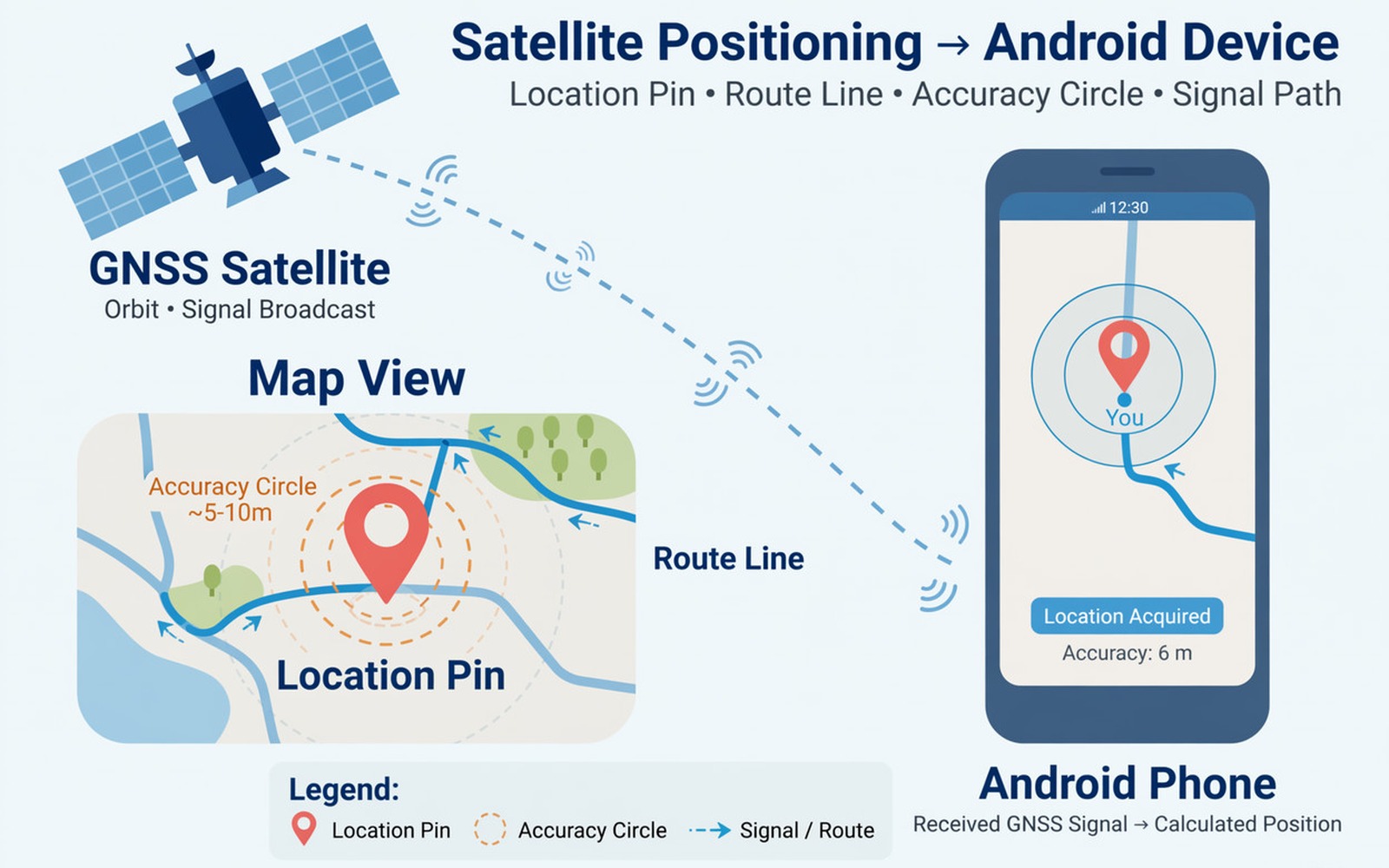
You follow a map route and your blue dot jumps to a side street and then back again. You stand still and the dot drifts across the block. That drift makes navigation unreliable because the app thinks you turned when you did not.
GPS accuracy depends on satellite signals and Wi-Fi and mobile networks working together. Weak satellite lock in a city canyon can cause large errors. A wrong location mode can also force the phone to guess from Wi-Fi alone. Sensor errors can add drift when you move. Drift also worsens when assisted location loses its network help, which is why a SIM card that is not detected can leave maps guessing for longer than expected.
This guide shows you how to test each layer of location in order. Start outside with a clear sky view and move to settings only after a clean outdoor test. Keep expectations realistic in dense cities where even good phones drift a little.
Test outdoors with a clear sky
Step outside away from tall buildings and test Maps there first. Satellites need a clear view of the sky and tall buildings reflect signals that confuse the receiver. If accuracy improves outside then the indoor or city environment is the main limiter.
Wait one minute after opening Maps before you judge accuracy. A cold GPS start needs time to lock onto satellites. Walking while the phone still searches can make the dot jump more than standing still for the first lock.
Compare accuracy in two outdoor places. If drift happens in both places then settings or calibration are more likely at fault. If drift happens only in one dense area then reflected signals in that area are the cause.
Set location mode to high accuracy
Open Settings and then open Location and then open Location services. Make sure location is on and set to high accuracy or precise location where your phone offers those options. High accuracy combines GPS and Wi-Fi and mobile networks for a better fix.
Check Google Location Accuracy in the same menu and turn it on if it is off. That service improves accuracy by using nearby Wi-Fi and mobile signals. Turning it off can leave GPS alone and increase drift indoors.
Grant precise location permission to Maps specifically. Approximate location permission can place you within a large area and cause apparent drift. Precise permission lets Maps use the best available fix.
Calibrate compass and sensors
Open Maps and follow the compass calibration prompt if it appears. Move the phone in a figure eight motion as shown on screen. A poorly calibrated compass can rotate your direction even when your position is correct.
Restart the phone after calibration to clear a stuck location service. A restart can fix a location service that stopped updating after a long standby period. Test again outside after the restart.
Check whether a case with a magnet interferes with the compass. Magnetic cases and mounts can distort compass readings and cause direction drift. Remove a magnetic case for a test and see whether direction stabilises. If mobile data also drops while you navigate then the steps for resolving mobile data dropping on 4G and 5G can help you check whether the data link is breaking your map updates.
Fix app and system location faults
Clear the Maps cache in Settings and then open Apps and then open Maps and then open Storage. Cache clearing can fix a map app that shows stale location data. Your saved places stay in your account and are not removed by cache clearing.
Update Maps and install any system update that fixes location services. Location fixes often arrive in small updates. Test after the update in the same outdoor place so you can compare fairly.
Test a second location app to separate app faults from system faults. If both apps drift in the same way then the phone location system is at fault. If only Maps drifts then the Maps app or its data needs attention.
adb shell dumpsys location
adb shell settings get secure location_mode
adb shell cmd location providers
The commands above were prepared for this guide and they use only standard tools that ship with Android developer tools. They show location service state for advanced users who want to confirm that providers are enabled.
While you work through these steps it helps to compare symptoms with other fixes in the same area. For example the steps for mobile data dropping problems show how a related fault behaves differently and the steps for delayed notification problems help you rule out a second fault that shares early symptoms.
Common mistakes
One common mistake is testing GPS indoors and blaming the phone for drift. Indoor GPS is weak by nature and Wi-Fi guessing adds error. Test outdoors first. Another mistake is using approximate location permission and expecting precise navigation.
Another mistake is calibrating the compass once and expecting it to stay perfect forever. Compass calibration drifts after magnets and drops. Recalibrate when direction looks wrong.
A third mistake is turning off all location services to save battery and then wondering why Maps drifts. High accuracy mode uses more power but it gives far better navigation. Use battery saver only when you do not need navigation.
A week-long location test that proves the fix
Test Maps outdoors at the same two places each day for a week and note the blue dot accuracy. A park with open sky and a city street with tall buildings give contrasting results. Open sky accuracy that stays good while city accuracy drifts points to reflected signals. Poor accuracy in both places points to settings or calibration.
Calibrate the compass on day three and compare direction accuracy before and after. A direction error that disappears after calibration shows that the compass was the fault. A direction error that persists after calibration points to sensor or case interference.
Test a second navigation app on day five in the same places. Two apps drifting together point to the phone location system. One app drifting alone points to that app data or cache. That test prevents a system reset for an app fault.
Long-term habits that protect GPS accuracy
Keep precise location permission on for navigation apps you trust. Approximate permission may seem private but it harms navigation accuracy in a way that feels like a GPS fault. Review permissions after updates because updates can reset them.
Recalibrate the compass after a drop or after using a magnetic mount. Magnets and drops disturb compass calibration gradually. A quick recalibration after those events keeps direction reliable.
Keep Maps updated and clear its cache occasionally. Stale map data can show wrong roads that look like location drift. Fresh map data and a clean cache keep the blue dot and the road aligned.
What to do when GPS still drifts outdoors
Test location in an open field far from buildings and power lines. An open field test gives the cleanest satellite signal available. Drift in an open field points strongly to a phone sensor or antenna fault. Drift only near buildings points to reflected signals.
Check whether a metal case or a magnetic mount affects location accuracy. Metal can block satellite signals and magnets can disturb the compass. Removing both for a test isolates those variables cleanly.
Compare GPS accuracy with location services off and on in a controlled way. GPS alone in an open field should give a good fix without Wi-Fi help. A poor GPS-only fix in an open field suggests an antenna problem.
Keep a record of drift locations for a repair or carrier report. A pattern of drift in specific areas helps distinguish environment from hardware. A repair shop can test the antenna with that pattern in mind.
Testing GPS with a second app and a second journey
Test GPS on a walking journey and on a driving journey on separate days. A walking test reveals small drifts that driving tests hide. A driving test reveals route recalculation problems that walking tests miss. Both journeys together give a fuller accuracy picture.
Test GPS with Wi-Fi on and with Wi-Fi off on the same route. A Wi-Fi test shows how much assisted location helps your phone. A large accuracy drop without Wi-Fi points to weak GPS alone. A small drop without Wi-Fi shows GPS itself is strong.
Test GPS at different times of day because satellite geometry changes through the day. A morning test and an evening test can give different accuracy on the same route. A time pattern helps you understand whether drift is constant or variable.
Test GPS with the phone held in your hand and with the phone mounted on a dashboard. A hand test and a mount test reveal whether body blocking affects signal. A mount test that improves accuracy points to signal blocking by your body or case.
Test GPS after a compass calibration and before calibration on the same route. A calibration comparison shows exactly how much calibration matters for your phone. A large improvement after calibration proves calibration was a key fix.
Record the worst drift distance you see each day rather than relying on a general feeling. A number such as twenty metres or one hundred metres is far more useful than saying the dot jumped a lot. Numbers help support and they help you judge improvement.
Frequently asked questions
Why does my location jump only in cities?
Tall buildings reflect satellite signals and create multipath errors. The phone receives the same signal from two paths and calculates a wrong position. Open sky areas give cleaner signals and less drift.
Why is my direction wrong even when my position is right?
Direction comes from the compass and motion sensors not from GPS alone. A magnetised case or poor calibration can rotate direction. Recalibrating the compass usually fixes direction without changing position.
Does turning on Wi-Fi improve GPS?
Yes when location accuracy services are on because Wi-Fi helps the phone refine its position. Wi-Fi alone is less precise than GPS outdoors but it helps indoors and in cities. Keep Wi-Fi scanning on for better accuracy.
Conclusion
GPS drift usually improves with a clear sky test and high accuracy mode and compass calibration in that order. Check precise permission for Maps and clear its cache if drift persists. Test a second app to separate app faults from system faults. If drift remains outdoors after all steps then a sensor or antenna fault is possible. Start today by testing Maps outside for one minute and calibrating the compass.

