

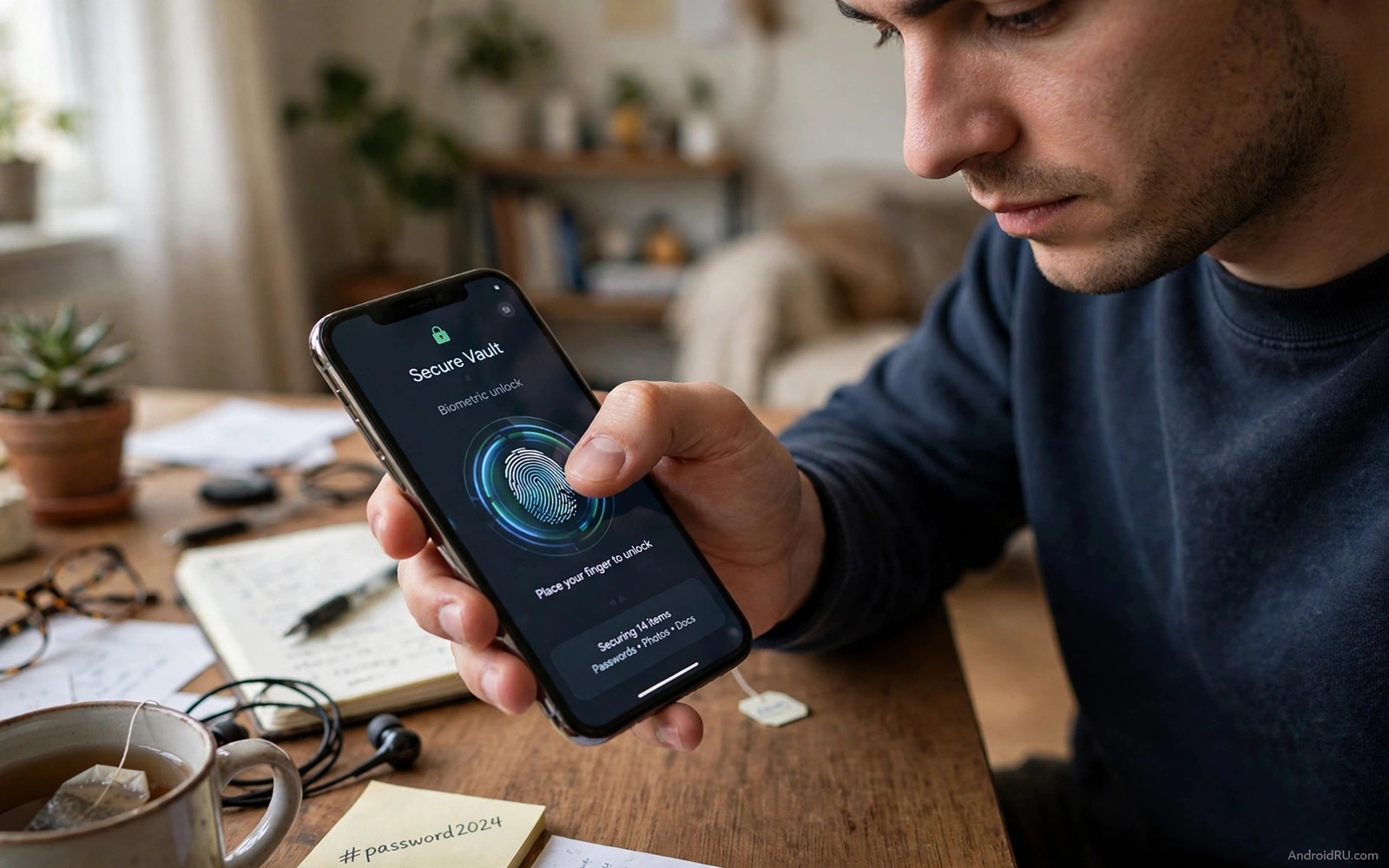
You reuse one password across many sites. One breach then opens many doors. You know the risk. Remembering fifty unique passwords feels impossible. A good password manager solves the memory problem. A bad one creates a new security problem.
Bad managers fail in predictable ways. Some store passwords without strong encryption. Some sync through an insecure channel. Some show passwords on screen without a lock check. Some lack a proper autofill system. Some have not been updated for years. Each flaw turns a safety tool into a target.
Good managers share clear traits. They encrypt vault data on your device before sync. They use a strong master password you alone know. They support biometric unlock for daily use. They fill passwords into apps and browsers safely. They warn about weak and reused passwords. They offer secure sharing for family accounts.
This guide helps you switch safely. You will learn how to judge a manager in ten minutes. You will learn three alternative types and their trade-offs. You will learn a migration plan that avoids lockout. You will also learn daily habits that keep a good manager good.
How to judge a manager quickly
Check encryption claims first. A good manager states that vault data is encrypted before leaving the device. It states that the provider cannot read your passwords. It uses a recognised encryption standard. Vague claims about military grade security mean little. Specific claims about device side encryption mean a lot.
Check the unlock model next. A master password should be long and memorable. A phrase of four random words beats a short complex password. Biometric unlock should require the master password after a restart. A manager that never asks for the master password again is convenient and risky. A stolen phone with always-on biometrics may expose the vault.
Check autofill behaviour. Good autofill fills only on the matching domain. It does not fill a bank password into a lookalike site. It warns when a site address looks suspicious. Test autofill on a real login page. A manager that fills everywhere is dangerous. Domain matching is a core safety feature.
Check export and import options. A good manager lets you export your vault in an encrypted form. It lets you import from other managers. Lock-in is a warning sign. A manager that traps your passwords is a business risk. You should be able to leave at any time. Readers who value privacy broadly should also see privacy-focused browsers as an alternative to Chrome because browser and manager security work together.
Three secure alternative types
Cloud managers sync across all devices easily. They suit people with a phone and a laptop and a tablet. They offer family sharing and emergency access. The provider holds an encrypted vault blob. A breach of that blob still needs your master password to open. Choose a cloud manager with a long security history. Avoid a brand new cloud manager for your most critical accounts.
Local managers keep the vault only on your devices. They suit privacy focused users. Sync happens through a file you control. You can sync through your own cloud folder. You control every copy. The downside is setup effort. Losing all device copies loses the vault. Keep a backup copy in a safe place.
Open source managers offer transparency. Anyone can inspect the code. Security researchers can verify encryption claims. Open source does not automatically mean secure. It means claims can be checked. Prefer open source managers with active maintenance. An abandoned open source project is as risky as a closed one.
Hardware keys add a second factor beyond the manager. A physical key protects the master account even if the password leaks. Use a hardware key for email and cloud accounts first. Those accounts unlock password resets elsewhere. A manager plus a hardware key for email is a strong pair.
A migration plan without lockout
Install the new manager alongside the old one. Do not delete the old manager on day one. Import passwords into the new manager. Check that the count matches. Test login on three important sites with the new manager. Email and banking and a social account make a good test set. A test set proves autofill works.
Change the weakest passwords first. Start with email and banking. Generate long random passwords inside the new manager. Save each new password before logging out. Log out and log back in with the new password. A logout test proves the saved password is correct. A password saved wrong is worse than a weak password remembered.
Work through the rest in batches. Change ten passwords per day. A batch pace prevents fatigue errors. Mark each changed site in a note. A note prevents repeating work. After a week most accounts will be strong and unique. After two weeks the migration should be complete.
Delete the old manager only after a full week of success. Export an encrypted backup from the new manager first. Store that backup safely. Delete the old vault from the old provider when possible. An old vault left online remains a target. Closing it removes that risk.
Daily habits that keep passwords safe
Lock the vault when you hand the phone to someone else. A locked vault needs biometric or master password to open. An open vault in a borrowed phone is an open door. Set a short auto-lock time. One minute is a good balance for most people. A vault that stays open all day defeats its purpose.
Review the security report monthly. The report lists weak and reused passwords. It lists sites with known breaches. Fix the top five issues each month. A monthly habit keeps the vault improving. A yearly review lets problems pile up.
pwgen -s 24 1
openssl rand -base64 24
echo "vault backup created" | tee backup-log.txt
The snippet above is an original example written for this guide. It shows how an advanced user can generate a random password and log a backup from a computer. It is not a required step for normal manager use and generated passwords must be saved in the vault at once.
Share passwords safely when family needs access. Use the sharing feature inside the manager. Do not send passwords by chat or email. A shared item can be revoked when access ends. A password sent by chat lives forever in chat history. Sharing features exist for this exact reason.
Emergency access for family without weakening security
Emergency access lets a trusted person open your vault in a crisis. Set it up with a waiting period. A waiting period of several days allows you to refuse a false request. A trusted contact requests access. You receive a notice and can deny it. Silence after the waiting period grants access. This design balances help and safety.
Choose an emergency contact who understands the responsibility. Explain what the vault holds in general terms. Explain that access is for crisis only. A contact who treats access casually undermines the design. A contact who respects the boundary protects you twice over. Review the contact yearly as relationships change.
Test emergency access documentation without triggering a real request. Write down the steps for the contact in a sealed note. Store the note where the contact can find it in a crisis. A documented process works under stress. An undocumented process fails exactly when it is needed most.
Audit shared items every quarter for stale access. Open the sharing list inside the manager and read every entry. Remove access for former colleagues and old projects. Remove access for services you no longer use. Stale sharing is a quiet risk because nobody notices it. A quarterly audit takes ten minutes. It closes doors that should have closed months ago. Treat sharing like a key copy. Every copy should have a current reason to exist.
Common mistakes
The first mistake is choosing a short master password. A short master password undermines all vault encryption. Use a long memorable phrase. Write it on paper and store it safely if needed. A paper copy in a safe place beats a short password you can remember easily.
The second mistake is storing the master password inside the vault. The vault cannot protect its own key. Store the master password separately. A safe place at home works. A trusted family member can hold a sealed copy for emergencies. Never store it in a plain note on the phone.
The third mistake is ignoring breach alerts. A breach alert means a site lost password data. Change that password at once even if it looks strong. A strong password reused elsewhere is still at risk. Breach alerts deserve same day action.
The fourth mistake is using the manager for everything without a backup. A vault backup protects against device loss. Export an encrypted backup monthly. Store it away from the phone. A manager without a backup is a single point of failure.
FAQ
Is a cloud password manager safe from hacking?
Yes when encryption happens on your device first. A provider breach then exposes only encrypted data. A strong master password keeps that data locked. No system is perfect. Device side encryption plus a strong master password is the practical best defence.
What if I forget my master password?
Most secure managers cannot recover it for you. That is a feature and not a flaw. Recovery would mean the provider could open your vault. Keep a paper backup of the master password in a safe place. Emergency access features can help family in a crisis.
Should each family member have a separate vault?
Yes for personal accounts. Share only specific items like a streaming login. Separate vaults limit damage from one compromise. Family plans make separate vaults affordable. Shared items stay shared while personal items stay private.
Conclusion
Bad password managers fail on encryption or autofill or lock-in. Secure alternatives encrypt on device and match domains strictly. Cloud managers suit multi-device users. Local managers suit privacy focused users. Open source managers suit users who value transparency. Any of the three beats password reuse.
Your concrete next step is to install one secure manager today and import your passwords without deleting the old manager. Test autofill on email and banking this week. Change those two passwords to long random ones generated inside the new manager. If both logins work smoothly then continue in batches of ten per day. Readers who want broader safety should also explore apps that secretly track you and should be deleted and note apps that work as productivity engines because a clean phone and a good manager protect each other.

