

You need a desktop program while you travel. Your laptop stays at home. Your phone is the only computer with you. A desktop app on Android sounds impossible. It is possible in limited ways. The trick is choosing the right method for the program you need.
Four methods cover most cases. Emulation runs a desktop system inside Android. Remote desktop shows your home computer on the phone. A cloud PC rents a desktop in a data centre. A compatibility layer translates desktop calls without a full system. Each method suits a different program and a different network. None suits every program.
Expectations matter more than tools. A phone will not run a heavy video editor like a gaming laptop. It can run an old office tool and a simple utility well. It can show a home computer screen well enough for a quick edit. It can run a cloud desktop well when the network is strong. Honest limits prevent wasted hours.
This guide explains each method with a real example. You will learn setup steps and performance limits. You will learn input tricks for a small screen. You will learn security rules for remote access. You will also learn when to wait for a real computer instead of forcing a phone to pretend.
Emulation on the phone itself
Emulation creates a virtual desktop computer inside an app. The app mimics a processor and memory and storage. You install a desktop system inside that virtual machine. You then install desktop programs inside that system. Everything runs on the phone hardware. No network is needed after setup.
Performance is the main limit. A phone processor emulates a different processor slowly. Old programs from the 1990s run well. Early 2000s office tools run acceptably. Modern heavy programs crawl. A virtual machine also uses a lot of storage. Reserve several gigabytes for the system image alone. A phone with little free space cannot host it.
Input is the second limit. A desktop program expects a mouse and a keyboard. A phone screen offers touch. Most emulator apps offer a virtual mouse mode. Drag to move the cursor. Tap to click. A Bluetooth mouse and keyboard transform the experience. A large phone or a tablet helps even more. A small phone works for short tasks only.
Legal care matters here. Use only system images and programs you own legally. Old software licences often allow personal use. Business software may forbid virtual use. Check the licence for any program you install. Keep installers from official sources. Pirated images often carry malware.
Remote desktop to your home computer
Remote desktop is the most practical method for most people. Your home computer does the heavy work. Your phone only shows the screen and sends input. The desktop program runs at full speed on real hardware. The phone only needs a decent network. A quick edit feels almost local on a good connection.
Setup needs a host app on the computer. Install it and sign in with a strong account. Set a strong access password or PIN. Enable access only when you need it. Some host apps allow unattended access. Unattended access is convenient and risky. Protect it with two factor authentication when offered.
Network quality decides the experience. A home Wi-Fi connection gives the smoothest result. Mobile data works for light tasks. Latency matters more than raw speed. A high latency link makes the mouse feel drunk. Test with a simple document edit first. Test video editing only after that test passes well.
Security rules are simple and strict. Never expose remote access without a password. Never use the same password as your email. Update the host app regularly. Close remote access after a trip. A forgotten open host is an invitation. Readers who monitor host health should also see system monitor apps that check hardware health because a sick host makes remote work painful.
Cloud PCs and compatibility layers
A cloud PC is a rented desktop in a data centre. You connect from the phone and use it like a remote computer. The cloud machine can be far stronger than your phone. It can run modern office tools smoothly. You pay a monthly fee for the rental. You need a stable network for every session. Offline work is impossible.
Cloud PCs suit short projects. A week of desktop work on a trip justifies a month of rental. A single document edit does not. Compare the rental cost with the value of the work. A cheap cloud plan may lag on heavy tasks. A strong plan costs more but feels local. Read the plan specs before paying.
Compatibility layers take a lighter path. They translate desktop program calls into Android calls. No full desktop system runs. The program runs closer to native speed. Support covers only a subset of programs. Simple tools work well. Complex tools with drivers often fail. Test your exact program before relying on this method.
File handling differs across methods. Remote and cloud desktops keep files on the host. Transfer files through the host app or a cloud folder. Emulation keeps files inside the virtual disk. Export them before you delete the virtual machine. A file trapped in a deleted virtual disk is gone. Plan exports from the start.
A practical choice guide
Choose remote desktop when you own a good home computer. It gives full power at low cost. Choose a cloud PC when you travel long term without a home computer. It gives power without hardware. Choose emulation when you need an old program offline. It gives independence at the cost of speed. Choose a compatibility layer when your exact program is listed as supported.
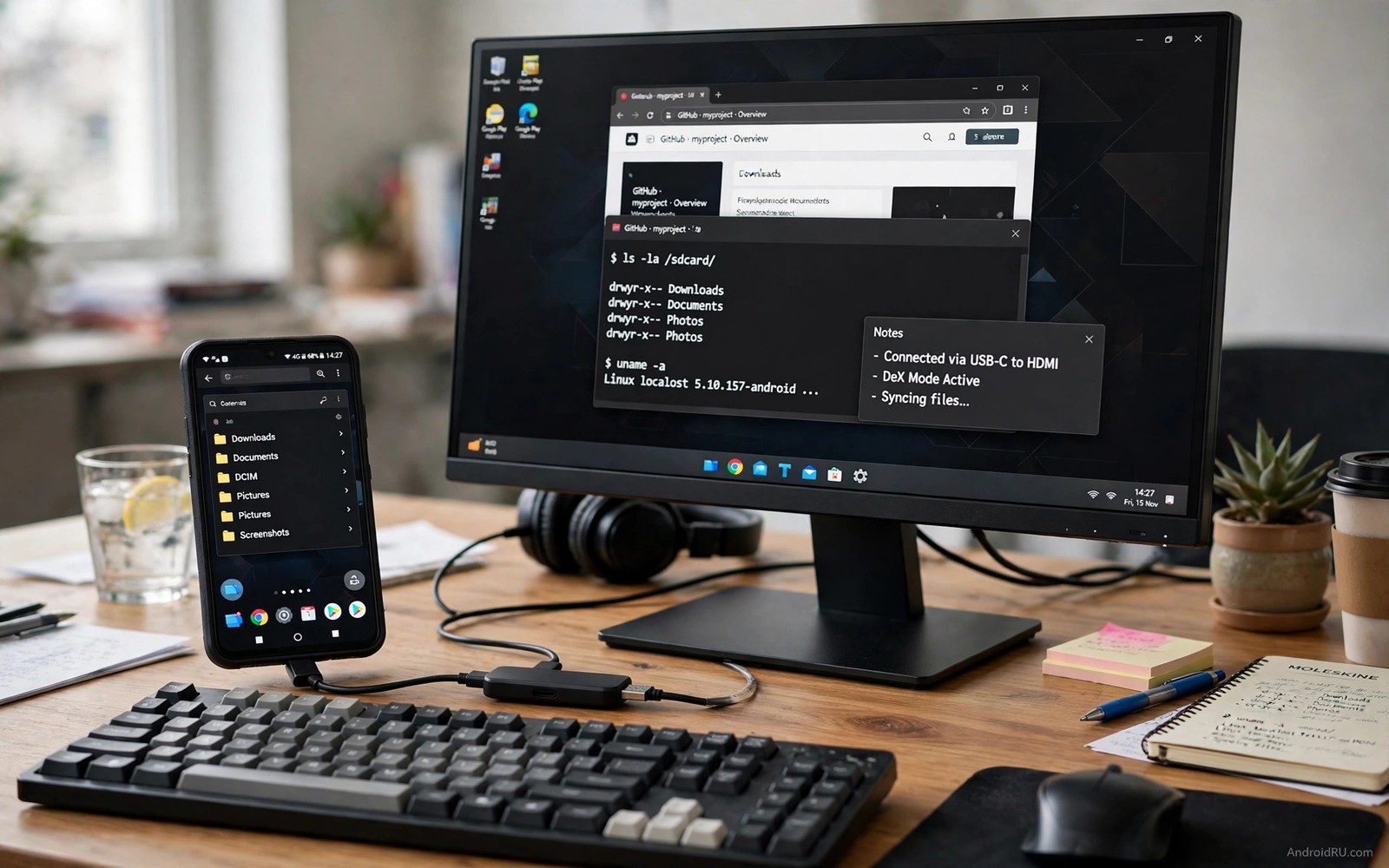
Input gear changes every method. A folding Bluetooth keyboard fits a jacket pocket. A small Bluetooth mouse fits a bag side pocket. A tablet gives a larger screen than a phone. A USB-C hub lets a phone drive an external monitor. A phone plus a monitor plus a keyboard feels surprisingly like a desktop. That combo is the secret of many travellers.
adb shell dumpsys display | grep -i density
xfreerdp /u:user /p:pass /v:192.168.1.10 /f
ls -lh ~/vm-images/
The snippet above is an original example written for this guide. It shows how an advanced user can check display settings and launch a remote session from a computer. It is not a required step for normal remote use and credentials must never be stored in plain text.
Test the full workflow before a trip. Open the program and edit a real file. Save the file and transfer it back. Close the session and reopen it. A workflow that survives a reconnect is ready for travel. A workflow that fails once at home will fail worse on hotel Wi-Fi.
Choosing a remote desktop app wisely
Remote apps differ in latency and image quality. A good app adapts quality to network speed. It lowers resolution smoothly when the network weakens. It restores quality when the network recovers. A poor app freezes instead of adapting. Test adaptation by walking away from the router during a session. Smooth degradation proves good engineering.
Security features differ too. Look for two factor authentication on the account. Look for a device approval list. An approval list shows every device that can connect. Remove unknown devices at once. A remote app without approval controls is a risk for a work computer. Convenience must not override account control.
File transfer support varies widely. Some remote apps transfer files by drag and drop. Some need a separate upload step. Some block transfer entirely for security. Choose transfer support that matches your workflow. A writer needs document transfer. A viewer who only checks screens needs none. Match the feature to the job.
Test remote input latency with a simple typing test. Type a sentence in a document on the remote computer. Watch how quickly letters appear on the phone screen. A delay under a tenth of a second feels local. A delay over half a second frustrates writing. Typing tests reveal latency better than mouse movement alone. Mouse movement hides small delays. Typing exposes them at once. A remote setup that passes typing feels ready for real work.
Common mistakes
The first mistake is expecting phone speed from emulation. Emulation is slow by nature. It suits old and light programs. It fails modern heavy programs. Match the program age to the method. Old tools belong in emulation. New tools belong on remote or cloud hosts.
The second mistake is leaving remote access open forever. An open host with a weak password invites attack. Use a strong unique password. Enable two factor authentication. Disable unattended access between trips. Security habits matter more than any tool choice.
The third mistake is working without saving often. Remote sessions can drop. Cloud sessions can time out. Emulators can crash. Save every few minutes. Keep a copy in a synced folder. Frequent saves turn a crash into a minor repeat.
The fourth mistake is ignoring screen size. A desktop program designed for a large monitor crowds a phone screen. Zoom and pan constantly. Use a tablet or an external monitor for long sessions. A phone screen suits quick edits and not full workdays.
FAQ
Can I run modern games this way?
Remote and cloud methods can stream games when the network is strong. Emulation struggles with modern games. Input lag hurts fast games most. Turn based games work better than action games. Test with a free game before paying for a cloud plan.
Do I need root for emulation?
Usually not for user level emulators. Some advanced features need root on certain phones. Most travellers should avoid root for this purpose. Root adds security risk and update problems. A standard emulator covers most old program needs without root.
Is remote desktop safe on hotel Wi-Fi?
Yes when the host app encrypts the session. Use a reputable host app with encryption. Avoid entering the host password on a shared screen. Close the session fully when done. A VPN adds another layer on untrusted networks.
Conclusion
Desktop programs on Android are possible with the right method. Emulation suits old offline tools. Remote desktop suits owners of a good home computer. Cloud PCs suit long trips without hardware. Compatibility layers suit a short list of supported tools. Each method has a clear best case. Choose by program and network and trip length.
Your concrete next step is to test remote desktop tonight with one real document edit from another room. Save the file and reopen it on the host. If the edit survives cleanly then remote work is ready for your next trip. If lag ruins the edit then test a wired host connection before giving up. Readers who want a tablet workstation should also explore apps that transform a tablet into a laptop workstation and the ultimate automation app that will do work for you because a larger screen and automation multiply every method here.

