

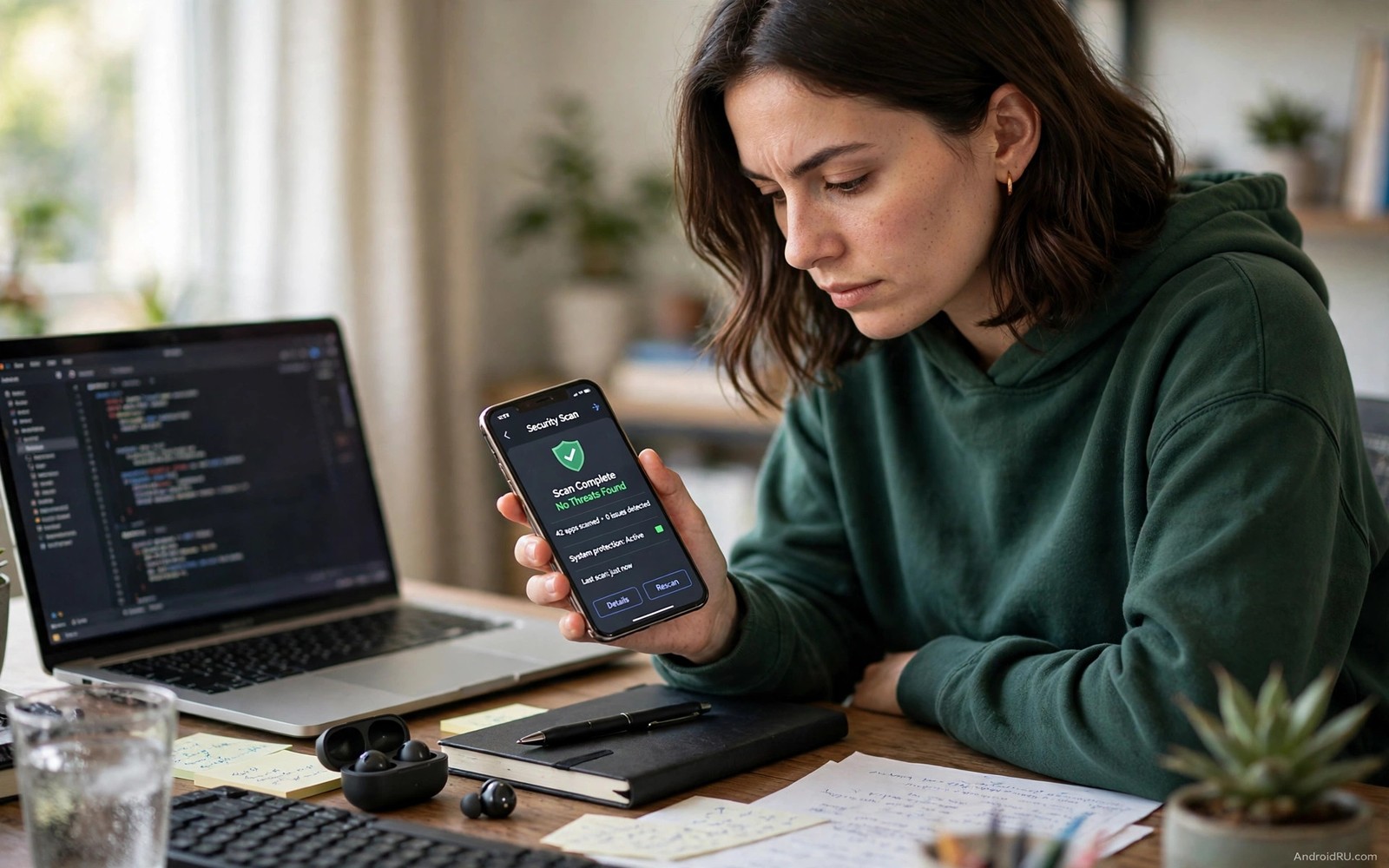
Your battery drains faster than usual. Your phone feels warm in your pocket. Data usage jumps even when you barely use it. Something may run in the background without your knowledge. Spyware hides by design. It does not show an icon. It does not ask for attention. It simply watches and sends.
Spyware takes many forms. A stalkerware app tracks location for another person. A fake cleaner app records keystrokes. A free game sends contacts to a remote server. A sideloaded tool grants itself accessibility access. Each type uses a different trick. Each type leaves different clues. A detector app looks for those clues together.
No detector can promise perfect safety. A well hidden spyware tool can evade a simple scan. A detector still raises your odds a lot. It checks permissions that normal users never review. It lists apps with device admin rights. It flags apps that run constantly in the background. Those lists often reveal a culprit at once.
This guide shows a calm and methodical check. You will learn the warning signs that matter. You will learn how to audit permissions by hand. You will learn how a scanner helps and where it stops. You will also learn what to do when you find something suspicious. Panic helps no one. A clear sequence does.
Warning signs worth taking seriously
Battery drain is the most common clue. Open battery settings and sort by usage. A small utility app should not outrank your browser. A game you never opened should not appear at all. Background usage matters more than screen time. An app that works while the screen is off deserves a close look.
Data usage tells a similar story. Open data settings and sort by app. A chat app uses data when you chat. A flashlight app should use almost none. A sudden spike after installing a new app is a red flag. Check the date of the spike. Match it to the install date of any new app. A match is strong evidence.
Strange behaviour adds more clues. The phone restarts on its own. Settings change without your input. The camera light blinks when no camera app is open. Messages appear as read before you open them. Any one clue could have an innocent cause. Several clues together point to a real problem.
Heat is a weaker clue on its own. Gaming and video calls heat any phone. Heat at rest is different. A phone that stays warm overnight on a charger may run hidden work. Check battery usage before you conclude anything. Heat plus high background usage is a far stronger signal than heat alone.
How a detector app actually checks
A detector starts with the installed app list. It includes system apps and user apps. It hides nothing by default in a good tool. It flags apps with a blank name or a generic icon. Spyware often uses a boring name like System Update. A boring name helps it blend in. A full list exposes that trick.
Permission review is the core check. Accessibility access is the most powerful permission on Android. It can read screen content and simulate taps. Device admin rights can block uninstallation. Location access always allows tracking even when the app is closed. Overlay permission lets an app draw over other apps. An app with several of these permissions together is dangerous by design.
Background behaviour is the next check. A detector notes which apps start at boot. It notes which apps run services constantly. It notes which apps wake the device often. A messaging app needs background work. A wallpaper app does not. The gap between need and behaviour reveals abuse.
Network checks complete the picture. Some detectors list recent network connections per app. An app that contacts unknown servers at night deserves scrutiny. You do not need to understand every server name. You need to notice a pattern. A simple tool that never needs the internet should not phone home daily. Readers who want broader privacy help should also see apps that secretly track you and should be deleted because tracking and spyware often start the same way.
A manual audit you can do today
Open settings and go to the full app list. Show system apps as well as user apps. Sort by last used if that option exists. Look for apps you do not recognise. Tap each unknown app and read its permissions. Uninstall anything you did not install and do not need. Disable anything you cannot uninstall but do not use.
Check accessibility settings next. List every service with access turned on. Keep only services from apps you trust and use daily. Turn off the rest at once. Accessibility is too powerful to leave on for a forgotten app. Repeat this check monthly. Apps can request it again after an update.
Check device admin apps next. A device admin app can resist removal. Remove admin rights before you try to uninstall a suspicious app. The order matters. Uninstall fails while admin rights remain. Removing admin rights first makes removal possible. If removal still fails then safe mode may help.
Check account access as well. Some spyware adds itself as an account or a profile owner. Look in accounts settings for unknown entries. Look in work profile settings if your phone shows them. An unknown profile can control many settings at once. Remove unknown profiles only after you save your data. A profile removal can wipe app data tied to it.
What to do when you find a suspect
Do not open the suspect app to investigate further. Opening it may trigger a new upload. Take screenshots of its permissions first. Note its package name if the detector shows it. Screenshots help if you need support later. They also help you remember what you removed.
Disconnect from the network before removal when the risk feels high. Turn on airplane mode. Remove admin rights and accessibility access. Uninstall the app. Restart the phone. Reconnect only after the app is gone. This sequence limits any final data upload. It also stops the app from reinstalling itself through a server command.
adb shell pm list packages -f | grep -i update
adb shell dumpsys device_policy
adb shell pm uninstall --user 0 com.example.suspect
The snippet above is an original example written for this guide. It shows how an advanced user can list packages and check device policy from a computer. It is not a required step for normal removal and the example package name must be replaced with the real suspect.
Change important passwords after removal. Start with email and banking and cloud accounts. Use a clean device for password changes when possible. A compromised phone could still log keystrokes before removal. A password changed on the same phone may not stay safe. A second device breaks that risk.
After a clean scan: staying safe long term
A clean scan is a starting point and not a finish line. New apps arrive every month. Each install deserves a permission glance. Check accessibility and device admin rights at install time. A flashlight app asking for accessibility access deserves refusal. A keyboard app asking for full network access deserves scrutiny. Permission habits prevent the next infection.
System updates close holes that spyware exploits. Install security updates promptly. An update delayed for months leaves known flaws open. Automatic updates help most users. Check update settings after a major system upgrade. Upgrades sometimes reset update preferences without warning.
Review installed apps every month in one short session. Delete apps you no longer use. Unused apps still hold permissions. They also still receive updates that can change behaviour. A lean app list is easier to audit. It also frees storage and battery. Monthly pruning is the cheapest security habit available.
Teach family members the same audit steps in plain language. Show them how to open battery usage and spot a strange app. Show them how to check accessibility services together. A family that audits together catches spyware sooner. Children and older relatives benefit most from a guided check. A ten minute lesson once a quarter protects everyone who shares a home network. Write the steps on a card near the router as a reminder. A visible reminder turns a one-time lesson into a lasting habit for the whole household.
Common mistakes
The first mistake is installing many scanners at once. Scanners can conflict and slow the phone. They can also flag each other as suspicious. Use one reputable scanner and a manual audit. More scanners do not mean more safety. They mean more noise.
The second mistake is trusting a scanner result blindly. Scanners flag system tools that look odd but are harmless. Research a flagged app before deleting it. Deleting a real system app can break features. A quick search of the package name often clears up confusion.
The third mistake is ignoring the source of the infection. Removing spyware without fixing the cause invites reinfection. The cause may be a sideloaded app from an unknown site. It may be a shared device with a weak lock. It may be a phishing link. Fix the cause or the spyware will return.
The fourth mistake is skipping a backup before a factory reset. A reset is the strongest cleanup when spyware resists removal. It also wipes your data. Back up photos and contacts first. Restore only trusted apps after the reset. Restoring a full backup may restore the spyware as well.
FAQ
Can a free scanner find all spyware?
No scanner finds everything. A free scanner finds common spyware and permission abuse well. A targeted attack may evade it. Combine a scanner with a manual permission audit. That pair catches far more than either method alone.
Does a factory reset always remove spyware?
Almost always for user installed spyware. A reset wipes user apps and their data. Spyware hidden in system firmware survives a reset but is rare on consumer phones. A reset plus a clean app install is the strongest practical cleanup.
Should I report spyware to anyone?
Yes when it looks like stalkerware or theft. Report it to the app store where you found it. Report theft to local police with your screenshots. Report workplace device abuse to your IT team. Evidence helps each of these paths.
Conclusion
Spyware hides but it cannot hide its footprint completely. Battery use and data use and powerful permissions tell a story. A detector app gathers that story in one place. A manual audit confirms it. Removal plus password changes closes the incident. Regular monthly checks keep it from returning quietly.
Your concrete next step is to open battery and permission settings tonight and list every app with accessibility access. Turn off any service you do not recognise and use daily. Run a scanner scan after that audit. If the scan is clean and the list is short then your phone is in good shape. Readers who want stronger privacy should also explore privacy-focused browsers as an alternative to Chrome and system monitor apps that check hardware health because permission audits and hardware checks complement each other.

