

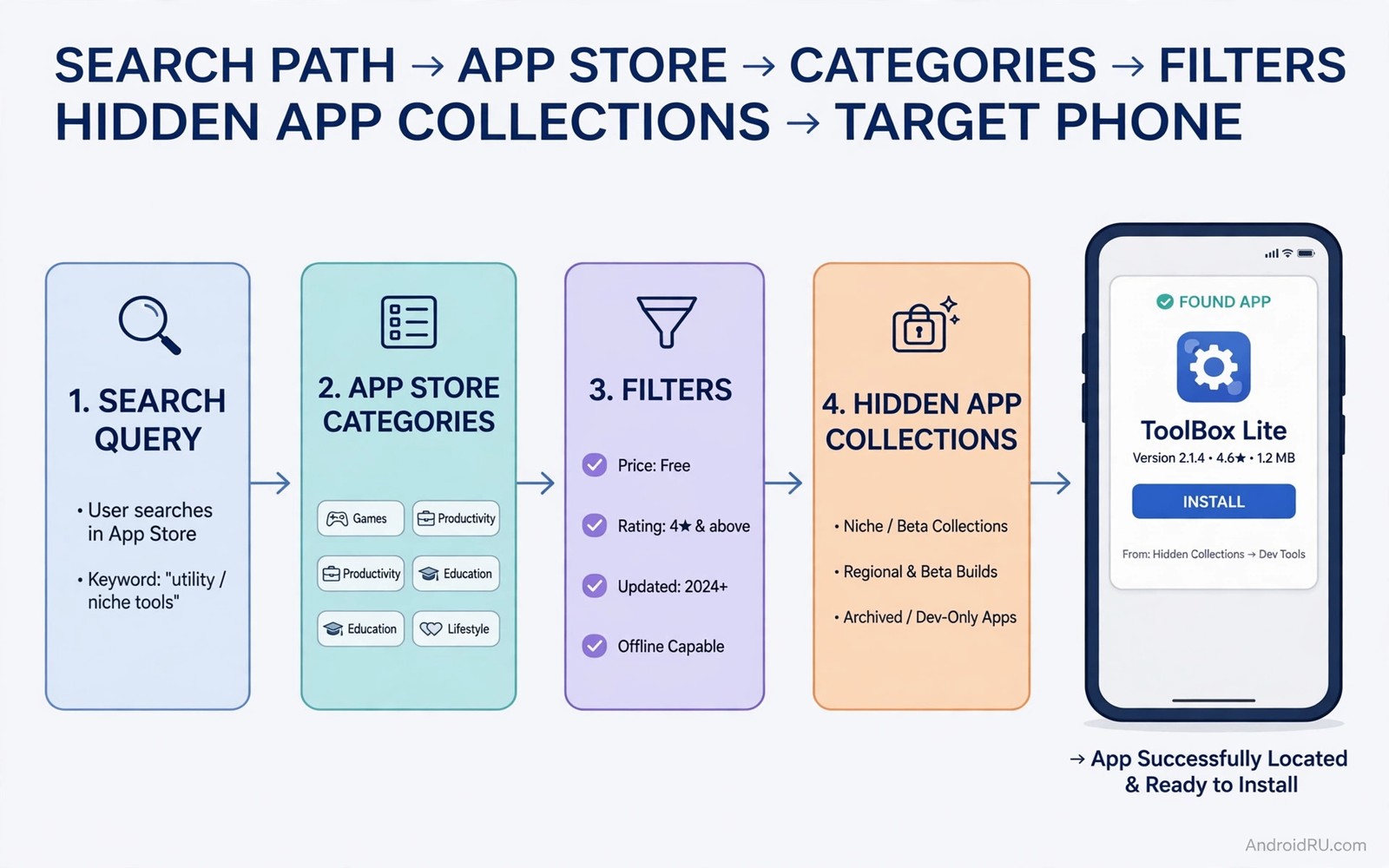
How to Find Secret Apps on Play Store Google Hides from You
Here is the honest truth up front: there is no hidden “secret store” buried inside Google Play, and any article that promises you a secret menu or a hidden vault is selling you a fantasy. What does exist is a large group of real, legitimate apps that most people never see. They stay out of sight because of filters, rankings, regional publishing, device requirements, and the plain fact that the front page of any app catalogue favours the famous over the useful. This guide shows you how to find those overlooked apps using only the official catalogue, its web version, and a few smarter ways of searching.
I spent a week hunting for useful tools I had never heard of, using nothing but Play itself, and the results surprised me. A small offline dictionary with a clean interface. A file manager that respects privacy. A transit app for one city that works better than the global one. None of them appeared on the first page of a search, and none of them needed a shady download. They were all sitting in the catalogue, waiting behind a better search term, a different category, or a developer page I had never opened.
This guide is for anyone who feels like the Play front page shows the same fifty apps forever. You will learn why apps disappear from results, how to search so the right ones surface, how to browse categories and developer pages like a map, and how to judge a lesser-known app before you install it. Everything here is legal, safe, and reversible, and nothing here asks you to change your account country, sideload a file, or trust a random mirror.
Why Some Apps Never Show Up in Your Play Search Results
The first thing to understand is that a missing app is usually not a conspiracy. Play filters results for reasons that are mostly sensible, and once you know the filters, you can work around the ones that are getting in your way. The three big ones are device compatibility, regional publishing, and account settings. A fourth factor is ranking itself: even when an app is technically visible, it may sit on page ten of the results where nobody looks.
Device compatibility is the most common reason. An app that needs a specific sensor, a large screen, a stylus, or a recent Android version will not appear on a phone that lacks those things. An app built for a tablet may not appear on a small phone. An app that needs Android 14 will not appear on a phone still running Android 11. Those limits protect you from installing an app that would crash on launch, so they are not the enemy. They do explain, though, why your friend with a newer phone sees an app that you cannot find at all.
Device compatibility filters hide apps silently
The tricky part is that Play never tells you an app was filtered out. You search, you get no result, and you assume the app does not exist. There is no message saying “this app exists but your phone cannot run it”. That silence is what makes the whole thing feel like hiding. You can test the theory by opening the web version of Play on a computer and searching for the same app there. The web listing often shows the app with a note about which of your devices it supports, which is more information than the phone app gives you.
Checking your Android version is a useful first step when an app refuses to appear. Open Settings, then About phone, then Android version, and note the number. Compare it with the minimum version on the app’s web listing. If your phone is two versions behind, that is very likely the reason. A system update may fix it, or it may be time to accept that the app belongs to a newer phone. Either way, you now know the cause instead of guessing.
Regional publishing and account settings narrow results
The second filter is regional publishing. A transport app for one city may publish only in that country. A banking app may publish only where the bank operates. A media app may publish only where it holds the rights to its content. Those apps are not hidden by malice; they are limited by law and by business scope, and no search trick will make a bank app appear in a country where the bank has no licence. Knowing this saves you from wasting an evening chasing an app that was never meant for you.
Account settings form the third filter, and this one catches people by surprise. A family account may block apps above a certain age rating. A work profile may block apps outside an approved list. A country setting on the account may differ from your physical location while you travel, which means an app that is available where you are standing may still be unavailable to your account. If an app appears on a friend’s phone but not on yours, compare device model, account country, and age settings. One of those three usually explains the difference, and the fix is a settings change rather than a search trick.
Search Tricks That Reveal More Apps on Play
Search is where most discovery fails, because most people type two words and accept whatever comes back. Play search rewards precision, and a few small changes to how you type a query can change the results completely. The first change is to use the exact app name in quotes when you know it. A quoted search reduces the fuzzy matches that crowd out the real result, and it is the fastest way to check whether a specific app exists at all.
The second change is to add the developer name after the app name. Many apps share generic names, and the developer name is what separates the real one from the copycats. If you know a developer makes good tools, searching for the developer name alone shows you their whole catalogue, including the apps you never knew existed. The third change is to add a distinctive feature word when the name is generic. “Notes offline sync” finds a different shelf of apps than “notes” on its own, and the difference is often the gap between a famous app and the right app.
Use quoted searches and developer names for precise results
Try this the next time you hunt for a specific app. Type the exact name in quotes, then the developer name, then one feature word, and watch how the results narrow. A query like “Pocket Casts” finds the podcast app. A query with the developer name finds it even when a similarly named app outranks it. A query with a feature word finds it when you cannot remember the name at all. Each of these is a small skill, and together they turn search from a slot machine into a tool.
A quoted search is also the best way to test whether an app is genuinely missing or just buried. If a quoted search for the exact name returns nothing, the app is probably filtered for your device, your region, or your account, and the filter sections above tell you where to look next. If the quoted search finds it on page three, the app was never hidden at all; it was just outranked. That distinction matters, because it tells you whether to fix a setting or to keep digging.
Search by problem and by feature, not just by name
Most people search for a name they already know, which means they can only find apps they have already heard of. Searching by problem finds apps you have never heard of, which is the whole point of discovery. Instead of searching for a specific file manager, search for “batch rename photos offline” or “merge PDF without account” and see what appears. Problem-based searches surface small, focused tools that solve one job well, and those are exactly the apps that rankings bury.
Feature words also help you dodge the copycats. A search for “free VPN” returns a wall of lookalike apps with similar icons and similar promises. A search for “WireGuard client open source” returns a short list of serious tools with clear identities. The more specific your words, the fewer copycats survive the filter, and the easier it is to judge what is left. Keep a note of the feature words that work for you, because they become your personal search vocabulary over time.
Check a package name with ADB when you need certainty
When you want to confirm whether an app is already installed under a different name, or to check the exact package name of an app you found, a short command on a computer helps. Connect the phone with USB debugging on and run adb shell pm list packages | grep -i example, replacing the search term with part of the package name you are investigating. The output lists matching packages on the device, which settles arguments about whether an app is present or not. This is a diagnostic trick rather than a discovery method, but it is handy when a listing and your installed apps disagree with each other.
Browse Categories, New Releases, and Similar Apps Like a Power User
Search finds what you ask for. Browsing finds what you did not know to ask for, and that is where the overlooked apps live. The category pages in Play are the most underused discovery tool in the whole catalogue. Most people never open them, because the front page feels easier, but the front page is a popularity contest and the category pages are a library. Open a category that matches a real interest, sort it by newest rather than by top rated, and give yourself fifteen minutes to look around.
Sorting by newest is the single most useful browsing change you can make. Top rated lists favour old apps with huge install counts, which means the same famous names appear month after month. Newest lists reveal recent apps that have not gathered ratings yet, and a new app with a clear purpose can serve you better than an old app with a bloated feature set. Check the update date on any new find before you install it, though, because a new listing with no updates in a year is a warning sign rather than a discovery.
Sort by newest to find recent apps before they get famous
Pick a category you care about, such as Photography, Productivity, or Health and Fitness, and sort the results by newest. Scroll past the first screen, because the first screen still holds the promoted apps. The interesting ones usually start on the second or third screen, where the small developers live. Look for apps with a clear description, recent screenshots, and a recent update date. Those three signals together mark a developer who is still paying attention.
When you find a promising new app, do not install it immediately. Read the full description first, then check the permissions, then read the most recent reviews rather than the top reviews. Recent reviews tell you whether the app still works on current Android versions. Top reviews may be years old and describe an app that no longer exists. A new app with ten thoughtful recent reviews is a better bet than an old app with ten thousand reviews from 2021.
Use the similar apps section to find rivals search buries
Every app page in Play has a section of similar apps, usually labelled “Similar apps” or “You might also like”, and it is one of the best discovery tools available. It shows rivals to an app you already like, including rivals with far fewer installs that a keyword search would never surface. A rival with fewer installs may offer a cleaner interface, a smaller size, or a stricter privacy policy. Compare the rival on permissions and update history before you install it, because a smaller rival with recent updates can serve you better than a famous app that stopped evolving.
Follow the chain. Open an app you like, look at its similar apps, open one of those, and look at its similar apps too. Two or three hops along that chain will take you far away from the front page and into a corner of the catalogue that matches your taste rather than the crowd’s taste. This is slow discovery, and that is the point: the fast path shows you the same apps everyone sees, while the slow path shows you the ones that fit you.
Developer Pages and Collections: The Map to Hidden Corners
A developer page is the most reliable map in Play. One maker often repeats a design philosophy across several apps, so a developer who makes one good tool usually makes three more in the same spirit. Those sibling apps rarely appear in a top chart, but they may solve adjacent problems like scanning, converting, or organising, and they share the same respect for privacy or the same clean interface that made you like the first one. Checking a developer page turns one good find into a small trusted collection.
To open one, tap the developer name on any app page. The page lists every app from that maker, including the less famous titles that never get promoted. Read the list slowly. Look for the app that solves a problem you have but never searched for, because that is the find that matters. Developer identity is also a stronger trust signal than a similar icon: a copycat app may mimic a popular name and a popular icon, but it cannot fake the developer name on the official listing, and checking that name is the fastest way to spot a fake.
Follow one good developer to a whole trusted set
Start with an app you already trust and open its developer page. Note the other apps on the list, and ask yourself which of them solves a problem you actually have. Install one, use it for a week, and judge it on its own merits rather than on novelty. A good developer page rewards this kind of slow, deliberate exploration, and it is the opposite of the front page, which rewards impulse installs. The guide to essential apps power users install first gives you a useful frame for this judgement, because it shows what a strong core set looks like before you add anything new to it.
Keep a short list of developers you trust, the same way you keep a list of authors you trust. When you set up a new phone, that list is worth more than any top chart, because it points you straight at tools that already fit your habits. Update the list when a developer changes direction or stops updating their apps, and treat a developer who abandons their catalogue as a reason to look for a maintained alternative before a system update breaks something you rely on.
Editorial collections group apps by theme, not by fame
Editorial collections in Play group apps by a theme such as offline tools, learning, creativity, or travel, rather than by popularity alone. Browsing a collection feels slower than search, but it surfaces apps that a keyword search would miss, because the editors chose them for a reason rather than for their install count. A collection about offline tools may reveal a map app, a reader app, and a language app in one place, and those thematic neighbours often solve adjacent problems you had not named yet.
Collections also help you discover by workflow rather than by single app. Instead of asking “what is the best notes app”, a collection asks “what do I need for a long flight” and answers with a reader, a podcast app, a game, and a language tool together. That way of browsing matches how people actually use their phones, and it is a good cure for the habit of collecting single apps that never form a useful set. Check the collections section whenever Play refreshes it, because the themes change with the season and with current events.
What to Check Before You Install a Lesser-Known App
Finding an overlooked app is only half the job. The other half is judging it, and the judgement matters more for a small app than for a famous one, because a small app has fewer reviews to warn you. Run through the same short checklist every time, and you will catch most problems before they reach your phone. The checklist takes two minutes, and it is the difference between a clever discovery and a regrettable install.
Start with the developer. A real developer has a name, a website or an email address, and more than one app or a clear history. A copycat often has a generic name, no website, and a single app that mimics a famous one. Then check the install count and the update date together. A small install count is fine on its own; a small install count plus no update in two years is not. Then read the permissions and ask whether each one matches what the app claims to do. A calculator that wants your location and your contacts is telling you something, and what it is telling you is not good.
Read permissions against what the app claims to do
Permissions are the most honest part of any listing. Open the “App permissions” or “Data safety” section and read it line by line. A photo editor needs access to your photos, and that is expected. A photo editor that also wants your microphone, your location, and permission to run in the background is asking for more than its job requires. Match each permission to a feature you can see in the description. If you cannot match it, treat that as a question, not as a deal breaker, but do not ignore it either.
The data safety section adds a second layer. It tells you what data the app collects, whether it shares that data, and whether you can ask for your data to be deleted. An app that collects your location and shares it with advertisers is a different bargain from an app that stores everything on your device. Neither is automatically wrong, but you should know which bargain you are accepting before you tap Install, not after you notice strange ads a week later.
Check update history and recent reviews together
An update history with regular entries is the best single sign that a small app is alive. Open the “About this app” section and look at the updated date, then scroll to the version history if the listing shows it. An app updated in the last few months is being maintained. An app last updated two years ago may still work, but it will miss fixes for new Android versions, and it may break without warning after your next system update. Start looking for a maintained alternative before a system update breaks it, rather than after.
Recent reviews are the companion check. Sort reviews by newest and read the last ten. Look for reports of crashes on current Android versions, for complaints about new ads or new permissions, and for replies from the developer. A developer who answers reviews is a developer who is still listening, and that matters more for a small app than for a big one. A wall of five-star reviews with no text and no dates is worth less than three detailed reviews that describe real use.
How to read a data safety section in thirty seconds
Open the data safety section and look for three things. First, does the app collect location, contacts, or financial information, and does that match its job? Second, does it share data with third parties, and if so, for what purpose? Third, can you request deletion of your data, and does the app offer a way to use it without an account? If the answers are short, clear, and consistent with the app’s purpose, install with confidence. If the section is vague, empty, or contradicts the description, pause and look for an alternative.
Safe Ways to Try an App That Does Not Appear for Your Device or Region
Sometimes you find an app that genuinely cannot appear on your phone, because of your device, your region, or your account. The safe response is to use the official routes first and to treat every other route with suspicion. Start with the web version of Play on a computer. A browser search can show a listing that the phone app hides behind a filter, and the web listing tells you which of your devices the app supports. Use the browser result to confirm the developer and the details, and install from the Play app when the listing becomes available to your account.
The second official route is the beta and early access programme. Many apps run an open beta or an early access listing that appears in a different part of the catalogue from the stable release. Open the app page, scroll to the section about joining the beta, and read the description of what the beta includes. Beta apps can be unstable, so only join one if you accept crashes and strange behaviour, but a beta is a legitimate way to reach an app that the stable listing hides. Early access apps are similar: they are published but not yet finished, and they appear in the early access section rather than in normal search results.
Use the web version of Play to see what the phone app hides
The web version of Play at play.google.com is the same catalogue with a different lens. Search there for the app you cannot find on your phone, and compare the results. The web listing shows the app’s description, screenshots, permissions, and device compatibility in one place, and it lets you install the app to any of your signed-in devices with one click. If the web listing shows the app but says it is not compatible with your phone, you have your answer, and it is a hardware or version answer rather than a mystery.
The web version also helps when you want to compare several similar apps side by side. Open each one in a separate tab, and compare their permissions, update dates, and review counts without the phone app resetting your place every time you go back. That kind of calm comparison is hard on a small screen and easy on a computer, and it is worth the extra step when you are choosing between three similar tools.
Beta programmes and early access listings worth joining
Beta programmes suit people who enjoy testing unfinished software and reporting bugs. They do not suit people who need a tool to work perfectly tomorrow morning. Before you join a beta, check how the developer handles feedback, because a beta with no feedback channel is just an unstable app with a fancy name. A good beta has a community, a changelog, and a developer who answers. If you join one, keep the stable version of your previous app installed until the beta proves itself, so a bad beta day does not leave you without a working tool.
Open-source projects offer a different discovery path, because they publish their code and their plans openly. A community that discusses a project honestly reveals its strengths and its gaps, and that openness is a trust signal that closed apps cannot match. That is why the best open-source apps is a useful companion to this guide: it shows you how to judge an open project by its source, its update record, and its permissions, rather than by its marketing. Trust a community tip more when the project page confirms recent activity and clear permissions.
Unlisted apps and direct links explained honestly
Some apps are unlisted, which means they exist in the catalogue but do not appear in search results or in category browsing. You can only reach them through a direct link from the developer, a QR code, or a mention on the developer’s own site. Unlisted apps are not secret and they are not suspicious by themselves; developers use unlisted listings for private betas, for apps built for one organisation, or for tools that are not meant for the general public. If a developer you trust shares a direct link, follow it and check the listing the same way you would check any other app. If a stranger shares a direct link to an app you have never heard of, treat it the way you would treat any link from a stranger: with caution.
Common Mistakes When Hunting for Hidden Apps
The biggest mistake is downloading a hidden app from a random mirror because the official catalogue did not show it. A mirror file can carry tracking code or malware under a familiar name, and the app you install may look right while doing something else entirely in the background. Use the developer page or an official catalogue first. A missing search result is a reason for caution rather than a reason to trust a mirror, and no app is worth a compromised phone.
The second mistake is changing your account country repeatedly to chase region-locked apps. Frequent country changes can lock payment methods and subscriptions for months, and Google limits how often you can change the country on an account. Change country only when you genuinely move or when a long-term need justifies the trade. A single app almost never justifies that disruption, and the app will still be there when you move for real.
Trusting a mirror file because the official listing is missing
A mirror is tempting precisely when the official route fails, because it feels like the only way to get the app. That feeling is the trap. Before you touch a mirror file, ask three questions. Does the developer offer an official way to get the app, such as a direct link, a beta programme, or their own site? Does the file match the developer’s published version and size? Can you verify the file at all, or are you trusting a stranger’s upload? If the answer to any of these is no, walk away. The app will still exist tomorrow, and your phone will still be safe.
The same caution applies to apps that promise to “find hidden apps” for you. An app that claims to reveal secret listings is usually either a list of links you could have found yourself or a vehicle for ads and data collection. You do not need a special app to find overlooked apps. You need better search terms, a developer page, and fifteen minutes of browsing, all of which this guide already gave you.
Changing account country to chase one region-locked app
Account country changes affect payments, subscriptions, and content availability across every Google service, not just Play. A change made for one app can break a subscription you pay for, lock a payment method, or change the content you see in other apps. The trade is rarely worth it, and the limit on how often you can change country means a bad decision can take months to undo. If an app is region-locked, the honest options are to wait for a wider release, to ask the developer whether a wider release is planned, or to find a local alternative that does the same job.
Frequently Asked Questions About Finding Hidden Apps on Play
Why does an app appear on a friend’s phone but not on mine?
Device filters, region filters, and account settings differ between phones, and one of those three usually explains the difference. Compare the device model and the Android version first, because a newer phone sees apps that an older phone cannot run. Then compare the account country, because an app published in your friend’s country may not be published in yours. Then compare age settings and family settings, because a family account can hide apps above a certain rating. Walk through those three checks in order, and the mystery usually solves itself without any special trick.
Can I search the catalogue from a browser instead of the app?
Yes, and the browser version often shows more than the phone app does. Open play.google.com on a computer, sign in with the same account, and search for the app there. The web listing shows device compatibility for each of your signed-in devices, which the phone app often hides. You can also install the app to any of your devices from the web page with one click. Use the browser result to confirm the developer, the permissions, and the update date, and install from the Play app itself when the listing becomes available to your account.
Are lesser-known apps unsafe by definition?
No. Many overlooked apps are legitimate tools with a narrow audience, and a narrow audience is not a warning sign. A transit app for one city, a dictionary for one language, or a tool for one hobby will always have fewer installs than a global app, and that says nothing about its quality. Judge each app by developer history, permissions, update record, and recent reviews, not by its install count. A small app with a clear developer, recent updates, and honest permissions is a better bet than a famous app that stopped caring about its users.
Is there really a secret menu inside the Play app?
No, there is no secret menu, no hidden vault, and no code that opens a private catalogue. The apps that feel secret are simply filtered, unlisted, new, regional, or badly ranked, and this guide covers each of those cases with a real method. Anyone selling you a secret code or a secret app that promises to open hidden listings is selling you a story, and the price is usually your attention, your data, or your money. The developer page is the closest thing to a secret menu that actually exists, because it lists everything one maker has published, including the apps that search never shows you.
Your Next Step: Run One Smarter Search Today
Try a quoted search and a category browse for one app you could not find today. Check device and region and account filters before you give up on it, and follow the similar apps chain from an app you already like for fifteen minutes. Keep only a find that passes the same permission and update checks as any visible app, and judge it against a strong core set. A broad survey of useful tools helps here, because it shows what a good app looks like before you search, and the roundup of must-have Android apps gives you that benchmark in one place.
Discovery is a habit, not a one-time trick. Spend fifteen minutes a month browsing a category you care about, checking one developer page, and sorting by newest instead of by top rated. Over a year, that habit will fill your phone with tools that fit your life instead of tools that fit a front page. The catalogue is far bigger than its first screen, and the apps worth finding are usually one smarter search away.

