

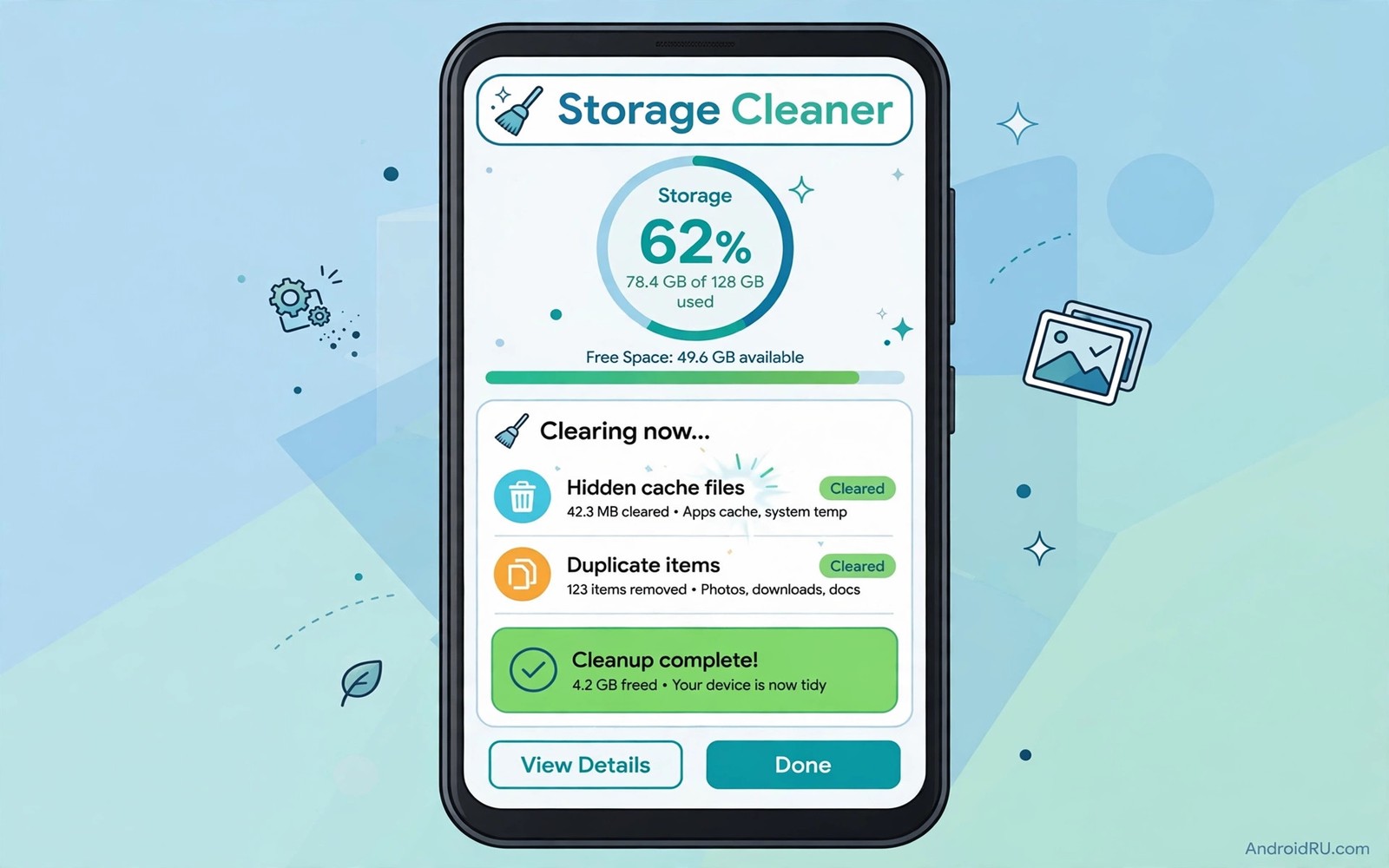
Storage warnings rarely arrive at a convenient moment. They appear during a photo burst or a system update or a large download. Hidden trash often causes the warning rather than your visible files. Cache files and duplicate downloads and leftover app data pile up quietly for months. A cleaner app can surface that hidden waste in one clear view. This guide shows how to use such a tool without deleting something you need.
Start by understanding what counts as trash on Android. Cache files help apps load faster but they can grow far beyond any benefit. Temporary files from failed downloads serve no purpose after the download ends. Duplicate photos from burst mode or repeated shares waste space without adding value. Leftover data from deleted apps should have vanished but sometimes remains behind. Each type needs a different level of caution before deletion.
A good cleaner explains every category before it deletes anything. It should show how much space each category uses and which files belong to it. It should let you exclude a folder or an app from cleaning. It should never delete personal photos or documents as part of a cache sweep. Transparency separates a helpful cleaner from a risky one that chases a big freed space number.
Manual cleaning still beats automatic cleaning for important folders. An automatic rule can delete a project file that looks like a temporary file to an algorithm. A manual review takes a few minutes but it protects work that matters. Use automatic cleaning only for safe cache categories you already understand. Keep personal folders fully manual and fully reviewed.
What hidden trash actually contains
App cache holds images and data that apps store for faster loading. A social app cache can grow to hundreds of megabytes from thumbnails alone. Clearing it frees space but the app will rebuild it over time. That means cache cleaning gives a temporary gain rather than a permanent fix. Use it to relieve a storage warning rather than as a daily ritual.
Download folders hide installers and documents you forgot after one use. An app installer from a year ago serves no purpose once the app runs. A PDF you downloaded for one meeting may sit beside dozens of similar files. Sorting the download folder by size surfaces the biggest forgotten files first. Deleting those files by hand often frees more space than any cache sweep.
Thumbnail caches and media databases also grow quietly. A gallery app builds thumbnails for every photo to show previews fast. Those thumbnails use space even when the original photos move elsewhere. A cleaner that targets thumbnail caches can free space without touching originals. Verify that originals stay intact after a thumbnail clean before you trust the tool again.
Using a cleaner app safely step by step
Run a scan and read the full result before you tap any clean button. Expand each category and check the file names inside it. Exclude any app that holds offline maps or offline music you need. Those apps store large offline files that look like cache but serve a real purpose. An exclusion list protects those files from every future scan.
Clean one category at a time and check the phone after each step. Clear app cache first and open your most used apps to confirm they still work. Clear downloads next only after you review the list by hand. Clear duplicates last because a duplicate check can mistake a backup copy for waste. A staged clean makes any problem easy to trace to a single category.
adb shell du -sh /sdcard/Download /sdcard/DCIM 2>/dev/nullThis brief command was included to show folder sizes for downloads and camera files. It shows a simple command that prints folder sizes for downloads and camera files on a connected device. You can use the output to decide which folder deserves a manual review first.
File organisation after cleaning keeps the gain from vanishing in a week. A cleaner frees space once but a folder habit prevents the pile from returning. That is why a strong manager matters after the first clean. The guide to file managers that go beyond the basics shows how to sort downloads so hidden trash stays visible. Pair the clean with a weekly folder check for lasting results.
A storage routine that prevents warnings
Set a monthly storage check on the same day as another routine task such as paying a bill. Open storage settings and note free space and the largest three folders. Move large videos to a computer or a cloud folder before free space falls below ten percent. A routine check prevents the sudden warning that arrives during an important photo or update. Prevention feels boring but it beats a crisis every time.
Treat downloads as a temporary inbox rather than a permanent archive. A download should move to a project folder within a week or leave the phone. A download inbox that grows unchecked becomes a second camera roll full of forgotten files. Rename downloads during the weekly move so future searches find them by name. A named file in a project folder is useful while an unnamed file in downloads is clutter.
Photos deserve a separate routine because they grow faster than any other category. Review burst photos and delete near duplicates promptly after a shoot. Keep the best shot from each burst and delete the rest without sentimentality. A burst of twenty similar photos rarely needs more than two keepers. That discipline keeps a camera roll searchable and keeps storage warnings away for months.
What a cleaner cannot fix
A cleaner cannot fix a phone that is full because of large offline maps or offline music you actually need. Those files serve a purpose and deleting them breaks a feature you rely on. Move offline content to a memory card if the phone supports one. Otherwise choose a smaller offline area for maps or music. A cleaner should never delete purposeful offline data to chase a freed space number.
A cleaner cannot fix slow performance caused by an old processor or a weak signal. Freeing space helps updates and installs but it does not speed up a struggling chip. Judge performance by app load times after a clean rather than by the freed space figure alone. A clean that frees gigabytes without improving load times points to a different bottleneck. Hardware limits need hardware expectations rather than repeated cleaning.
Monitoring helps you know whether cleaning actually helped or merely felt productive. A system monitor can show storage trends and battery drain after a clean. That is why a look at system monitor apps for hardware health helps after a large clean. Check trends for a week before you decide whether the cleaner earns a monthly place.
Storage for photos and videos
Photos and videos grow faster than any other category because a single trip can add gigabytes in a day. A storage routine that reviews media weekly prevents a sudden warning during an important shoot. Sort new photos into folders by event during the weekly review. Delete burst duplicates and keep only the best shot from each sequence. That weekly habit keeps a camera roll searchable and keeps free space available for the next event.
Video deserves special attention because a minute of high resolution video outweighs hundreds of photos. Check video size before recording a long event and choose a resolution that matches the purpose. A casual family video does not need the highest resolution a phone offers. A professional clip does need full quality and a backup plan. Matching resolution to purpose saves storage without harming the result.
Monitoring storage trends helps you decide whether a cleaner or a larger habit change is needed. A monitor that shows weekly storage growth reveals whether cleaning actually helps. That is why system monitor apps for hardware health belongs beside any cleaner routine. If storage grows despite monthly cleaning then media habits need change rather than another cleaning tool.
Storage and system updates
System updates need free space to download and install safely. A phone with almost no free space may fail an update halfway and leave the system unstable. Keep at least ten percent free before a major update arrives. Run a storage scan a week before an expected update season. That habit prevents a failed update caused by a preventable storage shortage.
Light tools help keep that free space buffer without constant cleaning effort. A phone with light apps and a tidy download folder rarely hits a storage warning. That is why lightweight apps under 10MB belongs in any storage plan for a phone that must stay update ready. Combine light apps with a monthly scan and updates will install without a last minute panic clean.
A final check after cleaning should confirm that favourite apps still open and that offline content remains intact. Open three apps you use daily and confirm they load normally. That quick check turns a clean into a safe routine rather than a risky guess.
Common mistakes
The biggest mistake is tapping a one tap boost button without reading what it will delete. A boost button can close useful apps and clear data you wanted to keep. It can also change settings you set carefully over months. Read the scan result every time even when the button promises a huge saving.
Another mistake is cleaning cache every day in the hope of faster performance. Frequent cache clearing forces apps to rebuild data constantly and can slow the phone. Clean cache only when storage runs low or an app behaves oddly. A weekly or monthly clean suits most phones far better than a daily ritual.
Frequently asked questions
Will cleaning cache delete my photos?
No if the cleaner targets cache only. Check the category list before you confirm. Never approve a clean that lists photos or documents under a vague junk label.
Can a cleaner speed up my phone?
It can help when storage is nearly full. It will not fix a slow processor or a weak signal. Freeing space helps updates and app installs more than raw speed.
How often should I run a cleaner?
Once a month suits most users. Run it sooner only when a storage warning appears. A monthly scan catches growth before it becomes a crisis.
Conclusion
Run a scan today and read every category before you clean anything. Exclude offline maps and offline music and any project folder first. Clean cache only and review the freed space before you touch downloads or duplicates.

