

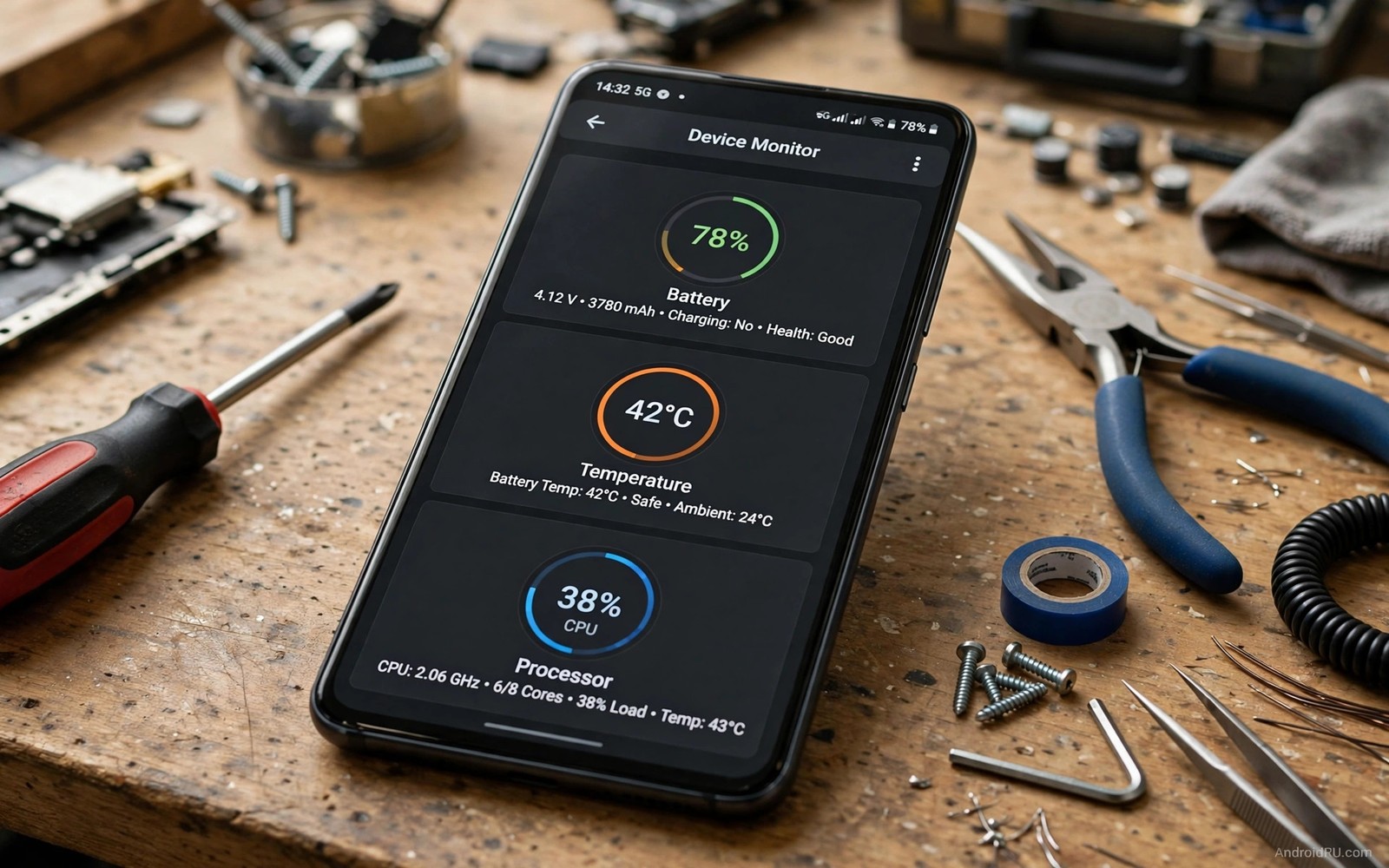
A phone rarely warns you before hardware starts to fail. Battery capacity fades slowly and storage fills quietly. A processor throttles on hot days without a clear message. A sensor drifts and apps start to behave oddly. System monitor apps turn those silent changes into numbers you can watch. This guide shows which numbers matter and which ones you can ignore.
Start with battery health because it affects every other part of the phone. Capacity tells you how much charge the battery still holds compared with when it was new. Cycle count tells you how many full charges it has endured. Temperature tells you whether heat is speeding up the decline. Those three numbers together give a clearer picture than a simple percentage on the status bar.
Storage health matters next because a full phone slows down in subtle ways. Free space affects app updates and photo saves and system caches. A monitor that shows folder sizes helps you find the real culprit fast. A monitor that only shows a total percentage hides the detail you need to act. Look for a breakdown by folder and by app before you start deleting files.
Processor and memory numbers help you judge lag honestly. A high CPU load during a simple scroll points to a background app misbehaving. A memory figure near full does not always mean a problem on Android. The system keeps apps in memory on purpose for fast switching. Judge memory by app reloads and stutters rather than by a single percentage figure.
Battery monitors done right
A good battery monitor shows capacity estimate and discharge rate over time. It should record how fast the battery falls during screen use and during idle. A sudden change in idle drain often points to a new app or a new update. Compare a normal week with a bad week before you blame the battery itself. Many battery problems are really app problems in disguise.
Temperature deserves a daily glance in hot climates and during gaming. A battery that regularly exceeds a warm threshold ages faster. A monitor with a temperature history shows whether heat comes from charging or from gaming or from a weak signal. Charging with a case on in a hot room can raise temperature more than a game does. Small habit changes can lower that heat without new hardware.
Calibration claims need scepticism. No app can restore lost chemical capacity by running a cycle. A monitor can improve the accuracy of the percentage display by learning full and empty points. That is a display fix rather than a health fix. Treat any app that promises to repair a degraded battery as marketing rather than science.
CPU and memory and sensor checks
A CPU monitor should show per app usage over a day rather than a live spike. Live spikes look dramatic but they mean little on their own. A daily total shows which app consistently uses the processor in the background. An app with a high daily total and low visible use deserves restriction or removal. That evidence beats a guess based on a single hot moment.
Memory monitoring works best as a reload test. Open five apps in order and then return to the first one. If it reloads from scratch then memory pressure may be high. If it resumes instantly then memory is fine even when the percentage looks high. Use that practical test alongside any monitor figure. Real behaviour matters more than a coloured gauge.
Sensor checks help when a specific feature fails. A compass test can reveal a sensor that needs recalibration. An accelerometer test can show whether rotation works smoothly. A proximity test can explain why the screen stays on during calls. Those targeted tests beat a general health score that mixes unrelated sensors into one number.
adb shell dumpsys batterystats 2>/dev/null | head -50This brief command was added to show battery statistics on a connected device. It shows a simple command that prints battery statistics on a connected device. You can use the output to compare app drain over a period before you change any setting.
Storage monitoring links directly to file habits. A monitor that flags large folders helps you decide what to move or delete. A file tool that organises those folders turns the insight into action. That connection is why file managers that go beyond the basics complements a monitor well. Watch the numbers first and then act with a tool that handles the files themselves.
Reading trends instead of single numbers
Record battery capacity and idle drain once a week in a simple note. A single week of numbers means little on its own because weather and usage vary. Four weeks of numbers reveal a slope that points clearly up or down. A falling capacity slope with rising idle drain suggests a battery problem rather than a bad app week. A stable slope with one bad week suggests an update or a new app instead. Trends turn monitoring from anxiety into evidence.
Compare idle drain on nights when the phone stays untouched. An idle night should lose only a small percentage if no app misbehaves. A night that loses a large percentage points to a background app or a weak signal search. Test by restricting the top background app for one night and comparing the result. That controlled test isolates the culprit faster than guessing from a daily total.
Watch storage trends with the same weekly discipline. A storage figure that grows by gigabytes each month points to a cache or a media habit. A storage figure that stays stable after a clean suggests the clean addressed the real cause. Weekly storage notes help you decide whether a cleaner app earns its place. A monitor that never changes a decision should leave the phone.
When a monitor points to a real problem
A battery capacity below eighty percent with rising heat deserves a repair consultation. A monitor reading alone should not trigger a replacement decision without a physical check. A repair shop can test the battery under load and confirm the reading. That confirmation protects you from replacing a battery that only needed a software fix. It also protects you from ignoring a battery that truly swells with heat.
A processor that throttles during normal use may point to heat rather than age. Clean a blocked vent area and remove a thick case during gaming to test the theory. If throttling stops after cooling improves then heat was the cause. If throttling continues in a cool room then a deeper hardware issue may exist. Cooling tests cost nothing and prevent an unnecessary repair.
Storage problems often pair with file habits rather than hardware failure. A monitor that flags large folders gives you a target for a manual sort. That is where a strong manager helps turn insight into action through file managers that go beyond the basics and their batch tools. Use the monitor reading as a starting point and then sort the folders it flags.
Monitor apps for older phones
Older phones benefit most from monitoring because their batteries and storage show age first. A monitor on an old phone should use very little power itself or it becomes part of the problem. Choose a monitor with a simple dashboard and infrequent polling rather than a live gauge that updates every second. A light monitor on an old phone gives useful trends without adding drain. Test the monitor battery share after a week and remove it if it tops the list.
Storage monitoring matters even more on an old phone with a small total capacity. A phone with 32 gigabytes fills faster than a modern phone with ten times that space. A monitor that flags large folders early prevents the storage full warning during a system update. Pair monitoring with a monthly folder review so flagged folders actually get sorted. A monitor without a sorting habit only reports a problem you already feel.
Cleaning complements monitoring on an old phone because cache growth hits small storage hardest. A cleaner that targets cache with a clear preview frees space without touching personal files. That is why cleaning hidden storage trash pairs well with a monitor on an older device. Watch the numbers first and then clean only the categories you understand. Together monitor and cleaner keep an old phone usable for another year.
Lightweight apps also help an old phone because they use less storage and less memory than heavy rivals. That is why lightweight apps under 10MB deserve consideration when a monitor shows an old phone struggling with daily tasks.
Monitor apps and privacy
A monitor app sees sensitive information by design because it reads battery and app usage data. That access deserves the same scrutiny as any other broad permission. Choose a monitor that stores its history on the device rather than uploading it to a server. Check its privacy statement for data sharing with third parties. A monitor that shares usage data defeats the purpose of watching your phone carefully.
Usage access is the key permission for a monitor that shows per app statistics. Grant it only to a monitor you trust and review it during your monthly audit. Remove usage access from any monitor you stop using actively. An unused monitor with usage access still holds a powerful view into your habits. Privacy discipline applies to monitoring tools just as it applies to the apps they watch.
Common mistakes
The biggest mistake is chasing a perfect health score instead of watching trends. A single low score on one day can reflect a hot afternoon or a heavy update. A trend over four weeks shows real decline or real improvement. Judge hardware by the slope of the line rather than by one point on it.
Another mistake is running several monitors at once. Each monitor polls sensors and writes logs in the background. Two or three monitors together can drain more battery than the problem they track. Pick one monitor and use it for a month. Remove it if it does not change any decision you make.
Frequently asked questions
Can a monitor tell me when to replace a battery?
It can show capacity below eighty percent and rising heat as warning signs. A repair shop can confirm the reading with a physical test. Use the monitor as an early warning rather than a final verdict.
Why does my phone show high memory use when idle?
Android keeps recent apps in memory for fast switching. High use alone is normal. Worry only when apps reload constantly or the phone stutters during simple tasks.
Do monitor apps need special permission?
Some need usage access to show per app stats. Grant that access only to a monitor you trust and review it monthly. Remove any monitor that asks for contacts or location for a hardware job.
Conclusion
Install one system monitor today and record battery capacity and idle drain for a week. Compare that week with the next week after any app change. Act only when a trend moves clearly in the wrong direction for several days.

