

How to Hack App Permissions Granularly Beyond System Settings
System permission settings offer a blunt choice. An app gets a permission or it does not. A camera app gets full camera access or none. A social app gets full location access or none. Real privacy needs finer control. You may want an app to use the camera but not the microphone, or location only while the app is open, or contacts read-only for one feature. Root tools can enforce that finer control, and this guide shows how the pieces fit together in practice.
A permission manager with root access can hook permission checks and decide each request on its own terms. It can return fake data instead of real data. It can grant a permission for one call and deny it for the next. It can limit a permission to a time window or to the foreground. That granularity protects privacy without breaking the app completely, which is the part system settings get wrong: a blunt deny often breaks the app, and a blunt allow hands over everything. The trade-off is real work and real risk, because these tools need root access through Magisk and the LSPosed framework, and a wrong rule can break features you care about. Start small, test one rule at a time, and keep a backup before you change anything.
Why Android System Settings Only Give You Allow or Deny
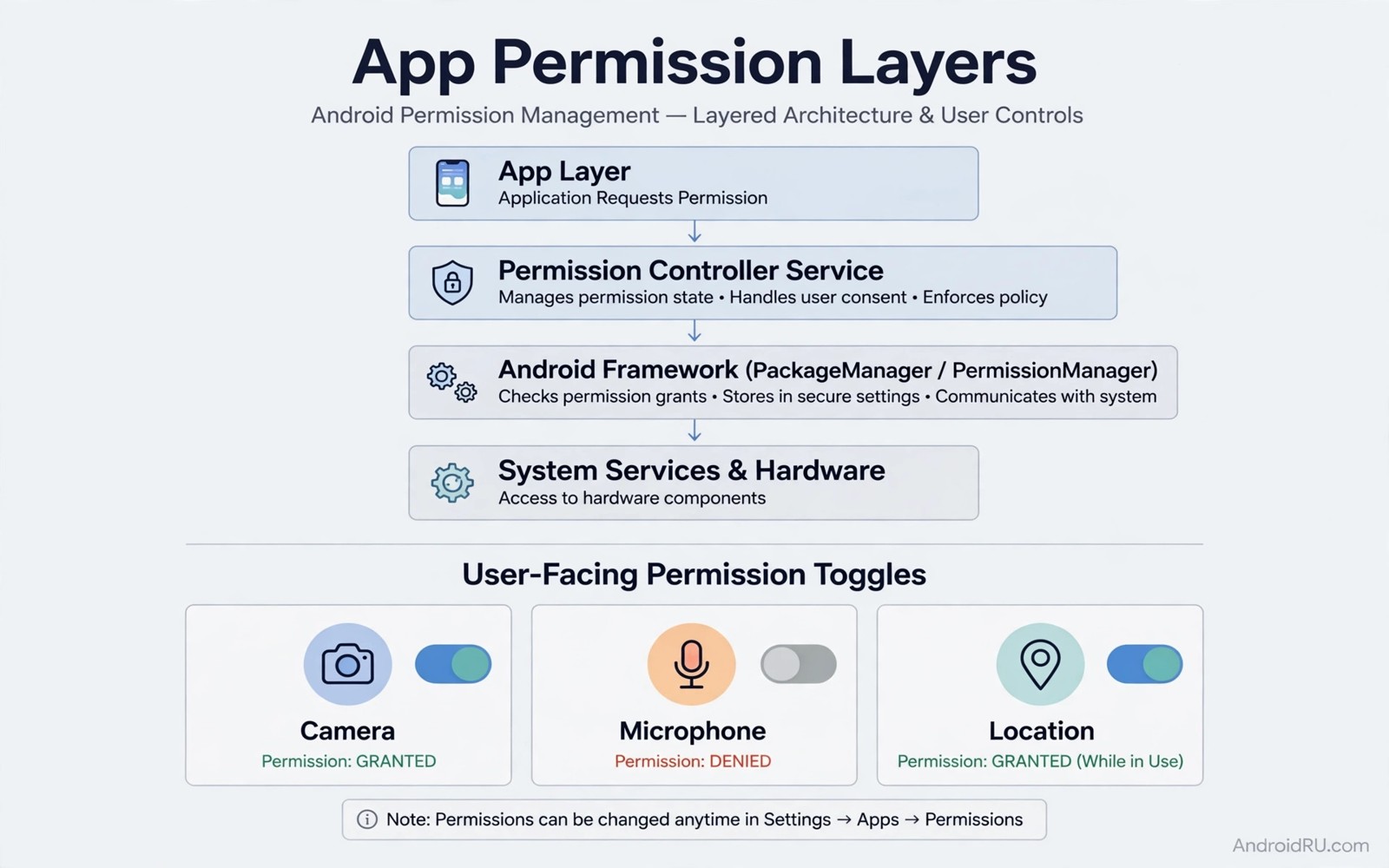
Android’s built-in permission screen was designed for ordinary users, so it hides the machinery underneath. Behind that screen, every permission maps to one or more operations in the appops system, and the settings app only exposes a simplified allow-or-deny switch per permission group. It cannot split camera from microphone inside one permission group, it cannot tell an app it may read contacts but not write them, and it cannot say yes for five minutes and no afterwards. That is not a flaw in the design. It is a deliberate simplification, and for most people it is enough. It stops being enough the moment an app demands a permission it does not need and refuses to run without it.
The deeper problem is that apps know the system only offers a binary choice, so many of them are written to demand everything up front. A flashlight app asks for contacts because the developer added a share feature nobody uses. A game asks for precise location because the ad library wants it. When the only answers are yes and no, the honest answer for a privacy-minded user is often no, and then the app breaks or nags. Granular control breaks that deadlock. It lets you answer yes with conditions: yes, but only a fake location; yes, but only while the app is open; yes, but only the camera, never the microphone. Each condition is a small rule, and the rules add up to a phone where apps work and your data stays home.
Fake Data Versus Outright Denial for App Permissions
The first decision in granular control is the oldest one: deny the request, or lie to it. Outright denial tells the app the permission is missing, and many apps handle that gracefully. They show a limited mode, they disable one feature, or they prompt you again later. Some apps refuse to run at all after a denial. Those apps check permission at startup and stop if it is missing, and for those apps denial is not a privacy win, it is a dead app. Fake data solves that refusal pattern by returning a plausible but empty result: a contacts request returns an empty list, a location request returns a fixed coordinate, a camera request returns a black frame. The app continues as if permission worked, and the private data stays protected.
Fake data has limits, and knowing them keeps you out of trouble. A fake location that never changes looks suspicious over time, and an app that tracks movement will notice the phone never moves. A fake contact list may break a sharing feature you actually want, because the people you want to share with are not in the empty list. A black camera frame breaks a video call, so fake camera data is useless for any app where you actually use the camera. Choose fake data for permissions the app does not truly need, and choose denial for permissions where a fake result would mislead you or break something you use. Test fake data with the feature that uses the permission: open the sharing screen after a fake contacts rule, open the map after a fake location rule, and check whether the app behaves sensibly.
When Fake Data Keeps an App Working
Fake data earns its place with apps that gate their whole interface behind a permission check. A shopping app that will not show its catalogue until it reads your contacts is the classic case: the contacts have nothing to do with shopping, but the developer wired the startup check that way, and denial means no shopping at all. A fake empty contact list passes the check and the app opens normally. The same pattern shows up with location: some apps demand location at startup for a store finder you will never use, and a fixed fake coordinate gets you past the gate. In both cases the app works, the feature you came for works, and the data it wanted stays on your phone.
What XPrivacyLua Actually Returns to an App
XPrivacyLua is the best-known module for this job, and it has been around since the Xposed days. It runs under LSPosed on a rooted phone and hooks the data an app asks for, then hands back a fake value instead of the real one. For contacts it can return an empty list. For location it can return a fixed coordinate you choose, or a coordinate near a place you pick on a map. For device identifiers it can return a random value. For calendar, call logs, and SMS it can return nothing at all. You set these per app, per data type, from the XPrivacyLua interface, and the app never knows the difference. Check the current release notes for your Android version before you rely on it, because the module’s support for newer Android releases changes over time and some hooks need updating after a major system update.
Empty Contact Lists and Fixed Coordinates
An empty contact list is the safest fake value for contacts, because it contains no real person and cannot leak anyone. A fixed coordinate needs a little more thought: pick a plausible public place, such as a city centre, rather than a random point in the ocean, because some apps validate the coordinate and reject one that looks impossible. A fixed coordinate also has a tell. If an app logs your position over days and the coordinate never moves a metre, a careful developer could notice. For apps where that matters, a better answer is denial plus a fake value only when denial breaks the app, or a rule that allows real location only while the app is open. The fake value is a tool, not a disguise, and it works best where nobody is looking closely.
When Outright Denial Is the Cleaner Choice
Denial is clearer than fakery whenever the app handles it well, because the app knows access is closed and behaves accordingly. A photo editor that asks for contacts can live without them, and denying the request costs you nothing. A game that asks for microphone access for a feature you never use can be denied without a second thought. Denial is also the honest answer for permissions tied to a feature you might use one day: the app will prompt again when you open that feature, and you can grant it then, with the reason fresh in front of you. Fake data hides the request entirely, so you never get that second chance to decide. My rule is simple. Deny first. Reach for fake data only when denial breaks the app or blocks a feature you actually need.
Per-Feature and Per-Sensor Permission Rules With LSPosed
Per-feature rules split a permission by use, and that split is where granular control starts to feel genuinely powerful. A messaging app may need the camera for photos but not for background scanning. A rule can allow camera access only when you tap the photo button, which needs a hook that knows the calling context, and advanced managers support that kind of context awareness. The idea sounds complex, and the setup is, but the result is simple: the app gets the sensor exactly when you mean it to, and never when you do not.
Per-sensor rules split location into sources. GPS location is precise to a few metres. Network location is rough, often a city block or worse. A rule can allow rough location while blocking precise GPS, and that split suits apps that need a city but not a street address. Weather apps and news apps often fit that pattern. Navigation apps do not, because they need precise GPS to work at all. The same split applies to audio. A voice recorder needs microphone access, a music app does not need microphone access for playback, and a rule that blocks the microphone for a music app is safe while the same rule for a recorder breaks its core feature. Match the rule to the feature, every time, and test the feature after you set the rule.
Splitting Camera Access From Microphone Access
Camera and microphone travel together in many permission prompts, but they are different sensors with different risks. A video call needs both. A photo upload needs only the camera. A voice note needs only the microphone. In the appops system these are separate operations, CAMERA and RECORD_AUDIO, and a granular manager can set them independently even when the system settings screen shows them as one group. I keep a short list of apps where I split them: messaging apps get camera allowed and microphone on one-time or foreground-only, because I take photos often and record voice notes rarely. A banking app that wants a video selfie for verification gets camera access for that one session and nothing else. The split costs a minute to set up and saves you from an app that records audio every time you open the camera.
Rough Location Versus Precise GPS
Most apps that ask for location need far less precision than they request. A weather app needs your city, a news app needs your region, a food delivery app needs your street only when a courier is on the way. Android already offers approximate location as a system option on Android 12 and newer, and that option is the easiest version of this rule: open App info, tap Permissions, tap Location, and choose Approximate location instead of Precise location. For finer control, a granular manager can allow network location while blocking GPS, which gives the app a rough fix without the metre-level trail. Reserve precise GPS for navigation, fitness tracking, and ride-hailing, and give everything else the rough version. If an app complains that your location is wrong, you have found an app that genuinely needs precision, and you can grant it deliberately.
Motion and Health Sensor Rules
Sensor rules also cover motion and health sensors, which most people never think to audit. A fitness app needs step data and activity recognition. A game does not need step data, and a shopping app certainly does not. A rule that blocks step sensors for a game is harmless, while the same rule for a fitness app breaks tracking. Body sensors, which cover heart rate data from paired wearables, deserve the same treatment: allow them only for health apps you trust, and deny them everywhere else. These sensors feel harmless because the data looks boring, but step counts and activity patterns reveal sleep times, work hours, and travel days, and that pattern is exactly what a data-hungry app wants.
Time-Based and Foreground-Only Permission Rules
Time rules answer a question the system settings never ask: when should this permission work. A delivery app may need location during a delivery window, and it does not need location all day. A rule can allow location for two hours after you open the app, and after that window the permission closes. A one-time rule grants permission for a single action: a photo upload needs camera access once, a one-time grant covers that upload, and the next upload asks again. That friction is intentional. It makes each access visible, and you decide again with fresh eyes instead of living with a grant you made six months ago and forgot.
Foreground-Only Rules Stop Background Tracking
Foreground-only rules grant permission only while the app is visible on screen, and they are the single most effective granular rule for most people. Background location tracking stops under that rule. Background microphone access stops too. The app works normally while you use it, and it cannot collect data while you do other things. That balance suits most social and shopping apps, and Android already offers it as a system option: App info, then Permissions, then Location, then Allow only while using the app. A granular manager can enforce the same idea for sensors the system screen does not split, and it can enforce it strictly, closing the permission the moment the app leaves the foreground rather than trusting the app to behave.
Time Windows and One-Time Grants
Time windows need a manager with scheduling support, and not every tool offers them, so check what your chosen manager supports before you plan around a window. Where windows exist, the useful patterns are short: two hours for a delivery, one hour for a ride, thirty minutes for a check-in. Combine time rules with fake data carefully, because a fake location during a time window still looks fake, and a denied location after the window ends is clearer. Use denial after the window ends. Use fake data only when denial breaks the app. That combination keeps behaviour predictable, and predictable behaviour is what makes a rule easy to debug when something stops working.
How to Set Granular Permission Rules With App Ops and ADB
Root is not the only path to finer control. Android’s appops system is accessible without root through ADB or through Shizuku, and the App Ops app by RikkaApps gives it a friendly interface. App Ops lists every operation an app can perform, from CAMERA and RECORD_AUDIO to less obvious ones such as reading the clipboard or waking the phone, and lets you set each one to Allow, Ignore, Deny, or Foreground only. Ignore is the interesting choice: the app is told the operation returned nothing, which behaves like fake data for many operations. That is real granular control on a phone with no root at all, and it survives as long as you do not reinstall the app.
AppOpsX is another open-source option in the same space, with a similar interface and the same requirement: root, Shizuku, or an ADB session to grant it the permission it needs to manage other apps. Both tools change the same underlying appops settings, so pick one and learn it well rather than running both at once. Whichever you choose, the workflow is the same: pick one app, pick one operation, change it, test the feature, and write down what you changed. A dozen changes at once hide the faulty one, and the faulty one is always the one you forget you made.
App Ops With Shizuku When You Do Not Have Root
Shizuku is a bridge that lets apps use system-level permissions through ADB without root, and it is the piece that makes App Ops work on a non-rooted phone. Install Shizuku, start it with the wireless debugging method on Android 11 and newer, or with a one-time ADB command from a computer, then open App Ops and let it connect through Shizuku. Once connected, App Ops can read and change appops settings for any app on the phone. The connection needs restarting after a reboot, which is a small annoyance, and Shizuku itself needs no special care beyond that. This path is the right starting point if you are not ready for root: it teaches you the appops model, and the rules you learn here carry straight over if you later move to Magisk and LSPosed.
ADB Shell Cmd Appops Commands Step by Step
For a direct look at the same system, ADB gives you the appops command itself. Connect the phone, enable USB debugging, and run the commands below against one app at a time. These commands change real settings on your own device, so read each one before you run it, and run them against a test app first rather than a banking app.
adb shell cmd appops set --uid com.example.app CAMERA ignoreadb shell cmd appops set --uid com.example.app RECORD_AUDIO denyadb shell cmd appops set --uid com.example.app ACCESS_FINE_LOCATION foregroundadb shell cmd appops get com.example.app
Replace com.example.app with the real package name of the app you are testing. The first command tells the app its camera requests return nothing. The second denies microphone access outright. The third allows precise location only while the app is in the foreground. The last command lists every operation and its current mode for that app, so you can confirm the change took effect. Operation names follow the appops list: CAMERA, RECORD_AUDIO, ACCESS_FINE_LOCATION, ACCESS_COARSE_LOCATION, READ_CONTACTS, READ_EXTERNAL_STORAGE, and many more. If a command returns an error about an unknown operation, the operation name is wrong for your Android version, so list the valid names with adb shell cmd appops get --help and try again.
Checking the Current State With Dumpsys
After you set a rule, verify it from a second angle with dumpsys, which shows the permission state the system holds for a package. Run adb shell dumpsys package com.example.app | grep -i "permission" | head -20 and read the granted permissions section. Compare it against what App Ops or your LSPosed module shows: the two views should agree, and if they do not, trust dumpsys and re-check the manager after a reboot. Dumpsys output is long and noisy, which is why the grep filter matters, and the head limit keeps the result readable. This check takes ten seconds, and it is the difference between believing a rule is active and knowing it is.
Location Mocking, Attestation and Audio Hooks Interplay
Permission rules do not live alone. They interact with other root tools on the same phone, and the interactions cause the most confusing failures in this whole area. Location mocking is the first collision. A mock location needs location permission to deliver data, so blocking location permission stops both real and mocked data. A mock module cannot fix a blocked permission, and many people debug the mock for an hour before they realise the permission was the problem. Check permission state before you debug a mock failure. The guide on mocking location systemwide at framework levels explains the mock layers, so use it alongside permission rules to separate the two problems: a permission problem shows as no location at all, while a mock problem shows as the wrong location.
Attestation checks are the second collision. A strict app, usually a banking app or a game with anti-cheat, may detect a permission hook as tampering, and that detection looks like an attestation failure rather than a permission problem. The app refuses to open, or it shows a security warning, and nothing in the permission screen explains why. The guide on passing hardware attestation checks covers that failure class, and the practical advice is simple: test permission rules with non-critical apps first, keep banking apps on plain system permissions until a rule proves itself elsewhere, and if a strict app starts failing after you add a rule, disable the rule for that app before you blame attestation.
Audio hooks share a similar interaction. An audio processing hook needs audio permission paths to function, and a permission rule that blocks audio can silence the hook entirely. The guide on intercepting audio output streams with deep hooks explains those audio paths, so keep audio permission rules separate from audio hook scope during testing. Change one of them at a time, test, and only then change the other. When two root tools touch the same path, the only reliable debugging method is to change one thing, test, and write down the result before you touch the next thing.
Building a Permission Profile for a New App
Build a permission profile when you install a new app, and build it deny-first. Start with all optional permissions denied, use the app for a day, and note which features ask for permission. Grant only the permissions tied to features you use. That deny-first profile protects privacy by default, and it teaches you the app’s real needs faster than any review. Review the profile after a week. Some permissions seemed necessary on day one but prove unused, so revoke those. Some features seemed unimportant but prove useful, so grant those deliberately. A weekly review keeps the profile honest, and it takes five minutes once the habit exists.
Document why each permission is granted, because a profile without reasons rots within a month. A short note per permission helps future reviews: camera for photo upload, location for nearby search, microphone for voice notes. Notes prevent permission creep over months, and they make troubleshooting concrete: when a voice feature stops working after a change, the note tells you the microphone rule is the first thing to check. Test app updates against the profile, too, because an update may request a new permission, and a new request deserves scrutiny. Check what feature uses the new permission, deny it first, and grant it only after a feature test shows a real need. Updates should not silently expand access. Share profiles only as ideas, not as rules, because another user may need a permission you denied. Their feature needs differ, so use shared profiles as a starting point and adapt them to your own use.
Document Why Each Permission Is Granted
A note can be as short as one line per app in your notes app, and that is enough. Write the app name, the permission, the rule, and the reason: location foreground-only for nearby search, camera one-time for photo upload, contacts denied because the app has no sharing feature. Location rules deserve a separate line in the note, because location has the most modes: foreground-only, fake, denied, or approximate. Note the reason for that choice, because a location note prevents accidental expansion later and helps when a map feature breaks. Audio permissions deserve similar care. Note whether microphone access is one-time or foreground-only, and which feature needs it. A microphone note makes privacy reviews concrete, and it helps when a voice feature stops working after a change. Review permission profiles after a device restore, because a restore can reset permission grants to defaults, and a reset profile may grant more than your careful profile allowed. Check each important app after a restore and reapply granular rules where needed.
Common Mistakes With Granular Permission Rules
The most common mistake is blocking a permission outright for an app that refuses to run without it, instead of using fake data. Denial feels decisive, but a dead app is not a privacy win, and fake data would have kept the app working with no real data leaving the phone. The second mistake is applying a dozen granular rules at once and then guessing which rule broke a feature. One rule at a time is slower and it is the only method that produces a clear answer. The third mistake is granting precise GPS to an app that only needs a city-level location, which hands over a metre-level trail for a job that needed a postcode.
- Using a fake location that never changes for an app that tracks movement. A static coordinate is a tell, so use denial or foreground-only real location for apps that watch movement.
- Forgetting that a background rule can break a delivery or tracking feature you actually want. Test background features after you set a foreground-only rule, not just the main screen.
- Setting rules for system apps before you understand the fallout. Blocking a system permission can break core functions, so limit granular rules to user apps first and test system app rules only with a full backup ready.
- Changing permission rules and audio hooks at the same time. When two tools touch the same path, change one, test, and then change the other.
- Assuming a rule survives everything. Reinstalls, major app updates, and device restores can reset appops settings, so re-check key rules after each of those events.
Frequently Asked Questions About Granular App Permissions
Will granular rules break app updates?
An update can change how an app requests permission, and a rule tied to an old request pattern may miss the new pattern. Re-test key rules after a major app update, and adjust the rule to the new pattern. App updates can also reset appops settings for that app, so check the rule state after an update even if nothing seems broken. A quick look in App Ops takes thirty seconds, and it catches a reset before the app spends a week collecting data under a rule you thought was active.
Is fake data safer than denial?
Fake data keeps apps running while protecting real data, and denial is clearer for apps that handle it well. Choose fake data when denial breaks the app or blocks a feature you need. Choose denial when you want the app to know access is closed, or when a fake result would mislead you, such as a fake contact list hiding people you actually want to share with. Neither answer is safer in every case. The safer answer is the one that matches what the app does with the permission, and you learn that by testing the feature, not by guessing.
Can I set a permission rule for system apps?
You can, but system apps need caution. Blocking a system permission can break core functions such as calling, messaging, or the launcher itself, and the failure may not be obvious until you need that function in a hurry. Limit granular rules to user apps first, learn the model there, and test system app rules only with a full backup ready and time to restore it. For most people, the system settings screen is enough for system apps, and granular rules earn their keep on the user apps that overreach.
Do granular rules survive a reboot?
Appops rules and LSPosed module settings normally survive a reboot, because they are stored in the system database and the module configuration. What does not always survive is the Shizuku connection on a non-root phone, which needs restarting after a reboot before App Ops can change anything again, though the rules themselves stay in place. Reinstalls and major app updates are the real reset risk: a fresh install gets fresh defaults, so re-apply your profile after you reinstall an app, and check the rules after a major update. A device restore is the biggest reset of all, so treat the first audit after a restore as a full rebuild of every profile.
Your Next Step: One App, One Rule, One Day
Granular permissions give you control beyond a simple allow or deny. Use fake data when denial breaks an app, use per-feature rules for camera and location splits, and use foreground-only rules for background tracking. Test one app and one permission at a time, write down what you changed, and check the result before you add another rule. The system is not hard once the first rule works. The hard part is resisting the urge to fix everything in one sitting.
Your concrete next step is to pick one overreaching app today and apply a single foreground-only location rule to it. Use the app for a day, check whether its core features still work, and only then add a second rule. If you do not have root yet, start with App Ops and Shizuku instead of LSPosed: the rules are the same, the learning is the same, and the phone stays closer to stock while you decide whether deeper control is worth it for you.

