

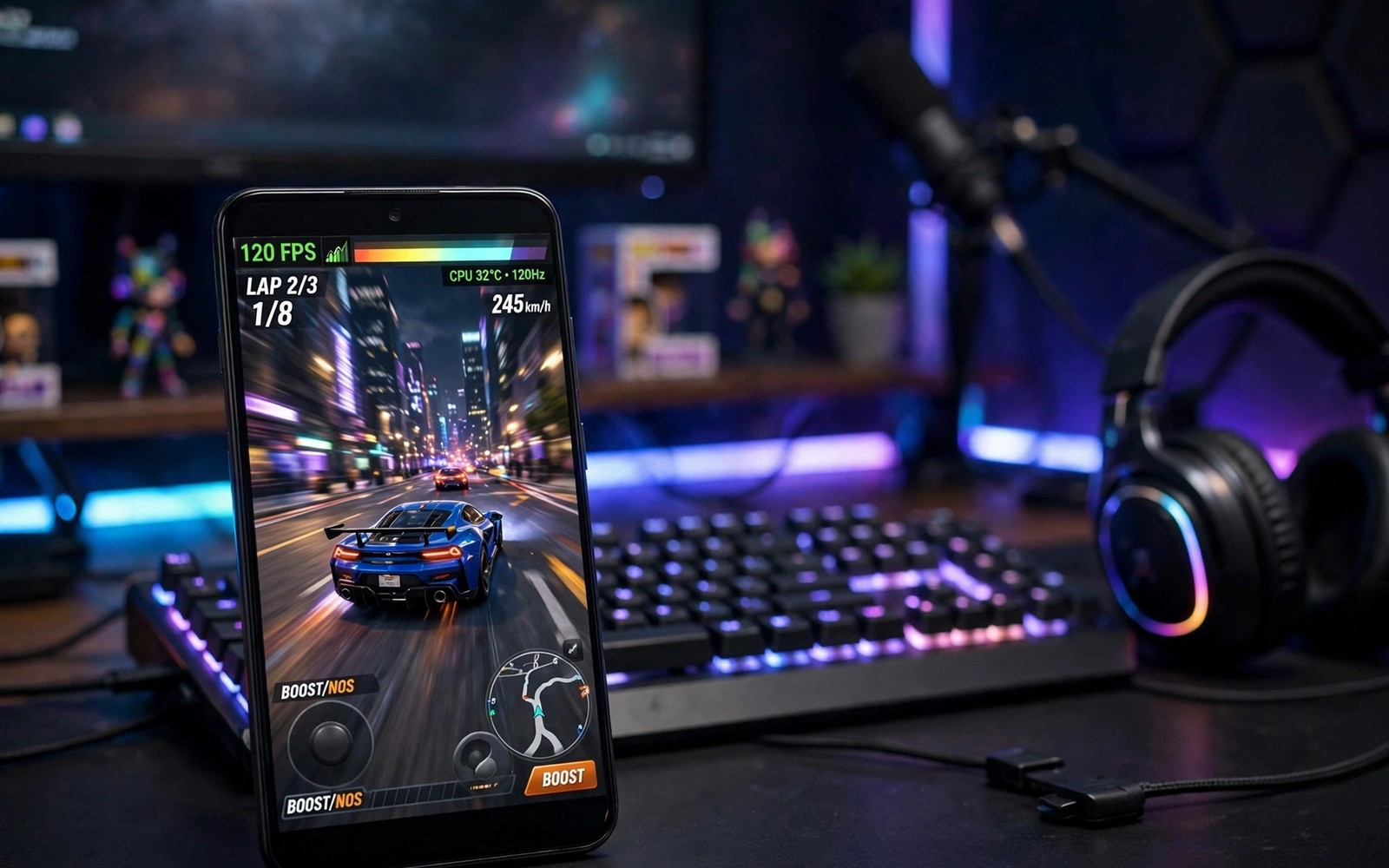
Many phones have a 120Hz screen yet many games still run at 60 frames per second. The game may cap its frame rate for battery or for stability. The system may cap refresh for a specific game. A module that lifts those caps can unlock smoother gameplay. The effect is real when the hardware can sustain it. It is disappointing when the hardware cannot.
No module can make a weak chip render twice as many frames for free. A 120FPS unlock works best on a strong chip with a high refresh screen. It works poorly on a weak chip that already struggles at 60FPS. The module removes a limit rather than adding power. Understanding that limit prevents false expectations and overheating.
This guide explains how frame caps work and how to lift them safely per game. You will test frame rates and temperatures before and after. You will learn which games benefit most and which games should stay capped. You will also learn heat management because sustained 120FPS generates real heat.
Understand Why Games Cap At 60FPS
Games cap frame rates to save battery and to keep performance stable. A cap at 60FPS halves the rendering work compared with 120FPS. That saving matters on a phone with a small battery and no fan. Developers also cap games to avoid judder when a chip cannot hold a steady high rate. A steady 60FPS often feels better than a jumping rate between 90 and 120.
System refresh caps add another layer. A phone may run the display at 60Hz for a game even when the screen supports 120Hz. That cap can come from a power profile or from a game list maintained by the maker. Override refresh rate caps explains the system side. A module must address the cap that actually limits your game. Lifting the wrong cap changes nothing.
Check Hardware Before Unlocking
Check that your screen supports 120Hz in Settings. Check that your chip and cooling can handle sustained load. Play a demanding game at 60FPS for twenty minutes and note the temperature and battery drop. If the phone already gets hot at 60FPS then 120FPS will make it hotter. A hot phone will throttle and the frame rate will drop anyway.
Check the game settings for a frame rate option first. Some games offer 90FPS or 120FPS natively on supported devices. Enabling a native option is safer than forcing a cap with a module. Use a module only for games that lack a native high rate option. A native option was tested by the developer for that game. A forced unlock was not.
120FPS unlock checklist
1. Confirm the screen supports 120Hz
2. Test the game at 60FPS for heat and battery
3. Enable any native high rate option first
4. Install the unlock module for specific games only
5. Set a realistic target rate per game
6. Measure steady frame rate and temperature
7. Remove the module if a game warns about it
The example above was written for this guide as a plain summary of the steps in the sections before it. It uses only the menus and options described above and it needs no extra tool to understand. Follow the steps in order so you can see which change helps most. If one step makes things worse then undo that step alone and keep the rest.
Install And Configure The Module Per Game
Install a refresh unlock module from a trusted source for your root method. Enable it for specific games rather than for every app. A global unlock can force high refresh in apps that do not need it and drain battery all day. Per game control keeps the benefit where it matters and the cost where it is worth paying.
Set the target frame rate per game based on its demands. A light competitive game may hold 120FPS well. A heavy open world game may hold 90FPS more steadily. Overclock GPU for high frame rates is a separate and riskier path that should not be combined blindly with an unlock. Test one game at a time and record the steady frame rate rather than the peak rate. A steady rate is what your eyes actually feel.
Test Frame Rate Temperature And Battery
Use a frame rate overlay or a game tool to measure the real rate during play. Play the same scene before and after unlocking so the comparison is fair. Note the average rate and the lowest rate during action. A game that averages 115FPS with dips to 70FPS feels less smooth than a game locked at 90FPS. Stability matters more than a high peak number.
Measure temperature with a simple test after twenty minutes of play. If the phone feels uncomfortably hot then lower the target rate or shorten sessions. Thermal limits for gaming explains why heat forces throttling. A module that unlocks frames cannot remove heat. Manage heat with breaks and with a lower target when needed.
Keep Competitive Fairness And Account Safety In Mind
Some games treat frame unlock tools as cheating tools. A module that changes game behaviour can trigger anti cheat detection. Read the game terms and community reports before unlocking a competitive online game. Losing an account for a smoother frame rate is a bad trade. Use unlocks mainly for single player games or for games where the community confirms safety.
Keep the module updated and remove it if a game update causes crashes or warnings. A warning from a game is a signal to stop rather than to hide harder. Advanced root mods for performance cover other performance paths that may suit a game better. A safe and stable game at 90FPS beats a banned account at 120FPS.
120FPS For Different Game Genres
Different game genres benefit differently from 120FPS. Fast competitive shooters benefit most because smooth motion helps aiming. Racing games benefit strongly because track edges move fast across the screen. Puzzle games benefit least because the screen changes slowly. A puzzle game at 120FPS looks almost the same as at 60FPS while costing more battery. Match the unlock to genres where motion matters.
Role playing games sit in the middle. Open world exploration feels smoother at high rates while turn based battles do not need it. Set a high rate for exploration and a lower rate for menus if the game allows profiles. Per genre thinking saves battery without losing smoothness where it counts. Test each genre separately rather than applying one rate to every game.
Battery Planning For Long Sessions
A long gaming session at 120FPS needs battery planning. Start a session with a full charge and a charger nearby. Lower screen brightness slightly to offset the extra GPU cost. A small brightness cut can save more battery than the frame unlock costs in some games. Take a break every hour to let the phone cool. A cooled phone sustains high rates better than a hot phone.
Carry a power bank for sessions away from a socket. A power bank with fast charging support keeps a long session alive. Avoid playing while charging in a hot room because heat plus charging can throttle the phone fast. A cool room and a short break beat a hot room and a continuous session. Plan heat and power together for the best long session experience.
120FPS And Display Technology
Display technology affects how 120FPS feels in practice. An OLED screen switches pixels faster than an LCD screen. That fast switching makes high frame rates look smoother on OLED. An LCD screen may show motion blur even at 120FPS because pixels change more slowly. Check your screen type before expecting a dramatic improvement from an unlock. An OLED phone will show the benefit more clearly than an older LCD phone. Screen technology sets a ceiling on perceived smoothness regardless of frame rate.
Variable refresh displays add another factor. A display that adapts refresh rate to content can save battery by dropping to a low rate for static screens. Forcing a constant 120Hz can defeat that saving. Use per game settings so variable refresh still works outside games. A game at 120FPS and a reading app at a low rate is the ideal balance. A global constant rate wastes battery on static content. Per app control respects both smoothness and battery life. Test variable refresh behaviour after installing an unlock module to ensure it still adapts outside games.
Touch sampling rate also interacts with frame rate. A high touch sampling rate makes controls feel responsive at high frame rates. A low touch sampling rate can make a 120FPS game feel less responsive than expected. Check the touch sampling specification for your phone if controls feel laggy despite high frames. A game can render smoothly while input still lags. Both rendering and input must be fast for a truly responsive feel. An unlock module addresses rendering only. Input lag needs a different solution if it exists for your device.
Common mistakes
One common mistake is unlocking 120FPS on a weak chip that cannot sustain it. The result is heat and throttling rather than smoothness. Test hardware first. Another mistake is unlocking every app globally. That drains battery all day for no benefit. Unlock per game only. A third mistake is ignoring game anti cheat warnings. A banned account costs far more than a smoother frame rate.
FAQ
Will 120FPS unlock work on every game?
No because some games hard cap frame rate in game code that a refresh module cannot change. Some games also detect unlock tools. Test each game individually rather than assuming a global unlock works everywhere.
Does 120FPS drain battery much faster?
Yes because rendering twice as many frames uses more GPU power and more battery. Expect a noticeable battery cost in demanding games. Use 120FPS for sessions where smoothness matters most.
Can unlocking 120FPS damage my phone?
It can increase heat which can throttle performance over time. It rarely damages a healthy phone directly because thermal protection will throttle first. Stop if the phone gets very hot and lower the target rate.
Conclusion
Confirm your screen supports 120Hz today and test one game at 60FPS for heat. Enable a native high rate option if the game offers one. If not then install an unlock module for that game only and measure the steady frame rate. Keep the unlock only if the game holds a smooth rate without excessive heat. That test based method gives you real 120FPS gains without risking your battery or your account.
Compare your 120FPS experience with friends who play the same game at 60FPS. Ask whether they notice the difference in a blind test. A blind test removes placebo effect from the comparison. If friends cannot tell the difference then the battery cost may not be worth it for that game. If they notice smoother motion at once then the unlock is clearly valuable. Honest comparison keeps gaming tweaks grounded in real benefit rather than in numbers alone.

