

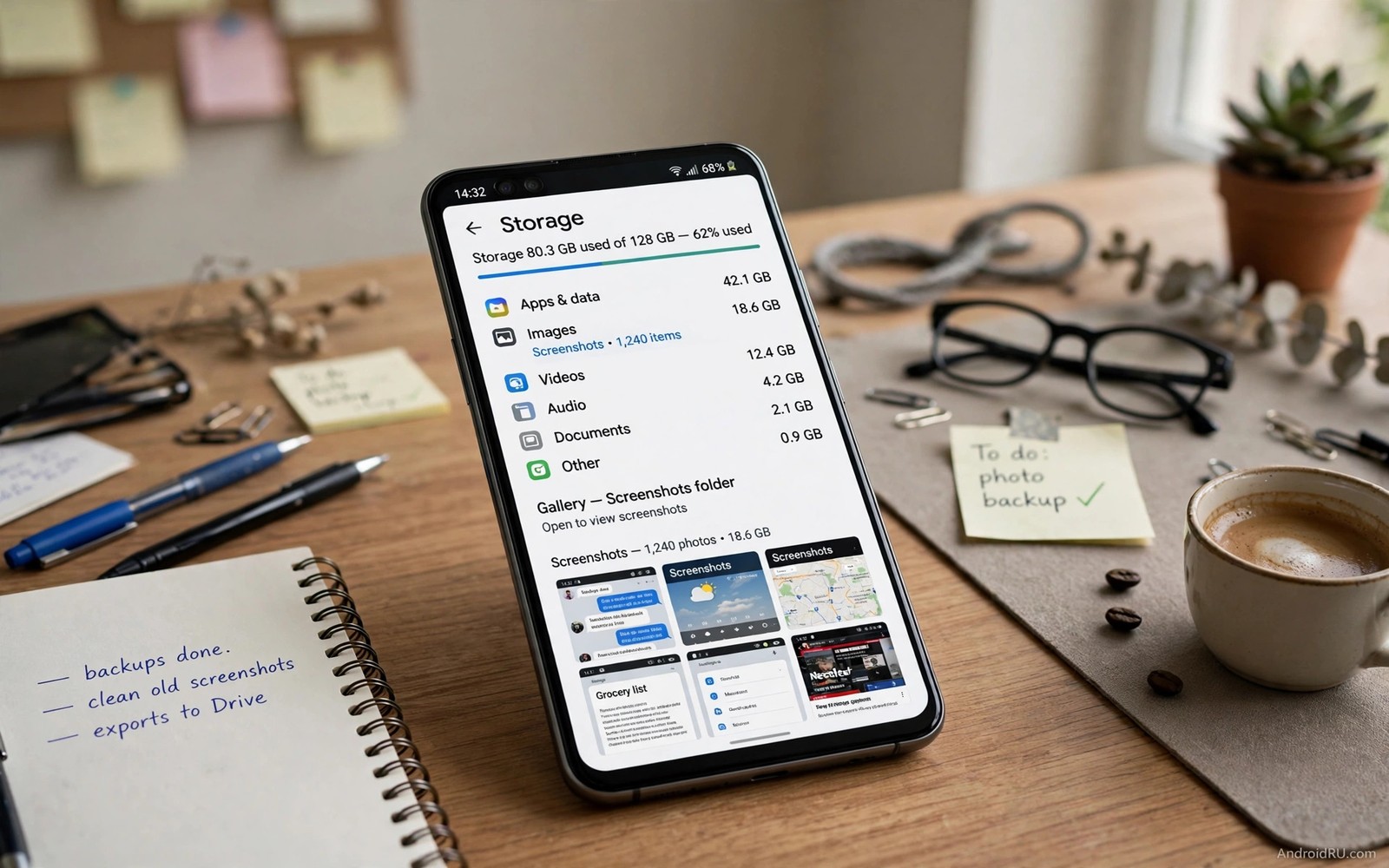
Screenshots pile up fast because every capture lands in the same default folder. A boarding pass and a meme and a work error message all share one gallery view. Finding a screenshot from last month means scrolling past hundreds of images you no longer need. Custom storage locations solve this by sending different screenshots to different folders. Work captures go to a work folder. Personal captures go to a personal folder. Temporary captures go to a folder that cleans itself.
Android storage is organised by folders that apps can read. The default screenshots folder is visible to the gallery and to backup tools. A custom folder can also be visible if you place it in the pictures area. A folder in a private app area may hide from the gallery. Understanding this difference matters before you move anything. A screenshot that disappears from the gallery is not deleted. It is simply stored where the gallery does not look.
The goal is a system that sorts with minimal effort. Manual sorting after the fact rarely happens because nobody enjoys moving hundreds of files. Automatic rules and separate capture workflows do the sorting at capture time. This guide shows how to set custom locations and how to keep them tidy without daily work. A tidy screenshot system also speeds up sharing because you know exactly which folder holds the image you need.
Map your current screenshot folders first
Open your file manager and find the pictures folder. Look inside for a screenshots folder and note how many files it holds. Check the downloads folder too because some apps save captures there by mistake. Check the gallery app for albums that duplicate the same files. Duplicates happen when a backup tool copies screenshots into a second album view. Knowing the current mess helps you design a cleaner map.
Sort screenshots by date in the file manager. Look at the oldest fifty files and ask whether any of them still matter. Most old screenshots are expired tickets and old chats and one time codes. Those files can be deleted in bulk. Keep only screenshots that serve as receipts or instructions or references. Deleting the oldest clutter first makes the new system easier to start because you are not carrying years of junk into new folders.
Check backup settings before you move folders. Some backup tools back up the default screenshots folder automatically. A custom folder may not back up unless you add it explicitly. Open backup settings and add your new folders to the backup list if they hold important receipts. Test backup with one screenshot in a new folder. Confirm that it appears in your backup account before you rely on the folder for important captures.
Note which apps create their own screenshot folders. Some work apps and banking apps save captures to their own directories. Those folders may not follow your custom location rules. You cannot always change them. Instead create a monthly habit of moving their contents into your main folders. A monthly move takes five minutes and it prevents a hidden folder from growing unnoticed for a year.
Set a custom location for new screenshots
Some phones let you change the screenshot save location in settings under screenshots or storage. If that option exists then choose a folder inside pictures with a clear name like screenshots work or screenshots personal. Create the folder before you select it so the setting points to a real path. Take a test screenshot and confirm that it lands in the new folder. If it lands in the old folder then the setting did not apply and you should restart the phone and test again.
If your phone has no built in location setting then use a file automation tool. These tools watch the default screenshots folder and move new files based on rules. A rule can move files with a work app in the foreground to a work folder. A simpler rule can move all screenshots taken during work hours to a work folder. Time based rules are less precise but they work without complex setup. Start with a time rule and refine it later if needed.
Separate folders by purpose rather than by date alone. A folder for receipts and a folder for instructions and a folder for temporary shares covers most needs. Date folders inside each purpose folder keep them organised over time. For example a receipts folder can hold subfolders by year and month. This two level structure scales well because purpose stays stable while dates grow naturally.
Test sharing from a custom folder before you commit. Open the gallery and share a screenshot from the new folder to a messaging app. Confirm that the recipient receives the full image. Some gallery apps need a media rescan after a folder move. If a new folder does not appear in the gallery then trigger a rescan in the file manager or restart the phone. A folder that cannot share easily is not a useful folder.
Build auto cleanup rules that protect important captures
Auto cleanup is essential because screenshots accumulate even with good folders. Set a rule that deletes temporary screenshots older than thirty days. Temporary folders should hold memes and one time codes and quick shares. They should never hold receipts or contracts. Move an important screenshot out of the temporary folder immediately when you capture it. That one habit protects it from automatic deletion.
Work screenshots need a longer retention rule. Keep work captures for ninety days or until a project ends. At project end move the useful captures to a project archive folder and delete the rest. This project based cleanup prevents work folders from growing forever. It also creates a clean archive that is easy to search later. A project archive with ten useful images beats a work folder with a thousand random captures.
Receipt screenshots need the longest retention. Keep receipts until a return window passes or until a warranty ends. Create a receipts folder with subfolders by year. At the start of each year archive the previous year folder to backup and remove it from the phone. This annual cycle keeps the phone lean while preserving proof of purchase. A receipt you cannot find is as useless as a receipt you deleted.
Always preview auto cleanup rules before you enable deletion. Run the rule in a mode that lists files it would delete without deleting them. Review that list for important files. Adjust the rule if it flags a receipt or a contract. Only enable automatic deletion after a dry run passes cleanly. A cautious start prevents a painful loss that no backup can fully undo if backup was also misconfigured.
Organise sharing and search for fast retrieval
Fast retrieval depends on names as much as folders. Rename important screenshots right after capture with a short descriptive name. A name like train ticket march or router settings works better than a timestamp name. You do not need to rename every screenshot. Rename only the ones you expect to find again. That selective renaming takes seconds and it pays off for months.
Use gallery search and tags where available. Some gallery apps let you add tags or favourite markers to screenshots. Favourite the screenshots you use as references. Tag receipts with a consistent tag word. Search then finds them without folder hunting. Tags complement folders because one screenshot can carry multiple tags while it lives in only one folder. Use tags sparingly so they stay meaningful.
Sharing workflows benefit from a dedicated outbox folder. When you need to share many screenshots for a report then copy them to an outbox folder first. Share from the outbox in order without hunting through the main folders. Delete the outbox contents after the report is sent. This staging habit keeps sharing fast and it prevents accidental sharing of a private screenshot that sits next to a work screenshot in a mixed folder.
Review your screenshot system monthly with a simple count. Open each folder and note its file count. If a folder grows by more than fifty files in a month then its rules need tightening. Either capture less or clean more often. A monthly count takes two minutes and it stops clutter from returning silently. A system that is measured stays tidy. A system that is ignored returns to chaos. You can keep the overall phone tidy alongside custom quick settings tiles that give fast access to the file manager and gallery.
screenshot_rules = {
  "temporary_days": 30,
  "work_days": 90,
  "receipts_folder": "Pictures/Receipts"
}
print(screenshot_rules["temporary_days"])
The code above is an original example created for this article to show how screenshot retention rules could be written down as a simple note. It is a planning aid and not a setting you must apply on your phone.
Sharing from the right folder gets faster when you keep custom quick settings tiles for the file manager close at hand.
Organised folders also benefit from a tidy lock screen and custom lock screen ideas can keep shortcuts handy without exposing private captures.
Common mistakes
The biggest mistake is moving screenshots to a private folder that the gallery cannot see and then thinking they are lost. Always place custom screenshot folders inside the pictures area if you want gallery access. Test gallery visibility after every move. A folder that the gallery cannot see is only useful for archival storage and not for daily sharing.
Another mistake is enabling auto deletion without a dry run. A rule that deletes files older than seven days can wipe receipts before you notice. Start with thirty days for temporary files and longer for work files. Preview deletions first. A careful start is the difference between a tidy phone and a data loss story.
People also create too many folders. Ten purpose folders become as confusing as one mixed folder. Start with three purpose folders and split only when one folder grows too large to browse. Simplicity scales better than a complex taxonomy that nobody maintains. Three folders that you actually use beat ten folders that you ignore.
Frequently asked questions
Can I change the screenshot folder without root?
Yes many phones offer a location setting and automation tools can move files without root. Root is not needed for basic custom folders inside the pictures area. Use official settings first. Use automation only if your phone lacks a built in option. Both paths keep screenshots visible to the gallery when folders are placed correctly.
Will moving screenshots break backup?
Moving screenshots can break backup if the backup tool only watches the default folder. Add new folders to backup settings explicitly. Test backup with one file in each new folder. Confirm that the file appears in your backup account. A folder that is not backed up should hold only temporary captures that you can afford to lose.
How do I find old screenshots after moving them?
Use the file manager search by folder and by date. Rename important screenshots with descriptive names to make search easier. Favourite reference screenshots in the gallery. A monthly review of folder counts keeps the system searchable. You can also keep a simple index note for project archives through custom floating widgets style notes on the home screen if that helps your workflow.
Conclusion
Custom screenshot locations work when purpose folders and auto cleanup rules sort captures at capture time. Keep three purpose folders and protect receipts from deletion. Your concrete next step is to create a temporary screenshots folder tonight and set a thirty day cleanup rule for it. Move your next ten temporary captures there. If retrieval stays fast for a week then expand the system to work and receipts.

