

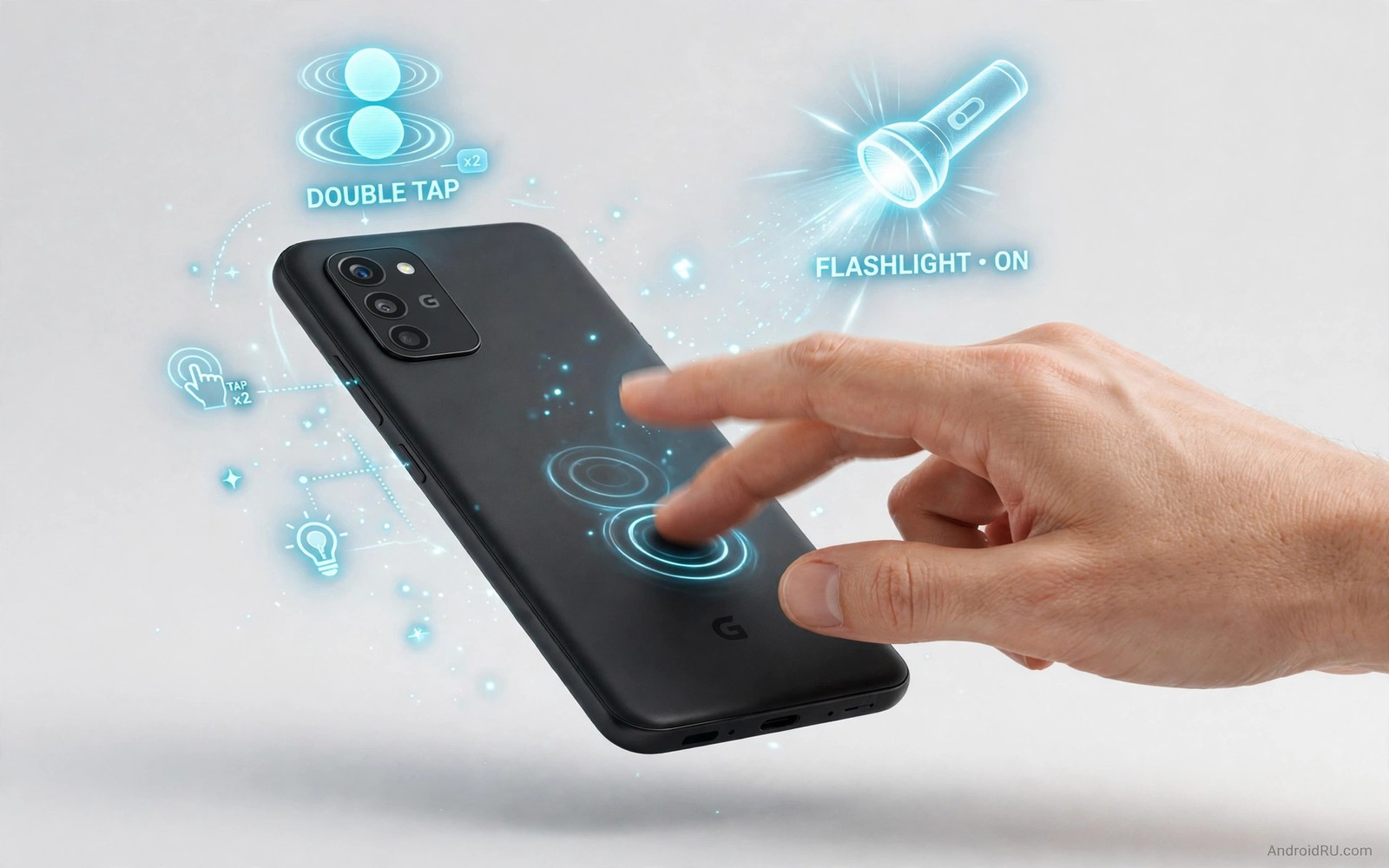
Your phone back is a button you never knew you owned. Double tap it and the flashlight fires. Triple tap it and the camera opens. The gesture works through many cases. It works while the screen shows any app. It turns a dead surface into a shortcut panel.
Some phones ship this feature under accessibility or gesture settings. Other phones need a small helper app to enable it. Both paths lead to the same result. A firm tap pattern on the rear panel triggers an action you choose. The phone reads taps through its motion sensors.
This guide covers five gestures worth setting first. It covers setup on phones with native support and phones without it. It covers tap sensitivity and case problems. It ends with a routine for testing gestures without accidental triggers in your pocket.
Double tap for flashlight in the dark
Flashlight is the most useful back tap action. Enable back tap in settings or in the helper app. Assign double tap to the torch toggle. Test it in a dark room with the phone locked. Two firm taps should light the rear LED within a second.
Adjust sensitivity when taps fail or misfire. A thick rugged case dulls the sensor reading. A thin case usually works fine. Set sensitivity one notch higher for thick cases. Remove the case for a test when taps still fail. The case result tells you whether to change settings or change cases.
Triple tap for instant camera
Camera speed matters for fleeting moments. Assign triple tap to open the camera app. Practise the rhythm on a table before relying on it outdoors. Three taps in quick succession feel different from three slow taps. The phone needs a brisk rhythm to recognise the pattern.
Choose the rear camera as the default for the shortcut. The front camera suits selfies but the rear camera suits most fast moments. Open the camera once with the gesture and check focus speed. A shortcut that opens slowly defeats its own purpose. Adjust the app choice when the first pick feels sluggish.
Double tap for screenshot without buttons
Button screenshots demand two hand gymnastics on large phones. Back tap screenshots need one hand and no grip shift. Assign the screenshot action to a tap pattern you do not already use. Double tap suits screenshots when flashlight lives on triple tap. Avoid assigning both actions to the same pattern.
Check the screenshot gallery after the first test. Confirm the image captured the right screen. Some apps block screenshots for security and show a blank image. Banking apps and streaming apps commonly block capture. The gesture works correctly even when an app refuses the image.
Tap for media control and voice assistant
Media control suits commuters and cooks. Assign a tap pattern to play and pause. Tap the phone back through a pocket to pause a podcast without looking. The gesture keeps your eyes on the road or the recipe. It also avoids smudging the screen with wet hands.
Voice assistant suits hands-free questions while driving safely parked. Assign the assistant to a distinct pattern. Speak the question after the assistant tone. Keep assistant taps distinct from camera taps to avoid launching the wrong tool. Distinct patterns prevent daily confusion.
Tap for app launch and screen lock
A favourite app launch saves daily taps. Assign the pattern to messages or maps or a notes app. The app you open twenty times a day deserves the fastest path. Change the assignment when your favourite app changes with a new job or hobby.
Screen lock suits a quick pocket routine. Assign a pattern to lock the screen instantly. Tap before sliding the phone into a pocket. The locked screen prevents accidental touches and saves battery. A locked phone also protects messages from curious eyes at a glance.
Calibrate sensitivity for your case
Sensitivity calibration starts with a baseline test. Remove the case and test ten double taps. Count successful triggers out of ten. Repeat the test with the case fitted. The gap between scores measures case interference directly.
Raise sensitivity one notch when the cased score drops sharply. Retest ten taps after each change. Stop raising when the cased score matches the bare score. Overshooting sensitivity invites pocket misfires. Calibration aims for parity and not maximum sensitivity.
Test sensitivity while walking as well as standing still. Walking motion adds sensor noise that tables hide. A setting that works standing may misfire walking. Real world calibration covers both states. Pocket tests complete the picture for daily use.
Recalibrate after changing cases. A new case changes thickness and material. Old sensitivity settings rarely transfer perfectly. Ten minutes of recalibration saves weeks of misfires. Treat every case change as a fresh calibration event.
Build a two gesture daily routine
Two gestures cover most daily needs without confusion. Assign double tap to flashlight for dark moments. Assign triple tap to camera for fast moments. Practise both gestures for a week before adding more. Mastery of two beats confusion from five.
Use flashlight taps during evening routines deliberately. Light a hallway or a bag interior with two taps. The deliberate use builds muscle memory faster than random tests. Daily repetition cements the gesture within days.
Use camera taps for one daily photo subject. Photograph a pet or a meal or a street scene daily. Daily camera taps keep the rhythm fresh. A gesture unused for weeks fades from memory. Daily use keeps it instant.
Review gesture usefulness monthly. A gesture that never fires in a month deserves reassignment. A new daily need deserves the freed pattern. Monthly review keeps gestures aligned with real life. Stale gestures waste the fastest button on the phone.
Avoid accidental triggers in pockets
Pocket triggers rank among the most annoying back tap problems for daily owners. Movement inside a pocket can mimic double tap patterns surprisingly well. Lowering sensitivity one notch usually eliminates most pocket misfires without harming deliberate taps. A slightly firmer deliberate tap still triggers reliably at lower sensitivity. Pocket fabric movement rarely matches the firmness of a deliberate finger tap.
Require the screen to be awake for gesture actions when pocket triggers persist. A sleeping screen ignores pocket movement completely under this setting. Deliberate use requires waking the phone first with the power button. One extra button press buys complete pocket immunity. The trade feels minor compared with repeated accidental flashlight activation.
Choose pocket safe actions for the most sensitive tap patterns. Flashlight activation in a pocket wastes battery and generates heat against fabric. Camera launch in a pocket captures useless dark images and drains power. Screenshot actions in pockets fill galleries with black images. Assigning low risk actions to sensitive patterns limits pocket damage even when triggers occur.
Test pocket behaviour deliberately by walking with the phone in different pockets. Trouser pockets and jacket pockets transmit movement differently. Tight pockets trigger more often than loose pockets during walking. A week of pocket testing across clothing types reveals the true misfire rate. Real pocket data beats table testing for this specific problem.
Remove the phone from pockets during vigorous activity like running or cycling. Armbands and bags isolate the phone from rhythmic body movement. Rhythmic movement is the hardest pattern for tap detection to distinguish from deliberate taps. Physical separation solves what sensitivity tuning cannot fully solve. Activity appropriate carrying beats software tuning for active owners.
adb shell settings get secure back_tap_enabled
adb shell dumpsys sensorservice | grep -i accel
adb shell cmd statusbar expand-notifications
The commands above are a generic illustration for reading tap gesture state from a computer. They show the kind of sensor data a technician checks during setup. Everyday users should use the on-screen gesture settings instead.
Custom launchers pair with rear taps because both cut the distance to daily tools. Accessibility tools inspired rear taps by proving that alternative inputs help every owner. Notification control benefits when a rear tap silences a noisy chat instantly.
Common mistakes
The biggest mistake is setting a single tap action. Single taps misfire constantly in pockets and bags. Double and triple patterns exist to prevent accidents. Never assign an important action to a single tap pattern.
Another mistake is testing gestures only on a table. Tables transmit taps cleanly. Hands and pockets dampen them. Test gestures while holding the phone normally and while walking. Real world testing reveals sensitivity problems early.
A third mistake is stacking too many gestures at once. Five patterns sound exciting and blur together in practice. Start with two patterns and master them for a week. Add a third pattern only when the first two feel automatic.
FAQ
Does back tap work with a case on?
Most thin and medium cases work fine because motion sensors read taps through them. Very thick rugged cases may dull the signal. Raise sensitivity one notch for thick cases or test without the case to isolate the problem.
Will back tap drain my battery?
The motion sensor already runs for step counting and screen rotation. Back tap adds negligible drain because it reuses that sensor. A helper app with aggressive background polling can drain more. Choose a helper app with a good battery reputation.
Why does my phone trigger gestures in my pocket?
Pocket movement can mimic tap patterns on sensitive settings. Lower sensitivity one notch and avoid assigning camera launch to the most sensitive pattern. A lock screen requirement for gestures also reduces pocket launches.
Conclusion
Open gesture settings tonight and assign double tap to flashlight. Test it in a dark room five times. Assign triple tap to camera tomorrow and test it on a moving subject. Two working gestures beat five forgotten ones.
Your phone back will stop being dead space. It will become the fastest button on the device. Every tap will feel like a small superpower. Start with two patterns and let the habit grow from there.

