

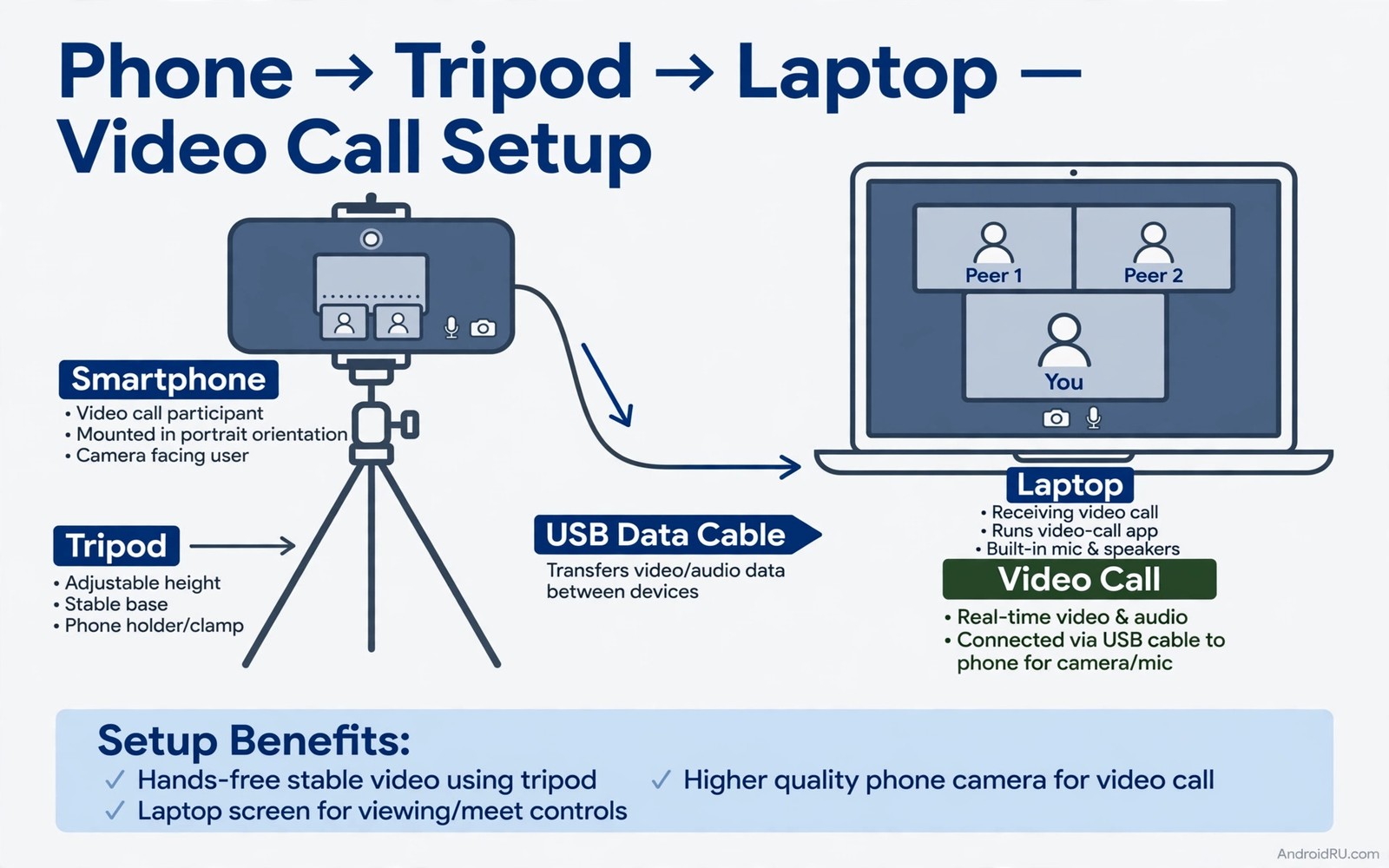
Laptop webcams make everyone look tired. The sensor is tiny. The lens sits at a bad angle. The image smears in office light. Your phone camera beats that webcam on every measure. The sensor is larger. The lens is sharper. The processing handles skin tones better. Using it for calls is a free upgrade hiding in your pocket.
Setup takes two routes. A wired connection gives the most stable 4K feed. A wireless connection gives freedom of placement at the cost of some stability. Both routes use a small companion app on the phone and a driver or receiver on the computer. The computer then sees the phone as an ordinary webcam.
This guide covers both routes step by step. It covers mounting and framing and lighting. It covers audio choices because a great image with bad audio still ruins a call. It ends with a checklist you can run before any important meeting.
Choose wired USB for the sharpest feed
Install the companion app on the phone and the receiver on the computer. Connect the phone with a good data cable and not a charge-only cable. Enable USB debugging only if the chosen app requires it. Select USB mode inside the app. Select the phone camera inside your meeting app video settings.
Test the feed at full resolution before a real call. Open the meeting app preview and check for stutter. Lower the resolution one step if the feed stutters on an older computer. A stable high definition feed beats a stuttering 4K feed in every meeting. Stability is the metric that matters most to viewers.
Use wireless mode when placement matters
Wireless mode frees the phone from the desk. Place it on a shelf at eye level across the room. Connect phone and computer to the same Wi-Fi network. Open the companion app and pair with the code shown on screen. Select the phone in the meeting app and confirm the preview.
Wireless feeds suffer when the network congests. Ask others in the house to pause large downloads during your call. Move closer to the router when the image pixelates. Switch to the 5 GHz band when available because it carries video with less interference. A wired fallback cable on the desk saves the call if Wi-Fi drops.
Mount the phone at eye level and frame the shot
Eye level framing changes how confident you look. A camera below the chin creates an unflattering angle. A camera above the forehead creates distance. Mount the phone so the lens sits level with your eyes. A small tripod or a stack of books reaches the right height on most desks.
Frame from mid-chest to just above the head. Leave a small margin above the head. Centre yourself with equal space on both sides. Check the background for clutter and bright windows. A plain wall or a tidy shelf beats a messy room. Viewers judge the background before they judge your words.
Fix lighting before you blame the camera
Face a window or a lamp during daytime calls. Light on your face matters more than camera quality. Avoid a bright window behind you because it turns your face into a silhouette. A cheap ring light at arm length fixes most evening calls. Set the light slightly above eye level for natural shadows.
Lock exposure on your face inside the companion app when offered. Auto exposure can hunt when you move or when clouds pass. Locked exposure keeps skin tones steady through the call. Test lighting with a short recording before the meeting. A two minute test prevents a forty minute apology.
Choose audio separately from video
Phone microphones pick up room echo at desk distance. A dedicated headset or a USB microphone sounds far clearer. Connect the headset to the computer and select it in the meeting app. Keep the phone microphone as a backup only. Viewers forgive a good image with great audio far less than the reverse.
Test audio with a friend before an important call. Speak at normal volume and ask about echo and clarity. Move the microphone closer when words sound distant. Mute when you are not speaking in large meetings. Good audio etiquette matters as much as good hardware.
Run a pre-call checklist every time
A checklist prevents the classic call opening apology. Test video and audio five minutes before the meeting. Check framing and lighting in the preview window. Check background clutter behind you. Check that the phone battery exceeds thirty percent. Five checks take two minutes total.
Keep the checklist written on a card near the desk. A written list survives stress better than memory. Tick each item before joining important calls. Casual calls can skip the card after habit forms. Important calls always deserve the card.
Test with a friend weekly when call frequency is high. A friend spots framing problems you miss yourself. Audio echo shows up on the other end first. Weekly tests catch gradual drift in setup quality. A setup that degrades slowly escapes self review.
Update the checklist after every failure. A failed call teaches exactly which check was missing. Add that check to the card immediately. Checklists improve through failures rather than through theory.
Record video with the phone webcam setup
The webcam setup doubles as a recording studio. Open a recording app instead of a meeting app. Frame the shot with the same eye level rule. Light the face with the same lamp position. Record a short test clip and review it fully.
Record in a quiet room with doors closed. Phone microphones capture room echo faithfully. Soft furnishings reduce echo better than any filter. A blanket over a hard table tames reflections surprisingly well. Room treatment beats software cleanup.
Keep recordings short and segmented. Ten minute segments edit faster than one long file. Segments also protect against a crash losing everything. Save each segment before starting the next. Segmented recording is professional insurance.
Back up recordings immediately after the session. Copy files to a computer or cloud storage before deleting from the phone. Verify playback of the backup copy. A recording that exists in one place barely exists at all.
Improve call presence beyond video
Video quality captures attention first but presence depends on much more than pixels. Background choice shapes how professional a caller appears within seconds. A plain wall or tidy shelf signals preparation and respect for the meeting. A cluttered room distracts viewers from words no matter how sharp the video looks. Background preparation costs minutes and pays off across every meeting.
Posture affects presence as strongly as camera quality does. Sitting upright with shoulders relaxed projects confidence through the lens. Slouching signals disengagement even when words sound engaged. Eye level camera placement encourages natural upright posture automatically. Physical posture and camera placement reinforce each other constantly.
Speaking pace matters more than microphone quality for comprehension on calls. A measured pace with short pauses helps listeners follow complex ideas. Rapid speech overwhelms listeners even through excellent audio equipment. Pausing after key points lets ideas land before the next idea arrives. Pace is a free upgrade that no equipment purchase can replace.
Lighting consistency across a call prevents distracting exposure shifts. Clouds passing a window can darken a face repeatedly during long meetings. A steady lamp beside the window stabilises exposure against weather changes. Consistent lighting keeps attention on the speaker rather than on brightness fluctuations. Stability in lighting mirrors stability in delivery.
Ending calls cleanly leaves a stronger impression than starting them sharply. Summarise decisions before disconnecting rather than trailing off vaguely. A clear summary confirms shared understanding for all participants. Clean endings turn good calls into productive outcomes. Presence includes the final thirty seconds as much as the first thirty seconds.
adb devices
adb shell dumpsys media.camera | grep -i resolution
adb shell settings get system webcam_mode
The commands above are a generic illustration for confirming a phone connection and camera capability from a computer. They show the kind of check a technician runs before a call setup. Everyday users should use the companion app preview instead.
Photos taken during video recording use the same sensor skills as a webcam feed. Pixel camera features show how software processing lifts a phone sensor beyond stock results. Back tap gestures open the camera faster than any home screen icon can.
Common mistakes
The most common mistake is using a charge-only cable for a wired setup. The phone charges but no video reaches the computer. Test the cable with a file transfer first. A cable that transfers files will carry the camera feed too.
Another mistake is placing the phone too close to the face. A close phone distorts features and shows every pore. Move the phone at least an arm length away. Distance flatters faces and steadies the frame.
A third mistake is forgetting battery drain during long calls. A wired connection charges while it streams. A wireless connection drains fast. Keep a charger connected during wireless calls longer than thirty minutes.
FAQ
Does using my phone as a webcam damage the camera?
Normal call use does not damage the sensor. Heat builds during very long 4K sessions in warm rooms. Take a break between long meetings and keep the phone out of direct sun. The camera is built for long video recording sessions.
Can I use the rear camera instead of the front camera?
Yes and the rear camera gives a sharper image on most phones. Use a mirror or a second screen to check framing when the rear camera faces you. Some companion apps show a preview on the phone screen to help with alignment.
Why does my meeting app not list the phone camera?
Close the meeting app fully and reopen it after starting the companion app. The receiver must run before the meeting app scans cameras. Restart the receiver when the phone still fails to appear after a fresh launch.
Conclusion
Install a companion app tonight and run a five minute test call with a friend. Check framing and lighting and audio in that test. Fix one problem per test until the feed looks clean. Keep the tripod and cable in one drawer for fast setup.
Your next meeting will look like a studio shot instead of a laptop afterthought. Colleagues will notice the difference within seconds. A phone you already own becomes the best webcam you have ever used.

