

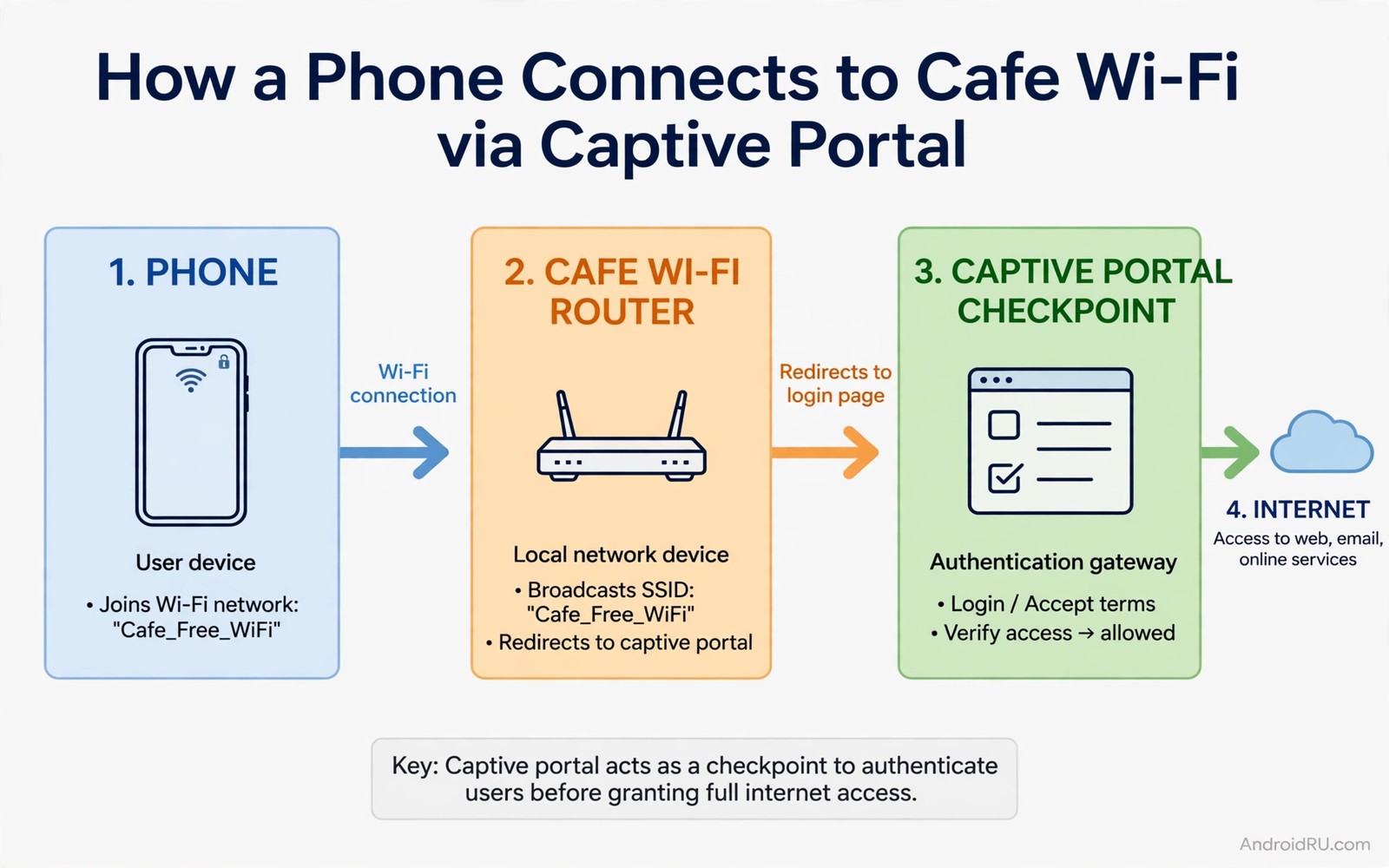
You join the cafe network and the signal bars look strong. Nothing loads. The login page never appears. Messages sit unsent. Maps refuse to refresh. You are connected to nothing useful despite the Wi-Fi icon. This stuck captive portal problem hits airports and hotels and malls every day.
A captive portal is the sign-in screen a network shows before it grants internet access. Phones normally detect it and open the page automatically. Detection fails when the portal server stalls or when a privacy setting blocks the check. The fix is rarely a stronger signal. The fix is forcing the phone to retry detection cleanly.
This guide stays on the legitimate side of the line. It covers networks you are allowed to use with a code or a free sign-in. It shows how to summon a stuck login page and how to clear the glitch that hides it. It does not help you evade payment walls or access a private network without permission.
Force the portal page to appear
Open the browser and type a plain non-secure address such as example dot com. Many portals intercept the first plain request and redirect it to the login screen. A secure search page will not trigger the redirect because the browser blocks interception. The plain address trick works because the portal can redirect it safely.
Try the system captive portal prompt next. Open Settings and then Network and then Wi-Fi. Tap the connected network name. Look for a sign-in button or a portal notification. Tap it and wait ten seconds. The portal page often loads on the second attempt after the first attempt timed out quietly.
Forget the network and join it fresh
A corrupt saved entry blocks many portals. Open Wi-Fi settings and tap the network name. Choose Forget and confirm. Toggle Wi-Fi off and on. Select the network again and enter the code if asked. A fresh join rebuilds the connection state and the portal check from scratch.
Check the private address setting before you rejoin. Some portals fail when the phone randomises its hardware address on every join. Set the network to use the device hardware address for this one network. The portal then recognises the device consistently across the sign-in and the session that follows.
Clear the browser and DNS glitch
A stale DNS entry can point the portal check at a dead address. Open browser settings and clear cached data for the last hour. Close every browser tab. Reopen the browser and try the plain address again. Fresh DNS answers let the portal redirect work as intended.
Private DNS mode can also block portal detection. Open Settings and search for Private DNS. Switch it to Automatic or Off while you sign in. Restore your preferred setting after the portal grants access. The session usually survives the switch back because the portal already recorded your device.
Handle portals that ask for codes and rooms
Hotels often tie the portal code to a room number or a surname. Type the code exactly as printed including dashes and capital letters. A single wrong character produces a silent failure with no helpful error. Ask staff to reprint the code when two attempts fail. Staff deal with this daily and they hold a faster reset option.
Airports often offer a free tier with a time limit and a paid tier beyond it. Choose the free tier first and confirm the session starts. Upgrade only when you truly need more time. Some portals grant the free session after a short video or a simple form. Complete the form honestly and avoid fake details that can void the session.
Stay safe after the portal opens
A public network is shared with strangers by design. Avoid banking and work logins on an open portal network when possible. Use mobile data for sensitive tasks and Wi-Fi for maps and browsing. Keep the phone software updated so known Wi-Fi flaws stay patched.
Forget the network when you leave the venue. A saved open network can auto-join a spoofed network with the same name later. Open Wi-Fi settings at home and remove venue networks you no longer need. This habit costs ten seconds and removes a real impersonation risk.
Deal with portals that loop forever
A looping portal redirects back to its start page after sign-in. The loop usually means a cookie or cache problem. Clear browser cookies for the portal domain only when possible. Close the browser fully and reopen it. A fresh session often breaks the loop on the second attempt.
Try a different browser when the loop survives a cache clear. A fresh browser carries no stale portal cookies. Sign in through the fresh browser and confirm internet access. Return to your main browser afterwards for normal use. The fresh browser acts as a clean room for portal sign-in.
Check the device time when loops persist across browsers. A wrong clock breaks portal security checks silently. Enable automatic date and time in settings. A corrected clock fixes loops that look like password failures. Time errors hide behind many mysterious network symptoms.
Ask venue staff for a fresh voucher when all else fails. Vouchers expire or lock after failed attempts. Staff can issue a new code in seconds. A fresh code plus a clean browser session resolves nearly every stubborn loop.
Use hotel Wi-Fi safely for work tasks
Hotel networks serve many strangers at once. Sensitive work deserves extra care on such networks. Use mobile data for confidential logins when possible. Use hotel Wi-Fi for maps and general browsing. Separation of tasks by sensitivity reduces exposure sharply.
Keep the phone software updated before travel. Updates patch known Wi-Fi flaws that attackers exploit. Enable automatic updates on trusted home networks. A patched phone resists attacks that succeed against older software. Patching is the cheapest travel security available.
Forget hotel networks after checkout. Saved open networks can auto-join lookalike networks later. Remove each venue network from saved networks at home. The removal takes seconds per network. The protection lasts until the next trip.
Carry a personal hotspot plan as a backup for critical work. A hotspot gives a private connection when hotel Wi-Fi fails. Critical video calls deserve the reliable path. General browsing can stay on hotel Wi-Fi. Two paths beat one fragile path during important trips.
Reconnect automatically on return visits
Return visits to a favourite cafe should connect without repeating the full portal dance. Saved networks remember the venue and attempt automatic connection on arrival. Automatic connection succeeds when the portal session remains valid from the previous visit. Expired sessions force a fresh sign-in through the portal page again. Knowing this pattern prevents surprise when a monthly visit behaves differently from a daily visit.
Keep the venue network saved when visits happen weekly or more often. Frequent visits keep portal sessions fresh enough for smooth reconnection. Infrequent visits benefit from forgetting the network and joining fresh each time. A fresh join avoids stale session errors that confuse troubleshooting. Frequency should decide whether a network stays saved or gets forgotten.
Disable auto-join for venue networks in unfamiliar cities where spoofed twins are more likely. Manual joining lets you verify the exact network name with staff before connecting. A spoofed network with a similar name can harvest login details silently. Manual verification costs seconds and defeats the most common public Wi-Fi impersonation trick. Safety deserves a manual step in unfamiliar places.
Test reconnection behaviour deliberately on the second visit to a new venue. Arrive and observe whether internet works without opening any portal page. Note the result for future visits to the same venue. A personal note about each regular venue builds a reliable mental map. Mental maps replace repeated troubleshooting with confident expectations.
Remove venue networks from saved lists at the end of a holiday trip. Holiday venues will not be visited again for months. Saved holiday networks only create auto-join risks without any convenience benefit. Pruning holiday networks during the journey home takes minutes. A clean saved list protects future connections in completely different places.
adb shell cmd wifi status
adb shell dumpsys connectivity | grep -i captive
adb shell settings get global captive_portal_mode
The commands above are a generic illustration for reading captive portal state from a computer. They show the kind of status a technician checks when a login page refuses to appear. Everyday users should use the Wi-Fi settings screen and the browser steps in this guide.
Blocked website fixes share the same diagnostic logic as a stuck portal page. Notification control matters on public networks because urgent alerts must survive quiet hours. Accessibility tools help travellers read tiny portal text through magnification on the spot.
Common mistakes
The most common mistake is hammering the refresh button on a secure search page. Secure pages block portal interception by design. Refreshing them changes nothing. A plain address request triggers the portal redirect that a secure page cannot trigger.
Another mistake is disabling Wi-Fi and relying on weak mobile data inside a concrete building. The portal problem is fixable in two minutes. A fresh join or a DNS clear solves most cases without abandoning the faster network.
A third mistake is entering portal codes with autocorrect changing them. Autocorrect capitalises words and inserts spaces. Disable autocorrect for the code field or paste the code from a photo of the voucher. Exact input matters more than speed here.
FAQ
Why does the login page appear on one phone but not another?
Portal detection depends on privacy settings and cached state. One phone may use a randomised address while another uses a stable address. One phone may have Private DNS on while another has it off. Aligning those two settings usually makes both phones behave the same.
Is it safe to use a public Wi-Fi portal network?
A legitimate venue portal is safe for general browsing when your apps use encrypted connections. Avoid sensitive logins on open networks when possible. Forget the network after you leave to prevent automatic joins to lookalike networks later.
What if the portal page loads but the code is rejected?
Check the code character by character and disable autocorrect. Confirm the code has not expired and that it matches the venue and date. Ask staff for a fresh code after two careful failures because staff can reset a stuck voucher faster than repeated guessing.
Conclusion
Next time a portal stalls open Wi-Fi settings and forget the network. Rejoin it fresh and try a plain address in the browser. Note which step summoned the page on your phone. That note becomes your personal two minute fix for every cafe and airport after this one.
You will stop staring at a full signal icon with no internet. You will sign in and get moving while others still refresh a dead page. A stuck portal is a small glitch with a known cure. Now you know the cure.

