

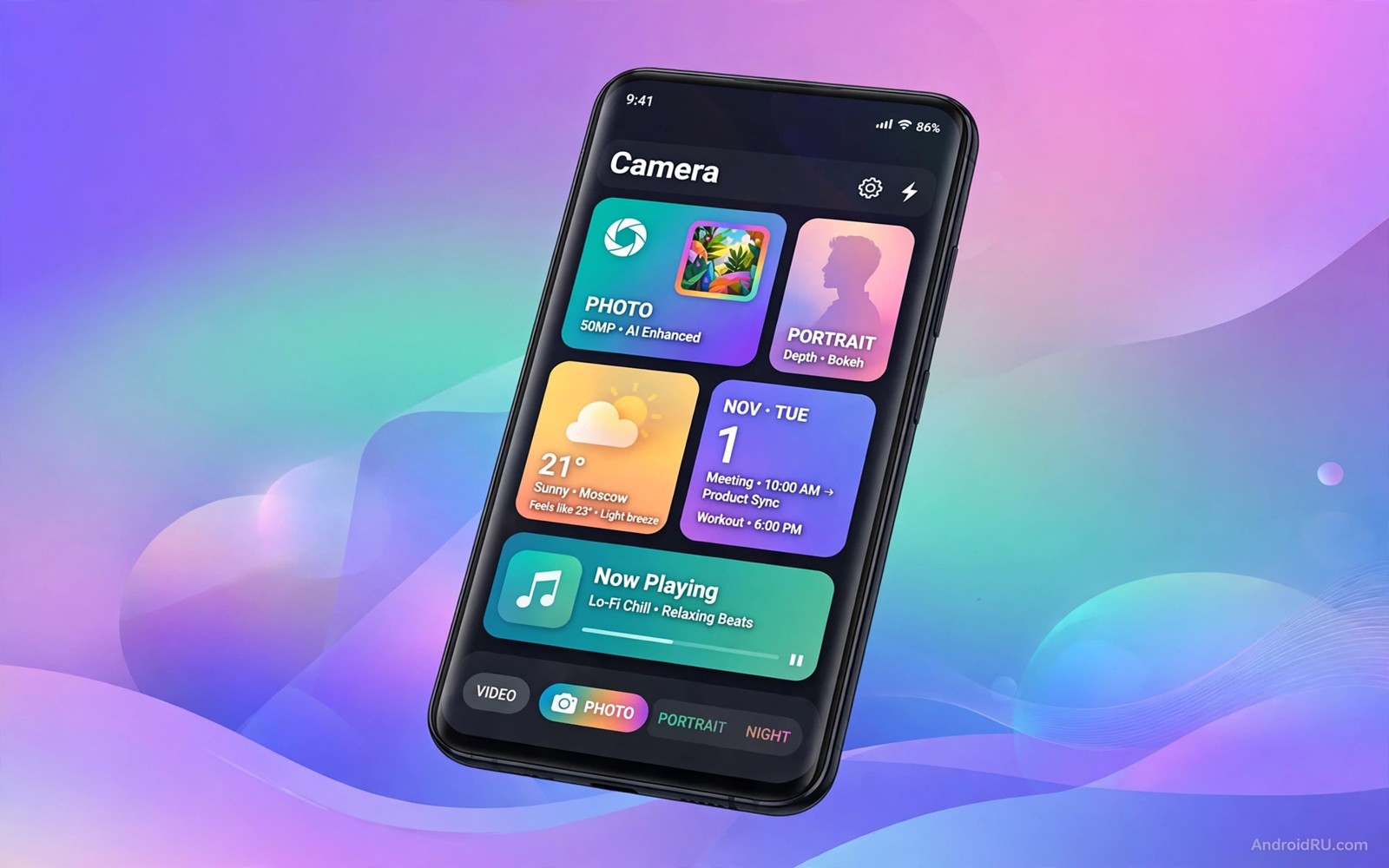
7 Hidden Pixel Features Every Other Android User Needs to Try
Pixel phones get praised for software tricks that rarely make it into the launch event highlights. The camera gets the headlines, and the processor gets the benchmarks, but the quiet features are the ones owners end up mentioning to friends. A phone that captions any video without the creator adding subtitles. A phone that answers a spam call for you and shows you a transcript while the caller is still talking. A phone that tells you what song is playing in a cafe without you asking. These are small ideas, and they add up to a phone that feels like it is paying attention.
Here is the honest part, and it matters more than the list itself: some of these tricks genuinely need Pixel hardware or Google services that only run on a Pixel. Others are ideas any Android owner can copy with built-in tools, a setting change, or a free app that does nearly the same job. This guide separates the two groups clearly. For each of the seven features you will learn what it does, where to find it on a Pixel, and the closest equivalent on any other Android phone, so you can try the idea tonight instead of envying a phone you do not own.
I have tested the non-Pixel versions of most of these on Samsung and Motorola phones over the past year, and the pattern is consistent. About half of the Pixel ideas transfer cleanly. A quarter transfer with a compromise, like a manual step where the Pixel does it automatically. The last quarter needs Pixel services and cannot be copied properly, and I will say so plainly when that is the case. Try one idea per day for a week. A copied feature that survives daily use earns a permanent place. One that needs Pixel services will reveal itself quickly, and you can stop chasing it.
What makes Pixel features different from ordinary Android settings
Most Android phones share the same foundation. They run Android, they run the same apps from the same app catalogue, and they share most of the same settings menus. What makes a Pixel different is the layer Google builds on top of that foundation. Pixel features are usually a mix of on-device machine learning, tight integration with Google services, and small design decisions that other manufacturers never bothered to copy. Live Caption works because Google trained a speech model small enough to run on a phone. Call Screen works because Google built a call-handling service into the Phone app. Now Playing works because Google keeps a database of song fingerprints on the device.
That integration is also why these features feel hidden. Google rarely puts them on the home screen or explains them in setup. They sit inside other apps, inside the volume panel, inside the phone dialer, or behind a long press on the home screen. Owners discover them by accident, months after buying the phone, and then wonder how long they have been missing them. The features in this guide are the ones that produce that reaction most often.
The other thing that makes them different is that they are designed around real annoyances rather than specifications. Nobody asked for a phone with more megapixels in the call screen. People asked for spam calls to stop wasting their time, for videos to be watchable with the sound off, and for a way to remember a song without pulling out a second app. Each Pixel feature below starts from an annoyance like that, and that is why each one has a non-Pixel equivalent worth trying. The annoyance is universal, even when the Pixel solution is not.
How Google ships Pixel features without a new phone
Google delivers most Pixel features through software updates rather than hardware changes. A Pixel that is two or three years old still receives new features through quarterly Pixel Feature Drops, which arrive as system updates and app updates. That is why a feature can appear on your phone one morning without you buying anything. It also explains why some features arrive on older Pixels later than on new ones, or never arrive at all when they need a newer chip.
For owners of other Android phones, the same delivery model is a reason for hope. Google often brings a Pixel feature to all Android phones a year or two later, once the on-device model is small enough or the service is ready. Live Caption followed exactly that path: it launched as a Pixel showcase, then reached many other Android phones through an Android update. When you copy a Pixel idea today, you are often just early to a feature that will arrive officially later.
Why some Pixel features stay exclusive to Pixel phones
A few features stay exclusive because they depend on hardware or on a service Google only runs for Pixel owners. Call Screen depends on Google’s call screening service and on the Phone app build that ships on Pixels. Magic Eraser originally depended on the Tensor chip in newer Pixels, although Google later brought a version of it to other phones through Google Photos. Hold for Me depends on Google’s Duplex service listening to hold music and alerting you when a human answers.
Knowing which features are exclusive saves you from wasting an evening hunting through settings for something that was never going to be there. This guide labels each feature clearly: Pixel-only, available on many Android phones, or copyable with an alternative. The label sits in each section, so you can skip straight to the ones you can actually use.
How to check whether a Pixel feature works on your phone
Before you chase any feature, spend two minutes checking what your phone already has. The fastest check is the settings search bar at the top of the Settings app. Type the feature name, or a word from it, and see whether a matching setting appears. On Samsung phones the search covers settings, apps, and routines. On Pixel phones it covers settings and Pixel-specific features. If nothing appears, the feature is probably not built into your phone, and you need the alternative described in that section.
The second check is the app version. Many Pixel features live inside Google apps, such as the Phone app, the Recorder app, or Google Photos, and the feature appears when the app updates rather than when the system updates. Open the app catalogue, search for the app, and check whether an update is waiting. A phone that is two versions behind on Google Photos can miss a feature that its hardware supports perfectly well.
Step 1: Search Settings and check your Android version
Open Settings and tap the search bar at the top. Try the feature name first, then a single keyword like caption, call, or translate. If a result appears, tap it and read the description on the page it opens. Also check your Android version under Settings, then About phone, then Android version. Features like Live Caption need Android 10 or later, and newer Pixel features often need Android 13 or 14. If your phone is on an older version, a system update may bring the feature with it.
- Open Settings and use the search bar to look for the feature by name.
- Check your Android version under About phone to see whether it is new enough.
- Open the app catalogue and update the Google Phone, Recorder, and Photos apps.
- If the feature is still missing, use the alternative listed in that section below.
Where to look when the search finds nothing
If the settings search finds nothing, check inside the app that owns the feature. Call features live in the Phone app under Settings, then Spam and Call Screen on a Pixel, or under Settings, then Caller ID and spam on other phones. Caption features live in Settings, then Accessibility, then Live Caption, or under the volume panel on phones that support them. Photo editing features live inside Google Photos when you open a photo and tap Edit. Widget features live on the home screen when you long-press an empty space and tap Widgets.
The 7 hidden Pixel features worth trying
These are the seven features Pixel owners mention most often when they are asked what they would miss on another phone. Each one gets its own section with what it does, where to find it, who it suits best, what it cannot do, and the closest version for everyone else. Read the whole list once, then pick the one that matches your biggest daily annoyance and try it first.
1. Live Caption: subtitles for any video or audio on your phone
Live Caption adds subtitles to any media playing on your phone, even when the creator never added captions. It works on videos, podcasts, voice messages, and phone calls in some regions. The processing happens entirely on the device, so the audio never leaves your phone, and it works without an internet connection. The captions appear in a small box you can drag around the screen, and they update in real time as the audio plays.
On a Pixel, turn it on from the volume panel by pressing a volume button and tapping the caption icon, or go to Settings, then Accessibility, then Live Caption, and switch it on there. You can also choose the caption language and whether to include profanity masking. Once it is on, it applies to every app that plays audio, from video apps to the browser to voice messages in your chat app.
Live Caption started as a Pixel showcase and later reached many Android phones, so owners of Samsung, OnePlus, and Motorola phones may already have it under the same Settings path or in the volume panel. If your phone does not have it, the closest alternative is the caption support built into individual apps: most video apps now offer auto-generated captions, and your chat app may transcribe voice messages on its own. The idea to copy is simple: watch with subtitles whenever the sound is off or the room is noisy, and you will catch far more of what is said.
Who Live Caption suits best
It suits anyone who watches videos in bed, on a train, or in a quiet office where the sound has to stay off. It also helps people who are hard of hearing, people learning a language, and anyone who watches videos with heavy accents or fast speech. If you have ever rewound a video three times to catch one sentence, this is the feature that ends that habit.
Pros: works across every app, runs on the device so audio stays private, and needs no internet connection. Cons: captions can lag or mishear names and technical terms, it does not work on every phone, and the caption box can cover part of a small video. Verdict: if your phone has it, switch it on today and leave it on. It is the most useful feature in this list for the most people.
2. Call Screen: let Google answer the spam call for you
Call Screen answers an incoming call with a recorded voice that asks the caller to identify themselves and state their reason for calling. You watch a live transcript of their answer on your screen, and then you decide whether to pick up, send a quick reply, or report the call as spam. The caller never hears you, and you never waste a minute on a robocall. In the United States, Canada, and a growing list of other countries, it also screens unknown numbers automatically.
On a Pixel, open the Phone app, tap the three dots, then Settings, then Spam and Call Screen, and choose which types of calls to screen. You can set it to screen spam automatically, screen unknown numbers, or screen nothing and offer the button manually on each call. When a call arrives and you tap Screen call, the assistant takes over and the transcript appears in real time.
Call Screen is the most Pixel-exclusive feature on this list, because it depends on Google’s call screening service and the Pixel build of the Phone app. The closest alternative on other phones is the spam protection built into the Phone by Google app, which many Samsung and Motorola phones can install from the app catalogue, plus the spam filtering in your carrier’s own app. For readers who want the broader camera of tricks for cheaper handsets, the camera tricks for cheaper phones show the same idea applied to photography: the best feature is the one your phone already has, tuned properly. Call Screen itself cannot be copied fully, but spam filtering plus a habit of never answering unknown numbers gets you most of the benefit.
Who Call Screen suits best
It suits anyone who receives several unknown calls a week, anyone who has been caught by a scam call before, and anyone who works from home and cannot afford to be pulled out of focus by a ringing phone. It is especially useful for people who run a small business from a personal number, since it filters the noise while letting real customers through.
Pros: stops robocalls and scam calls before they reach you, shows a live transcript so you can judge the caller, and works automatically once set up. Cons: it is limited to certain countries and languages, it can feel rude to a genuine caller who does not expect a robot, and it is not available on non-Pixel phones. Verdict: if you own a Pixel in a supported country, turn it on. If you do not, use spam filtering and the habit of letting unknown numbers go to voicemail.
3. Hold for Me: never listen to hold music again
Hold for Me waits on hold for you. When you call a business and get put on hold, you tap the Hold for Me button, put the phone down, and go back to your work. Google’s system listens to the hold music and the recorded messages, and when a real person picks up, your phone rings and tells you someone is there. You return to a live human instead of twenty minutes of tinny music.
On a Pixel, the option appears during a call when the other side puts you on hold, or you can enable it in the Phone app under Settings, then Hold for Me. It works with most toll-free numbers and many business lines in the United States, Canada, and Australia. The system also shows a live transcript of what the hold recording is saying, so you can glance at the phone and see whether the message has changed.
Hold for Me depends on Google’s Duplex service, so it cannot be copied directly on other phones. The closest alternative is simpler than it sounds: use the speakerphone and a timer, or use the callback option that many companies now offer when the wait is long. Some banking and airline apps also let you request a callback instead of holding. The idea to copy is the habit, not the technology: never give hold music your undivided attention when the phone can wait in the background.
Who Hold for Me suits best
It suits anyone who calls banks, airlines, insurers, or government offices regularly, and anyone who has lost half an hour to a hold queue in the past year. If your work involves support calls, this feature alone can save you several hours a month. It is a quiet feature that pays for itself in recovered time.
Pros: saves real time on support calls, alerts you only when a human answers, and shows a transcript of the hold messages. Cons: limited to a few countries, does not work with every business line, and needs a Pixel. Verdict: a brilliant feature if you have it, and a good reminder for everyone else to ask for a callback instead of holding.
4. Magic Eraser: remove strangers and clutter from your photos
Magic Eraser removes unwanted objects from a photo with a tap. A stranger walking through the background, a bin at the edge of a beach shot, a power line across the sky: you circle it or tap it, and the tool fills in the space with a plausible patch of the background. The result is not always perfect at full zoom, but at normal viewing size it is often impossible to tell anything was ever there.
On a Pixel, open Google Photos, open the photo, tap Edit, then Tools, then Magic Eraser. You can tap a suggested object that the phone has already spotted, or draw around the thing you want to remove. On newer Pixels, Magic Editor goes further and lets you move or resize a person in the frame. Google later brought Magic Eraser to other Android phones through Google Photos, although some versions need a Google One subscription or a newer app version.
If your phone does not have it, check Google Photos first, since the feature has rolled out widely. The alternative is any photo editor with a healing or object removal tool, including the built-in editor on Samsung phones, which has an Object eraser under the edit menu, and the editor on Xiaomi phones. The idea is the same everywhere: the best photo is often the one with one fewer distraction in it, and removing that distraction takes seconds.
Who Magic Eraser suits best
It suits anyone who takes photos in busy places: parents at a playground, travellers at a landmark, anyone photographing a meal in a crowded restaurant. It also suits people who sell things online and need a clean product photo without finding a perfect background first. If your camera roll is full of almost-perfect shots ruined by one passer-by, this is your feature.
Pros: fixes busy photos in seconds, needs no editing skill, and is now available on many phones through Google Photos. Cons: the fill can look smeared on complex backgrounds, it works best on small objects, and the most advanced version still needs a newer Pixel. Verdict: try it on three photos tonight. It will rescue at least one shot you were about to delete.
5. At a Glance: the widget that tells you what happens next
At a Glance is the small widget at the top of the Pixel home screen that shows what matters right now: the time, the weather, your next calendar event, a boarding pass when you have a flight, a package alert when a delivery is due, or a reminder when you need to leave for an appointment. It changes through the day without you touching it, and it hides itself when there is nothing to show.
On a Pixel, long-press the At a Glance widget on the home screen, tap the settings icon, and choose which types of information it can show: calendar events, reminders, weather, commute times, and alerts from connected apps. You can also long-press an empty space on the home screen, tap Widgets, find At a Glance under the Google app, and place it yourself if it was removed.
Other Android phones can copy most of this with the Google app widget, which offers a similar At a Glance widget on many devices, or with Samsung’s Smart Suggestions widget, or with a third-party widget app. The idea to copy is not the widget itself but the habit of glancing: one place on the home screen that answers the question “what happens next” without opening an app. Set it up once, and it quietly replaces three separate checks you used to make every morning.
Who At a Glance suits best
It suits busy people with calendars full of meetings, parents juggling school runs and appointments, and travellers who want boarding passes and weather in one place. It is less useful for people with empty calendars, since a quiet day produces a quiet widget, which is exactly the point.
Pros: shows the next event without opening an app, updates itself through the day, and works with your existing calendar. Cons: it can feel sparse on quiet days, some alert types only work with Google services, and other phones need a different widget to copy it. Verdict: set it up and forget it. On a busy week it will earn its place at the top of your screen.
6. Now Playing: the song in the room, identified without asking
Now Playing listens passively for music playing around you and shows the song title and artist on your lock screen. You walk into a cafe, a song starts, and a few seconds later your phone quietly notes the name of the track at the bottom of the screen. You never opened an app, never tapped a button, and never held your phone up to a speaker. The song database lives on the device, so the listening happens privately and without sending audio to a server.
On a Pixel, go to Settings, then Sound and vibration, then Now Playing, and switch it on. You can also turn on notifications for recognised songs and view a history of every song your phone has identified, which becomes a diary of the places you have been. The history lives under the same settings page, and you can tap any entry to open it in your music app.
Other Android phones cannot copy the passive, always-on version directly, but the manual version is one tap away: the Google app has a song search feature, and apps like Shazam identify a song when you open them and tap the button. Keep a song identifier app on your home screen, and the gap shrinks to a single tap. The idea to copy is the habit of catching a song in the moment, because a song you meant to look up later is a song you will forget by the evening.
Who Now Playing suits best
It suits music lovers, people who work in cafes and shops, and anyone who has ever heard a great track in a taxi and lost it forever. It also suits people building playlists from real life rather than from charts, since the history becomes a record of what you actually liked when you heard it.
Pros: identifies songs without any action from you, keeps a history you can browse later, and runs privately on the device. Cons: it needs a Pixel for the automatic version, it can miss quiet or unusual tracks, and the database does not cover every song. Verdict: if you own a Pixel, turn it on. If you do not, put a song identifier on your home screen and use it the moment a song catches your ear.
7. Recorder transcription: every conversation turned into searchable text
The Pixel Recorder app records audio and turns it into a searchable transcript at the same time. You record a lecture, a meeting, or an interview, and afterwards you can search the transcript for a word and jump straight to the moment it was said. The transcription runs on the device, so the recording never leaves your phone, and it works without an internet connection. The app also separates speakers in newer versions, so a two-person conversation reads like a dialogue rather than a wall of text.
On a Pixel, open the Recorder app, tap the record button, and speak. When you stop, the transcript appears under the recording, and you can tap any word to hear that exact moment. You can also search across all your recordings at once, which turns the app into a searchable memory of everything you have recorded. Export options let you save the audio or share the transcript as text.
Other Android phones can copy this with the Recorder app from Google, which is available on many devices, or with the transcription features in apps like Otter, or with the voice recorder on Samsung phones, which offers transcription on newer models. The quality varies, and the on-device privacy of the Pixel version is hard to match, but the core idea transfers well. Readers who enjoy discovering features most owners miss will recognise the pattern: the most valuable tools are the ones that turn something you already do into something you can search later.
Who Recorder transcription suits best
It suits students recording lectures, journalists recording interviews, and anyone who attends long meetings and needs to find one decision afterwards. It also suits people who think out loud and want to capture ideas without typing. If you have ever re-listened to an hour of audio to find thirty seconds, this is the feature that ends that chore.
Pros: turns audio into searchable text, works offline on the device, and makes long recordings easy to navigate. Cons: accuracy drops with background noise and overlapping voices, the full version needs a Pixel, and very long recordings take time to process. Verdict: record your next meeting or lecture with it. Searching a transcript beats scrubbing through audio every single time.
Pixel features vs the closest option on other Android phones
The honest way to judge these features is side by side: what the Pixel does, and what everyone else can do instead. Some alternatives are nearly identical. Some need a manual step. Two of them cannot be copied at all, and knowing that saves you from a fruitless evening in the settings menu. The table below gives the short version, and the section after it explains the pattern behind it.
| Pixel feature | What the Pixel does | Closest option on other Android phones | How close is it? |
|---|---|---|---|
| Live Caption | Subtitles for any audio, on the device, offline | Live Caption on many Android 10+ phones, or per-app captions | Nearly identical where available |
| Call Screen | Answers unknown calls and shows a live transcript | Spam filtering in the Phone by Google app and carrier tools | Partial; no live transcript of the caller |
| Hold for Me | Waits on hold and alerts you when a human answers | Callback options from the company, or speakerphone and a timer | Weak; the habit transfers, the automation does not |
| Magic Eraser | Removes objects from photos with a tap | Magic Eraser in Google Photos, or Object eraser on Samsung | Nearly identical on most phones now |
| At a Glance | Home screen widget showing the next event or alert | Google app widget, Samsung Smart Suggestions, third-party widgets | Close; some alert types are Pixel-only |
| Now Playing | Identifies ambient music automatically on the lock screen | Song search in the Google app, or a song identifier app | Close, with one manual tap instead of zero |
| Recorder transcription | Records audio and makes a searchable on-device transcript | Recorder by Google, Samsung voice recorder transcription, Otter | Close; accuracy and privacy vary by app |
Why half of these features transfer and half do not
The pattern is simple. Features that are mostly software, like captions, photo editing, and transcription, transfer well, because the same code can run on any modern phone. Features that depend on a Google service, like Call Screen and Hold for Me, transfer badly, because the service itself is the feature. When you look at a new Pixel feature in the future, ask one question: is this a clever use of the phone I already have, or a clever use of a service only Google runs? The first kind will reach your phone eventually. The second kind probably will not.
Which alternative to try first on your phone
Start with the two that need no new app: check whether Live Caption already exists in your settings, and check whether Magic Eraser already exists in Google Photos. Both have rolled out widely, and many owners have them without knowing. Then add one manual habit: a song identifier on the home screen for Now Playing, and a recorder app with transcription for meetings. Those four cover most of the daily value in this list, and none of them needs a Pixel.
Which Pixel features need a Pixel and which ones you can copy today
It helps to sort the seven into three honest groups before you spend any time on them. The first group works today on many phones. The second group works with a compromise. The third group needs a Pixel and a supported country, and no amount of settings hunting will change that.
Works today on many Android phones
Live Caption and Magic Eraser belong here. Live Caption shipped on Pixels first, then reached Android 10 and later on many brands, and Magic Eraser moved into Google Photos for most Android phones. If you own a phone from the last three years, check both before you assume you are missing out. The check takes two minutes: open the volume panel and look for the caption icon, then open a photo in Google Photos, tap Edit, and look for the eraser tool.
Works with a compromise on other phones
At a Glance, Now Playing, and Recorder transcription belong here. You can copy the idea, but you lose a little automation. At a Glance becomes a different widget that shows slightly less. Now Playing becomes a song identifier you open by hand. Recorder transcription becomes a different app with slightly lower accuracy or a cloud step. The compromise is real, but the daily value survives it, which is what matters.
Needs a Pixel, honestly
Call Screen and Hold for Me belong here. Both depend on Google services that only run for Pixel owners in supported countries, and neither has a true equivalent on other phones. Spam filtering and callback requests cover part of the value, but they are not the same experience. If these two features matter to you more than anything else in this list, that is a genuine reason to consider a Pixel next time you change phones, and it is better to know that now than after an evening of searching.
The wider lesson applies beyond Pixel phones. If you enjoy hunting for quiet improvements, look at the ten hidden settings that reshape daily use, since most of the best Android improvements are settings that were always there, waiting behind a menu you never opened. Pixel features are only one source of those improvements, and the settings on your own phone are the other.
Mistakes to avoid when you copy Pixel features to another phone
Copying a Pixel idea to another phone works well when you copy the idea rather than the exact feature. The mistakes below come from copying the exact feature, or from trusting a third-party app that promises a Pixel feature it cannot deliver.
Mistake 1: Installing a lookalike app that promises Call Screen
Several apps in the catalogue claim to bring Call Screen or Hold for Me to any phone. They cannot, because the underlying service belongs to Google. What they usually do is route your calls through their own servers or show you a fake screening screen, which is worse than no screening at all. If an app promises a Pixel-exclusive feature, check whether it asks for call permissions it does not need, and read recent reviews from owners of your phone model before you install it.
Mistake 2: Turning on every feature at once and using none of them
Seven new features in one evening is a recipe for using none of them by next week. Pick one, use it for three days, and only then add the next. A feature earns its place by surviving daily use, and daily use is the only test that counts. The one-per-day pace in the introduction exists for this reason: it is slow enough to build habits and fast enough to cover the whole list in a week.
Mistake 3: Ignoring the privacy trade of a cloud alternative
Pixel features like Live Caption and Recorder transcription run on the device, which is why they work offline and keep your audio private. Many third-party alternatives send your audio or your photos to a server to do the same job. That trade can be worth it, but it should be a conscious choice. Before you install a transcription or editing app, check whether it processes your data on the device or in the cloud, and whether it keeps a copy. A feature that needs your audio is a feature that deserves that check.
Frequently asked questions about hidden Pixel features
Do I need a Pixel phone to use Live Caption?
No. Live Caption launched on Pixel phones first, then reached many Android phones running Android 10 or later. Check your volume panel for the caption icon, or go to Settings, then Accessibility, then Live Caption. If your phone does not have it, use the captions built into individual video apps, which cover most of the same situations, and check again after your next system update, since the feature has rolled out gradually by brand and model.
Can I get Call Screen on a Samsung or other Android phone?
Not the full version. Call Screen depends on Google’s call screening service and the Pixel build of the Phone app, so it is not available on other phones. You can install the Phone by Google app from the catalogue on many phones, which brings spam filtering and caller identification, and you can use your carrier’s spam blocking service. Letting unknown numbers go to voicemail, and calling back the ones that leave a real message, covers most of the practical benefit.
Is Magic Eraser free on non-Pixel phones?
Mostly yes. Google brought Magic Eraser to Google Photos on many Android phones, and the basic version is available without a subscription, although some advanced editing tools in Photos need a Google One plan. Samsung phones also include an Object eraser in their built-in photo editor at no extra cost. Check Google Photos first, since the feature may already be on your phone after a recent app update.
Does Now Playing drain the battery or record my conversations?
Now Playing is designed to avoid both problems. It listens passively using a small song database stored on the device, and it only recognises music, not speech, so it does not send audio anywhere and does not keep recordings of your conversations. The battery impact is small because the listening runs on a low-power part of the chip. If you use a third-party song identifier instead, the privacy picture is different, since those apps usually send a short audio sample to a server when you tap the button.
Start with one feature tonight
The point of this list is not to make you want a different phone. It is to show you seven good ideas, most of which you can use tonight on the phone you already own. Check Live Caption in your volume panel. Open a busy photo in Google Photos and try Magic Eraser. Put a song identifier on your home screen. Record your next meeting and search the transcript afterwards. Four small checks, and you will know within a week which of these ideas earn a permanent place.
If one of them sticks, add the next one, and keep going until you have tried all seven. And if Call Screen or Hold for Me is the one you keep coming back to, remember that honestly: those two are the genuine Pixel exclusives in this list, and they are a fair reason to weigh a Pixel next time you upgrade. Everything else here is an idea, and ideas do not care which logo is on the back of your phone.

