

Built in laptop webcams often look soft and grainy. Your phone camera is far better by comparison. Using it as a webcam lifts call quality instantly. Faces look sharper and colors look truer.
USB webcam mode gives a stable low delay feed. Wireless mode offers freedom of placement. Both beat most built in laptop cameras. This guide helps you set up either path. Readers who want a wider view can also explore stream phone audio to PC for a related setup.
Why Phone Cameras Win
Phone cameras use larger sensors and smarter processing. They handle low light better than tiny laptop modules. Autofocus keeps your face sharp as you move. The result looks professional on calls.
Rear cameras beat front cameras for quality. A tripod can hold the phone steady. Good framing matters as much as sensor size. Place the phone at eye level for natural eye contact.
USB Webcam Setup
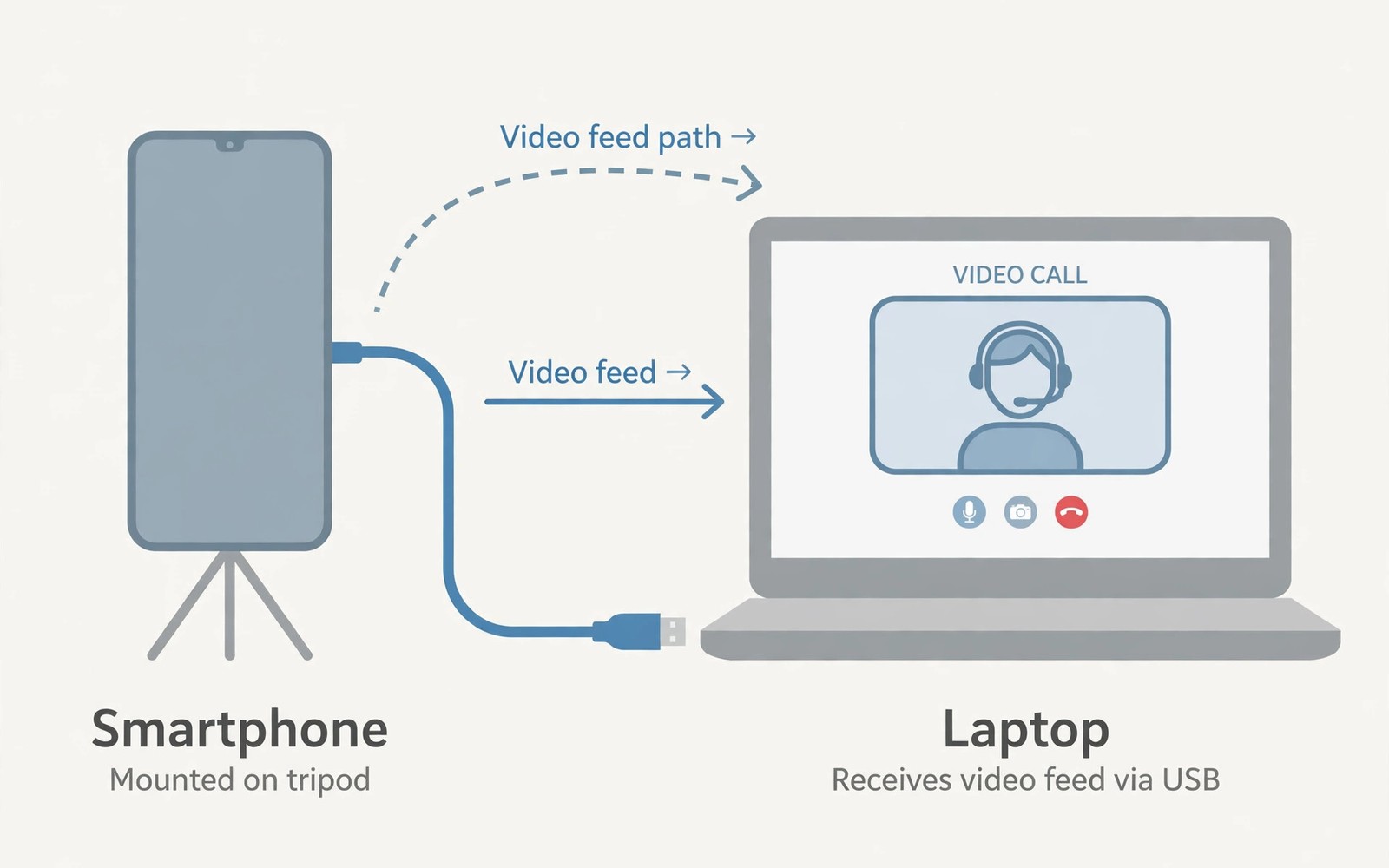
Install a webcam app on the phone. Connect the phone to the PC with USB. Pick webcam or video mode on the phone. Then select the phone as camera in your call app.
Some phones offer a built in webcam mode. It appears as a USB device option. This native mode needs no extra app. Check your phone settings for webcam or device mode.
Wireless Webcam Setup
Wireless apps stream video over Wi-Fi to the PC. Install the receiver on the PC first. Then start the stream from the phone. Select the virtual camera in your call app.
Keep the phone near the router for stable video. A weak signal causes freezes mid call. Plug the phone in for long meetings. Streaming video drains battery quickly.
adb shell dumpsys media.camera
# check camera services on Android
# confirm the phone camera is free
# close other camera apps first
The snippet above follows standard operating system documentation and widely shared setup guides. It shows a typical pattern rather than a vendor specific promise. Results can vary by device model and system version. Always test a small change before you rely on it daily.
Lighting and Framing Tips
Face a window or a lamp for soft light. Light from behind creates a dark silhouette. Keep the background tidy and calm. A plain wall beats a cluttered shelf. A related workflow is covered in calls and texts on PC for readers who want more depth.
Frame head and shoulders with space above. Avoid extreme low angles from a desk. A small tripod or stack of books helps. Eye level framing feels most natural to others.
Audio to Match the Video
Phone microphones work but pick up room echo. A headset mic gives clearer voice. A USB mic on the PC also works well. Match audio quality to your new video quality.
Test audio before an important call. Record a short clip and play it back. Listen for echo and background noise. Fix mic placement before the meeting starts.
Fixing Webcam Problems
If the PC cannot see the phone then try another USB port. Some ports lack data lines on hubs. Use a direct port and a data cable. Charge only cables will not carry video.
If video freezes then lower resolution in the app. A 720p feed often looks fine for calls. Close other video apps on the PC. Free bandwidth helps the stream stay smooth.
Daily Webcam Habits
Keep a small tripod near your desk. Set the phone up before calls start. Check framing in the call preview. A minute of prep saves awkward adjustments live.
Choosing the Right Webcam App
Webcam apps differ in resolution and latency greatly. Some cap free versions at standard definition. Others offer full HD without payment. Read resolution limits before installing. Test the app with your actual call software. Compatibility matters more than feature lists.
Some webcam apps add beauty filters and backgrounds. Filters can look unnatural in work calls. Disable filters for professional meetings. Use them only for casual social calls. A natural look builds trust on video. Keep the focus on your message.
Mounts Tripods and Holders
A stable mount prevents shaky video throughout calls. Small phone tripods cost little and fold flat. Clamp mounts attach to monitors directly. Desk stands work for seated calls well. Choose a mount that holds eye level height. Low angles create unflattering video for everyone.
Car mounts and selfie sticks suit temporary setups. They wobble more than real tripods do. Use them only when no tripod is available. Stability matters more than fancy features. A steady phone beats a fancy phone that shakes. Invest in stability before lenses or lights.
Backgrounds and Green Screens
Virtual backgrounds hide messy rooms effectively. They need good lighting to avoid edge glitches. A plain wall beats a virtual background often. Real backgrounds look more natural on camera. Tidy a small area behind you instead. A bookshelf corner works beautifully.
Green screens improve virtual background quality greatly. They cost little as fabric sheets. Hang the sheet smoothly without wrinkles. Light it evenly to avoid shadows. Software then cuts you out cleanly. Practice once before an important call.
Webcam Use for Teaching and Streaming
Teachers benefit from phone webcam quality hugely. Students see whiteboards and demos clearly. A second phone can show close up details. Switch cameras between wide and detail views. Clear visuals keep remote students engaged. Good video is a teaching tool itself.
Streamers use phones as secondary cameras often. A phone shows a different angle cheaply. Overhead angles suit cooking and craft streams. Side angles suit interview streams well. Sync audio from one source only. Multiple audio sources cause echo problems.
Privacy with an Always Connected Camera
A phone webcam stays connected after calls end. Cover the lens when not in use. A simple sliding cover costs almost nothing. It prevents accidental video leaks completely. Software indicators can fail or be ignored. A physical cover never fails silently.
Revoke camera permission from webcam apps after use. Re grant permission before the next call. This habit limits background access windows. Check permission usage in phone settings monthly. Unused permissions deserve revocation promptly. Privacy is a habit and not a setting alone.
Upgrading Beyond a Phone Webcam
A phone webcam beats laptop cameras easily. Dedicated webcams offer better low light later. Mirrorless cameras offer the best quality eventually. Upgrade only when calls justify the cost. Daily presenters benefit from dedicated gear. Occasional callers do fine with a phone.
Lighting upgrades improve video more than camera upgrades. A soft key light transforms any camera feed. Ring lights suit small desks well. Panel lights suit larger rooms better. Spend on light before a new camera. Light is the cheapest quality upgrade available.
Webcam Apps for Different Call Platforms
Call platforms detect virtual cameras differently sometimes. Test your phone webcam with each platform. Zoom Teams and Meet behave slightly differently. Some platforms prefer specific resolutions. Adjust app resolution per platform needs. Platform specific tweaks optimize call quality. Test before important meetings always.
Browser based calls need camera permission grants. Grant permission to the browser specifically. Phone webcam apps use virtual camera drivers. Browsers list virtual cameras alongside real ones. Select the correct camera in call settings. Wrong camera selection shows black screens.
Using Rear Cameras for Document Sharing
Rear cameras capture documents sharper than front cameras. Show documents to call participants clearly. Hold documents steady under good light. Rear cameras focus closer than laptop cameras. Close document shots aid remote collaboration. Teachers share worksheets this way effectively. Document sharing extends webcam usefulness greatly.
Tripods with phone clamps hold documents steadily. Overhead mounts capture desk surfaces perfectly. Build a simple overhead rig cheaply. A clamp and arm suffice for most needs. Stable overhead shots look professional instantly. Shaky hand held shots distract viewers badly.
Webcam Lighting on a Budget
Window light provides free soft illumination daily. Face windows during daytime calls ideally. Avoid harsh midday sun directly though. Diffuse sunlight through curtains softly. Curtains transform harsh light beautifully. Free light beats cheap artificial lights often. Natural light flatters faces naturally.
Desk lamps supplement window light in evenings. Position lamps at forty five degree angles. Two lamps balance shadows on faces. Single lamps create harsh one sided shadows. Balanced lighting looks professional immediately. Experiment with lamp positions before calls.
Audio Sync with Phone Webcams
Phone webcam video may lag behind PC audio. Mismatched sources cause lip sync issues. Use phone audio with phone video ideally. Single source audio video stays synchronized. PC microphones paired with phone video drift. Drift distracts call participants noticeably. Unified sources prevent sync headaches.
Test sync with a clap before meetings. Clap visibly and check audio timing. Adjust delays in call software if available. Some software offers manual sync offsets. Small offsets fix noticeable drift easily. A ten second test saves meeting embarrassment.
Webcam Use for Job Interviews
Job interviews demand polished video presentation. Phone webcams elevate interview video quality. Dress professionally from head to toe. Standing surprises happen during interviews sometimes. Full professional dress avoids embarrassment completely. Preparation includes clothing beyond camera frame.
Test interview setup the day before always. Check framing lighting and audio thoroughly. Prepare backup plans for tech failures. A laptop camera backup saves interviews. Calm backup plans reduce interview anxiety. Confidence comes from preparation and backups.
Webcam Framing for Different Call Types
Job interviews need formal centered framing always. Center head with modest headroom above. Professional backgrounds suit interviews best. Casual calls tolerate relaxed framing more. Friends accept creative angles playfully. Match framing formality to call purpose. Formality signals respect for interviewers clearly.
Group calls need wider framing for multiple people. Position phones farther back for groups. Ensure all participants appear in frame. Test group framing before calls start. Adjust distance until everyone fits comfortably. Group framing requires more preparation time. Preparation shows respect for all participants.
Webcam Microphone Options Compared
Phone microphones capture room sound broadly. They pick up keyboard and fan noise. Headset microphones isolate voice much better. Lapel microphones offer hands free clarity. USB microphones suit desk setups best. Choose microphones by room noise levels. Noisy rooms demand directional microphones strongly.
Microphone placement affects clarity more than price. Position microphones close to mouths ideally. Six inches distance works well typically. Greater distances increase room echo noticeably. Test placements with recordings before calls. Recordings reveal problems ears miss live. Testing prevents call quality surprises.
Start with one small change today and build from there. A steady setup beats a rushed overhaul every time. You can also read remote phone control to round out your plan. Once the basics feel natural you can add more advanced options at your own pace.

