

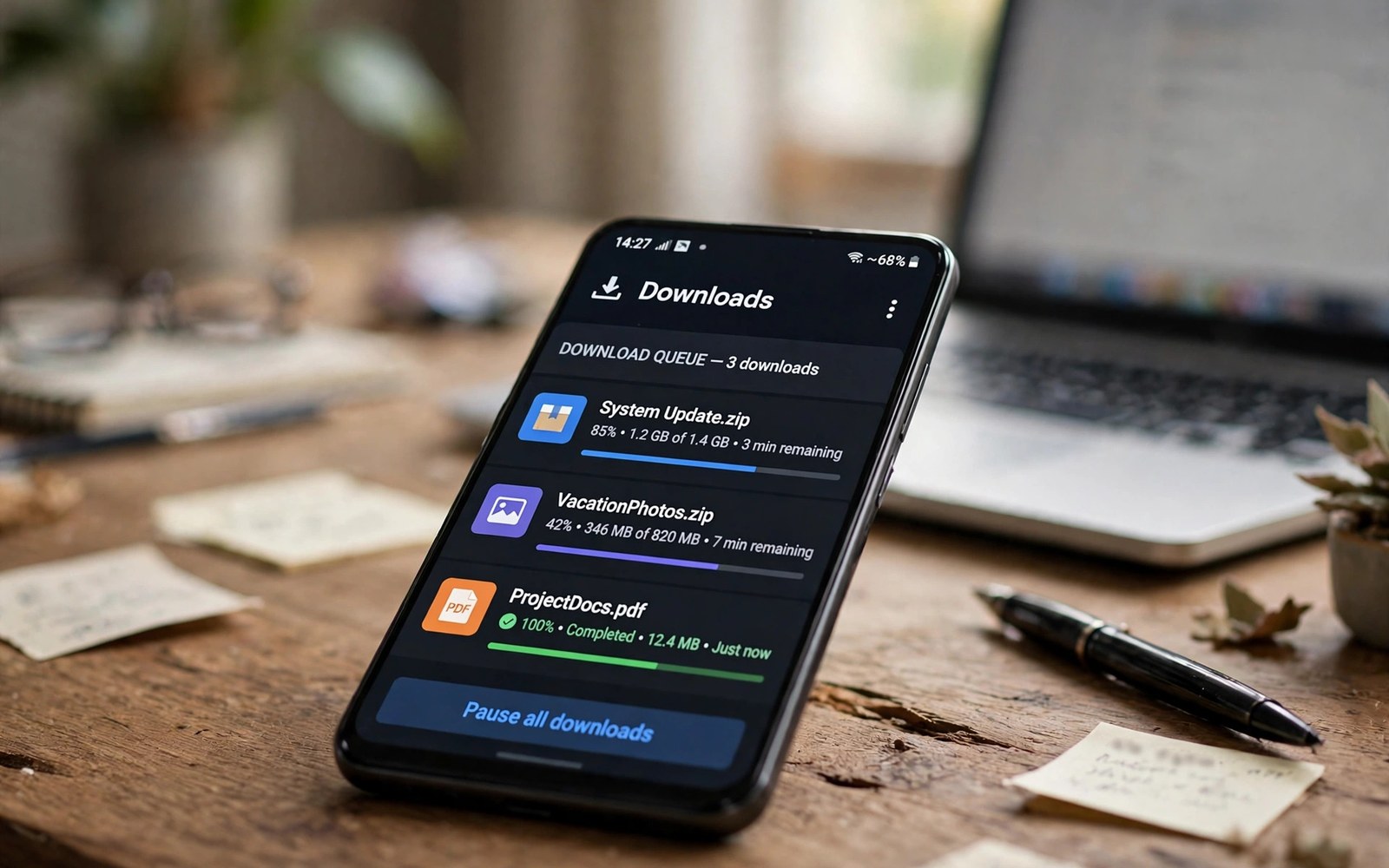
Resolving “Downloads Pending” Stuck Error in Google Play Store
You tap Install, the button changes, and then nothing happens. No progress bar, no percentage, just an app sitting in a queue that looks busy but does nothing.
The good news is that most cases have a single cause, and that cause is usually cheap to find. A stuck queue is rarely a broken phone.
Read the timing first. If installs worked yesterday and stopped after an update, start with the software steps.
Why One Stalled Install Blocks Every App Behind It
Google Play treats installs as a line, not a free-for-all. When you tap Install on several apps, or when automatic updates start at the same time as your manual install, each item waits for the one ahead of it.
A front item can stall for boring reasons. It may be waiting for Wi-Fi because your download preference says so.
How the Play Queue Orders Updates and Manual Installs
Automatic updates usually get in line first, especially if they started while you were asleep or charging. Your manual install joins the back of that line.
Large games make this worse. A 2 GB game can sit at the front for a long time on a slow connection, and every small app behind it waits.
What Happens When the First Item Never Reports Progress
A healthy install reports progress within a minute or two on a decent connection: a percentage, a growing bar, or at least a change from waiting to downloading. A stuck item reports nothing for ten minutes or more, survives a switch from Wi-Fi to mobile data, and survives closing and reopening the store app.
How Long to Wait Before You Call an Install Stuck
Give a new install five minutes on Wi-Fi and ten on mobile data before you touch anything, longer for files over 1 GB. If the status text has not changed in that time, treat it as stuck and work the steps below.
Pause, Cancel and Restart the Queue the Right Way
Start here, because this step costs two minutes and fixes a surprising share of cases. Do not jump straight to clearing data or removing your Google account.
Open the Play Store, tap your profile picture, then tap Manage apps and device, then the download list. You will see every pending item in order.
Cancel Stuck Items One at a Time
Cancel the top item, wait thirty seconds, then cancel the next one if it also refuses to start. Work down the list until it is empty.
Once the list is empty, install one small app alone — something under 50 MB that you actually want. One small install tells you more than five large ones, because it removes file size and connection speed from the equation.
Restart the Phone and Test a Single Small App
If the small test app also stalls, restart the phone. Hold the power button, choose Restart, and wait for the phone to finish booting before you open the store again.
After the restart, try the same small app once more before you change any setting. If it installs now, you are done.
Pick a Safe Test App for the Queue Check
Choose a small, free, well-known app with no extra data files — a calculator, a notes app, or a browser you do not already have. Avoid games and anything over 200 MB for the test.
Clear Cache and Data for Play Store and Download Manager
When a restart does not help, the next suspect is stale cache. The Play Store and the system Download Manager both keep cache files that tell them what is queued, what is partly downloaded, and what state each item is in.
Clear the Cache First, Then the Data If Needed
Open Settings, tap Apps, then See all apps, then find Google Play Store. Tap Storage and cache, then tap Clear cache.
Clearing cache deletes temporary files only. It does not delete your installed apps, your purchase history, or your account.
What Clearing Data Actually Resets on Your Phone
Clearing data for the Play Store removes its local settings, its cached search history, and its record of pending items. It does not remove apps you already installed, and it does not touch your Google account or your library.
Clear Cache for Google Play Services Without Breaking Sign-In
Clear cache, not data, for Google Play services first. Open Settings, tap Apps, find Google Play services, tap Storage and cache, then tap Clear cache.
Check Download Preference, Background Data and Auto-Update Settings
A surprising number of stuck queues are not stuck at all. They are obeying a setting.
Open the Play Store, tap your profile picture, tap Settings, then tap Network preferences. Tap App download preference. Set it to Over any network for the test, try your small app, and switch it back afterwards if you prefer to save mobile data.
Allow Background Data and Unrestricted Data Usage for the Store
Open Settings, tap Apps, find Google Play Store, tap Mobile data and Wi-Fi, and make sure Background data is on. On some phones there is also an Unrestricted data usage toggle on the same screen — turn it on for the test if you use Data Saver, because Data Saver can throttle the store in the background and make installs crawl or stall.
While you are here, check that the store is not restricted by Battery optimisation. Open Settings, tap Apps, find the Play Store, tap Battery, and set it to Unrestricted or Optimised rather than Restricted for the test.
Turn Off Data Saver and VPN for One Test Install
Data Saver, a VPN, and some ad-blocking apps all sit between the store and Google servers. Any of them can slow or block the connection in ways that look like a queue fault.
This is also the moment to check the date and time. Open Settings, tap System, tap Date and time, and make sure Use network-provided time is on.
Free Storage Space, Check the SD Card and Remove the Size Trap
Installs need more free space than the app size on the listing. Android needs room for the download, room to unpack it, and a safety margin for the system to keep running.
Open Settings, tap Storage, and look at the real breakdown rather than the headline number. Videos, offline maps, and a few large games usually dominate.
Why 1 GB Free Is Often Not Enough for a Large App
A 1 GB game can need 2 GB or more during install: the downloaded package, the unpacked files, and the extra data the game fetches on first launch. If the phone has exactly 1 GB free, the installer may start, run out of room halfway, and leave the item in a waiting state rather than showing a clear storage error.
Update the Play Store, Play Services and Android Itself
Queue bugs are sometimes bugs in the store app itself, and Google fixes them in store updates that arrive silently in the background. You can check for one manually.
Do the same for Google Play services, which the store depends on for sign-in and downloads. After any Play services update, restart the phone — the new version only takes over cleanly after a reboot.
Install Pending Android System Updates Before You Blame the Store
Open Settings, tap System, tap System update, and check for an Android update. System updates often include fixes for the download service, the storage layer, and the permission system that the store relies on.
One warning: do not factory reset the phone at this stage. A reset is the last resort, not the next step, and it wipes your data for a problem that the account and network checks below usually solve.
Remove and Re-Add Your Google Account the Safe Way
When the software steps all fail, the account layer is next. A Google account can fall into a half-synced state after a password change, a security check, or a long period offline.
Before you remove anything, back up what matters: photos, contacts, and any authenticator codes tied to the account. Then open Settings, tap Passwords and accounts or Accounts, tap the Google account, and tap Remove account.
Check for Account Warnings Before You Remove Anything
Before you remove the account, open the account screen and look for a warning: a sync error, a sign-in request, or a paused switch. Fix the warning first. If the store asks you to verify a payment method during a free install, that is an account check, not a billing problem — and a related failure in that same area is covered in our guide to resolving a payment security check failure, which walks through the verification steps that unblock the account.
If you have two Google accounts on the phone, test with the other one. Add the test app under the second account and see whether it installs.
Diagnose by Layer: Software, Account, Hardware and Network
When the step-by-step fixes have not worked, stop changing settings at random and diagnose by layer. Change one variable at a time, note the result, and move on.
| Layer | Quick test | What a pass means | What a fail points to |
|---|---|---|---|
| Software | Restart, clear store cache, test one small app | Stale process or corrupt cache | Account or network layer |
| Account | Check warnings, re-add account, test second account | Sync or sign-in state | Hardware or network layer |
| Hardware | Check storage, heat, ports, second charger and cable | Failing storage or overheating | Repair check needed |
| Network | Wi-Fi, then mobile data, then a second location | Router, DNS, or carrier block | Phone radio or system fault |
| Power | Charge above 50 percent, test off battery saver | Battery saver throttling | Battery health check |
Start With the Software Layer Because It Costs Nothing
Restart the phone and clear the cache for the store app, then repeat the exact action that failed before. If the fault clears, a stale process was the cause.
A related fault can look similar at first glance: an app that freezes or shows a black screen when you open it can feel like an install problem, especially when the store itself is the app that freezes. Before you change deeper settings, compare the symptoms with our guide to fixing app freezes and black screens — if the store app itself is freezing rather than queuing, the fix is an app problem, not a queue problem.
Check the Account Layer When Sign-In or Sync Is Involved
Sign out and back in on one device only and wait for sync to finish. Check the account screen for a warning or a paused switch, fix the warning first, and then test again.
Test the Hardware Layer With Your Hands and Eyes
Look for swelling around the battery, heat during a short install attempt, and dirt in the charging port. Test with a different cable and charger when you can, and test installs with the phone cool rather than hot from gaming or charging.
Touch problems can masquerade as install problems too. If taps on Install, Cancel, or Pause do not register reliably, you may be fighting the screen rather than the queue. Our guide to troubleshooting ghost touches covers how to tell a digitiser fault from a software freeze, and it is worth reading before you conclude the store is at fault.
Test the Network Layer in a Second Place
Test on Wi-Fi and then on mobile data. Test in a second location away from the first router or tower.
When a Second Network and a Second Account Both Fail
If the small test app fails on Wi-Fi and on mobile data, under your account and under a second account, after a cache clear and a restart, you have ruled out the network and the account. That leaves the system itself: a pending system update, a corrupt system cache, or failing storage. Back up the phone, check for a system update once more, and then consider a factory reset or a repair check, in that order.
Frequently Asked Questions About a Stuck Play Queue
Why does my install stay waiting even on fast Wi-Fi?
Speed is not the same as permission to start. An install can wait because the download preference is Wi-Fi only and the phone thinks it is on mobile data, because background data is off, because another item is ahead of it in the queue, or because free space is too low for the file.
How do I clear the Play Store cache without losing my apps?
Open Settings, tap Apps, find Google Play Store, tap Storage and cache, then tap Clear cache. That deletes temporary files only.
Can a full storage partition cause installs to wait forever?
Yes. Android needs room for the download, room to unpack it, and a safety margin, so a phone with less than about 1 GB free can refuse a medium app and a phone with 1 GB free can still refuse a large game.
Should I remove my Google account to fix a stalled queue?
Only after the lighter steps have failed. Cancel the queue, restart, clear the store cache, check download preferences and background data, free space, and update the store first. Back up photos and contacts first, remove the account, restart, add it back, and wait ten minutes for sync before you test.
If the queue is moving again, keep it healthy with a short routine: leave 2 GB free, let the store update itself, and check the download list before you install a big game so you are not surprised by updates ahead of you. Test one small install after any system update, and note the date the fault first appeared if it ever returns — that timing is the first thing a technician will ask about.
Your concrete next step takes two minutes. Open the download list, cancel the top item, and install one small app alone.

