

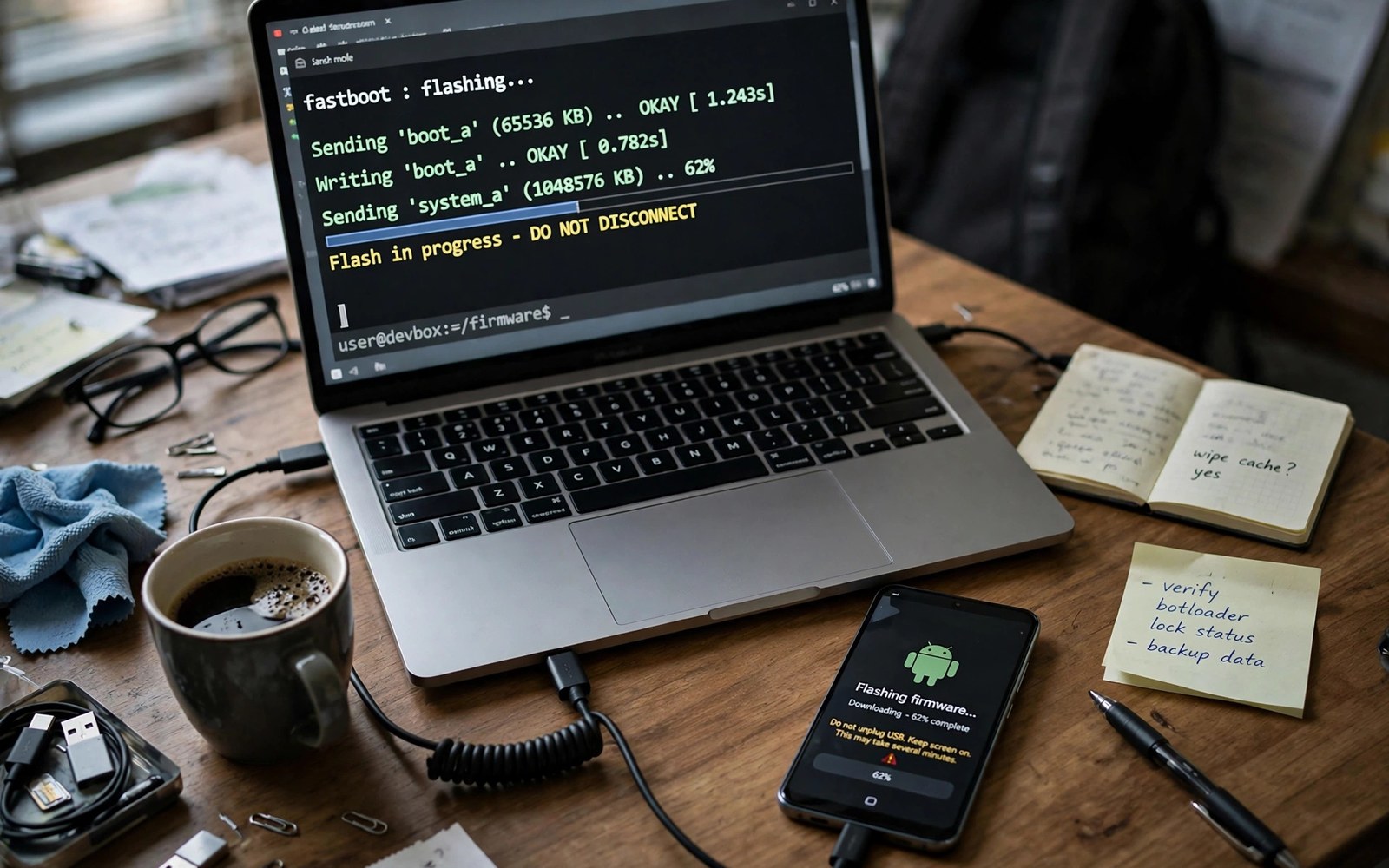
Returning to stock firmware restores the phone to factory software. People do it before selling a phone or seeking warranty service. People also do it when a custom ROM disappoints them. The process uses fastboot and official firmware files. It wipes data in most cases. Preparation makes the return smooth.
Stock firmware comes from the phone maker. It includes the system and vendor files and modem files for your model. It also includes the stock recovery and the stock boot image. Flashing it replaces every custom piece. The phone then behaves like a new retail device. That clean state is the goal of a return.
Back up before you start. A stock flash erases user data on most devices. Copy photos and files to a computer. Export contacts and save account codes. A stock return without a backup loses data that a custom ROM did not touch. Treat backup as the first step and not an afterthought.
Confirm your exact model and region before downloading firmware. Regional firmware differs in modem bands and carrier settings. A wrong region build may boot but break calls. Check the model number and the region code on the phone. Match both to the firmware file.
When you are ready to go further, read about choosing between official and unofficial builds and compare it with the plan you made for your own phone.
Download The Correct Stock Firmware
Find firmware from the maker channel your device guide names. Check the model and the region and the version. Check the file size and the checksum when provided. A corrupt firmware file can fail midway and leave the phone half flashed. Download on a stable connection and keep a spare copy.
Unpack the firmware to a folder with a clear name. Note the flash script inside if one exists. Some makers provide a script that flashes every partition in order. Others expect manual fastboot commands. Read the included notes before running anything. The script order matters for modem and bootloader safety.
- Match model and region to the firmware file
- Back up data before any stock flash
- Test drivers and fastboot connection first
- Flash partitions in the script order
- Relock only after a full verified stock boot
Prepare Drivers And Fastboot Tools
Install platform tools and maker drivers on your computer. Test the connection in fastboot mode before flashing. Run a device check and confirm the serial appears. A missing driver at flash time wastes time and adds stress. Fix driver issues while the phone still works normally.
Charge the phone well above half before flashing. Keep the USB cable steady and avoid hubs if possible. A direct port connection is more reliable. Do not unplug the cable during the flash. Interruption during a bootloader write is the most dangerous failure in this process.
Unlock State And Flash Order
Most stock flashes work with an unlocked bootloader. Some makers allow relocking after a stock flash. Relock only when the firmware is fully stock and verified. Relocking with custom pieces still present can brick the phone. Read the relock warning for your model carefully.
Flash partitions in the order the guide or script states. Bootloader and radio files often come first. System and vendor files follow. Recovery comes near the end in many layouts. Do not skip a partition to save time. A skipped modem file can break calls after an otherwise good flash.
When you are ready to go further, read about fixing sensor and camera issues after flashing and compare it with the plan you made for your own phone.
Run The Flash And Watch For Errors
Run the flash script or the commands one stage at a time. Watch each line for success messages. If a line fails, stop and read the error. Do not rerun the whole script blindly. A single failed partition may need a retry alone. Note the failed partition name for diagnosis.
Large firmware files take several minutes to write. Progress bars may pause during big partitions. Patience protects the flash. Force closing the tool during a write risks a corrupt partition. Wait for the final success message before touching the cable.
First Boot On Stock Firmware
First boot on stock firmware takes longer than normal. The system builds caches and checks partitions. Do not interrupt the boot. When setup appears, complete it with a fresh profile for testing. Test calls and mobile data and camera use before restoring data.
Check the software version in settings after boot. Confirm it matches the firmware version you flashed. Check the security patch level too. If the version looks wrong, you may have flashed an older file. Reflash the correct version before restoring your data.
Relock The Bootloader Only When Safe
Relocking restores the factory security state. It also removes the boot warning on many phones. Relock only after a full stock flash and a successful boot. Verify that no custom recovery remains. Verify that the system passes its own checks. A failed check after relocking is harder to fix.
Some makers require a specific relock command or tool. Follow that method exactly. Keep the phone charged during relocking. A power loss during relock can damage the bootloader state. If you are unsure, leave the bootloader unlocked and seek model specific advice.
When you are ready to go further, read about how vendor boot images work in Treble ROMs and compare it with the plan you made for your own phone.
After The Return To Stock
Restore your backup after confirming stock works. Install apps from the store fresh where possible. Avoid restoring system settings from a custom ROM backup. Those settings may conflict with stock behaviour. Restore photos and files and contacts first. Add other data gradually.
Check for stock updates after the return. The phone may offer an update to a newer version. Install it on stable Wi-Fi. A stock phone with current updates is ready for sale or for daily use. Keep the firmware file for future returns. You may need it again after another custom experiment.
Selling Or Handing Down A Phone After Stock Return
A stock return prepares a phone for a new owner. Remove your accounts before handing it over. Sign out of cloud accounts and messaging apps. Remove the lock credential after a factory reset. A new owner should meet a fresh setup screen. That fresh screen proves no personal data remains. It also avoids account lock issues for the buyer. Clean handover protects both parties.
Check that the phone passes maker integrity checks after stock return. Some buyers check those checks before paying. A phone that fails them may sell for less. A full stock flash usually restores those checks. Test them before listing the phone. Honest listings mention bootloader state clearly. Buyers appreciate that honesty. It also prevents disputes after sale.
Include the original accessories if you still have them. A charger and cable add value. A box adds trust. Wipe external storage cards separately if you include one. A card can hold personal files even after a phone reset. Format the card before handing it over. Small details make a handover smooth.
Warranty And Service After A Custom ROM Period
Service centres may check for custom software history. Some makers flag unlocked bootloaders permanently. A stock return may not erase that flag. Check your maker policy before seeking warranty service. Honesty with service staff saves time. Staff can advise whether a repair qualifies despite the flag. Surprises at the counter help nobody.
Keep service records from your custom ROM period. Note any hardware issue that predates custom software. That note helps separate hardware faults from software experiments. A fault that existed on stock firmware is clearly hardware. A fault that appeared only on custom software needs more discussion. Records make that discussion factual.
Before service, return to stock and test the fault there. A fault that persists on stock is easier to demonstrate. Service staff can reproduce it on factory software. That reproduction speeds repair approval. A fault that vanishes on stock may still be hardware related. Still, stock reproduction gives the strongest case.
Stock Firmware Variants: Carrier Versus Unbranded
Stock firmware comes in carrier and unbranded variants. Carrier variants include carrier apps and settings. Unbranded variants stay cleaner. Both variants work on most phones. Carrier features may differ between them. Wi-Fi calling may work better on a carrier variant. Unbranded variants may update faster. Choose the variant that matches your priorities. Read variant notes before downloading. Variant choice affects daily experience.
Flashing a carrier variant on an unlocked phone usually works. Flashing an unbranded variant on a carrier phone usually works too. Network bands stay the same across variants in most cases. Carrier specific features may still differ. Test calls and data after any variant change. Note differences for future flashes. A variant that suits your carrier saves troubleshooting. A mismatched variant creates avoidable questions.
Regional unbranded variants also differ subtly. Language defaults and regulatory settings vary. Emergency number handling may vary. Those differences rarely affect daily use. They can matter for travellers. Match region when possible. Regional matching keeps regulatory behaviour correct. It also keeps update channels aligned. Aligned channels receive updates promptly. Prompt updates matter for security.
After Stock Return: Rebuilding Trust In The Phone
A stock return restores factory behaviour but not necessarily confidence. Test the phone thoroughly after return. Use it normally for several days. Check battery and heat and app behaviour. A thorough test rebuilds trust. It also catches a faulty flash early. Early detection allows a clean reflash. Late detection complicates warranty claims. Testing is part of the return process. Do not skip it.
Compare stock performance with your custom ROM memories honestly. Stock may feel slower in some areas. It may feel smoother in others. Camera quality may improve on stock. Update speed may slow on stock. Honest comparison informs future choices. You may return to custom software later with clearer priorities. Or you may stay on stock happily. Either outcome is valid when based on evidence.
Keep your custom ROM notes even after a stock return. Future curiosity may bring you back. Notes from a previous install speed the next one. They record working combinations and pitfalls. Deleting notes wastes hard earned knowledge. Store notes with your stock firmware files. A complete archive serves future experiments. Knowledge kept is knowledge reusable.
fastboot devices
fastboot flash bootloader bootloader.img
fastboot flash radio radio.img
fastboot -w update stock-firmware.zip
The steps above follow the approach described in the official developer documentation for this platform and in the firmware guides published for each model.

