

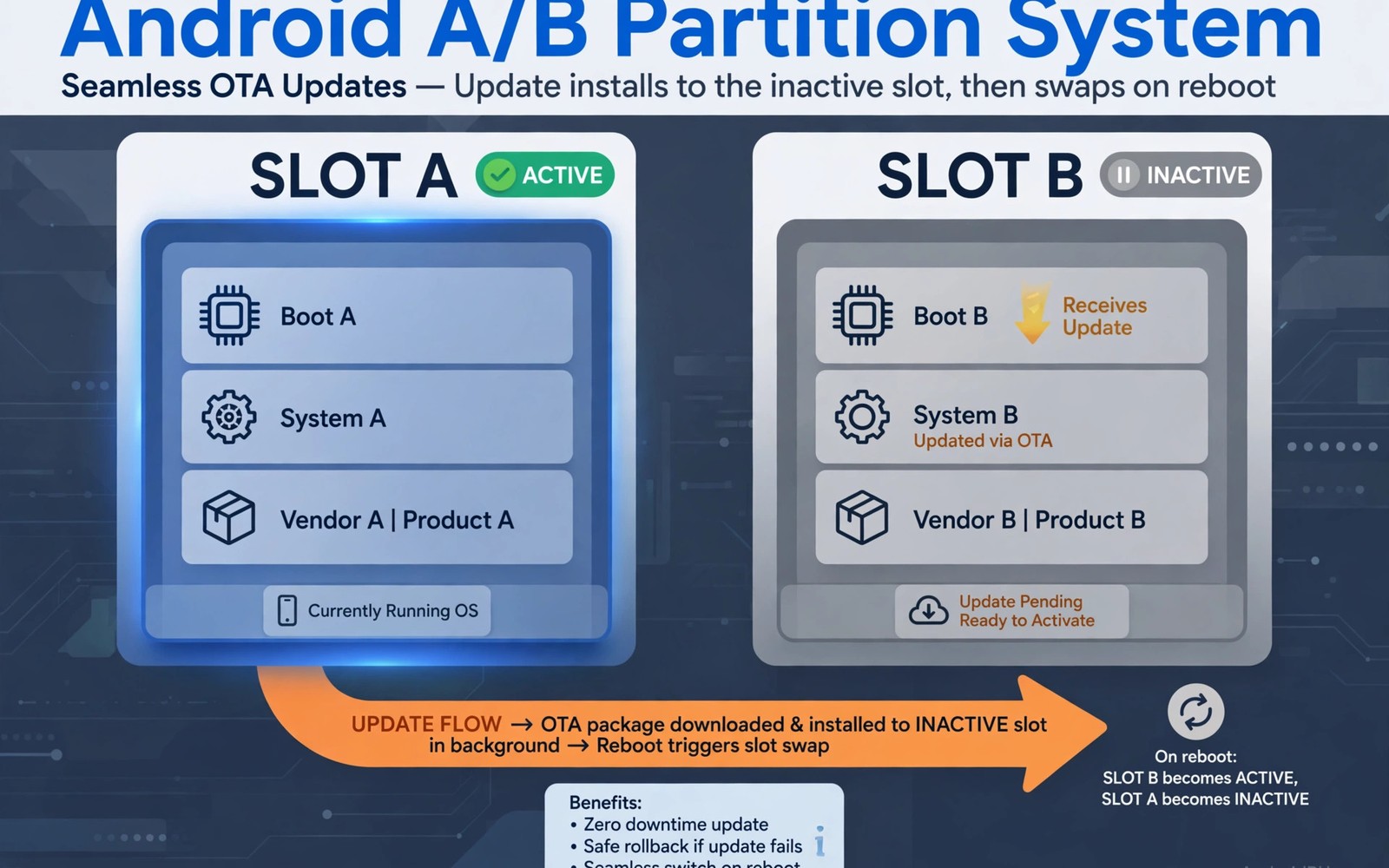
Android partition layouts changed greatly over the past decade. Older phones kept one copy of each partition. Newer phones keep two copies for core partitions. Those copies are called slots A and B. Understanding slots is essential for modern recovery work.
Seamless updates are the reason slots exist. The phone can update the inactive slot while you keep using the active one. A reboot then switches slots to the updated system. If the update fails then the phone falls back to the old slot. That fallback makes updates safer for ordinary users.
What Slots Actually Are
A slot is a set of partitions that together form a bootable system. Slot A holds its own boot and system and vendor partitions. Slot B holds a second set of the same partitions. Only one slot is active at a time. The bootloader decides which slot to boot from.
Storage is shared between slots for user data in most layouts. Data does not duplicate across slots. That sharing keeps storage costs manageable. It also means a data problem affects both slots equally. Slot redundancy protects the system, not your personal files.
Some partitions exist outside slots entirely. Recovery handling is the most important example. On older A and B devices recovery still had its own partition. On newer devices recovery lives inside the boot image of each slot. That shift changes how recovery is installed and updated.
How Seamless Updates Use Slots
An update writes new system files to the inactive slot first. Your active slot keeps running normally during the write. The update engine then marks the inactive slot as bootable. The next reboot tries the new slot. If boot succeeds then the new slot becomes active permanently.
If the new slot fails to boot then the bootloader retries the old slot. That retry happens automatically after a set number of failures. Users may notice only a longer boot time. Behind the scenes the phone protected itself from a bad update. This safety net is the main benefit of the slot design.
- Active slot runs the current system while updates target the inactive slot
- Failed updates fall back to the previous working slot automatically
- User data is shared so slot switching does not erase personal files
- Bootloader tracks slot health and boot attempt counts
Where Recovery Lives Now
Recovery location depends on device generation and maker choices. Classic devices keep a dedicated recovery partition. A and B devices with a recovery partition still allow direct flashing. Newer virtual A and B devices fold recovery into boot images. Flashing recovery on those devices means patching or booting an image differently.
The practical effect is that old tutorials may not apply to new phones. A command that worked on a 2019 phone can fail silently on a 2024 phone. Always check the partition layout for your exact model. Recovery install guides for your codename will state the correct method. Guessing the layout wastes time and risks confusion.
FastbootD adds another layer to this story on modern devices. It is a userspace fastboot mode that can manage dynamic partitions. You can read about fastbootD mode and how it interacts with recovery to see how it fits. FastbootD exists largely because slot and dynamic layouts outgrew classic fastboot.
Flashing Mistakes Slots Cause
The most common slot mistake is flashing only one slot. A ROM installer usually handles both slots or the active slot correctly. Manual image flashes can target the wrong slot by accident. The phone then boots the untouched slot and nothing appears changed. Users may think the flash failed when it simply went elsewhere.
Another mistake is switching slots without checking slot health. A slot marked unbootable will not boot even when flashed correctly. Clearing slot state or marking a slot bootable may be needed first. These operations need care because they affect fallback safety. Never mark a broken slot bootable just to force a boot.
Kernel flashing also interacts with slots. A kernel lives in the boot image of a slot. Flashing a kernel to the inactive slot changes nothing until that slot boots. Always confirm the active slot before a manual kernel flash. That single check prevents many puzzling results.
Checking Slot Status
Fastboot can report the current slot and the health of both slots. Recovery builds often show the active slot on the main screen. Checking takes seconds and should become a habit. Note the active slot before any manual flash. Note it again after the flash to confirm the change landed.
Some recoveries let you switch slots from a menu. Switching is useful for testing an update before committing. It is also useful for booting the fallback slot after a bad flash. Switch deliberately and record which slot holds which system. A written note beats memory during a stressful repair.
fastboot getvar current-slot
fastboot getvar slot-successful:a
fastboot getvar slot-successful:b
fastboot --set-active=a
The commands above query slot state and set an active slot. Exact variable names can differ slightly by bootloader. Use them as a diagnostic pattern rather than a blind recipe. Confirm support for these variables on your device first.
Why Recovery Work Got Harder
Slots and dynamic partitions together raised recovery complexity. Dynamic partitions resize logical partitions inside a super partition. Recovery must understand that layout to mount and flash correctly. Older recovery builds cannot handle newer layouts at all. Keeping recovery current is therefore more important than before.
Verified boot adds further checks on each slot. The bootloader verifies signatures before booting a slot. Custom images need an unlocked bootloader to pass those checks. Even then, some makers add extra verification layers. Those layers explain why some models resist custom recovery entirely.
The broader trend is covered in why newer partition structures make custom recovery harder for readers who want the full picture. Slot design is one piece of a larger shift toward locked down layouts.
Practical Rules for Slot Devices
Always identify the active slot before manual flashing. Flash images to the slot you intend to boot. Let ROM installers manage slots when they offer to do so. Avoid manual slot switching during an update in progress. Keep a backup that you can restore to either slot.
When a flash seems to do nothing, suspect a slot mismatch first. Check slot status before assuming the file was bad. When a phone bootloops after a flash, try the other slot before wiping. The fallback slot may hold a working system from before. Those two habits solve a large share of slot confusion.
For a plain introduction to recovery itself, see custom recovery features and capabilities explained which frames slots within the wider toolset. Recovery knowledge builds layer by layer from that foundation.
Slot Metadata and Boot Decisions
Slot metadata lives in bootloader accessible storage outside the slots themselves. It records which slot is active and which slots boot successfully. It also records retry counts for failed boot attempts. The bootloader reads that metadata on every startup. Boot decisions follow metadata rather than guesswork.
Successful boot marks a slot as good in metadata. Failed boots increment a retry counter for that slot. Exhausted retries trigger fallback to the other slot. That fallback protects users from bad updates automatically. Manual slot tools can also reset retry counts when needed.
Metadata corruption can confuse even healthy slots. A corrupted metadata area may mark both slots unbootable. Recovery tools can sometimes repair or reset that state. Such repair needs care because it affects fallback safety. Never reset slot metadata casually without understanding the current state.
Updates and Slots in Daily Use
Ordinary users never see slots during normal updates. The update engine handles inactive slot writes silently. A reboot switches slots behind a normal restart screen. The whole process feels like any other update. Slot complexity stays hidden until something goes wrong.
Power users see slots when flashing manually or troubleshooting. Manual flashes must respect active slot state. Update failures reveal fallback behavior through longer boots. Knowing slot basics turns those moments from mystery into routine. A little slot literacy pays off across years of phone use.
Storage sharing between slots also affects update space planning. The inactive slot needs enough free super space for new images. A nearly full super can block updates entirely. Freeing space may require removing unused logical partitions. Space planning is part of slot device maintenance now.
- Bootloader metadata tracks active slot and boot success
- Failed boots fall back automatically after retry limits
- Users rarely notice slots until a manual flash or failure
- Super space must fit updates for the inactive slot
Slot Behavior During Factory Resets
Factory resets interact with slots in ways users rarely consider. A reset wipes user data but leaves both slots largely intact. The active slot remains active after a reset completes. The inactive slot keeps its previous system version. Slot state survives resets by design.
That survival can help or confuse troubleshooting after a reset. A phone may boot the same faulty slot after a reset. Users may assume reset fixes all software faults incorrectly. Slot faults persist through data wipes in that case. Slot switching or reflashing addresses slot faults instead.
Reset protection features also tie into slot behavior on some models. Account verification after reset happens regardless of slot. Slot switching does not bypass account checks. Treat resets and slot operations as separate tools. Each solves a different class of problem.
Slot Tools in Recovery Menus
Recovery menus expose slot controls on many slot based devices. A slot selection option lets you switch the active slot directly. Current slot indicators show which slot will boot next. Some recoveries also show slot success flags for diagnosis. Use those indicators before manual flashes and after updates. A quick glance confirms whether a flash landed on the intended slot. Menu based slot tools suit users uncomfortable with fastboot commands. They provide the same information through touch controls instead.
The steps above follow the approach described in the official developer documentation for this platform. That documentation explains seamless updates and slot metadata in general terms. It also covers partition layouts that vary across generations. Combine it with device specific notes for your exact model.

