

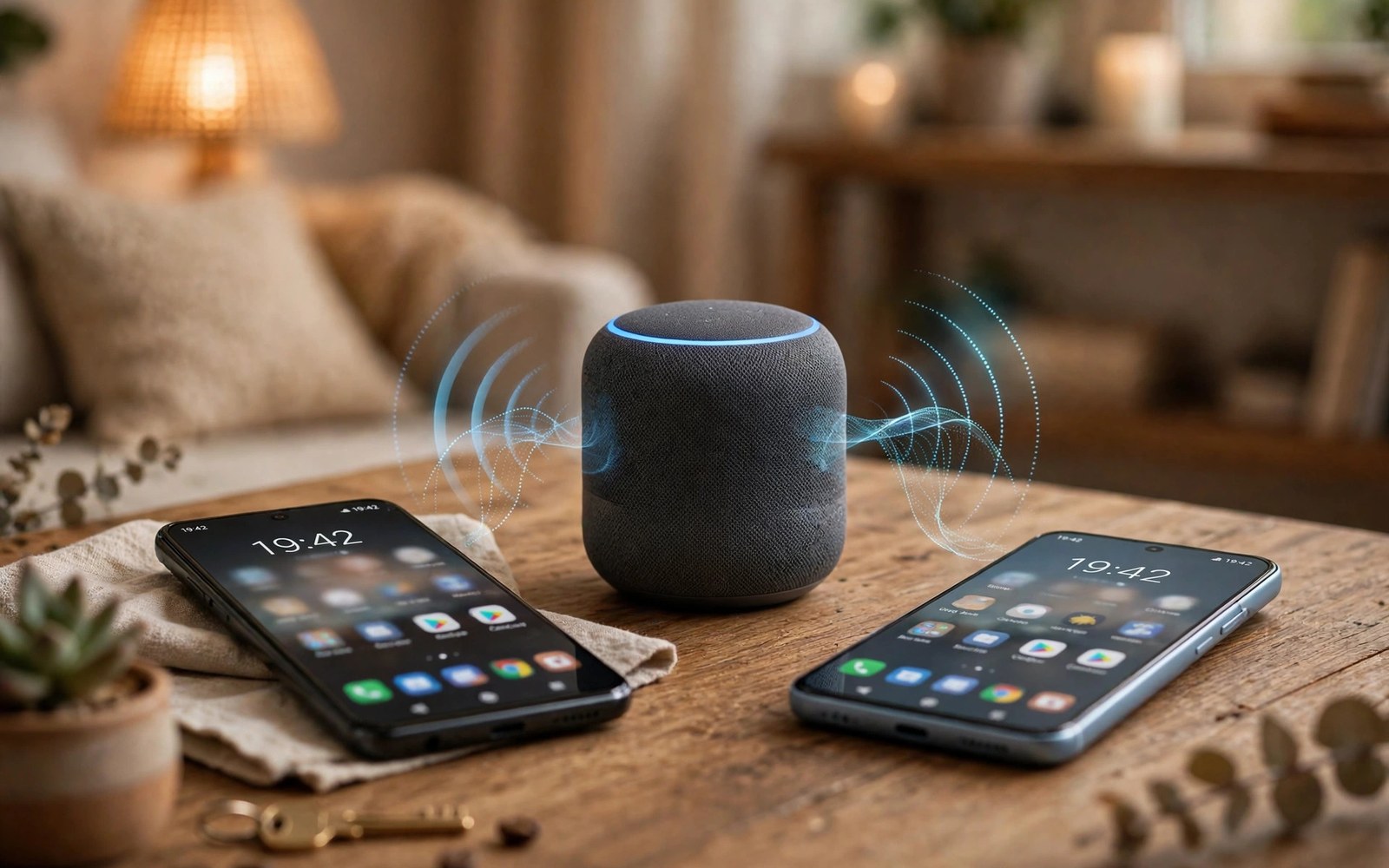
Your phone constantly notices nearby gadgets. It sees Bluetooth headphones and smart speakers. It sees TVs and wearables on the same network. That discovery powers handy features. It also creates a tracking channel when left open.
The nearby devices permission controls that channel. Apps must request it before scanning for gadgets. You can deny it for apps with no local feature. That denial stops silent mapping of your surroundings. It keeps discovery under your control.
What Nearby Discovery Reveals
A scan reveals device names around you. It reveals signal strength and device types. Repeated scans reveal which gadgets travel with you. A home speaker pattern reveals your home. An office printer pattern reveals your workplace.
Shops and venues can exploit the same signals. Beacons in a store can track foot traffic. A loyalty app can log each visit quietly. Combined scans build a movement profile. Permission control breaks that collection at the app level.
Which Apps Genuinely Need It
Headphone apps need nearby access to pair buds. Smart home apps need it to find lights. Casting apps need it to find a TV. Fitness apps need it to find a watch. Those needs are clear and visible.
Social apps rarely need nearby discovery. Shopping apps rarely need it either. Games should never need it for core play. News apps have no local device feature. Deny the permission when the purpose feels unclear.
How the Permission Differs from Location
Older Android tied Bluetooth scanning to location permission. That link confused many users. A headphone app seemed to demand location. Modern Android splits the two permissions. Nearby devices now stands on its own.
That split improves honesty in prompts. You can grant nearby access without granting location. You can grant location without granting nearby scans. Review both permissions separately during audits. Each covers a different tracking path.
Review nearby access
Settings > Privacy > Permission manager > Nearby devices
Deny apps with no pairing feature
Managing Discovery on Public Networks
Public places increase the value of nearby data. Airports and malls host many beacons. Cafes host shared speakers and printers. Turn off Bluetooth when you do not need it there. That step stops scans before apps even ask.
Use the quick settings tile for fast control. Toggle Bluetooth off when you leave home. Toggle it on only for a known device. That habit beats any permission setting. Hardware off means no scan can run.
Reviewing Nearby Access Monthly
Open the Permission Manager and find nearby devices. Review the app list with a critical eye. Remove access for apps you no longer use. Remove access for apps with no pairing feature. Keep access only for tools you pair weekly.
Repeat the review after installing smart home gear. New gear often brings new companion apps. Each companion app may request nearby access. Grant it only to the official app for that device. Unofficial clones deserve no discovery power.
Nearby Devices Safety Checks
Bluetooth Beacons in Public Places
Shops and airports install Bluetooth beacons to track visitors. A beacon broadcasts a small identifier constantly. Phones with Bluetooth on can hear that identifier. Apps with nearby access can log each beacon encounter. Those logs reveal store visits and dwell times. A loyalty app may reward visits based on beacon logs. A marketing firm may buy beacon logs in bulk. Turning Bluetooth off in public places blocks beacon hearing. Denying nearby access blocks app logging even when Bluetooth stays on. Both steps together give the strongest public place protection.
Beacon tracking differs from GPS tracking in precision. Beacons work indoors where GPS signals fail. A beacon can place you in a specific shop aisle. That indoor precision reveals shopping interests directly. A beacon near a clinic reveals a health visit. A beacon near a place of worship reveals beliefs. Indoor precision therefore deserves equal care to GPS precision. Treat beacon exposure as seriously as location exposure. Public place habits should include Bluetooth control. A quick toggle prevents detailed indoor trails.
Nearby Sharing Features and Discovery
Nearby sharing lets you send files to close devices fast. It uses Bluetooth and Wi-Fi discovery together. Discovery mode makes your phone visible to others. Visible mode can leak your device name to strangers. Set sharing visibility to contacts only when possible. Set it to hidden when you are not sharing. Those settings limit who can discover your phone. They do not block apps with nearby permission. App permission and sharing visibility cover different layers. Control both layers for complete nearby privacy.
File sharing requests from strangers deserve caution. An unexpected share request may carry a malicious file. It may also probe your device name and type. Decline shares from unknown senders by default. Accept shares only from people beside you. Confirm the file type before accepting any transfer. A photo share should not arrive as an executable file. Caution during sharing prevents both malware and profiling. Nearby convenience should never override basic verification.
Smart Home Devices and Local Networks
Smart home gadgets constantly announce themselves locally. Lights and speakers and cameras broadcast discovery signals. Apps with nearby access can map your whole home layout. That map reveals wealth and routines and family size. A camera map reveals surveillance coverage gaps. A speaker map reveals room usage patterns. Limit nearby access to the official app for each device. Deny it for unrelated apps that request it. Official apps still learn a lot but at least serve a purpose. Unrelated apps learn the same map for no benefit.
Guest networks add a useful layer for smart homes. Put smart gadgets on a separate guest network. Keep phones and laptops on the main network. That split limits what local discovery can see. A compromised gadget sees fewer personal devices. A snooping app sees fewer gadgets too. Network separation complements permission control well. Both steps together shrink the local attack surface. Smart home privacy needs network design as well as app settings.
Nearby Access After Travel
Travel adds many temporary nearby devices to your history. Hotel TVs and rental cars pair briefly during trips. Airport lounges add speakers and displays. Those pairings may linger in app permissions after return. Review nearby access after every major trip. Remove grants for travel apps you no longer need. Forget paired devices you will never meet again. Forgotten pairings can reconnect automatically later. Automatic reconnection leaks presence on a return visit. A post-travel cleanup prevents silent reconnections.
Rental cars deserve special attention after travel. A rental car may retain your phone pairing and contacts. It may retain call history and message previews. Delete your phone profile from the rental before return. Check the car settings for a delete device option. Confirm deletion before handing back the keys. That step protects contacts and call history. It also prevents the next renter from seeing your data. Travel hygiene covers cars as well as phones.
Nearby Permission and Wearable Pairing
Wearables pair through nearby discovery every day. A watch reconnects each morning automatically. A fitness band syncs after every workout. Those reconnections need nearby access in the companion app. Grant nearby access only to the official companion app. Deny it for other fitness apps that lack a wearable. Multiple fitness apps may each request nearby access. Only the app tied to your wearable earns it. Other apps can import data through health platforms instead. Health platform imports avoid direct nearby scanning. That indirection protects local discovery while keeping data flowing.
Wearable pairing history can reveal travel patterns too. A watch that pairs in hotels reveals trip locations. A band that pairs at gyms reveals workout venues. Pairing logs inside companion apps may store those venues. Review companion app data retention settings regularly. Delete old pairing venues you no longer need. Forget wearable pairings after selling or gifting a device. A gifted watch should start with no pairing history. Clean handover protects both giver and receiver. Wearable hygiene mirrors phone hygiene in miniature.
Nearby Permission in Cars and Audio
Cars use nearby discovery for phone integration systems. A car may request contacts and messages through pairing. Nearby permission alone does not grant contacts. Separate prompts cover contacts and messages. Review each prompt during car pairing carefully. Grant audio access for calls and music. Deny message access when driving without texting needs. Deny contacts access when manual dialling suffices. Car convenience tempts broad grants during setup. Slow down during car pairing and judge each prompt separately. A careful pairing takes a minute longer and protects years of driving data.
Rental cars amplify car pairing risks sharply. A rental may retain your paired phone profile. It may retain contacts synced during the rental. It may retain call logs and message previews. Delete your profile from the rental system before return. Check car settings for a forget device option. Confirm deletion with the rental agent when unsure. That step prevents the next renter from accessing your data. Rental hygiene is easy to forget in travel rush. Add it to your return checklist beside keys and fuel.
- Deny nearby access for social and shopping apps.
- Grant it only to pairing and smart home tools.
- Turn Bluetooth off in public places when idle.
- Review nearby access after adding new gadgets.
- Remove access for apps you stopped using.
Nearby control pairs with the Permission Manager overview and background location limits. Keep it current with a monthly audit of installed app permissions.
The steps above follow the approach described in the official developer documentation for modern Android privacy controls. That documentation explains each permission group in plain terms. It also describes how the system limits background access. Use it as a general reference when a menu name differs on your phone.

