

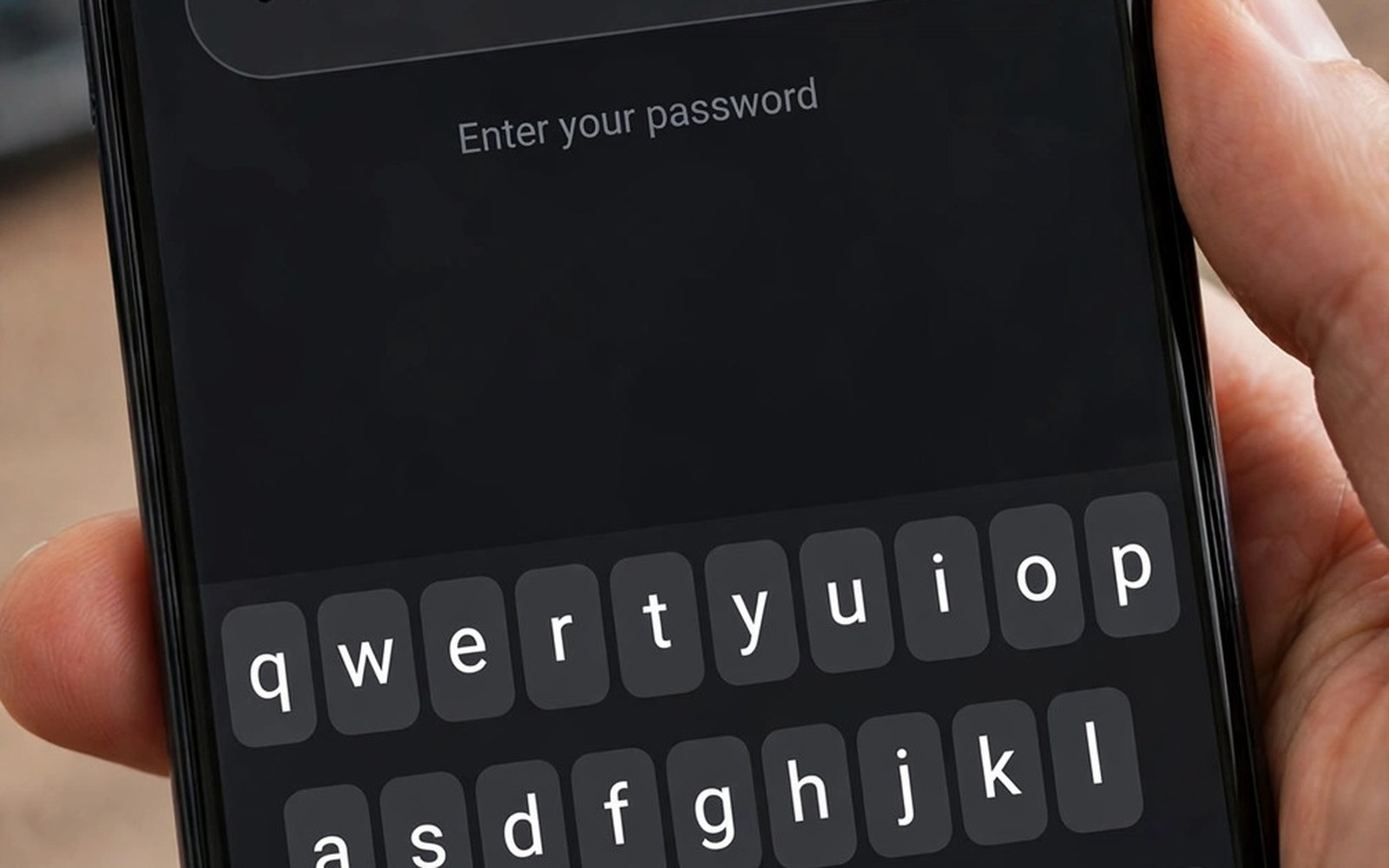
A keylogger records what you type and sends it to an attacker. Every password and message and search term becomes a line in a stolen log. On a phone a keylogger hides inside an app or a keyboard or an accessibility service. It watches keystrokes silently. It does not show a window. It does not ask for attention. The victim types normally while the log grows. That silence makes keyloggers dangerous. Defence starts with understanding how they capture input.
Phone keyloggers differ from desktop keyloggers in their tools. A desktop keylogger hooks the keyboard driver. A phone keylogger uses app level tricks. It may replace your keyboard. It may abuse accessibility service to read screen text. It may use overlay screens to capture input. It may read clipboard content after you copy a password. Each trick needs a permission or a setting change. Each change leaves a clue. Check those clues regularly and a keylogger has few places to hide.
Keyboard replacement attacks
A custom keyboard can record every keystroke by design. A legit keyboard needs to see keys to type them. A malicious keyboard sends those keys to a remote server as well. It may pose as a themed keyboard with fonts and colours. It may offer stickers or GIFs as bait. Once you switch to it every login becomes visible to its maker. The attack feels normal because typing still works. The theft happens in the background with no glitch.
Check your active keyboard in settings after every new install. A changed keyboard without your clear choice is a warning. Remove keyboards from unknown vendors. Use only a keyboard from a trusted vendor with a long history. Read its privacy policy for data collection. A keyboard that sends keystrokes to a server for prediction should explain that clearly. Turn off cloud prediction if you do not need it. Local prediction keeps keystrokes on the device. That choice alone blocks many keyboard leaks.
Test a new keyboard before you trust it with passwords. Use it for casual messages first. Watch its data use in settings. A keyboard that uploads large data in the background deserves removal. A keyboard should use little data. It should not need contact access or location access. Deny those grants at once. A keyboard with broad permissions is a data collector with a typing job.
Accessibility service abuse
Accessibility service can read screen content to help users with disabilities. A keylogger abuses that power to read passwords as you type them. It can observe text fields and capture their content. It can also read messages that contain codes. The service runs with high privilege. It can work across many apps at once. That reach makes it a prime target. Grant it only to tools you trust fully and use daily.
Open accessibility settings and read every entry. Ask if each app truly needs that power. A screen reader needs it. A password manager may need it for autofill. A game never needs it. A flashlight never needs it. Turn off any entry that fails that test. Do not grant accessibility access during a game install or a tool install. A legit tool will explain its need in plain words. A keylogger will pressure you with a vague warning about features. Pressure is a warning sign in itself.
Watch for accessibility prompts that appear at odd times. A prompt during a banking login deserves suspicion. A prompt after you deny it once deserves suspicion too. Repeated prompts wear down resistance. Deny twice and remove the app. A legit app accepts a denial gracefully. A keylogger pushes again because it needs that access to steal. That pushiness reveals its intent.
Overlay and fake field capture
Some keyloggers use overlay screens to capture input. They draw a fake login field over a real app. You type into the fake field. The fake field sends your input to the attacker. It then passes you to the real app. The attack feels seamless. The victim sees no error. Overlay permission enables this trick. Check overlay permission for every app. Turn it off for apps without a floating window feature. That check blocks most overlay capture.
Clipboard capture is a quieter variant. You copy a password from a manager and paste it into an app. A keylogger with clipboard access reads that password. Modern Android limits clipboard access for background apps. It also shows a toast when an app reads the clipboard. Watch for that toast. If it appears while you paste a password then note the app name. Revoke its access and remove it if it has no clipboard job. Avoid copying passwords when you can use autofill instead. Autofill types directly without touching the clipboard.
- Use only a keyboard from a trusted vendor with local prediction.
- Turn off accessibility service for apps that are not assistive tools.
- Turn off overlay permission for apps without a floating window.
- Use autofill instead of copying passwords to the clipboard.
- Check the active keyboard after every new app install.
How keyloggers send stolen data
Stolen keystrokes must leave the phone to harm you. A keylogger uploads logs in small bursts. It may use mobile data at night. It may hide uploads inside normal app traffic. Battery and data checks can reveal it. A keyboard with high background data is suspicious. A tool app with night uploads is suspicious. Check both screens after a new keyboard install. A clean keyboard uses little background data. A logging keyboard uses more.
Some keyloggers store logs locally first and upload later. They wait for Wi-Fi to avoid data charges. They wait for charging to avoid battery clues. This patience defeats a one day check. Watch for a full week after a new install. A week of charts reveals a pattern that one day hides. Note the install date and compare it to spike dates. A spike that starts with a new keyboard points to that keyboard. That timeline is strong evidence.
Encryption does not stop a keylogger. A secure site encrypts data in transit. A keylogger captures input before encryption happens. It reads keys as you type them. It does not need to break encryption. That fact surprises many users. They assume a padlock icon means safety. The padlock protects data on the wire. It does not protect data at the keyboard. Keyboard safety must come first. A clean keyboard plus a secure site gives real safety. Either alone is not enough.
Defences that actually work
Use a password manager with autofill. Autofill fills login fields without typing. It bypasses keystroke capture for those fields. It also creates strong unique passwords. A keylogger that captures typed keys will miss autofilled passwords. Autofill is not perfect. A keylogger with accessibility access may still read filled fields. Autofill still raises the bar a lot. Combine it with two factor authentication for key accounts.
Use two factor authentication with an authenticator app. A stolen password alone cannot log in without the code. A keylogger may capture the code if you type it. An authenticator code changes every thirty seconds. A captured code expires fast. That expiry limits damage. Use an authenticator instead of SMS codes where offered. SMS codes can be read by a trojan with SMS access. Authenticator codes stay on the device and expire quickly.
Keep a clean keyboard habit. Never switch keyboards for a game or a tool. Never grant accessibility access to a keyboard you do not trust. Check keyboard and accessibility settings monthly. Remove keyboards you no longer use. Each removed keyboard is one less capture point. For a broader infection audit see how to know if your phone is infected and complete it after any keyboard change.
What to do if you suspect a keylogger
Stop typing passwords on the suspect phone at once. Use a clean device for password changes. Change email passwords first because email resets other accounts. Change banking passwords next. Enable two factor authentication during those changes. A still infected phone could capture new passwords. A clean device breaks that cycle. Do not change passwords on the suspect phone until it is clean.
Remove the suspect keyboard or app in safe mode. Safe mode blocks it from running while you delete it. Revoke its accessibility service first. Revert to the system keyboard. Run a scan after removal. Watch battery and data charts for a week. If charts return to normal then the removal likely worked. For a safe removal order see removing spyware and adware step by step and follow it closely.
Check account activity after cleanup. Look for logins from unknown devices. Look for password reset emails you did not request. Report strange activity to each service. A service can revoke sessions from unknown devices. That step locks out an attacker who already holds a password. For trojan links to keylogging see how trojan malware steals banking credentials and review its overlay defences too.
Secure the clipboard habit
Clipboard habits deserve a monthly review alongside keyboard habits. Avoid copying passwords from a manager into a browser when autofill is offered. Autofill keeps the password out of the clipboard entirely. If you must copy then paste at once and clear the clipboard after. Some keyboards offer a clear clipboard button. Use it after every sensitive paste. A cleared clipboard gives a keylogger nothing to read later. This small habit closes a quiet leak that many users ignore.
Also check which apps show a clipboard read toast. Modern Android shows a toast when an app reads clipboard content. Note the app name when that toast appears. A messaging app reading a copied link is normal. A game reading a copied password is not normal. Revoke clipboard related access where the system allows it. Remove apps that read the clipboard without a clear job. A clean clipboard plus a trusted keyboard plus autofill gives strong typed data safety.
Keylogger check:
Settings > System > Keyboard > Active keyboard is trusted?
Settings > Accessibility > Unknown services off?
Settings > Apps > Overlay > Off for non floating apps
Use: Password manager autofill + Authenticator codes
The steps above follow the approach described in the official developer documentation for Android security and app permissions. That guidance stresses least privilege for keyboards and accessibility services. It also stresses user control over powerful permissions. Apply those checks monthly and not only after a scare.
A keylogger wins by silence. It records while you type normally. Break that silence with checks. Verify your keyboard and your accessibility list and your overlay list. Use autofill and authenticator codes. Change passwords only on a clean device after a suspected capture. Those habits keep your typed words yours alone.

