

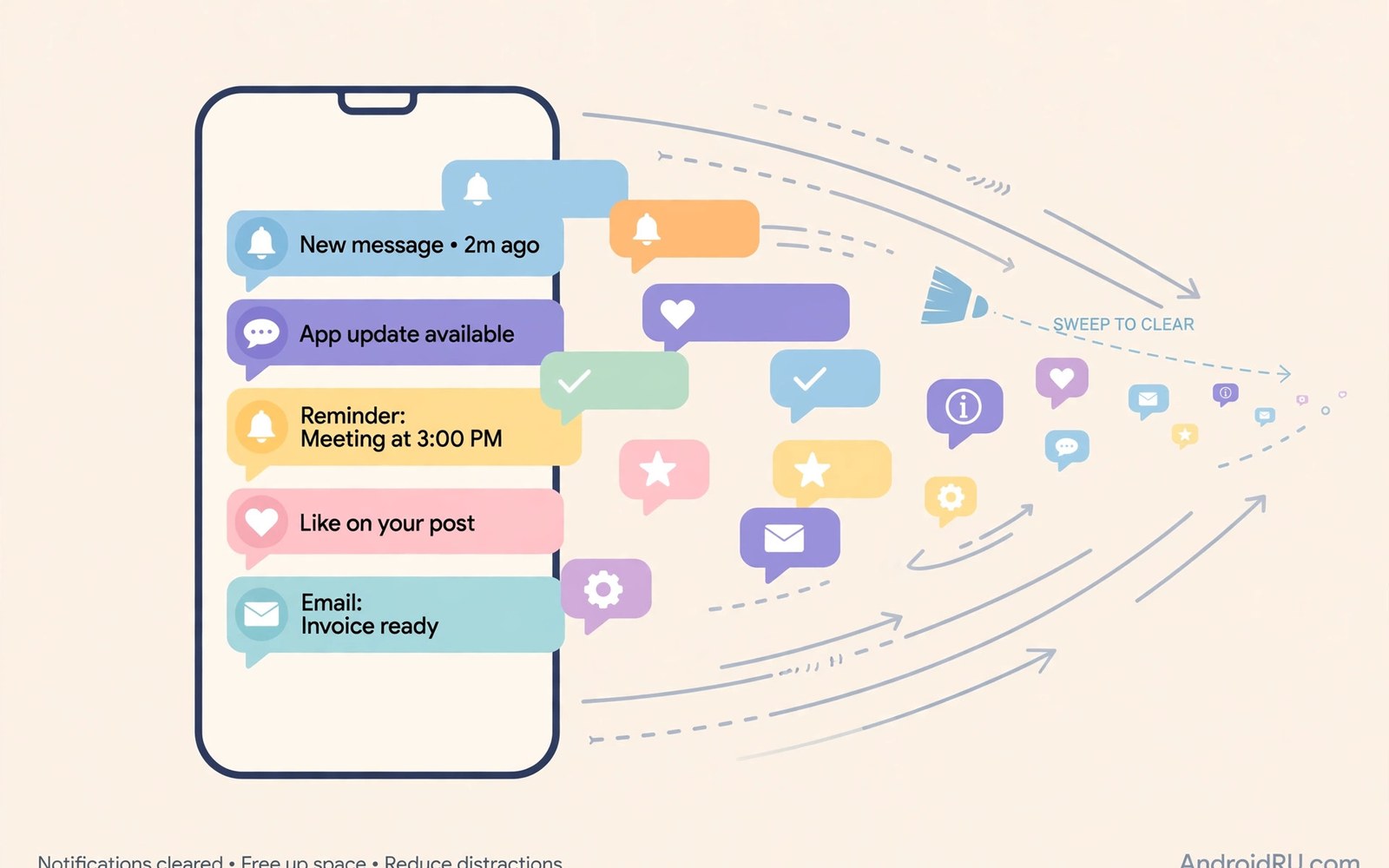
Push notification spam turns a quiet phone into a noisy billboard. Fake virus warnings pop up at night. Fake prize wins appear during work. Fake system alerts urge you to tap at once. Most of this spam comes from a single moment. You tapped allow on a site notification prompt. That tap granted a site the right to push ads forever. The site then sells that right or abuses it directly. Cleaning it takes a few minutes once you know where to look.
Browser notifications differ from app notifications in an important way. App spam comes from an installed app. Browser spam comes from a site permission. Deleting apps will not stop browser spam. You must revoke the site permission itself. Many users miss this distinction. They delete apps and wonder why spam continues. The fix lives in browser site settings. Open those settings and the spam source becomes visible. Revoke it and the noise stops at once.
How a single tap creates endless spam
Many sites show a notification prompt as soon as you visit. The prompt may hide behind a fake play button or a fake download button. You tap to watch a video or to download a file. The tap actually grants notification permission. The site then pushes ads at any hour. Some sites push dozens of ads per day. Some push fake warnings that mimic system alerts. The design exploits haste. A user who wants a video will tap without reading the prompt.
Some sites use a two step trick. The first prompt asks you to allow notifications to prove you are human. That claim is false. Real human checks do not need notification permission. The second step pushes spam once permission is granted. The site may also redirect you to more spam sites. Each redirect can trigger another prompt. A single visit can grant permission to several sites. Check the full site list during cleanup. Revoking one entry may not be enough.
Spam sites also change their tactics over time. They may start with mild ads and then switch to scary warnings. A fake virus warning creates urgency. A fake prize win creates greed. Both emotions push a tap. A tap may lead to a phishing page or a bad download. Do not tap any notification from a site you do not trust. Swipe it away and revoke the permission instead. Tapping only feeds the campaign.
Find and revoke spam site permissions
Open your mobile browser and go to settings. Find site settings and then notifications. You will see a list of sites with allowed status. Read the list slowly. Block any site you do not recognise. Block any site with a strange name or a misspelling. Keep notifications only for sites you truly want alerts from. A news site you read daily may deserve an allow. A video site you visited once does not deserve it.
Tap each suspicious site and change its permission to block. Do this for every unknown entry. Do not leave an unknown entry on allow just in case. An allow grant costs you spam daily. A block grant costs you nothing. You can allow a site again later if you truly need it. After you block the list then restart the browser. Spam should stop at once. If it continues then another browser or another app may be the source.
Check every browser installed on the phone. Spam permission lives per browser. Cleaning one browser leaves another dirty. Open each browser and repeat the site settings check. Also check the system notification settings for each browser app. A browser app itself may have notification permission turned on. Turning it off stops all browser notifications at once. That blunt step helps when the site list is long. Turn it back on later only for a clean browser.
Clear data that keeps spam alive
Site data can store a spam session even after you block notifications. Clear cookies and site data for spam sites. Open browser settings and find clear browsing data. Choose cookies and site data and cached files. Keep passwords and history if you want them. Clearing cookies will log you out of sites. That logout is a small price for a clean browser. Log back into trusted sites after the clear.
Check the browser home page and search engine after the clear. Spam can change those settings too. Reset them to your preferred choices. Remove unknown search engines from the list. Check for unknown extensions if your browser supports them on mobile. Most mobile browsers support few extensions. Those that do exist deserve a review. Remove any extension you did not install on purpose.
- Block notifications for every site you do not recognise.
- Clear cookies and site data after revoking spam sites.
- Reset the home page and search engine to trusted choices.
- Repeat the check in every browser installed on the phone.
- Turn off browser notifications at system level if spam persists.
When spam comes from an app not a site
Some spam looks like browser spam but comes from an app. An adware app can push notifications that mimic browser alerts. Check the notification source by long pressing the notification. The system will show which app sent it. If an app sent it then remove that app. Browser cleanup will not stop app spam. App removal will not stop browser spam. Knowing the source directs the fix.
Check notification access in system settings as well. Some apps use notification access to read and push alerts. Turn it off for apps that do not need it. A messaging app may need it. A simple game does not need it. This review cuts a major spam channel. For an app based cleanup see removing spyware and adware step by step and use it after browser cleanup.
Also check for apps installed just before spam started. A new app with notification permission is a prime suspect. Remove it and test for a day. If spam stops then you found the source. If spam continues then return to browser site settings. The two sources can coexist. Clean both to be sure. A day of testing after each removal gives a clear answer.
Stop future notification traps
Change your tapping habit for notification prompts. Read the prompt before you tap allow. Ask why a site needs to send you alerts. A video site rarely needs to push alerts. A download site never needs them. Tap block when in doubt. Blocking is reversible. Allowing is harder to undo once spam starts. Teach this habit to family members too. One careless tap on a shared phone can spam the whole household.
Use the browser setting that asks before sending notifications if it is offered. Some browsers allow you to turn off prompts entirely. That setting blocks the trap at its root. You will never see a prompt to tap by mistake. Turn it on for a calm browsing experience. You can still allow a trusted site by hand later. For browser hijack cases that go beyond notifications see repairing browser redirection hijacks and follow its reset steps.
Keep your browser updated. Updates fix flaws that spam sites abuse. They also improve prompt design so traps are clearer. Turn on automatic browser updates. Restart the browser after a major update. A current browser plus a block first habit stops most notification spam before it starts. For a broader infection check see how to know if your phone is infected and complete that audit if spam returns fast.
Clean notification history and badges
After you block spam sites check the notification history for leftover entries. Some phones keep a history of recent notifications even after the source is blocked. Clear that history if your phone offers the option. Check app badges as well. A badge count on the browser icon may persist after cleanup. Open the browser once and close it to clear the badge. These small steps remove visual reminders of spam. They also confirm that no new spam arrived after the block. A quiet history for a full day proves that cleanup worked.
Also check Do Not Disturb settings as a temporary shield while you clean. Turn on Do Not Disturb for a few hours to stop spam from interrupting your work. Use that quiet time to revoke site permissions without pressure. Turn it off after cleanup to test the result. If spam returns after you turn it off then a source remains. Return to site settings and check for a site you missed. A second pass often finds a site with a similar name to one you already blocked. Attackers register lookalike domains to survive a single block.
Review notification categories for the browser app in system settings. Modern Android groups notifications by category. A browser may have categories for downloads and for site alerts. Turn off the site alert category while keeping download alerts on. That fine control keeps useful alerts and blocks spam alerts. Test the setting for a day. If useful alerts still arrive then the setting is correct. If all alerts stop then adjust one category at a time until only spam is gone.
Finally check for spam in other channels that mimic browser alerts. Email spam and SMS spam can look like browser notifications at a glance. Open the message app and check for spam messages with links. Block those senders. Open email and mark spam messages as spam. Cleaning all channels together gives a truly quiet phone. A phone that is quiet in one channel but noisy in another still feels infected. Treat every channel in one cleanup session for best results.
Teach the block habit to others
Notification spam spreads through shared habits. A family member may tap allow on a shared phone and spam everyone who uses it. Show relatives how to tap block instead. Demonstrate the site settings list on their phone. Block unknown sites together. A ten minute demo prevents months of spam. Children should learn the same habit early. A child who taps allow for a game site can flood a parent phone with ads. Teach children to ask before they tap allow on any prompt. That rule protects the whole household.
Browser > Settings > Site settings > Notifications
Block every unknown site > Restart browser
Clear: Cookies and site data > Keep passwords if wanted
System: Settings > Apps > Browser > Notifications > Off if needed
The steps above follow the approach described in the official developer documentation for Android security and app permissions. That guidance stresses user control over site permissions and notification access. It also stresses least privilege for apps and sites. Use those controls as a routine and not only after a spam flood.
Rogue push spam lives on one careless allow tap. Revoking that tap kills it. Clean every browser and clear site data and reset hijacked settings. Then adopt a block first habit for future prompts. Your phone will go quiet again. It will stay quiet as long as you guard the allow button with care.

