

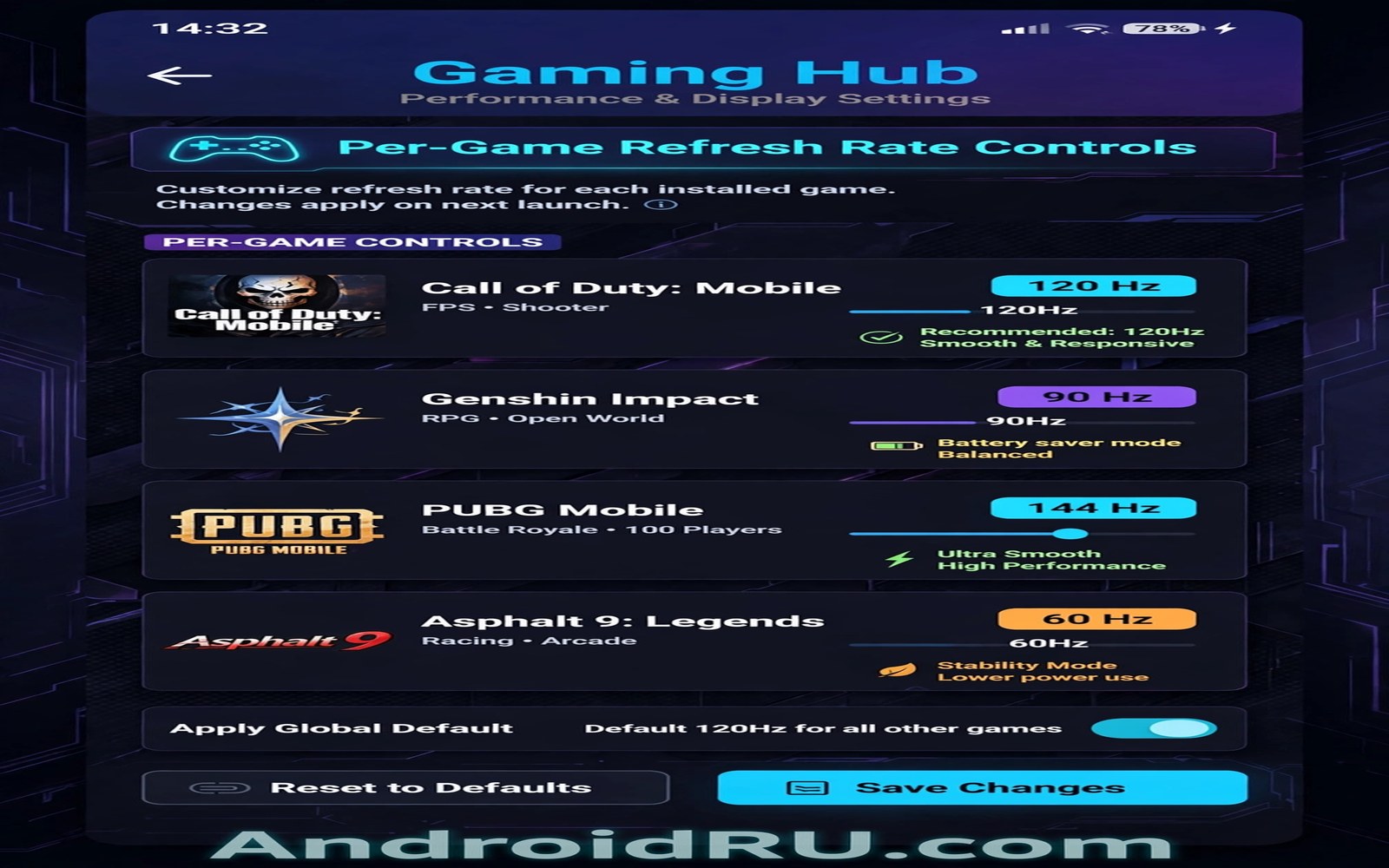
Custom Display Refresh Rates for Individual Games on Gaming Devices
Custom display refresh rates for individual games matter when you play for more than a few minutes at a time, and when heat and controls start to shape every match. Per-game refresh settings let a shooter run fast while a casual game runs at a calm rate that saves battery. This article explains per-game refresh rate settings in plain steps, so you can test it yourself before you spend money. You will learn what to check, what to ignore, and how battery use and smoothness per game reveals the truth in a normal session.
Start with your own habits and not with a flagship list, because each game has a different frame cap and a single global rate wastes battery or caps speed. If you play short casual rounds, per-game refresh settings may matter less than battery life and comfort. If you play ranked matches for hours, per-game refresh settings can decide whether your phone stays fast and steady. Write down your longest session and your main game before you read the sections below.
Why One Global Refresh Rate Fails
A global high rate drains battery in casual games. A puzzle game that caps at 60 frames per second gains nothing from a 120 Hz or 144 Hz display, yet the screen still refreshes at full speed and burns power for no visual gain. That waste shapes daily play more than a spec sheet suggests, because most of your gaming time is not spent in your hardest game.
A global low rate caps a shooter that could run faster. Players notice this first during long matches, when a fast game feels sluggish even though the phone is powerful enough to run it smoothly. The display becomes the bottleneck, not the processor. A small change here often beats a bigger upgrade elsewhere, because the right rate for each game costs nothing.
Per-game refresh rates solve both problems at once. The shooter gets its fast rate, the puzzle game gets its calm rate, and the battery lasts longer across the whole day. That is the whole idea, and it is why gaming phones offer per-game controls while regular flagships often do not.
The battery cost of a global high rate
A display refreshing at 120 Hz or 144 Hz uses more power than one at 60 Hz, and the difference adds up across hours of play. A casual game at 60 Hz can save real battery each day, which means more play time later and less heat during the session. Total savings depend on how much time each game gets, so the benefit is biggest for players who mix fast and slow games.
The speed cost of a global low rate
A shooter capped at 60 Hz by a global setting feels less responsive, even on a phone that could run it at 120 frames per second. Touch response, motion clarity, and the feeling of control all suffer. For ranked play, that difference can decide a match. Per-game settings remove the compromise entirely.
How to see the problem on your own phone
Play your hardest game for ten minutes at the global rate, then note the frame drops and the heat on the back of the phone. Then play a casual game for ten minutes at the same rate and note the battery drop. The two numbers together show you exactly what a single global rate costs you.
How Per-Game Refresh Settings Work
Gaming software stores a refresh value for each game. The phone switches rate when you launch that game, and other apps keep the global rate you set. That switch happens automatically, so you set it once and forget it.
Per-game settings work best with gaming profiles that also tune touch and power for each title. For a closer look at GPU drivers and graphics profiles, see GPU drivers and graphics profiles and test the same idea during your next long session, so you can judge it from your own results and not from a claim alone. This kind of direct comparison saves money, and it also prevents a purchase that looks strong on paper and feels weak in a real match.
The setting lives in the gaming software on phones that support it, usually under a game list or a per-game profile screen. On phones without it, you can still limit load with in-game frame caps, which I cover later in this guide.
Where to find the setting on your phone
Open the gaming software, often called Game Space, Game Launcher, or Armoury Crate depending on the maker, and pick a game from the list. Look for a refresh rate, frame rate, or display option inside that game’s profile. If you cannot find it, your phone may only offer a global or adaptive rate, which is the fallback I cover below.
What the phone actually changes
When you set a per-game rate, the phone changes how often the display redraws while that game runs. It does not change the game itself. The game still renders at its own frame cap, and the display simply matches it. That match is what removes stutter and saves power at the same time.
Adaptive rates are not the same thing
An adaptive global rate changes with what is on screen, but it guesses. A per-game rate is a decision you make for a specific title. The guess is often good enough for casual use, but it cannot know that your shooter needs 120 Hz while your puzzle game needs only 60 Hz. That is why per-game settings beat adaptive rates for serious players.
Matching Refresh Rate to Each Game Frame Cap
Check the frame cap inside each game first. Most games show their frame cap in the graphics settings, often as 30, 60, 90, or 120 frames per second. Set the display refresh at or just above the frame cap. A rate above the cap wastes power with no visual gain, and a rate below the cap can cause judder.
The table below gives a starting point for common game types. Treat it as a guide, not a rule, and confirm each game’s real cap in its own settings.
| Game type | Typical frame cap | Suggested refresh rate | Why |
|---|---|---|---|
| Competitive shooter | 90 to 120 fps | 120 Hz | Fast motion and quick reactions |
| Racing game | 60 to 120 fps | 120 Hz | Smooth motion at speed |
| Battle royale | 60 to 90 fps | 90 or 120 Hz | Balance of speed and battery |
| Strategy game | 30 to 60 fps | 60 Hz | Slow pace, saves battery |
| Puzzle and casual | 30 to 60 fps | 60 Hz | No benefit from higher rates |
| Open world RPG | 30 to 60 fps | 60 Hz | Visual quality over speed |
For a closer look at camera quality on gaming phones, see camera quality on gaming phones and compare it with what you see on your own phone in the same kind of session. A gaming phone makes trade-offs in every area, and the camera is one of them.
Stutter when rate and cap mismatch
A rate below the game cap can cause judder, because the display cannot show every frame the game renders. A rate far above the cap can waste power, because the display refreshes with nothing new to show. A matched refresh rate gives the smoothest result, and that match is the whole point of per-game settings.
If a game stutters after you set a rate, check the cap again. Game updates can raise the cap, and a rate you set months ago may no longer match. Recheck caps after every major game update.
Frame time maths that makes matching easy
Frame time is the time each frame gets on screen, and it is simply 1000 divided by the refresh rate in milliseconds. The snippet below lists frame time per game, so you can match refresh to each game cap with numbers.
games = [('shooter', 120), ('racer', 120), ('puzzle', 60)]
for name, rate in games:
    print(name, 'refresh Hz:', rate, 'frame time ms:', round(1000 / rate, 2))
The code lists frame time per game so you can match refresh to each game cap with numbers. The snippet above is an original example written for this article, and it is meant for learning and for simple local checks on your own device. Run it only on data you own, and stop if a reading looks wrong, because a bad input gives a bad result.
Why 120 Hz feels different from 60 Hz
At 60 Hz each frame stays on screen for about 16.7 milliseconds. At 120 Hz each frame lasts about 8.3 milliseconds. That shorter time means motion looks smoother and your input feels closer to the action. The difference is easy to feel in a fast game and almost invisible in a slow one, which is exactly why per-game settings make sense.
Battery Savings from Per-Game Rates
A puzzle game at 60 Hz can save real battery each day. A shooter at 120 Hz still costs more, but only during play. Total savings depend on how much time each game gets, so the benefit is biggest for players who mix fast and slow games.
Think about your longest session and ask whether battery use and smoothness held up from start to finish. The answer tells you more than a benchmark score. Keep notes on battery use and smoothness per game, so your next choice rests on evidence and not on habit.
Heat matters here too. A display running at full speed generates more heat, and heat makes the processor throttle sooner. A calm rate in a casual game keeps the phone cooler, which means the shooter you play next starts from a cooler phone and holds its speed longer.
How much battery can you actually save
The saving depends on your mix of games, but a player who spends half their time in casual games at 60 Hz instead of 120 Hz will notice the difference by evening. The phone lasts longer, runs cooler, and the shooter still gets its fast rate when it matters. That is a free win, and it costs nothing but ten minutes of setup.
Measuring the saving yourself
Play one full session of your casual game at 120 Hz and note the battery drop. The next day, play the same session at 60 Hz and note the drop again. The difference is your saving. Repeat the same test on two phones and compare battery use and smoothness per game under equal conditions if you are choosing between devices.
Heat is the hidden battery cost
A hot phone drains faster and throttles sooner. Per-game rates reduce heat in casual games, which protects the battery and the processor for the games that need them. That indirect saving is easy to miss, and it is often larger than the direct saving from the display alone.
Touch Sampling and Refresh Together
Refresh and touch sampling both shape input feel. Refresh is how often the screen redraws. Touch sampling is how often the screen reads your finger. A high refresh with low sampling can still feel laggy, because the screen shows new frames but reads your input slowly.
Set both values per game where the phone allows it. A shooter benefits from high refresh and high sampling together. A casual game needs neither at maximum, and lower values save battery. Check your gaming software for a touch setting next to the refresh setting, and test the pair together.
Players notice the difference first during long matches, when a small input delay becomes a missed shot. A matched pair of refresh and sampling gives the most responsive feel, and that feel is what ranked players pay for.
How to test touch and refresh together
Play the same test scene twice: once with high refresh and high sampling, once with high refresh and standard sampling. The difference is subtle but real, and it shows in fast flicks and quick turns. Keep the pair that feels best, and do not chase numbers beyond what you can feel.
Setting Up Per-Game Profiles Step by Step
Open gaming software and pick a game from the list. Set refresh and touch values for that game. Launch the game and confirm the rate in a frame counter. That is the whole routine, and it takes about five minutes per game.
- Open the gaming software and pick your hardest game first.
- Check the frame cap inside that game, in its graphics settings.
- Set the display refresh at or just above that cap.
- Set touch sampling to match, if the phone allows it.
- Launch the game and confirm the rate with a frame counter.
- Play your test scene for five minutes and note stutter and heat.
- Repeat for your next game, using its own cap.
Use this as a buying check and not as a marketing claim. Repeat the same test on two phones and compare battery use and smoothness per game under equal conditions. Keep notes on battery use and smoothness per game, so your next choice rests on evidence and not on habit.
Building a profile note that lasts
Write down the game, its cap, the rate you set, and the result you saw. That note becomes a recipe you can reuse after an update. It also stops you from retesting the same game every month. Add the phone model and Android version, because different models hide these settings in different places.
Reviewing profiles after updates
Forgetting to recheck caps after a game update raises them is a common mistake. A game patch can raise the frame cap, and your old rate may no longer match. Replay your test scene after each major patch and update the note when a value changes. A profile that stays current saves a full retest after each update.
What to do when a game has no cap setting
Some games hide their cap or lock it to the display rate. In that case, set the display rate to the value that feels smoothest in your test scene, and note it down. The test scene is your cap when the game will not tell you one.
When Per-Game Settings Are Missing
Some phones lack per-game refresh controls. Gaming phones support it most often. Flagships may offer only global or adaptive rates. Check your gaming software first, and if the option is missing, use the fallbacks below.
Use a global adaptive rate as a fallback. Adaptive rates change with what is on screen, and they are better than a fixed high rate for battery, even if they cannot match a per-game decision. Use in-game frame caps to limit load, because a game capped at 60 frames per second will not push the display to work harder than it needs to.
If your phone has no gaming software at all, the in-game cap is your main tool. Set it to 60 for casual games and to the highest available for competitive ones. That single setting captures most of the benefit of per-game refresh, without any special software.
Should you buy a gaming phone for this feature alone?
Probably not, unless you play ranked matches for hours. Per-game refresh is a real benefit, but it is one feature among many. A regular flagship with a good adaptive rate and in-game caps covers most players well. Judge per-game refresh by battery use and smoothness in your own sessions, and not by a single headline number.
Wi-Fi and hand position matter too
For a closer look at Wi-Fi antenna placement during play, see Wi-Fi antenna placement during play and test the same idea during your next long session, so you can judge it from your own results and not from a claim alone. Refresh rate is one part of smooth play, and network lag is another.
Common Mistakes to Avoid
Setting every game to maximum refresh and draining battery is the most common mistake. A puzzle game gains nothing from 144 Hz, and the battery cost is real. Setting refresh above a game frame cap gives no visual gain either, and it wastes power for nothing.
Players also forget to recheck caps after a game update raises them, and they test a tweak in a menu instead of a busy game scene and then keep a useless change. Test in the same busy scene every time, and keep only the changes that win there.
- Setting every game to maximum refresh and draining battery for no gain.
- Setting refresh above a game frame cap, which wastes power with no visual benefit.
- Forgetting to recheck caps after a game update raises them.
- Testing in a menu instead of a busy game scene, then keeping a useless change.
- Chasing a frame counter number instead of watching for stutter and input delay.
The number-chasing trap
A frame counter that shows 121 instead of 119 means little if the game still stutters at the same moment. Watch for stutter and input delay first. Use the counter as a second check. A smooth game at a stable frame rate beats a shaky game at a higher peak number.
Custom Refresh Rates FAQ
Do all Android phones support per-game refresh?
No. Gaming phones support it most often. Flagships may offer only global or adaptive rates. Check your gaming software first. In short, judge per-game refresh by battery use and smoothness in your own sessions, and not by a single headline number.
Will per-game refresh hurt my screen?
No. Screens are built to switch rates. Switching is normal and safe. Battery effects are the main trade-off. In short, judge per-game refresh by battery use and smoothness in your own sessions, and not by a single headline number.
Should casual games use 60 Hz?
Yes, in most cases. Casual games look fine at 60 Hz, and you save battery for longer play later. In short, judge per-game refresh by battery use and smoothness in your own sessions, and not by a single headline number.
Does a higher refresh rate always mean a better game?
No. A higher rate only helps when the game renders frames fast enough to use it. A game capped at 60 frames per second looks the same at 120 Hz as at 60 Hz, and the higher rate only costs battery. Match the rate to the cap, and stop there.
Can I set per-game refresh without gaming software?
Partly. Use the in-game frame cap as your main tool, and set it to 60 for casual games and to the highest available for competitive ones. That captures most of the benefit, even without special software. A global adaptive rate is a reasonable fallback on top of that.
Conclusion
Per-game refresh is worth setting when you play a mix of fast and slow games and when battery life matters to you. The shooter gets its fast rate, the puzzle game gets its calm rate, and the battery lasts longer across the whole day. That is the whole idea, and it costs nothing but ten minutes of setup.
Your concrete next step is simple, and it takes one evening. Pick your main game and play one full session while you watch battery use and smoothness. Note the moment when comfort or speed changes, and then decide whether per-game refresh deserves a place in your next purchase. That single test gives you a clear answer that no advertisement can replace.
Write the baseline down, set each game to its own cap, and keep only the rates that win in your test scene. That habit will give you more real performance than any list of maximum settings ever will.

