

ASUS ROG Phone Review: Thermal Management, Triggers, and Software
I bought into the ROG Phone line for one reason: my ranked sessions kept falling apart after twenty minutes. The phone felt warm, frames started to stutter, and my aim went with them. A faster chip on paper did not fix that. What fixed it was a phone built around heat, controls, and software that actually lets you tune both. That is the whole pitch of the ROG Phone, and after living with it through long evenings of shooters and MOBAs, I can say the pitch holds up in the places that matter, with a few honest trade-offs along the way.
This review looks at the three things that define the ROG Phone experience: thermal management, AirTriggers, and the Armoury Crate software that ties them together. I will cover how the cooling stack behaves in real sessions, how the shoulder controls change the way you play, and where the software helps or gets in your way. If you play an hour or more at a stretch, this is the phone built for you. If you play in short bursts between other things, some of this will feel like overkill, and I will say so plainly.
How ASUS ROG Phone thermal management works under load
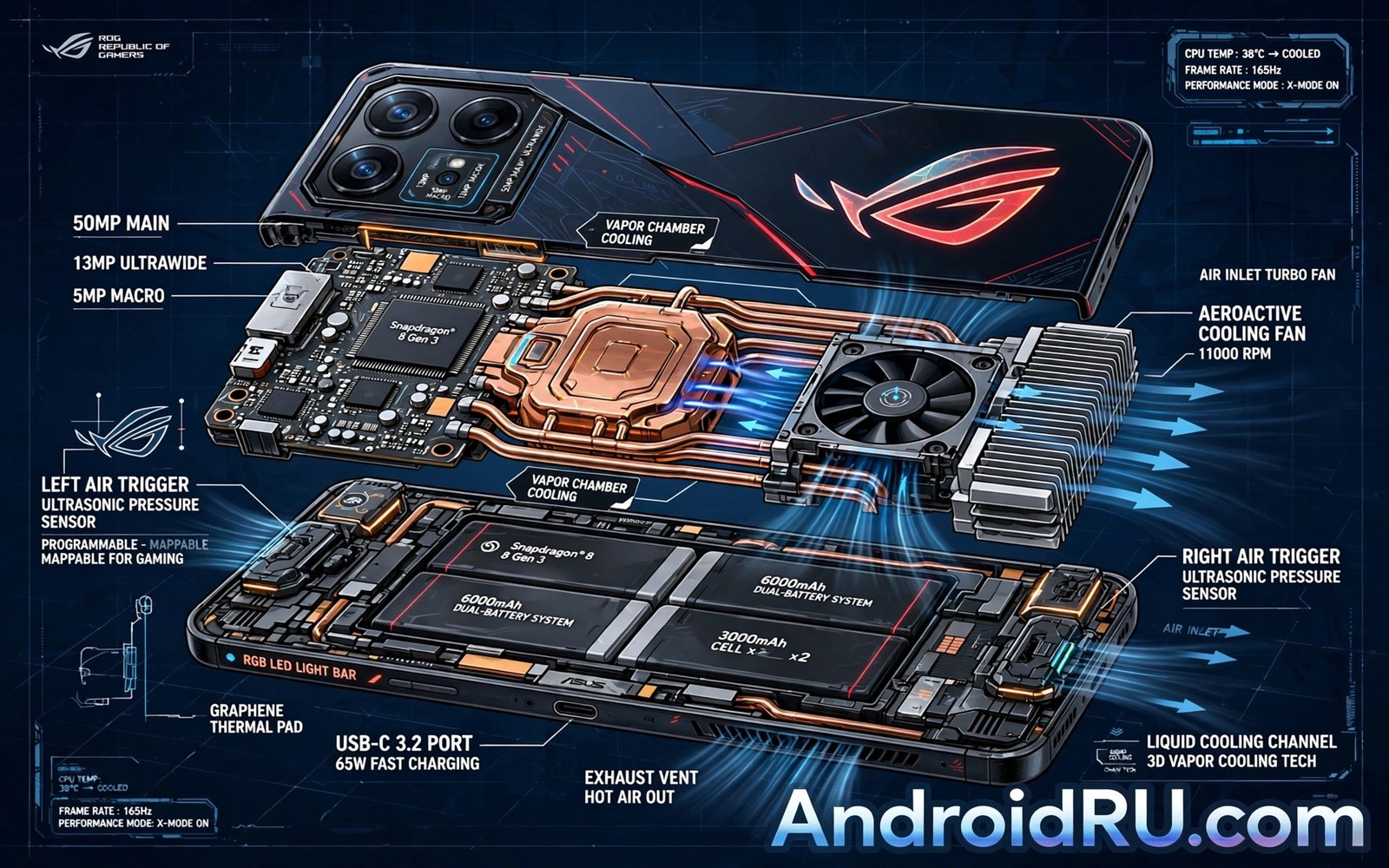
The core idea is simple: a phone chip can only run at full speed while it stays cool enough, and a thin glass slab has very little room to shed heat. ASUS attacks that problem from three directions at once. Heat spreads away from the chip through a vapor chamber and graphite sheets, the frame itself acts as a radiator, and on recent models an attachable fan accessory pushes air across the back. No single piece does the job alone. The combination is what keeps frame rates steady when a normal flagship starts to throttle.
In practice, the difference shows up after the first ten minutes. A regular flagship often opens a game at full speed, then quietly drops its clock speed as heat builds. You feel it as a small hitch when you turn fast or as a gradual slide from 120 frames per second toward 90 or 60. The ROG Phone stretches that strong opening much further. It still gets warm, and in a hot room it will still throttle eventually, but the slide comes later and stays shallower. That is the honest version of the claim: not a phone that never heats up, but a phone that manages heat well enough to protect your session.
Heat also comes from more than the chip. Charging while you play adds a second heat source, and the screen at high brightness adds a third. That is why the ROG Phone pairs its cooling with bypass charging, which feeds power straight to the system instead of through the battery while you play. Less heat in the battery means less heat overall, and it also means less wear on the battery over months of daily play. I treat bypass charging as part of the thermal system, not as a charging gimmick, because it changes the temperature curve of a whole evening.
What to measure instead of trusting a spec sheet
Marketing numbers tell you almost nothing about thermal behaviour. The test that matters is one you can run yourself: play your main game for a full session, note the back temperature with your hand and a simple frame counter, and watch when the feel changes. I log the temperature at the start, after ten minutes, and after thirty, plus the frame rate at each point. A phone that holds its frame rate while the back warms slowly is doing its job. A phone that feels cool on the back but drops frames is cheating, because the heat is trapped inside.
Run the same test in the room where you actually play. A cool air-conditioned room flatters every phone. A warm living room in the evening is the honest test, and it is where the ROG Phone earns its price. Try the test twice, once with the phone bare and once with a case, because a thick case insulates the back and slows heat leaving the frame. If you play with a case on, your results will look different from every review you read, and that is fine. Your room and your case are the real conditions.
ROG Phone vapor chamber, graphite cooling, and the AeroActive Cooler
Inside the phone, a vapor chamber sits over the processor. It is a sealed, flat chamber with a small amount of liquid that evaporates at the hot spot and condenses at the cooler edges, carrying heat across a wide area instead of letting it pool under one point. Graphite sheets then spread that heat further across the body. The point of all this is surface area: a chip the size of a coin cannot dump heat into the air by itself, but the whole back of the phone can, if the heat gets there fast enough.
Recent ROG Phone generations pair this passive stack with active help. Some models include an internal fan that pushes air through vents, and every recent model supports the AeroActive Cooler, a clip-on accessory with its own fan that sits on the back. The cooler also adds extra buttons and a headphone jack on some versions, which is a nice bonus, though the fan is the reason to buy it. With the cooler attached, long sessions in warm rooms stay noticeably more stable, and the back stays comfortable to hold. For a closer look at how built-in fans change sustained play, read the guide on active cooling fans in gaming phones and compare its findings with what you feel in your own sessions.
There is a catch worth naming. Active cooling adds bulk, noise, and another thing to carry. The internal fan is quiet but not silent, and the clip-on cooler turns a slim phone into a chunky one. I use the cooler for ranked nights and leave it off for casual play. That split works, but it means the best thermal performance costs extra and adds weight. If you hate accessories, judge the phone on its passive cooling alone, because that is what you will actually live with day to day.
When an external cooler earns its keep
An external cooler pays for itself in three situations: rooms above 28 degrees, sessions longer than an hour, and games that push the chip hard at high refresh rates. In those conditions the cooler can be the difference between a steady frame rate and a slow slide. In a cool room with thirty-minute sessions, the internal cooling is usually enough, and the cooler adds little. For a closer look at the options, see the roundup of clip-on coolers for gaming phones before you spend money, and check whether the model you pick fits your phone and your case.
How to test a cooler before you trust it
Play one full match with the cooler on and one without, in the same room, at the same settings. Note the frame rate at the end of each match and how the back feels. A good cooler shows up as steadier frames in the second half, not as an ice-cold back in the first minute. If the frames look the same in both runs, your room is cool enough that the cooler is optional, and you can save the money.
Heat during charging and play together
The worst thermal moment in mobile gaming is charging and playing at the same time. The battery warms as it charges, the chip warms as it works, and the two heat sources meet in the middle of the phone. Bypass charging breaks that meeting by routing power around the battery. Turn it on in Armoury Crate before a long plugged-in session and the phone stays cooler for longer. The side-mounted USB-C port helps too, because the cable sits out of your grip in landscape mode instead of warming your palm.
AirTriggers and shoulder controls in real matches
AirTriggers are ultrasonic sensors built into the frame of the ROG Phone. They respond to squeeze and tap gestures on the edges, and you can map each gesture to a point on the screen. In a shooter, that means your index fingers can aim down sights and fire without your thumbs leaving the movement and look controls. In a MOBA, a trigger can fire an ability the instant you need it. The idea is not new, but the execution here is the most flexible I have used on a phone, because each game gets its own trigger map.
The first week feels strange. Your fingers keep reaching for on-screen buttons out of habit, and you will misfire a few times. Most players settle in after a week of regular play. My advice is to start with one trigger and one action, usually firing or aiming, and add more only after that one feels automatic. Players who map four triggers on day one usually give up by day three and call the feature a gimmick. It is not a gimmick. It is a skill, and skills need a slow start.
Trigger placement matters as much as mapping. The sensors sit where your index fingers naturally rest in landscape mode, which works well for most hands. Players with small hands sometimes find the upper zones a stretch, and players who grip the phone hard can trigger accidental squeezes. Armoury Crate lets you adjust sensitivity and set a squeeze force threshold, and tuning that threshold is worth ten minutes of your time. A threshold that is too light fires when you shift your grip. One that is too heavy makes you press hard enough to shake your aim.
How to map AirTriggers without breaking your muscle memory
Open your game, launch Game Genie, and open the AirTriggers editor. Tap a trigger zone, then drag its on-screen marker to the button you want it to press. Set the action type: tap for a single press, slide for a swipe, or squeeze for a hold. Save the map as part of that game’s profile so it loads automatically next time. Test the map in a casual match before you take it into ranked play, because a trigger that fires the wrong button at the wrong moment costs more than it saves.
Setting a trigger for aiming down sights in a shooter
Map the left trigger to the aim button and the right trigger to fire. Keep your thumbs on move and look. Practice in the training ground first, aiming at moving targets, until the squeeze feels like part of aiming rather than a separate action. If your aim shakes when you squeeze, lower the sensitivity so a lighter touch fires it.
Setting a trigger for reload, jump, and abilities
Once the two main triggers feel natural, add a slide gesture on one edge for reload or jump, and a second tap zone for an ability or healing item. Keep the layout the same across similar games so your fingers do not have to relearn it. When a game updates and moves a button, open the editor and drag the marker to the new spot instead of playing around the problem.
For a broader view of whether edge controls are worth learning at all, read the breakdown of shoulder buttons for mobile gaming and weigh its points against your own habits. Some players love triggers and never go back. Others try them for a week and return to touch controls. Both answers are fine, but you should decide from your own trial, not from a review.
Dual-partition triggers and squeeze gestures
Later ROG Phone models split each edge sensor into two zones, so one edge can give you two separate tap targets. Combined with squeeze and slide gestures, a single side of the phone can carry several actions. This sounds like a lot, and it is, which is why I suggest treating the extra zones as optional. Two well-practised triggers beat six half-learned ones in a real match. Use the extra zones for low-stakes actions like opening a map or switching weapons, and keep the high-stakes actions on the triggers you trust.
Armoury Crate and per-game profiles
Armoury Crate is the control centre for the whole ROG Phone. It stores a profile for each game, with its own CPU and GPU tuning, refresh rate, touch sensitivity, fan behaviour, and trigger map. When you launch a game, its profile loads automatically. That automation is the real value. Without it, you would spend five minutes in settings before every session. With it, a shooter opens at high speed and high refresh while a casual puzzle game opens on a balanced profile that saves battery.
The profiles come in three broad modes. X Mode pushes performance hardest and is the right choice for competitive play. Dynamic mode balances speed and battery for everyday gaming. Ultra Durable mode caps performance to stretch battery life, which suits long casual sessions or travel. You can also build a custom profile per game, setting the refresh rate, the touch sampling, and the fan curve by hand. I keep a custom profile for my main shooter and use Dynamic for everything else, because custom tuning for every game is a hobby in itself and I would rather play.
Armoury Crate also runs Game Genie, the in-game overlay. From it you can block notifications, lock the screen brightness, record gameplay, and open a small floating window for chat or a guide. The notification block alone is worth using, because nothing ruins a ranked match like a call banner sliding across the screen. Set up a do-not-disturb rule for your gaming hours and forget about it.
X Mode, Dynamic, and Ultra Durable profiles explained
X Mode raises clock speeds and lets the fan work harder, at the cost of battery and heat. Use it when the match matters and you have a cooler or a cool room. Dynamic mode is the sensible default: strong performance with sensible power use. Ultra Durable mode is for the train, the airport, or a long evening away from a charger. The mistake is leaving X Mode on for everything. A puzzle game does not need maximum clocks, and running them anyway just drains the battery and warms the phone for no gain.
Game Genie tools worth turning on
Turn on the frame rate counter so you can see throttling happen instead of guessing. Turn on the real-time temperature readout for your first week, then turn it off once you trust the phone. Turn on notification blocking and the brightness lock. Leave the macro tools alone unless a game genuinely needs repeated taps, and check the rules of any competitive game before you automate inputs, because some titles treat macros as cheating.
Display, touch sampling, and frame stability
The ROG Phone display is a fast AMOLED panel, with refresh rates up to 165Hz on some generations and higher on others, depending on the model you buy. High refresh makes motion look smoother and helps you track fast targets, but it also asks more from the chip and the battery. The smart move is to set refresh per game: high for shooters and racing games, lower for turn-based or casual titles. Armoury Crate does this per profile, so you set it once and stop thinking about it.
Touch sampling matters as much as refresh. A high sampling rate means the screen reads your finger more often, which shortens the delay between a flick and the game reacting. On the ROG Phone the sampling rate runs high enough that input feels direct, and the difference is clearest in fast flick shots and quick building edits. If you switch from a 60Hz phone, the first hour feels almost too responsive. Give it a day and your old phone will feel sluggish by comparison.
Frame stability ties the display and the cooling together. A 165Hz screen only helps if the phone can actually render that many frames, and rendering that many frames is exactly what heats the chip. This is where the cooling stack earns its keep: it protects the frame rate that the display is capable of showing. Watch the frame counter in a long session. If the number holds near your target for thirty minutes, the whole system is working. If it slides, check the temperature first, then the profile, then whether a cooler would help.
Battery life, bypass charging, and heat while charging
ROG Phone models ship with large batteries, usually in the 5,500 to 6,000 mAh range depending on the generation, split into two cells so each cell carries less load. Bypass charging while you play is the feature I now miss on every other phone. When it is on and the charger is connected, power feeds the system directly and the battery rests. The phone runs cooler, the battery degrades more slowly, and you can play plugged in for hours without the battery sitting at a hot full charge. The only downside is that the battery does not charge while bypass is active, so turn it off when you actually need a top-up. I switch it on for ranked nights and off when I plug in before bed.
Charging speed is fast, with high-wattage wired charging on recent models, and the phone ships with a capable charger in many regions, though the exact wattage and inbox contents vary by market, so check the current official page for your region before you buy. The side port deserves a mention too: charging from the side keeps the cable out of your hands in landscape mode, which sounds small until you play a three-hour session with a cable digging into your palm. It is a small design choice that shows the phone was built by people who actually play.
ROG Phone features, pros, cons, and who it is for
A review should end with a clear verdict, so here is the honest accounting. The ROG Phone is a specialist device. Its strengths are real and directly tied to long competitive play, and its weaknesses are the price of that specialisation. The table below puts it next to a typical flagship so you can see the trade-offs at a glance.
| Feature | ROG Phone | Typical flagship phone |
|---|---|---|
| Cooling system | Vapor chamber, graphite layers, fan support, clip-on cooler option | Smaller vapor chamber or graphite only, no fan accessory |
| Trigger controls | AirTriggers with per-game maps, squeeze and slide gestures | Touch controls only, or a separate controller needed |
| Per-game tuning | Armoury Crate profiles with speed, refresh, and fan control | Basic game mode with few or no per-game settings |
| Display refresh | High refresh AMOLED, up to 165Hz or more by model | High refresh on many models, often capped lower in games |
| Charging while playing | Bypass charging plus side USB-C port | Standard charging, bottom port only on most models |
| Size and weight | Large and heavy, built for landscape grip | Slimmer and lighter, easier for one-handed daily use |
Features that define the ROG Phone
The feature list is long, but five items carry the phone. The vapor chamber and graphite cooling stack keeps the chip fast in long sessions. AirTriggers add shoulder controls without a separate controller. Armoury Crate gives every game its own performance and control profile. The high refresh AMOLED with fast touch sampling makes input feel direct. Bypass charging and the side port make plugged-in play comfortable and cooler. Around those five sit dual front-facing speakers, a clean gaming aesthetic with customisable lighting on some models, and support for docks and controllers if you want a desktop-style setup.
Pros of the ROG Phone
- Sustained performance in long sessions: the cooling stack holds frame rates far longer than a typical flagship, which is the single biggest win for ranked play.
- AirTriggers give you extra inputs without extra hardware, and per-game maps mean they are always set up the way you like them.
- Armoury Crate profiles automate the tuning you would otherwise do by hand before every session.
- Bypass charging keeps the phone cooler while plugged in and slows battery wear over months of daily play.
- The display and touch response feel immediate, and the side charging port is a small detail that matters in landscape grip.
Cons of the ROG Phone
- The phone is large and heavy, and it feels oversized for one-handed daily use, calls, and pockets.
- Armoury Crate has a learning curve, with menus nested deep enough that new owners can feel lost for the first week.
- The best cooling needs the AeroActive Cooler, which costs extra and adds bulk and fan noise.
- Software update support and accessory availability vary by region, so check both before you commit in your market.
- The gaming design and lighting are loud for people who want a phone that blends in at work.
Who it is for
The ROG Phone is for competitive mobile players who play daily and care about frame stability more than pocketability. It is for streamers and content creators who need a phone that records and plays for hours without throttling. It is for players who already spend money on controllers and coolers and would rather have those features built in. It is not the best pick for casual players who play in short bursts, for people who want a small light phone, or for anyone who finds deep settings menus frustrating. If that last line describes you, a good mainstream flagship with a simple game mode will make you happier.
Mistakes to avoid before you buy a ROG Phone
The most common mistake is running X Mode for every game. Maximum speed for a casual game wastes battery and adds heat for no benefit, and it teaches you nothing about what the phone can really do. Match the profile to the game. The second mistake is mapping triggers once and never revisiting them. Games update, buttons move, and your muscle memory improves. Revisit your trigger map every few weeks and after every major game update. The third mistake is ignoring heat while charging. If you play plugged in without bypass charging, you are creating the worst thermal case on purpose. Turn bypass on for long plugged-in sessions.
Another mistake is judging the phone in the shop. A five-minute demo in an air-conditioned store tells you nothing about a two-hour session in your living room. Buy from a seller with a fair return window and run your own test in your real conditions. Check accessory stock in your region before you buy too, because a cooler that is out of stock for months is not a feature you can use. Finally, check the update policy for your exact model and region. A gaming phone that stops getting updates early loses value fast, and the answer varies by market.
Frequently asked questions about the ROG Phone
Does the ROG Phone need an external cooler?
Not for most games. The internal cooling handles many sessions on its own, especially in cool rooms and at balanced settings. An external cooler helps in hot rooms, in sessions longer than an hour, and in games that push the chip hard at high refresh rates. If you play ranked matches for hours in a warm room, the cooler is worth it. If your sessions are short and your room is cool, save the money and judge the phone on its passive cooling first.
Are AirTriggers hard to learn?
They feel odd for the first few days, and most players adapt within a week of regular play. The trick is to start with one trigger and one action, usually firing or aiming, and add more only after that feels automatic. Players who map everything on day one usually give up. Players who build up slowly tend to keep using triggers for years. If you already play with a controller, the learning curve is shorter, because the idea of shoulder buttons is already familiar.
Is ROG Phone software too complex for a casual player?
It has many menus, and the first week can feel like a lot. You can ignore most of it, though, and use one balanced profile for all games until you want deeper tuning. Armoury Crate does the useful work automatically once a profile exists. The complexity only bites if you try to master everything at once. Learn one feature per week and the software stops feeling complex by the end of the first month.
How long does the ROG Phone battery last while gaming?
It depends on the game, the profile, and the refresh rate, so any single number would mislead you. Expect several hours of demanding play on a full charge, more on a balanced profile at a lower refresh rate, and less on X Mode at maximum refresh. Bypass charging changes the maths for plugged-in sessions, because the battery is not draining at all while it is active. For travel, carry a power bank and use the Ultra Durable profile to stretch each charge.
Final verdict: should you buy the ROG Phone for long sessions
The ROG Phone earns its place when you play long, competitive sessions and you feel heat and controls shaping your results. Its cooling keeps frame rates steadier, its triggers give you inputs other phones cannot, and its software automates the tuning that would otherwise eat your evening. Those are real advantages, and they show up in your own test session within the first hour. The trade-offs are equally real: size, weight, a learning curve, and extra cost for the best cooling. Weigh them honestly against how you actually play.
Your next step takes one evening and costs nothing. Pick your main game, play one full session on your current phone, and note when the frame rate or your comfort changes. Then try the same session on a ROG Phone if a friend owns one or a shop allows a proper trial, and compare the two. If the ROG Phone holds its speed longer and the triggers click for you, it is worth the money. If your sessions are short and your current phone already holds up, keep your money and spend it on games instead. For more on keeping a gaming phone cool under pressure, revisit the guide to clip-on coolers for gaming phones and test one against your own longest session before you decide.

