

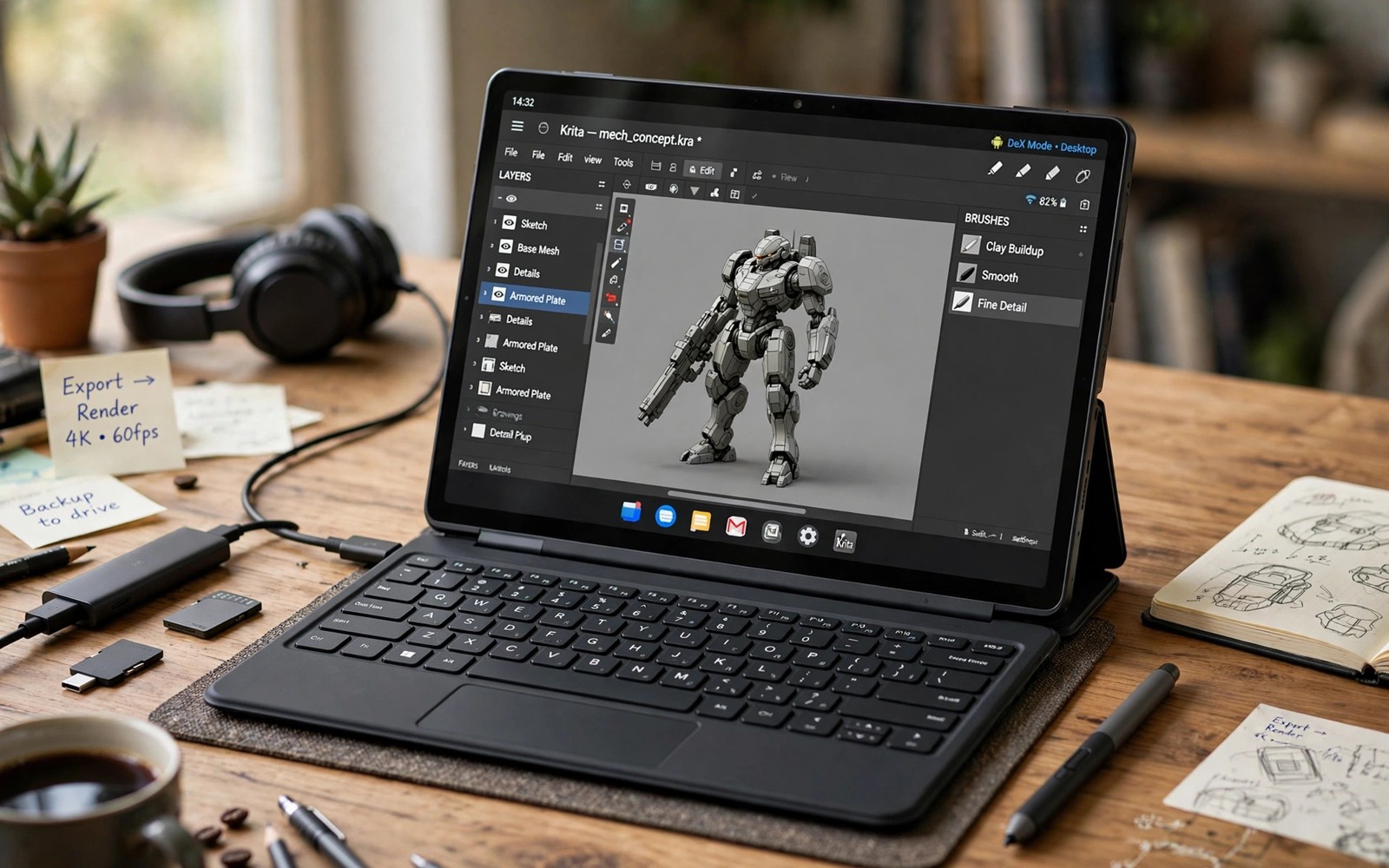
Turning Your Android Tablet into a AAA Portable Workstation
My laptop died on a Tuesday, two days before a deadline, and the repair shop quoted me a week. I had a Galaxy Tab S9, a cheap folding keyboard I had bought on impulse, and a deadline that did not care about my hardware problems. So I spent that week doing my entire job on the tablet: writing, spreadsheets, video calls, file wrangling, and a round of cloud gaming in the evenings to stay sane. By Friday I had shipped the work, and the honest surprise was how little I missed the laptop once the setup was right. The tablet was not pretending to be a laptop. It was doing the job in its own way, and doing it well enough that I kept the setup long after the laptop came back.
That week taught me the difference between owning a tablet and running a workstation on one. A tablet on its own is a media screen with a keyboard attached. A workstation is a system: a desktop mode that behaves like a computer, a keyboard and mouse you can type on for hours, an external display when you need room to think, files you can actually find, and the apps that do your real work. Each piece is simple. The trick is getting them to work together without fighting each other.
This guide builds that system step by step, from picking the right tablet and desktop mode through to monitors, accessories, apps, cloud gaming, and the daily workflow that keeps it all productive. It ends with a straight comparison of a budget build and a pro build, so you can see exactly what your money buys and where it is safe to save.
What a tablet workstation actually means in 2026
A portable workstation is not a tablet with a keyboard case. It is a setup that lets you sit down anywhere, open your work, and get through a full day without reaching for another computer. That means real multitasking, real file management, a proper keyboard, and a screen arrangement that fits the task instead of fighting it. If you still have to borrow a laptop to send an attachment or edit a spreadsheet properly, you have a tablet with accessories, not a workstation.
The good news is that Android has quietly grown into this job. Desktop modes, external display support, mouse and keyboard handling, and cloud gaming have all matured to the point where the weak link is usually the setup, not the operating system. The bad news is that not every tablet is equally ready. A budget tablet with a slow chip and no video output over USB-C will frustrate you no matter how good your keyboard is, while a mid-range tablet with proper desktop mode can carry a working day without complaint.
The three jobs your workstation has to do
Every workstation, portable or not, has to do three jobs. First, it has to run your productivity apps properly: documents, spreadsheets, email, notes, and video calls, with windows you can arrange and text you can select and edit without fuss. Second, it has to handle your files: finding them, moving them, renaming them, and sending them without a treasure hunt through five different apps. Third, it has to be comfortable for hours, which means a real keyboard, a pointing device, and a screen at a usable height and size. If any one of those three is weak, the whole setup feels like a compromise.
Cloud gaming is the bonus fourth job, and it is the one that earns the “AAA” in the title. A tablet with a good screen, a proper controller, and a fast connection can play full PC games through a streaming service, and the same screen and accessories that serve your workday serve your evening game. That shared hardware is what makes the tablet workstation such good value: one set of accessories, two very different uses.
Who this setup suits, and who should skip it
This setup suits writers, students, consultants, managers, and anyone whose work lives in documents, browsers, email, and calls. It suits travellers who want one device instead of a laptop and a tablet, and it suits people who already own a good tablet and want more from it. It suits gamers who play through streaming services and want a bigger screen and a real controller without carrying a console.
It does not suit everyone. If your work depends on desktop-only software such as full Photoshop, CAD tools, or heavy video editing suites, a tablet will fight you, and a laptop is still the honest answer. The same applies to developers who need local toolchains and virtual machines. Know which side of that line your work falls on before you spend money on accessories.
Pick the right tablet and desktop mode first
Everything else in this guide depends on this decision, so make it before buying a single accessory. The two things that matter most are the desktop mode and the USB-C port. A tablet with a real desktop mode and video output over USB-C can drive an external monitor and behave like a computer. A tablet without them can still be useful with a keyboard, but it will always feel like a big phone, and no accessory will fix that.
Samsung DeX is still the benchmark for Android desktop mode
Samsung DeX, available on the Galaxy Tab S series and some Galaxy phones, remains the most complete desktop mode on Android. It gives you a taskbar, resizable windows, a start-style app drawer, and proper mouse and keyboard support, and it can run on the tablet screen itself or on an external monitor. I have run full working days in DeX with a browser, a document editor, a spreadsheet, and a chat app open side by side, and the experience is close enough to a laptop that I stop noticing the difference after an hour.
To start DeX, connect your tablet to a monitor or open the DeX app from the quick settings panel. The first time, take ten minutes to set it up properly: pin your most-used apps to the taskbar, set the display scaling so text is readable, and learn the keyboard shortcuts for switching windows. Those ten minutes pay for themselves every single day you use it.
What about tablets without DeX
Other brands have their own answers. Lenovo tablets offer a productivity mode with a taskbar and freeform windows on some models, Motorola’s Ready For turns a tablet or phone into a desktop workspace when connected to a display, and Xiaomi’s workstation mode on its Pad series adds a desktop-style layout with windowed apps. Google’s own Pixel Tablet and stock Android have improved multitasking with split-screen and a taskbar on large screens, but they still lack a full desktop mode, and that gap matters for heavy multitasking.
If you already own a tablet without a desktop mode, do not despair. A good keyboard, a mouse, split-screen multitasking, and the right apps can still carry a productive day. But be honest with yourself about the ceiling: without a desktop mode, juggling more than two apps at once gets clumsy, and that is where a DeX-capable tablet earns its price.
Check the USB-C port before you buy anything
Not all USB-C ports are equal. Some tablets have a USB-C port that charges and moves data but cannot output video, which means no external monitor over a cable. Before buying a tablet for workstation duty, check whether its USB-C port supports DisplayPort Alt Mode or video output. Samsung’s Tab S series, Lenovo’s higher-end tablets, and several Xiaomi models support it; many budget tablets do not. This single specification decides whether the monitor section of this guide applies to you at all, so verify it on the manufacturer’s specification page rather than assuming.
The core setup: keyboard, mouse and USB-C hub step by step
Start with the three accessories that transform the tablet fastest: a keyboard, a mouse, and a USB-C hub. Buy these before the monitor, because they change how the tablet feels even on its own screen, and they are the pieces you will carry every day. A monitor stays on a desk; the keyboard and mouse travel with you.
Step 1: Choose a keyboard you can type on for hours
The keyboard is the accessory you will touch most, so it deserves the most care. A folding keyboard is tempting for travel, and I carried one for months, but the cramped keys and flexing frame made long writing sessions miserable. A compact full-size Bluetooth keyboard is a better workstation choice: the Logitech K380 is light, quiet, and pairs with three devices at once, which is handy when you switch between tablet and phone, while the Logitech MX Keys Mini adds backlighting and a more laptop-like key feel for longer sessions.
Whatever you choose, test it with your actual work before committing. Type a full page of your normal writing, use the arrow keys and shortcuts, and check that the layout matches your language. A keyboard that looks good in a product photo and hurts after twenty minutes is a bad purchase, and it is the single most common regret in a tablet workstation build.
Step 2: Add a mouse, and learn the right-click
A mouse changes Android more than people expect. Right-click brings up context menus in desktop mode, the scroll wheel moves through documents, and selecting text with a pointer is faster and less fiddly than dragging handles with a finger. Any Bluetooth mouse works, but a comfortable one matters: the Logitech MX Master 3S is the standard recommendation for a reason, with a precise scroll wheel and buttons you can map to common actions, while the smaller Logitech Pebble is a decent travel option if your bag space is tight.
Pair the mouse under Settings, then Connected devices, then Pair new device, and then open Settings, then General management, then Mouse and trackpad on Samsung tablets to tune the pointer speed. Set the speed slightly faster than the default; a slow pointer across a large tablet screen feels like wading through mud.
Step 3: Get a USB-C hub that does everything at once
A good USB-C hub is the heart of a portable workstation. It turns one tablet port into a monitor output, a charging input, USB-A ports for a mouse receiver or a flash drive, and sometimes an Ethernet port and an SD card reader. Look for a hub with 4K 60Hz HDMI output, at least one USB-A 3.0 port, and pass-through charging of 60W or more, so the tablet charges while you work. The Anker 7-in-1 USB-C hub is a solid, widely available choice, and UGREEN’s similar hubs offer the same ports at a lower price.
Connect the hub to the tablet, plug the charger into the hub’s power port, and then add the monitor and accessories. Test the whole chain at home before you rely on it in the field, because a hub that works with one monitor may behave differently with another, and finding that out during a client meeting is a bad day.
Power delivery matters more than it looks
A tablet driving an external monitor, a keyboard, and a mouse draws more power than a tablet sitting idle, and a weak charger will slowly drain the battery even while plugged in. Use a 45W or 65W USB-C PD charger with your hub, not the small charger that came in the box. I learned this the embarrassing way, watching my battery percentage fall during a three-hour work session while the charging icon showed happily. The charger was delivering 15W and the setup was using more than that.
Step 4: Set up your apps and accounts before the first workday
Install your core apps while you are still at home with good Wi-Fi: your office suite, your email client, your notes app, your cloud drive, and your video calling app. Sign into everything, sync your files, and open each app once so it is ready. Then test the real workflow: open a document, edit it, save it, and send it to yourself. If any step of that loop fails, fix it now, not when a deadline is pressing.
Add an external monitor and make it behave
An external monitor is the single biggest productivity upgrade after the keyboard. A tablet screen is fine for one app, tight for two, and hopeless for three. A 15.6-inch portable monitor gives you a second screen for reference material, a video call, or a full desktop layout, and it folds into your bag alongside the tablet.
For a portable monitor, look for a 1080p IPS panel with USB-C input, brightness of at least 300 nits, and a built-in stand or cover that props it up. The ASUS ZenScreen MB16ACV and the Lenovo ThinkVision M14 are proven choices in this class, and cheaper panels from brands like Arzopa cover the same basics for less money. If you want one screen to do double duty for work and gaming, a higher refresh rate panel is worth the premium, since it smooths both scrolling and gameplay.
Connect the monitor through your USB-C hub or directly to the tablet’s USB-C port, and in DeX choose whether to mirror the tablet screen or extend it as a separate desktop. Extending is the workstation choice: keep your main document on the big screen and your notes or chat on the tablet. Set the monitor as the primary display in DeX settings if you want the taskbar and windows to live there, and set the resolution and scaling so text is comfortable at your normal sitting distance.
How desktop displays change cloud gaming and streaming work
A good display does more than add space; it changes what the setup is good for. Streamers and cloud gamers care about refresh rate, response time, and colour accuracy in ways that office work does not, and the same panel that shows a spreadsheet by day can carry a game at night. The guide to desktop displays for cloud gaming streamers explains which display traits matter for streamed games and which ones are marketing noise, and it is worth reading before you spend money on a monitor that will do both jobs. The short version is that a bright, low-lag panel with a proper stand beats a larger, slower one every time.
Arrange your screens so your neck agrees with you
Put the external monitor at eye level on a stand or a stack of books, and the tablet below or beside it, not flat on the desk. A tablet lying flat forces you to look down all day, and your neck will remind you of that by lunchtime. A cheap folding tablet stand costs very little and changes the ergonomics completely. Add a small laptop stand for the monitor if it has no height adjustment, and keep the keyboard directly in front of you rather than pushed to one side.
Apps and cloud gaming that turn the tablet into a real workstation
Hardware without the right apps is just an expensive typing exercise. The apps below are the ones that actually carried my deadline week, and each one earns its place by doing a real job properly rather than by looking good in a screenshot.
Productivity apps that work properly in desktop mode
Microsoft 365 is the safest choice for document work on Android, with Word, Excel, and PowerPoint that handle real files and track changes properly. Google Docs, Sheets, and Slides are the alternative if your work lives in Google Workspace, and they collaborate more smoothly in a browser than in the apps. Samsung Notes is surprisingly capable for handwritten notes and annotated PDFs on tablets with a stylus, and it syncs well enough to be a daily driver. For email, Outlook handles multiple accounts and a proper calendar better than most alternatives, while Gmail’s web version in a desktop browser is often better than the Gmail app when you need filters and labels.
Use the desktop browser for anything the apps do badly. Chrome or Samsung Internet in desktop mode handles web apps, admin panels, and collaboration tools that mobile apps simplify into uselessness. Pin the browser to your taskbar and treat it as a first-class app, because on a tablet workstation it is one.
GeForce Now and cloud gaming on the workstation
Evenings are where the workstation earns its “AAA” badge. GeForce Now on Android streams full PC games to your tablet, and on a tablet workstation the experience is far better than on a phone: a big screen, a proper controller, and a stable connection. Sign in, link your Steam or Epic library, and check that your connection holds a steady 25 Mbps or more for 1080p play. Use a 5 GHz Wi-Fi network or a wired Ethernet connection through your hub whenever you can, because a crowded 2.4 GHz network is the most common cause of stuttering streams.
Xbox Cloud Gaming is the other service worth your time, with a strong catalogue and a controller-friendly interface, and it pairs well with the same hardware. Both services benefit from the monitor and controller you already own for work, which is the whole point of the shared setup: the workstation hardware and the gaming hardware are the same hardware.
Controllers and gamepads that fit the setup
A good controller is the gaming equivalent of a good keyboard. The Xbox Wireless Controller connects to Android over Bluetooth and works with both GeForce Now and Xbox Cloud Gaming without fuss, and its battery life and ergonomics are hard to beat. For a more portable option that clips onto the tablet or phone, the Razer Kishi turns your device into a handheld console, though it is less comfortable for long sessions at a desk. Whichever you choose, read the roundup of the best gamepads for cloud streaming before buying, because compatibility varies: some gamepads work perfectly with one streaming service and poorly with another, and the roundup covers which ones are safe bets for Android. Keep a controller in the same bag as your keyboard and you will actually use it, instead of leaving it at home and wishing you had brought it.
File management, multitasking and split-screen workflows
Files are where tablet workstations usually fall apart. Android’s file system is perfectly capable, but the default apps hide it behind friendly abstractions that make real work painful. Install a proper file manager such as Solid Explorer or Samsung’s My Files, and learn its layout: internal storage, the microSD card if your tablet has one, USB drives through the hub, and your cloud drives. Create a simple folder structure, no more than three levels deep, and stick to it. My own structure is Work, then a folder per client or project, then Inbox, Drafts, and Done inside each one. Boring, and it works.
Multitasking is the other daily skill. In DeX, use the taskbar to switch apps, drag windows to snap them side by side, and use Alt and Tab to move between them like on a laptop. Without DeX, use split-screen: open the first app, then drag the second from the edge or the recent apps screen. Three apps is the practical limit without a desktop mode, so plan your workflow around pairs: document plus browser, spreadsheet plus notes, video call plus agenda. That pairing habit is what turns split-screen from a party trick into a working method.
Budget setup versus pro setup: what your money actually buys
The same workstation idea can cost very different amounts, and the difference is not always where you expect it. A budget build spends money on the tablet and saves on accessories, which is the right priority: a good tablet with cheap accessories beats a cheap tablet with expensive accessories every time. A pro build spends on the display, the keyboard, and the power delivery, because those are the pieces that touch your hands and eyes all day.
| Part | Budget build | Pro build |
|---|---|---|
| Tablet | Galaxy Tab S9 FE or Lenovo Tab P12, with stylus included | Galaxy Tab S9 or S10 Ultra, 12 GB RAM, 256 GB or more |
| Desktop mode | DeX on the FE, or split-screen on non-DeX tablets | Full DeX on an external monitor, extended display |
| Keyboard | Logitech K380, compact Bluetooth, multi-device | Logitech MX Keys Mini, backlit, laptop-grade keys |
| Mouse | Logitech Pebble or any compact Bluetooth mouse | Logitech MX Master 3S, precise scroll, mapped buttons |
| Monitor | None at first, or a basic 15.6-inch 1080p portable panel | 15.6-inch portable monitor, 144Hz, 400 nits, USB-C |
| Hub and power | Simple USB-C hub, 30W charger | 7-in-1 hub with 4K 60Hz HDMI, 65W PD charger |
| Controller | Xbox Wireless Controller, Bluetooth | Xbox Wireless Controller plus a phone clip mount |
| Typical total | Roughly 500 to 700 US dollars including the tablet | Roughly 1,200 to 1,800 US dollars including the tablet |
| Best for | Students, writers, and first-time workstation builders | Daily professional use, travel-heavy work, serious cloud gaming |
Read that table with a sceptical eye. The pro build is roughly twice the price, and the honest question is whether it is twice as productive. For most people it is not. The budget build covers the same workflow; the pro build covers it more comfortably and for longer hours. USB-C video output is the one specification worth paying for in either build, because it decides whether a monitor is even possible, and no amount of saving elsewhere makes up for a tablet that cannot drive a display.
Where to save money safely
Save money on the hub, the mouse, and the monitor, in that order. A basic hub that handles HDMI and charging is fine for most people, and a compact mouse is a small compromise for a large saving. Save on the tablet only if you can still get a desktop mode and video output; dropping to a tablet without either is a false economy that costs you the whole workstation idea. Never save money on the keyboard, because a bad keyboard punishes you every minute you work.
Accessories that earn their place in the bag
Beyond the core three, a few small items make the setup dramatically better. A folding tablet stand holds the screen at a readable angle. A short USB-C cable, 30 cm rather than a metre, keeps the desk tidy. A 1 TB portable SSD plugged into the hub gives you fast local storage for large files and game captures. A power bank with 45W output covers the days when no wall socket is nearby. Each of these costs little and solves a real annoyance, which is the definition of a good accessory.
Storage: keep the tablet lean and the files in the cloud
Tablet storage fills up faster than laptop storage, because system files and apps take a bigger share of a smaller drive. Keep your working files in a cloud drive such as Google Drive or OneDrive, sync only the folders you need offline, and move finished projects to the portable SSD. Check your storage once a month under Settings, then Battery and device care, then Storage, and clear cached files before they become a problem. A tablet with 20 GB free behaves very differently from one with 2 GB free.
Power: the bag checklist that prevents dead-battery days
Charge the tablet overnight, pack the 45W charger and the short cable, and carry the power bank on travel days. In DeX, keep an eye on the battery indicator during long monitor sessions; if the percentage is falling while plugged in, your charger is too weak and you need a stronger one. That single check prevents the most embarrassing workstation failure there is: a dead tablet in the middle of a meeting.
Questions about turning a tablet into a workstation
Can an Android tablet really replace a laptop for daily work?
For document, email, browser, and video call work, yes, provided the tablet has a desktop mode and you pair it with a proper keyboard and mouse. I worked a full week this way and shipped everything on time. For desktop-only software, heavy video editing, or local development work, no, and a laptop is still the right tool. The honest test is your own app list: if every app you need has a good Android version or a good web version, the tablet can carry you.
Do I need a Samsung tablet to get a desktop mode?
No, but Samsung DeX is the most polished option today. Lenovo, Motorola, and Xiaomi each offer their own desktop or productivity modes on selected tablets, and stock Android keeps improving its large-screen multitasking. If you already own a non-Samsung tablet, check whether it has a productivity mode and whether its USB-C port supports video output before buying accessories; those two answers decide how far the setup can go.
Will cloud gaming work well on a tablet workstation setup?
Yes, if your connection is steady. GeForce Now and Xbox Cloud Gaming need around 25 Mbps for smooth 1080p play, and they need it consistently, not just in a speed test. Use 5 GHz Wi-Fi or a wired connection through your hub, sit close to the router, and close other streaming apps while you play. The tablet’s screen and your Bluetooth controller do the rest, and the experience on a 12-inch screen with a real controller is far closer to a console than playing on a phone.
How much should I expect to spend on a full tablet workstation?
If you already own a suitable tablet, the accessories cost roughly 150 to 300 dollars for a solid budget build: keyboard, mouse, hub, stand, and charger. Starting from nothing, a budget build including the tablet lands around 500 to 700 dollars, and a pro build around 1,200 to 1,800 dollars. Buy the tablet and keyboard first, use the setup for two weeks, and only then decide whether the monitor and the pro accessories are worth it for the way you actually work.
Is a tablet workstation good for travel, or is it a desk-only setup?
It is at its best when travelling, because the whole kit fits in a small bag: tablet, folding keyboard, mouse, hub, charger, and a portable monitor if you want one. At a hotel desk or a cafe table you can be working in two minutes. The trade-off is that a portable monitor adds weight and a second screen to protect, so many travellers skip the monitor on short trips and use the tablet screen alone with the keyboard, which is still a capable setup.
Your first-week workstation checklist
Start with the tablet you have or the one you plan to buy, and check the two specifications that matter: a desktop mode and USB-C video output. Then buy the keyboard and mouse, set up the hub and charger, and install your core apps at home with good Wi-Fi. Test the full loop: write a document, save it, send it, join a video call, and play a game through your streaming service. If every step works, the workstation is real, and you can add the monitor when you are ready.
The setup will not be perfect on day one, and that is fine. Move the monitor, change the pointer speed, try a different keyboard layout, and rearrange the taskbar until it feels like yours. Desktop mode multitasking is a skill, not a switch, and the first week is when you learn which window pairs and shortcuts fit your work. After that week, the tablet stops feeling like a compromise and starts feeling like the computer you chose, which is exactly what a portable workstation should be. Pack the bag, sit down anywhere, and get to work; the office is the place you happen to be, not the machine you happen to own.

