

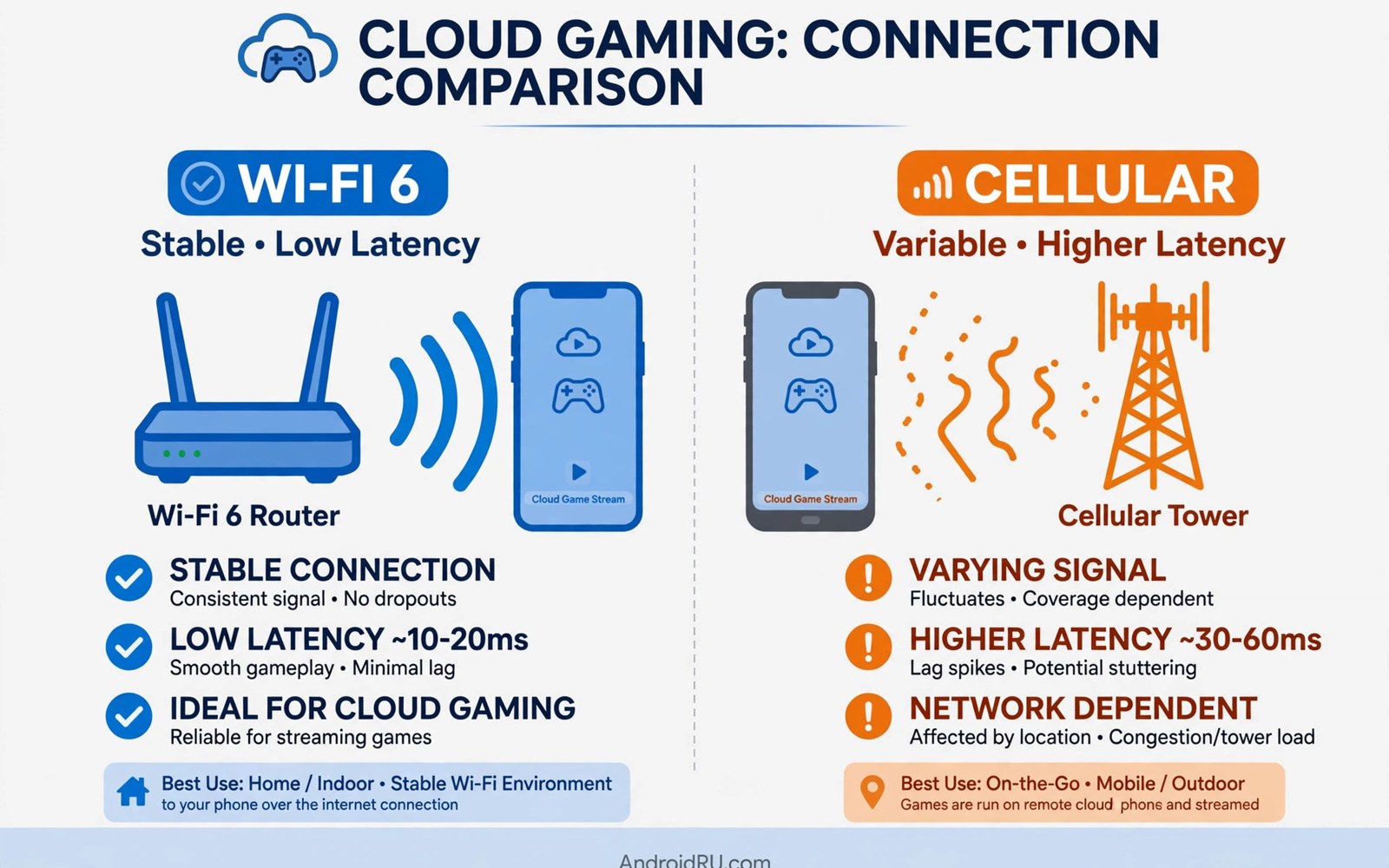
Comparing Wi-Fi 6 vs Cellular Data Stability in Cloud Gaming
Cloud gaming turns your phone into a window. The game runs on a distant server, and your screen shows a video stream of it while your taps travel back up the same link. That means the link is the game. A strong connection feels like playing locally. A weak one feels like playing through a delay, with smeared frames and inputs that arrive late. I have played the same cloud titles on home Wi-Fi 6 and on cellular data, in good spots and bad ones, and the two links fail in completely different ways.
Wi-Fi 6 gives you a steady, cheap link inside your home, with low latency and no data meter running. Cellular data gives you freedom, letting you play on a train, in a park, or in a queue, but it varies with towers, crowds, and your plan. Neither link wins everywhere. This comparison walks through both, with real numbers, a head-to-head table, and a simple test you can run tonight to find which one suits your play spot.
How Wi-Fi 6 changes cloud gaming at home
Wi-Fi 6, also called 802.11ax, improves on older Wi-Fi in the way that matters most for a house full of devices: it schedules airtime. Older Wi-Fi let devices compete for the channel, so one busy phone or a video stream could crowd out your game. Wi-Fi 6 uses OFDMA to split a channel into small resource units and MU-MIMO to serve several devices at once, so your game stream keeps its share even when the TV is streaming and three phones are syncing photos. In a crowded home, that scheduling is the biggest real gain, and it is the reason a Wi-Fi 6 router can feel calmer than an older one at the same speed.
Latency on Wi-Fi 6 stays low when the router sits nearby. A phone in the same room as a Wi-Fi 6 router often sees ping under 20 milliseconds to a nearby server, which leaves room for the server and the video encoder to add their own delay without ruining the feel. Walls still weaken the signal, and distance still hurts. Wi-Fi 6 improves the link but cannot defeat physics, so a phone two rooms away behind concrete will play worse than one on the same desk as the router, whatever the standard says on the box.
Cost is the other quiet advantage. Home internet usually has no per-gigabyte charge for gaming, so a three-hour session costs nothing extra. Families can share one link for several players at once. That freedom makes Wi-Fi the default for daily play at home, and it is the first reason most players should test their home link properly before spending money on a bigger mobile plan.
OFDMA and MU-MIMO in a crowded home
OFDMA lets the router hand out small slices of a channel to many devices in the same transmission, instead of making each device wait its turn for the whole channel. MU-MIMO lets it talk to several devices at once on separate spatial streams. Together they cut the waiting time that used to cause jitter when the house got busy. The benefit shows up most at peak hours, when everyone is home and every screen is doing something. If your game stutters at 8pm but plays fine at noon, congestion is your problem, and a Wi-Fi 6 router is built to handle exactly that.
5GHz and 6GHz bands for cleaner airwaves
Wi-Fi 6 works on the 2.4GHz and 5GHz bands, and Wi-Fi 6E adds the 6GHz band. The 2.4GHz band reaches far but is crowded and slow, shared with neighbours, microwaves, and smart gadgets. The 5GHz band is faster and cleaner but reaches less far. The 6GHz band is the cleanest of all, with wide channels and almost no legacy traffic, though it needs a Wi-Fi 6E router and phone, and it struggles through thick walls. For cloud gaming, the rule is simple: use 5GHz or 6GHz when you are near the router, and fall back to 2.4GHz only when distance forces you to.
How cellular data performs for cloud gaming on the move
Cellular data frees you from the house. You can play on a train, in a park, or during a long wait, and modern 5G links rival home Wi-Fi speeds in good spots. Latency on strong 5G can sit in the 20 to 40 millisecond range to a nearby server, which is close enough to Wi-Fi for many games. Mobility is the one advantage Wi-Fi can never offer, and for players who spend their gaming time away from home, it is the only option that matters.
The link varies more, though. Tower load changes by the hour. Moving between towers causes brief freezes as your phone hands over. Buildings block signals, and a link that plays well at noon may struggle at rush hour when the tower serves hundreds of commuters. Test your route before you trust cellular for an important match, because a commute that is smooth one day can be a slideshow the next. For a wider view of where mobile gains are real and where they are hype, read the explainer on how 5G transforms mobile cloud gaming and compare it with your own signal on your own route.
Data caps limit cellular play most. A high quality stream burns gigabytes fast, some plans throttle after a cap, and throttling destroys stream quality in a way no setting can fix. Check your allowance before long cellular sessions, and treat cellular as a short-burst link unless your plan is truly generous. Short sessions on the move suit cellular best. Long daily sessions belong on Wi-Fi.
5G latency in strong signal areas
On a strong 5G signal near a tower with a modern core network, latency can match home Wi-Fi for many games. The key phrase is strong signal: full bars outdoors near a tower are a different world from two bars indoors behind concrete. Mid-band 5G usually gives the best balance of speed and coverage, while low-band 5G reaches further but behaves more like fast 4G. Millimetre-wave 5G is the fastest of all but only works outdoors in clear line of sight, so treat it as a bonus, not a plan.
Tower handovers and rush-hour slowdowns
A handover happens when your phone moves from one tower to another, and during that switch the stream can freeze for a second or two. On a train this can happen every few minutes. In a car it depends on the road and the tower spacing. Rush hour adds a second problem: the tower itself gets busy, and your share of its capacity shrinks. Both problems are invisible on a speed test taken at noon at home, which is why you should test cellular on your real route at your real play hour, not from your sofa.
Wi-Fi 6 vs cellular data: the head-to-head table
Put side by side on the same criteria, the two links trade wins. Wi-Fi 6 takes stability, cost, and consistency at home. Cellular takes mobility and takes the win wherever home broadband is weak. The table below is the short version of this whole comparison, and the sections after it explain each row in plain terms.
| Criteria | Wi-Fi 6 | Cellular data (4G / 5G) |
|---|---|---|
| Typical latency | Under 20 ms near the router, rising with walls and distance | 20 to 50 ms on strong 5G, higher on 4G or weak signal |
| Jitter | Low and steady at home, spikes when the house gets busy | Higher and more variable, spikes during handovers and rush hour |
| Bandwidth | High, shared with the household, no per-gigabyte charge | High on strong 5G, but shared with everyone on the tower |
| Stability | Very steady in one spot, no tower handovers | Freezes during tower switches and in dead zones |
| Cost per session | Usually nothing extra on home internet | Burns mobile data, throttling or extra charges after a cap |
| Mobility | None beyond the home network | Play anywhere with a signal, on trains and outdoors |
| Data caps | Rarely capped on home broadband | Common, and a high quality stream can use several GB per hour |
Latency and jitter: what actually decides a cloud session
Latency is the total delay between your tap and the result on screen, and it has several stages: your input travels to the server, the server renders the frame, the video is encoded, the stream travels back, and your phone decodes and displays it. Your network is only one stage, but it is the one you control. A link that adds 15 milliseconds leaves room for the rest. A link that adds 80 milliseconds eats the whole budget before the server has done anything. To see how each stage adds up, read the study of input latency across cloud platforms, which breaks down every stage that adds delay.
Jitter tells the stability story better than speed. A link with steady ping feels good even at moderate speed, because every frame arrives on time. A link with jumping ping feels bad even at high speed, because frames arrive in bursts and pauses. Fast games like shooters and racing titles suffer most from jitter. Slow turn-based games barely notice it. That is why the right question is never which link is faster, but which link is steadier in your exact play spot.
Test jitter, not peak speed, when you choose a link for cloud gaming. A speed test shows a burst of best-case throughput. A one-minute ping test shows how the link behaves over time, which is what a gaming session actually is. Run the test on each link at your real play hour, and pick the link with the lower, steadier numbers for fast games.
How to run a one-minute ping test on each link
Open a terminal or a ping app on your phone and ping a reliable host such as 8.8.8.8 fifty times on Wi-Fi, then switch to cellular and run the same test from the same spot. Note the average ping, the variation between pings, and the worst single ping. Repeat at your usual play hour, because a link tested at noon tells you nothing about the same link at 8pm. Keep the results in a note so you can compare them again next month, because networks change as neighbours join and carriers upgrade towers.
Reading the jitter number
Jitter is the variation between pings. Under 5 milliseconds of jitter feels smooth. Between 5 and 15 milliseconds you will notice occasional hitches in fast games. Above 15 milliseconds, fast games start to feel unreliable, and you should switch links or move closer to the router or a window with a better signal.
Reading the packet loss number
Packet loss means some pings never came back. Even 1 to 2 percent loss shows up as frozen frames and rubber-banding in a cloud stream. If you see loss above 2 percent on either link, that link is not fit for fast games until the cause is fixed, whether that means moving closer to the router, changing channels, or waiting for a stronger signal.
Bandwidth, data caps, and the real cost of each link
Cloud gaming needs far less bandwidth than most people expect, but it needs that bandwidth without interruption. A 720p stream usually plays well on 10 to 15 Mbps, a 1080p stream on 15 to 25 Mbps, and a 4K stream on 35 to 50 Mbps. Those are ranges, not guarantees, because different services encode differently. What matters is that the link holds that rate steadily for the whole session, not that it can burst to 200 Mbps for three seconds in a speed test. To match the numbers to your own service, read the guide to bandwidth needs for lag free cloud gaming, which lists what each quality level demands.
Data use is where cellular gets expensive. A 1080p cloud session can use roughly 5 to 10 GB per hour, and a 4K session can use far more, so a two-hour session on cellular can eat a whole monthly allowance in one evening. Some plans throttle after a cap, dropping your speed to a level where the stream falls apart. Others charge for extra data. Either way, the cost of a cellular session is real money, while a Wi-Fi session on home broadband usually costs nothing extra at all. Check your plan before a long cellular session, and set the stream quality lower when you play on mobile data.
There is also a hidden cost on Wi-Fi: other people in the house. A big download, a 4K video stream, or a cloud backup running during your session steals airtime from your game. Pause heavy tasks before an important match, or set router priority for your phone so your game gets served first. Ten minutes of household traffic management beats any upgrade you can buy.
How much data a cloud session uses per hour
At 720p, expect roughly 3 to 5 GB per hour. At 1080p, roughly 5 to 10 GB per hour. At 4K, the figure climbs sharply, often past 15 GB per hour. Your exact numbers depend on the service, the game, and how much motion is on screen, because a fast racing game encodes more data than a slow puzzle game. If you play on cellular, drop the stream to 720p and you can stretch a small allowance across several sessions instead of burning it in one evening.
Router setup, mesh Wi-Fi, and fixing home stability
Most home gaming problems are router problems, and most router problems are fixed without new hardware. Start by enabling the 5GHz band with a distinct network name, so your phone does not drift to the crowded 2.4GHz band on its own. Check for firmware updates in the router settings, because updates fix bugs that hurt real-time traffic. Then enable quality of service rules that prioritise your phone during play hours, so a guest video stream cannot steal your game bandwidth.
Channel selection matters in apartment blocks where neighbours crowd the same airwaves. Router auto channel selection usually works, but manual selection helps in dense buildings. Use a Wi-Fi analyser app to find the least crowded channel for your band, switch to it, and retest your gaming performance. A cleaner channel cuts jitter noticeably in crowded environments. Guest network isolation also helps, because it keeps visitor devices on a separate network with modest limits, so guests streaming video cannot reach your gaming phone or steal its airtime.
Mesh Wi-Fi and access points for dead zones
Mesh Wi-Fi solves dead zones by placing nodes around the home, but it helps cloud gaming only when the nodes connect well to each other. A node linked by cable to the main router delivers full speed to nearby devices. A node linked wirelessly shares airtime with your phone and can halve effective speed in busy homes. A single wired access point near your gaming chair often beats a three-node mesh that talks wirelessly through walls. Place nodes in open spots at shelf height, test each location with a speed test from your play spot, and move a node one room closer to the router when speeds disappoint.
Setting a dedicated 5GHz network name for gaming
Give the 5GHz band its own name, such as Home-5G, and connect your phone to it for gaming. Keep the 2.4GHz band for smart gadgets and guests. This split stops your phone from drifting to the slower band when the signal dips for a moment, which is a common cause of sudden mid-match stutters.
Enabling QoS for your phone during play hours
Open the router settings, find the QoS or traffic priority section, and add your phone by its device name or MAC address. Set the rule to prioritise gaming traffic, or simply to prioritise the device, during your usual play hours. Test a session with a video streaming on another device to confirm the game still holds steady.
Cellular failover when home internet drops
Cellular failover keeps play alive when home internet drops, because a phone can switch to mobile data during an outage. Automatic switching helps for browsing but hurts gaming, because the switch itself freezes the stream. Manual switching works better: pause the game first, switch links deliberately, then reconnect cleanly. A planned switch loses seconds. An automatic switch mid-match loses progress and patience. Reserve failover data for important sessions, because backup links usually carry caps, and a short competitive match justifies the data while a casual story session can wait for home internet to return.
When cellular wins: weak home broadband and travel
Wi-Fi 6 wins stability at home in most cases, but cellular wins wherever home broadband is weak. A rural home with slow broadband may lose to strong 5G. A crowded apartment block with congested Wi-Fi may also lose, especially if dozens of neighbours share the same channels. In those spots, a cellular link with a strong signal and a generous plan can be the steadier choice, and the only way to know is to test both links in your exact play spot. Local facts beat general rules every time.
Travel is the other clear cellular win. On a train, in a hotel with poor Wi-Fi, or in a park, cellular is the only link available, and a good 5G signal can carry a casual or mid-paced game well. The trick is to match the game to the link: save fast competitive titles for your steady home link, and play slower games on cellular. A turn-based game or a story game forgives jitter that would ruin a shooter, so choose your game for the link you have, not the link you wish you had.
Hotspot play deserves a mention too. A spare phone on a different carrier can serve as backup internet during outages, and a hotspot from a phone with a strong signal can rescue a gaming night. Test this setup before you need it, because hotspot speeds and latency vary by carrier and signal, and an untested plan adds confusion during an outage when tempers already run short.
Verdict: which link fits which player
There is no single winner here, and any article that declares one is selling you a simple answer to a situational question. The right link depends on where you play, what you play, and what your plan allows. The verdicts below are per use case, because that is how real players actually choose.
Pick Wi-Fi 6 if you play mostly at home
If your sessions happen on the sofa or at a desk, Wi-Fi 6 is the right default. It is steadier, cheaper, and free of data caps, and a well-placed router near your play spot makes it nearly rock solid. Spend your effort on router placement, a clean 5GHz channel, and a wired access point if you have a dead zone, rather than on a bigger mobile plan you will rarely use.
Pick cellular data if you play on the move
If your gaming time happens on commutes, in queues, or away from home, cellular is the link that fits your life. Choose a plan with enough data for your habits, play at 720p to stretch it, and favour slower games when the signal is weak or the tower is busy. Test your route at your real play hour, and keep a note of the dead zones so you can pause before the stream freezes.
Use both links with a clear rule for each
Most players end up using both, and the best setup is a simple rule: Wi-Fi 6 at home for long and fast sessions, cellular on the move for short and slow ones. Set Wi-Fi as the default at home and let your phone switch to cellular only when you leave. Retest both links monthly, because networks change, and a link that won last season may lose this one. Retest both links monthly and let fresh numbers, not habit, decide your default.
Frequently asked questions about Wi-Fi 6 and cellular cloud gaming
Is Wi-Fi 6 always better than cellular for cloud gaming?
No. Wi-Fi 6 usually wins at home for stability and cost, while strong cellular can win where home broadband is weak or congested. A rural home with slow broadband or a crowded apartment block with choked Wi-Fi can both lose to a strong 5G signal. Test both links in your exact play spot before you decide, because local facts beat general rules.
Does Wi-Fi 6 need a new router?
Yes, for Wi-Fi 6 features. Your phone must also support Wi-Fi 6, and older routers still work but lack the scheduling gains that help crowded homes. Upgrade the router only if your home has many devices or congestion, or if your current router cannot hold a steady 5GHz signal in your play spot. A new router will not fix a slow broadband line, so check your internet speed first.
Can I switch links during a cloud session?
Switching often breaks or freezes the stream, because the session is tied to the connection it started on. Start a session on the link you will keep for the whole session. If you must move, pause the game first, switch links deliberately, and reconnect cleanly. Some services recover from a switch in a few seconds, but most lose progress or drop you back to a menu, so plan the switch rather than letting it happen mid-match.
How much mobile data does cloud gaming use per hour?
It depends on the stream quality and the game, but a rough guide is 3 to 5 GB per hour at 720p, 5 to 10 GB per hour at 1080p, and far more at 4K. Fast games with constant motion use more than slow games. Check your plan allowance before a long cellular session, drop the quality to 720p on mobile data, and keep an eye on your usage in your carrier app so a long session does not burn a whole month of data in one evening.
Your next step: test both links tonight
Wi-Fi 6 vs cellular data is a choice of stability versus freedom, and the honest answer is that you need both, for different moments. Wi-Fi 6 wins daily home play on stability and cost. Cellular wins play on the move where Wi-Fi cannot reach. Neither link is the right answer for every player, and the player who tests both in their own spot always chooses better than the player who trusts a general rule.
Your next step is simple and takes ten minutes. Run a one-minute ping test on Wi-Fi and then on cellular from your play spot, note the average, the jitter, and the worst ping, and set your default link for home sessions and your backup link for travel before your next game. Then retest next month, because networks change and your best link can change with them. Run the ping test tonight and let your own numbers pick your link.

