

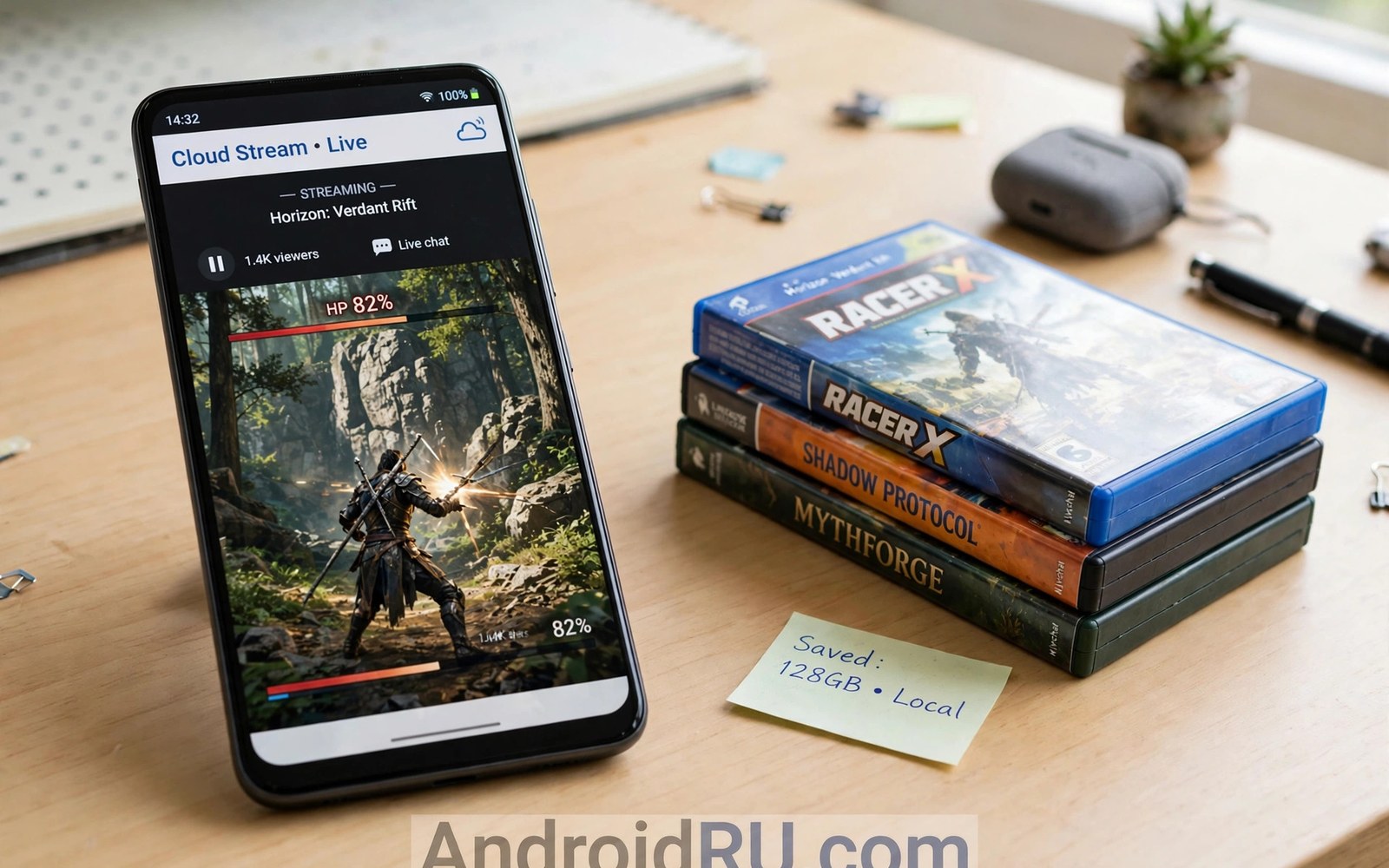
Cloud gaming battery and storage savings surprise many players in real daily use. A modern console title can demand tens of gigabytes. A phone with modest storage fills fast. Cloud play streams the game instead. Nothing big installs on your device. Battery also benefits because your phone decodes video rather than rendering a complex 3D world.
The savings are real but not magic. The screen and the network radio still draw power. Long sessions still warm the phone. Storage savings depend on how many games you play. This article explains where savings come from and how to stretch them further with simple settings.
How cloud play saves storage
A native AAA style mobile game can exceed 10 gigabytes with updates and extra content. Five such games can fill a 64 gigabyte phone. Cloud games install nothing beyond the small streaming app. You can try twenty games in a week without deleting photos or other apps. That freedom changes how you explore new titles.
Updates also vanish as a storage chore. Cloud servers update games centrally. You never wait for a huge patch download. You never clear space for an update to fit. Your phone stays lean while the server carries the bulk. This benefit grows over time as games keep expanding.
Cache still uses some space. Streaming apps store thumbnails and settings and small temp files. These stay tiny compared to full games. Clear app cache monthly if you like tidy storage. You will reclaim only a small amount. The big win already happened when you skipped the install.
How cloud play affects battery
Rendering a 3D world taxes the phone processor and graphics chip. That work heats the device and drains the battery fast. Cloud play moves that work to a server. Your phone decodes a video stream instead. Video decoding is efficient on modern chips. Many players gain 30 to 60 extra minutes per charge compared to heavy native games.
The screen remains the biggest drain in both cases. A bright display eats power no matter how the game runs. The network radio is the second drain. Weak signals force the radio to work harder. A strong Wi-Fi link therefore saves battery as well as improving quality. Play near your router for the best balance.
Heat also affects long term battery health. Cooler play stresses the battery less. Cloud play usually runs cooler than native 3D play. Your phone may still warm up during long sessions. A case that traps heat makes it worse. Remove thick cases during long play if the phone feels hot.
Settings that stretch play time
Lower screen brightness to a comfortable level. This single change saves more power than any other tweak. Use adaptive brightness as a starting point. Then set manual brightness slightly lower for gaming. Your eyes adjust quickly and your battery lasts longer.
Cap stream resolution on the go. A 720p stream uses less radio and decode power than a 1080p stream. The phone screen hides much of the difference. Save high resolution for Wi-Fi sessions near a charger. Lower frame rate caps also help when battery runs low.
Close background apps before a session. Social apps and backups wake the radio and processor. A clean phone devotes its power to the stream. Turn on airplane friendly habits too. Disable unneeded Bluetooth devices during play. Small savings add up across a long session.
A script to estimate storage savings
The script below totals the storage you save by streaming games instead of installing them. Edit the sizes to match the games you actually play.
games = [
    ("Space adventure", 18),
    ("Racing title", 12),
    ("Story RPG", 25),
    ("Shooter", 20),
    ("Sports game", 15),
]
installed_total = sum(size for _, size in games)
streaming_app = 0.3
saved = installed_total - streaming_app
print("Installed size GB:", installed_total)
print("Streaming app GB:", streaming_app)
print("Storage saved GB:", round(saved, 1))
print("Games streamed:", len(games))
This snippet is an original storage helper written for this article. It is included here so you can total your own savings with the real sizes of games you play.
Common mistakes
Many players assume cloud play uses no battery at all. The screen and radio still drain power. A long session still needs a charger nearby. Another mistake is playing on a weak signal. The radio works harder and drains faster while quality drops. Move closer to the router instead of fighting a weak link.
Some players leave power saving mode on during play. Power saving throttles decoding and causes stutter. It can also dim the screen too far. Turn power saving off for gaming sessions and on again after. Others ignore heat warnings. A very hot phone throttles performance. Pause and let it cool rather than pushing through.
A final mistake is hoarding native games you never play. Those installs eat storage for nothing. Delete native games you finished. Keep cloud versions for replay. Your phone stays fast and roomy with less clutter.
Charging habits during cloud play
Charging while playing changes battery behavior in ways many players misunderstand, because a phone that charges and streams at once generates heat from two sources. Heat throttles performance and ages the battery faster over months of daily use. The safest habit is to start sessions with a full charge and play unplugged when possible. When a session must run longer than one charge allows, use a slow charger rather than a fast charger, because slow charging adds less heat during play. A cool phone streams smoother and keeps its battery healthier for longer.
Cable choice also affects comfort and heat during charged play. A long cable lets you sit naturally without hugging a wall socket. A braided cable resists tangles and lasts longer than thin stock cables. Avoid ultra cheap cables that run hot or deliver unstable power, because unstable power causes processor throttling that looks like stream stutter. A good cable costs little and removes a whole class of mysterious lag complaints. Keep one dedicated gaming cable at your play spot so you never hunt for one mid session.
Power banks deserve the same care as wall chargers, because a weak power bank sags under sustained load and causes the phone to throttle. Choose a power bank that matches your phone charging standard and delivers stable output across a full discharge. Test the bank during a real session before travel day, and note whether the phone stays cool and charges steadily. A bank that passes a home test will serve travel well. A bank that fails at home will fail worse on a trip where replacements are hard to find.
Storage hygiene beyond games
Cloud gaming removes game installs but leaves other storage clutter untouched, and a full phone still slows down in ways that hurt streaming. Photos and videos accumulate silently and fill budget phones within months. Back up photos to cloud storage or a computer each month, then delete local copies you no longer need on the device. A phone with breathing room runs background tasks faster and leaves more RAM free for the stream decoder. Storage hygiene is a monthly habit, not a one time cleanup.
App caches also grow over time, especially for social and video apps that store previews and thumbnails. Clearing cache for heavy apps each month reclaims space without deleting logins or settings. Avoid cache cleaner apps that promise miracles, because Android manages storage well on its own and aggressive cleaners cause more harm than good. Manual cache clearing for two or three heavy apps beats any automated tool. Check storage settings to see which apps actually consume space before you act.
Downloads folders hide forgotten files too, because installers and documents pile up unnoticed. Review the downloads folder quarterly and delete files you already used or moved elsewhere. Old APK files and large PDFs consume space that cloud gaming itself never touches. A tidy downloads folder plus photo backups plus cache checks keeps a budget phone fast for years. These habits cost minutes per month and protect the smooth streaming that cloud play promises.
Low power mode myths
Low power mode myths mislead many players, because power saving does not simply extend play without cost. Power saving throttles processors and dims screens and limits background activity. For cloud gaming, throttling can cause decode stutter that looks like network lag. Players enable power saving to gain battery, then blame the stream for new stutter. Turn power saving off during gaming sessions for the cleanest experience.
Adaptive battery features also interfere subtly, because Android learns app usage and restricts apps it deems infrequent. A cloud app used weekly may face background restrictions that delay launches. Exempt your cloud gaming app from battery optimization in settings. Exemption keeps launches fast and streams stable. Battery impact from one exempted app stays small compared with the frustration of throttled play.
Screen timeout settings interact with gaming too, because aggressive timeouts dim screens during slow game moments. Story games with long cutscenes may trigger dimming mid scene. Set a longer timeout for gaming sessions or rely on the game to keep the screen awake. Most cloud apps hold wake locks during play, but timeout conflicts still occur on some devices. Check timeout behavior during a long cutscene before a story marathon.
Screen refresh settings also affect battery during cloud play, because high refresh displays update more often and draw extra power. A 120Hz screen looks smoother but drains faster than the same screen at 60Hz. Many phones let you set refresh rate per app or globally. Lower the refresh rate to 60Hz for story games where smoothness matters less. Raise it again for fast action games where fluid motion helps timing. Small refresh tweaks extend sessions noticeably.
FAQ
Does cloud gaming really save battery?
Yes in most cases compared to heavy native 3D games. Video decoding uses less power than local rendering. The screen and radio still drain power. Gains vary with signal strength and brightness.
How much storage does cloud gaming use?
Only the small streaming app plus tiny cache files. Full games never install on your phone. You can try many titles without storage pressure.
Why does my phone still get warm during cloud play?
Video decoding and the radio and the bright screen all produce heat. Long sessions warm any phone. Lower brightness and play near the router to reduce heat.
Storage and battery gains also connect to data planning and link quality. The guide to stream resolution and data consumption shows how quality settings change hourly data use. The data cap limits for frequent players page helps heavy players stay inside a monthly allowance. The guide to bandwidth needs for lag free cloud gaming explains why a strong link also saves battery during play.
Conclusion
Cloud gaming saves real storage and often real battery. You skip huge installs and heavy local rendering. The screen and radio still set the limits. Use moderate brightness and a strong link and sensible stream settings. Your next step is simple. Check your storage screen tonight and count the gigabytes tied up in games you rarely play. Then try those same titles through the cloud this week and feel the difference in space and heat.

