

This guide covers device thermals during emulation in plain steps. Long emulation sessions heat a phone in a steady way. The processor works hard without rest. Heat builds up inside a small sealed body. Optimizing device thermals during extended game emulation keeps that heat in check. A cooler phone plays steadier for longer.
Heat matters because phones protect themselves by slowing down. That slowdown is called throttling. It appears as sudden stutter after smooth play. Players often blame the emulator for throttling. The real cause is temperature and the fix differs completely.
Cooling is mostly about habits and settings rather than gadgets. A cool room and a sensible session plan help a lot. A demanding modern game heats a phone fastest. Light retro games heat it far more slowly.
Why phones throttle during play
Phone chips have a safe temperature range for sustained work. Past that range the system lowers speed to reduce heat. Lower speed means fewer frames per second in games. The drop can feel sudden after twenty minutes of smooth play. That pattern is the classic sign of throttling.
Throttling protects the battery and the chips from damage. It is a safety feature and not a flaw. Fighting it with risky tricks can harm the phone. Work with throttling by reducing heat instead. Lower heat lets the phone hold speed longer naturally.
Settings that reduce heat
Lower resolution is the most effective heat reducer in emulation. Fewer pixels mean less work per frame. A small resolution drop can cut heat a lot. Test one step down and watch temperature over time. The picture loss is often smaller than expected.
Frame rate limits also cut heat in a direct way. Capping speed at the game target avoids wasted work. Unlimited frame rates push the chip hard for no benefit. Set the cap to the game native target. Your phone will thank you with steadier play.
Room and case habits
Play in a cool room when you can. Direct sunlight on a phone adds heat fast. A shaded spot with airflow helps more than any app tweak. Remove a thick insulating case during long sessions. A case traps heat against the phone body.
Rest the phone on a hard cool surface between sessions. A soft bed or sofa traps heat underneath. A table lets heat escape from the back. Small habit changes add up over a long evening. The phone cools faster and the next session starts cooler.
Cooling accessories that help
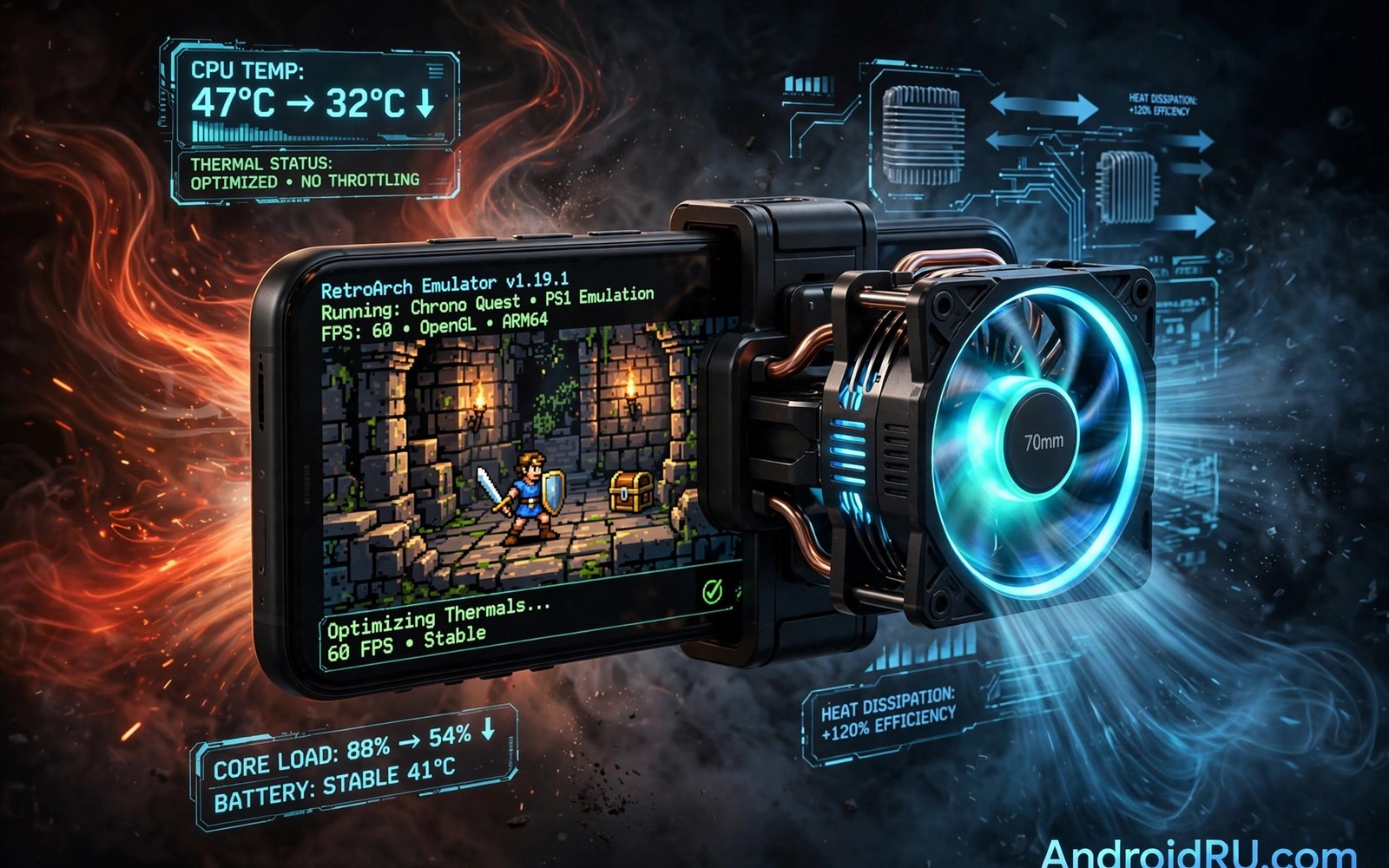
Clip on phone coolers use a small fan or a cold plate. They can lower temperature during heavy play. Results vary by phone shape and cooler design. Test a cooler with a temperature app if you own one. Real numbers beat marketing claims for cooling gear.
A simple desk fan aimed at the phone also helps. It costs little and it works with any phone. Airflow across the back removes heat steadily. A fan plus lower settings beats either trick alone. Combine habits for the best result.
Planning long sessions
Break a long session into blocks with short rests. A ten minute break every hour lets the phone cool. It also rests your eyes and hands. Short breaks feel annoying at first. They become natural once you see the speed benefit.
Save progress before each break. A save protects against a heat related shutdown. It also gives a natural stopping point for the session. Use in-game saves for long term safety. Save states add quick resume points for practice.
Measuring temperature honestly
Guessing temperature from touch alone misleads many players. A phone can feel warm while still running safely. A temperature app gives numbers instead of guesses. Check temperature at the start and after thirty minutes. A rising trend matters more than a single reading. A steady high temperature signals a cooling problem. A brief spike may come from a background task instead. Numbers turn thermal worry into a clear diagnosis.
Compare temperature across different settings for the same game. Lower resolution should reduce temperature over time. A cooler result proves the setting change worked. No change suggests another heat source exists. Background apps or sunlight may dominate the heat. Isolate one variable at a time for honest tests. A controlled test beats a hopeful guess every time. Record numbers in a short note for comparison.
Battery temperature and processor temperature differ in meaning. Battery heat affects battery health over long periods. Processor heat affects speed through throttling directly. Both deserve attention during long sessions. A phone that reports battery heat alone still gives useful warnings. Treat any sustained high reading as a break signal. Breaks protect both battery life and game speed. Safety numbers deserve respect over play momentum.
Cooling myths to ignore
Putting a phone in a fridge harms it through condensation. Cold surfaces cause moisture inside the device. Moisture damages electronics far worse than moderate heat. Never use a fridge or freezer as a cooling trick. Room temperature airflow is safer and sufficient. A fan beats a fridge for every sane cooling goal. Protect the phone from extreme cold as well as heat.
Closing all apps does not always cool a phone faster. A game already closed stops generating heat at once. Background apps add only small heat after the game ends. Focus on airflow and shade for cooling after play. A cool surface and moving air work fastest. Patience cools a phone better than frantic app closing. Let physics do the work after a session ends.
A thicker case does not always trap dangerous heat. Ventilated cases allow some airflow around the phone. Solid rubber cases trap more heat than hard shells. Choose a case with ventilation for gaming phones. Test temperature with and without the case. Real numbers decide whether a case helps or harms. Do not assume every case behaves the same way.
Session length and eye comfort
Long emulation sessions strain eyes as well as phones. Eye strain builds slowly and unnoticed during play. Follow a simple break rule every hour of play. Look away from the screen for a few minutes. Distant looking relaxes eye muscles effectively. A break also cools the phone at the same time. Shared breaks benefit both player and device together. Healthy habits serve two purposes at once here.
Screen brightness affects eye comfort during long sessions. A very bright screen in a dark room strains eyes quickly. Match brightness to the room lighting level. A comfortable brightness feels neither glaring nor dim. Auto brightness helps but manual adjustment works better. Set brightness once per environment for best comfort. Comfort settings deserve the same care as graphics settings. Eyes are the most important gaming hardware you own.
Text heavy games demand more eye care than action games. Small text forces eyes to work harder continuously. Increase text size when the game or emulator allows it. Larger text reduces squinting during story sections. Reading comfort keeps story immersion intact for hours. Test text size in a dialogue scene before a long session. Dialogue scenes reveal readability problems fastest. Readable text protects both enjoyment and eye health.
Posture during handheld play affects comfort beyond eyes. Hunching over a phone strains neck and shoulders. Hold the phone at a higher angle when possible. A stand or a pillow can raise the screen height. Better posture reduces fatigue during long sessions. Comfort across the whole body sustains longer play. A comfortable player enjoys games more deeply. Ergonomics is part of good emulation setup.
Common mistakes
The most common thermal mistake is raising settings when stutter appears. Stutter from heat gets worse with higher settings. Lower settings instead and let the phone cool. A cooler phone at lower settings plays better than a hot phone at high settings. Heat first and graphics second is the rule.
Another mistake is playing in direct sunlight for hours. Sunlight adds heat that no setting can remove. Move to shade before you change any emulator option. Shade plus airflow fixes many so called performance problems. The environment is part of the setup.
Do not ignore a phone that feels painfully hot. Painful heat is a clear warning sign. Stop playing and let the device cool fully. A faster driver cannot fix dangerous heat. Safety outranks any game session.
A practical example you can try
cat /sys/class/thermal/thermal_zone0/temp 2>/dev/null
# temperature is often in thousandths of a degree
# check again after ten minutes of play
This snippet is an original example written for this article. It shows the idea in a compact form that you can adapt to your own setup and change as you learn what works best on your phone.
Frequently asked questions
Why does a game run well then suddenly stutter?
That pattern usually means heat throttling. The phone starts fast while cool. It slows down once temperature crosses a safety limit. A heavy game test shows this pattern clearly. Lower settings and cooler play extend the smooth period.
Smooth play followed by sudden stutter signals throttling. The phone starts fast while cool. It slows down once temperature crosses a safety limit. A heavy game test shows this pattern clearly. Lower settings and cooler play extend smooth periods.
Does removing the case really help?
Yes for thick insulating cases during long sessions. A case traps heat against the phone. A bare phone sheds heat faster into the air. A budget phone benefits most because it has less thermal headroom. Test with and without the case on the same game.
Thick insulating cases trap heat during long sessions. A bare phone sheds heat faster into the air. A budget phone benefits most from case removal. Test with and without the case on one game. Real numbers prove the benefit for your phone.
Are clip on coolers worth buying?
They help for heavy games on hot days. They help less for light retro games. Test free habits first like shade and lower settings. Buy a cooler only if heat still limits play. A cooler is a supplement and not a replacement for sensible settings.
Clip on coolers help heavy games on hot days. They help less for light retro games. Test free habits first like shade and lower settings. Buy a cooler only if heat still limits play. A cooler supplements sensible settings and never replaces them.
Conclusion
Your concrete next step is a cooling test in your next session. Play one demanding game for thirty minutes at lower resolution. Note when stutter appears if it appears at all. Compare that time with your usual settings. That comparison shows exactly how much cooling headroom you gained.
Start a simple thermal log for your most demanding game. Note temperature and speed every fifteen minutes once. That log reveals your personal throttling point clearly. Future settings decisions can use that point as a guide. A logged limit beats a guessed limit every time.

