

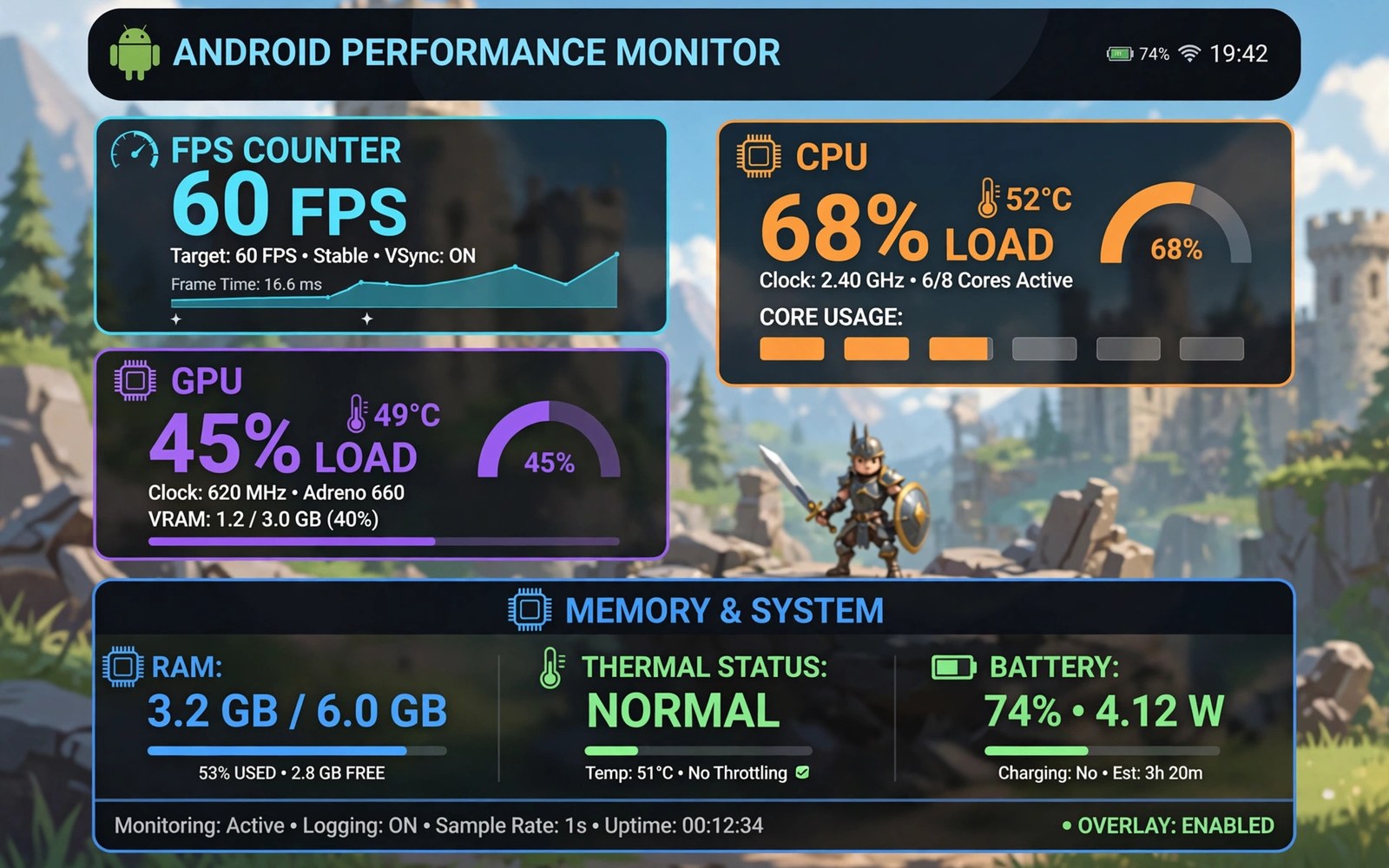
System resource monitor overlays show live performance numbers on top of your game. FPS and CPU load and GPU load and temperature sit in a corner while you play. This guide explains how to use overlays for real time gaming performance and how to read drops and stutters correctly. This article covers system resource monitor overlays in plain language for everyday Android users.
An overlay turns feel into data. A stutter you sense becomes a frame time spike you can see. That precision guides settings changes that actually help. If you want to benchmark before gaming then compare benchmark scores with overlay data to see whether peak power survives a real match.
FPS and frame time basics
FPS counts frames per second. Frame time measures milliseconds per frame. Stable frame time matters more than peak FPS. A game at sixty FPS with spikes feels worse than a locked fifty FPS with steady pacing.
Watch the frame time graph during fights and open areas. Spikes during explosions point to GPU load. Spikes during loading point to storage or CPU. Naming the spike type guides the right fix.
CPU and GPU load readings
CPU load shows how busy processor cores are. GPU load shows how busy graphics hardware is. High GPU load with low FPS means graphics settings are too high. High CPU load with low GPU load points to a CPU limit or background work.
Close background apps when CPU load stays high. Lower resolution or effects when GPU load pins at maximum. Balance the two loads for smooth play. A game limited by one part never benefits from tuning the other part.
Temperature and throttling on screen
Temperature overlays warn before throttling hits. Rising heat with falling FPS signals thermal limits. Pause or lower settings when temperature climbs fast. Remove the case for long sessions to help cooling.
Log temperature across a full match. A match that starts smooth and ends choppy usually throttles. Cooling breaks between matches restore speed. An overlay log proves throttling better than memory of a laggy ending.
Battery and RAM during play
Battery drain rate shows the power cost of your settings. High drain with heat means settings exceed comfortable limits. RAM use shows whether background apps crowd the game. Free RAM before a match for stability.
Watch for RAM pressure warnings during long sessions. A game that reloads textures mid match may be fighting for memory. Close browsers and heavy apps before competitive play. Stable RAM means fewer mid game hitches.
Tuning settings from overlay data
Change one setting at a time and watch the overlay. Lower shadows first since they cost much GPU for little visual gain. Lower resolution next if FPS stays low. Test each change for five minutes in the same game area.
Record the best settings per game. Different games stress different parts. A shooter may need CPU headroom. A racing game may need GPU power. Per game notes beat one global setting for every title.
Overlay placement and readability
Overlay placement decides whether numbers help or distract. Corners suit small overlays best. Top corners avoid thumb zones. Bottom corners avoid game controls on many titles. Test placement per game since control layouts differ.
Readability needs contrast against game backgrounds. Bright games need dark overlay text. Dark games need light text. Adjustable opacity helps balance visibility and distraction. A readable overlay at a glance beats a detailed overlay you must stare at.
Frame pacing versus average FPS
Frame pacing measures consistency between consecutive frames. Even pacing feels smooth at modest FPS. Uneven pacing feels stuttery at high average FPS. Overlays that graph frame time reveal pacing directly. Average FPS hides pacing problems completely.
Judge pacing during action scenes. Calm scenes pace easily. Fights and explosions stress pacing hardest. A game with steady pacing in fights feels premium. A game with wild pacing in fights feels broken even at high averages.
Recording overlay data for tuning
Record overlay sessions to review tuning decisions later. Video with overlay numbers shows exactly when drops happened. Reviewing footage beats memory for pattern finding. Note game area and settings next to each recording.
Compare recordings across setting changes. One variable at a time keeps comparisons valid. A settings change that lifts lows matters more than one that lifts peaks. Lows decide perceived smoothness. Track lows across every tuning test.
Overlays in competitive versus casual play
Competitive play benefits from minimal overlays. FPS and frame time suffice for most matches. Extra metrics distract during fast decisions. Hide overlays entirely for tournament matches after tuning ends. Clean screens win matches.
Casual play welcomes richer overlays. Temperature and battery and RAM add context without pressure. Casual sessions are the right time to experiment with metrics. Learn what each metric means casually before relying on it competitively.
Overlay tools and anti cheat compatibility
Some competitive games flag overlay tools as suspicious. Anti cheat systems may block overlays or warn accounts. Check game policy before using overlays in ranked play. Casual modes usually allow overlays freely. Ranked modes deserve caution.
Prefer overlays from reputable tools with game friendly reputations. Test in casual modes first and watch for warnings. Stop immediately if a game warns about the tool. Account safety outweighs performance data in every competitive title.
CPU governor behavior during gaming
CPU governors decide clock speeds based on load. Performance governors hold high clocks and generate heat. Efficiency governors drop clocks fast and may cause stutters. Gaming phones use tuned governors that balance speed and heat. Overlay CPU frequency readings reveal governor behavior live during play.
Watch frequency drops during long matches. A governor that drops clocks early protects battery but hurts late game smoothness. A governor that holds clocks late risks throttling from heat. The best governor for a game holds steady clocks without overheating. Overlay logs across matches reveal which governor pattern your phone follows.
Network latency overlays for online games
Network latency overlays show ping live during online matches. Ping spikes explain deaths that frame data cannot. A smooth frame rate with high ping still feels laggy online. Network overlays separate device performance from connection problems clearly. That separation guides fixes toward the right target.
Log ping alongside FPS for online games. Correlated drops in both suggest device load. Ping spikes alone suggest network trouble. Device fixes cannot solve network spikes. Network fixes cannot solve device frame drops. Dual logging prevents fixing the wrong system repeatedly.
Overlay impact on battery during long sessions
Overlays cost battery through extra drawing and polling. The cost stays small for short sessions. Long tournament sessions accumulate overlay drain noticeably. Measure battery drain with overlay on and off for comparison. A few percent difference matters in a long competitive day.
Reduce overlay polling rate to cut drain. A one second update interval suffices for most tuning. Sub second updates look impressive but drain faster. Choose update rates by purpose. Tuning sessions deserve detailed updates. Competitive matches deserve minimal overlay or none at all.
Sharing overlay results with communities
Overlay screenshots help gaming communities compare phones fairly. Share settings next to every screenshot. A screenshot without settings proves nothing since settings shape results entirely. Include game name and graphics preset and resolution and overlay metrics together.
Video clips with overlays prove sustained performance better than screenshots. A single screenshot captures one lucky moment. A full match clip shows lows and throttling honestly. Communities trust video evidence over cherry picked screenshots. Share full clips when making performance claims publicly.
Thermal throttling signatures in overlays
Throttling signatures appear as a pattern across overlay metrics together. Temperature climbs steadily while FPS falls gradually. Clock speeds drop in steps rather than crashing at once. That combined pattern identifies throttling confidently. Single metric drops alone could mean many other causes.
Distinguish throttling from network lag by checking ping during the drop. Stable ping with falling FPS points to thermal limits. Rising ping with stable FPS points to network trouble. Combined overlay reading prevents misdiagnosis. Pattern recognition turns overlay data into correct fixes.
adb shell dumpsys gfxinfo com.example.game framestatsThe command above follows the standard syntax for the Android developer bridge and prints frame statistics for a game package so you can compare overlay FPS data with system frame records.
Common mistakes
The biggest mistake is chasing peak FPS instead of stability. Peak FPS looks great in a menu. Stable frame time wins matches. Judge overlays during real fights and not during calm scenes.
Another mistake is running too many overlay metrics at once. A crowded overlay blocks game view and distracts play. Show FPS and frame time and temperature only. Hide the rest unless you debug a specific problem.
People also ignore heat while tuning graphics. Higher settings raise heat and trigger throttling that erases gains. Watch temperature with FPS together. A thermal monitoring log across matches confirms whether cooling or settings fixed the drops.
Frequently asked questions
Do overlays hurt gaming performance?
Slightly. Drawing numbers costs a little CPU and GPU. The cost is small on modern phones. Disable the overlay for competitive matches after tuning if you want every frame back.
Do monitor overlays need root?
Most work without root using system stats access. Some deep GPU counters need special permission or root on certain phones. Basic FPS and CPU and temperature overlays work without root widely.
Why does FPS drop late in a match?
Heat throttling is the usual cause. The chip slows as temperature rises. Cooling breaks and lower settings restore speed. Check the temperature overlay to confirm the pattern.
Conclusion
Monitor overlays turn gaming feel into live evidence. Watch frame time stability and CPU and GPU balance and temperature together. Tune one setting at a time and log the best setup per game.
Your next step is concrete. Enable an overlay and play one full match today. Note FPS lows and temperature peak. Then review screen recording tools to capture overlay footage as proof when you share tuning results.

