

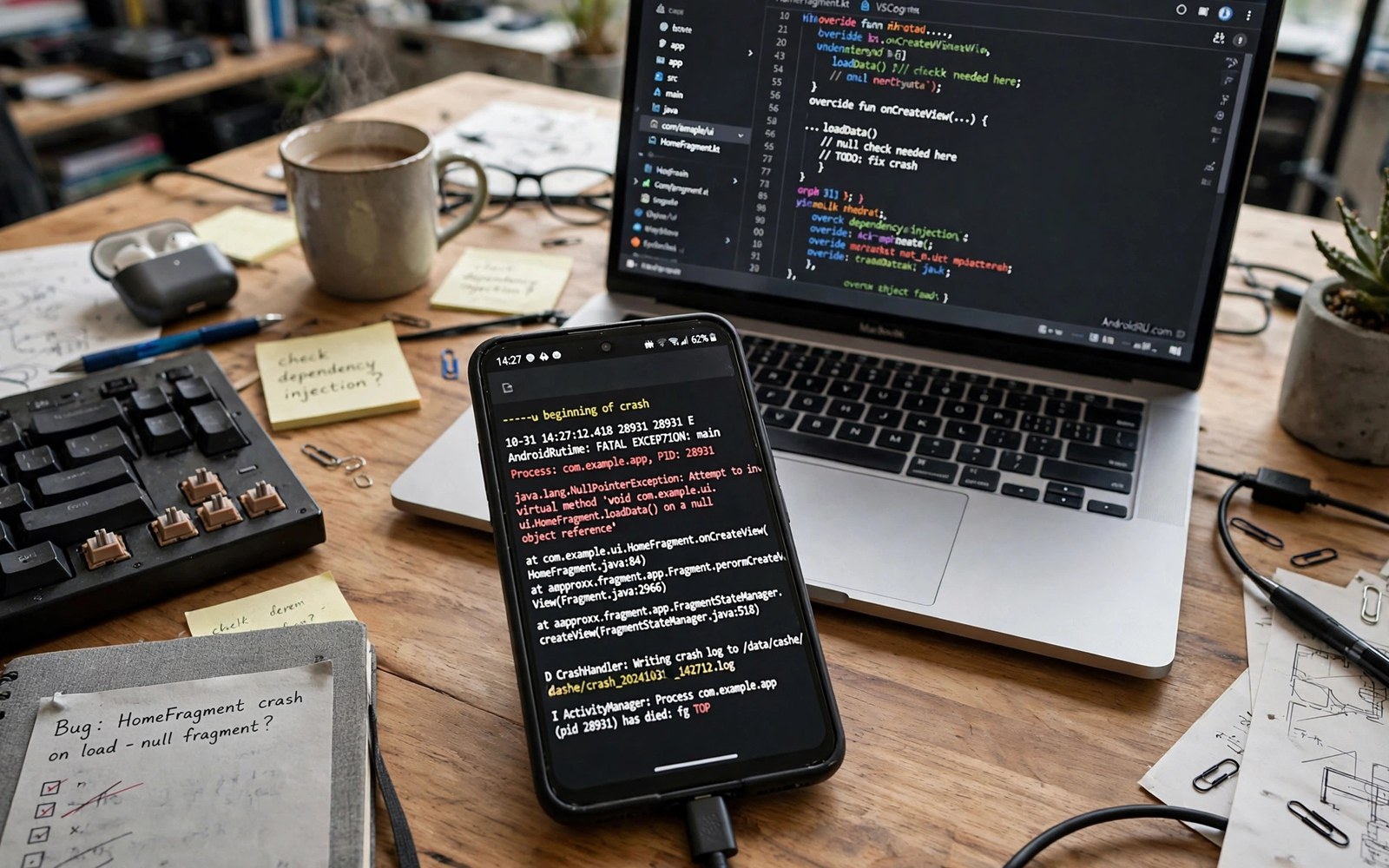
System logcat viewer apps read the Android system log and show why an app crashed. The log records errors and warnings in order. A good viewer filters that stream to the crashing app and reveals the exact failure. This guide explains how to diagnose app crashing problems with logcat without drowning in log lines.
Logcat is noisy by design. Thousands of lines flow every minute from every app and service. Filters turn that noise into a signal. Filter by app package and by error level and the crash stands out. If you want full hardware context for a crash report then capture specs alongside the log so support sees device and failure together.
What logcat records during a crash
Logcat records app lifecycle events and errors and system messages. A crash writes an exception stack with the failing method and line context. That stack is the most valuable part of any crash log. It names the code path that failed.
Logs also show events just before the crash. A failed network call or a missing permission often precedes the exception. Read the minute before the crash and not just the crash line. Context reveals whether the crash is a bug or an environment problem.
Filters that isolate one app
Filter by package name to see only one app. Filter by error level to hide routine info lines. Combine both filters for a clean crash view. Save the filter so repeat crashes use the same view instantly.
Time filters help too. Note the crash time and jump to that minute in the log. A viewer that jumps by timestamp saves scrolling through thousands of lines. Export the filtered log for sharing with a developer or support team.
Reading a crash stack without coding skill
A stack lists method calls from newest to oldest. The top lines name where the failure happened. The app package lines matter most. System lines below them show the call path that led there.
Look for words like NullPointer or OutOfMemory or SecurityException. Each word hints at a cause. NullPointer means missing data. OutOfMemory means RAM pressure. SecurityException means a missing permission. Those hints guide the fix even without code knowledge.
Common crash causes logcat reveals
Missing permissions cause many crashes. An app that expects camera access crashes when denied. Logcat shows the permission error clearly. Grant the permission or accept the feature limit.
Low storage and low RAM cause another group. An app that cannot write a file crashes on save. An app starved of RAM gets killed and looks like a crash. Check storage and RAM next to the log before you blame the app code.
Outdated apps on new Android versions crash on changed behavior. The log shows API errors tied to version changes. Updating the app or the system often resolves these. Report the log to the developer when updates do not help.
Capturing logs without root
Modern Android restricts log access for privacy. A viewer app alone may see only its own logs. ADB grants broader log access through a computer. Connect over USB and grant the read logs permission once.
That grant lasts until reboot on many phones. Re-grant after each reboot for continued access. Keep logs private since they may contain app data. Share only the filtered crash section and never a full raw log publicly.
Log levels from verbose to error
Log levels filter noise by severity. Verbose shows everything including routine chatter. Debug shows developer detail. Info shows normal events. Warning shows unusual but survivable events. Error shows failures. Crash diagnosis lives at error level almost always.
Start at error level for crash work. Expand to warning when error lines lack context. Expand to info only when the trigger hides deeper. Never start at verbose for a crash hunt. Verbose buries the crash under thousands of routine lines. Level discipline saves hours.
ANR logs versus crash logs
ANR means app not responding. The system kills or prompts when the main thread stalls. ANR logs show stack traces of the stuck thread. They differ from crash logs which show exceptions. Both appear in logcat but with different markers.
ANR causes include slow disk reads and network calls on the main thread. Logs show where the thread waited. That location guides the developer fix. Users can report ANR logs just like crash logs. Filter by the app package and the ANR marker for a clean report.
Battery and memory warnings in logs
Logs warn before the system kills background apps for memory. Low memory warnings precede many mysterious app restarts. An app that vanishes without a crash often died from memory pressure. Log warnings prove that pattern and stop false bug reports.
Battery optimization kills also appear in logs. An app silenced by battery saver logs its restriction. Users blaming the app for missed notifications can check logs first. The log may show the system restricted the app. Excluding the app from optimization then fixes notifications.
Exporting logs for developers
Developers need clean filtered logs with reproduction steps. Export the crash minute plus app package filter. Add phone model and software version and steps to reproduce. That package lets a developer fix fast without follow up questions.
Remove personal data from exports always. Logs may contain account names or tokens in some app lines. Scan the export for emails and tokens before sending. A clean export protects you and still gives the developer everything needed.
Logcat for non developers
Non developers can still use logcat for support tickets. Support teams read crash stacks daily. A filtered crash log attached to a ticket beats a vague description. It proves the failure and its timing in one file.
Learn three skills only. Filter by package. Filter by error level. Export the crash minute. Those three skills cover most support needs. Deeper log reading can wait until curiosity grows. Practical log use beats expert log mastery for most users.
Filtering by tag and process id
Tags identify the source component of each log line. Process ids identify the running process behind a line. Filtering by tag isolates system services like audio or wifi. Filtering by process id isolates one app instance precisely. Combine tag and process filters for the cleanest crash view available.
Learn the tags for your frequent problems. Wifi issues live under connectivity tags. Audio issues live under audio tags. Crash stacks carry the app package tag prominently. A personal tag cheat sheet speeds every future diagnosis. Write down useful tags as you discover them.
System crashes versus app crashes
System crashes affect the whole device and often reboot it. App crashes affect one app and return you to the home screen. Logcat distinguishes them by scope and by tags. System crashes show system server failures. App crashes show single package exceptions. That distinction decides whether to report to the vendor or the app developer.
System crashes after updates suggest firmware bugs. Report them with device model and update version attached. App crashes after app updates suggest app bugs. Report them to the app developer with the filtered log. Correct routing speeds fixes for both crash types.
Reproducing crashes reliably for logs
Reliable reproduction makes logs useful. Note exact taps that trigger the crash. Repeat the same sequence three times to confirm consistency. A crash that reproduces every time gives developers a clear target. A crash that happens randomly needs longer log capture windows.
Capture logs during reproduction rather than after. Start log recording before the trigger taps. Stop right after the crash appears. That window contains the cleanest evidence. Logs captured minutes later bury the crash under unrelated activity. Timing discipline improves every crash report.
Log retention and storage impact
Log buffers hold limited history in memory. Old lines drop as new lines arrive. Heavy logging devices overwrite crash evidence within minutes. Export crashes promptly after they happen. Delayed exports may contain no trace of the original failure.
Log files on storage grow if recording runs continuously. A full day of verbose recording can consume significant space. Record in short windows around reproduction only. Delete old log exports after sharing them. Short targeted recordings beat always on logging for both storage and clarity.
Reading timestamps across time zones
Log timestamps use device local time by default. Support teams in other zones misread local times without context. Note your time zone next to exported logs for shared reports. A crash at nine evening local time may look like a morning crash elsewhere. Time zone notes prevent that confusion entirely.
Convert critical timestamps to UTC for developer reports when possible. UTC removes ambiguity across every reader location. Most log tools offer a UTC display toggle. Enable it before exporting logs for international developers. Clear timestamps speed fixes as much as clear stacks.
adb shell logcat -d *:E | grep -i crash | head -n 100The command above follows the standard syntax for the Android developer bridge and prints recent error level log lines matching crash terms so you can isolate failure entries fast.
Common mistakes
The biggest mistake is sharing a full unfiltered log. Full logs contain data from every app including sensitive entries. Filter to the crashing app and the crash minute. Share only that section with support.
Another mistake is reading only the final line. The final line shows the exception type. The lines before it show the trigger. Read a full minute of context or you will fix the symptom and miss the cause.
People also forget that log access resets on reboot. A viewer that worked yesterday may show empty logs today. Re-grant access after reboot. A sensor test log can also confirm whether a crash ties to hardware input or to pure software failure.
Frequently asked questions
Do logcat viewers need root?
Not always. ADB can grant log access without root on many phones. The grant may reset on reboot. Some viewers work with no grant but they see only their own app logs.
Is it safe to share logcat output?
Filtered crash logs are usually safe. Full logs can expose app data and identifiers. Share only the crash section and the app package lines. Remove any tokens or personal data before sharing.
Why is my log empty after reboot?
Log access grants reset on reboot for security. Reconnect ADB and re-grant read logs permission. The log buffer also clears on reboot so old crashes cannot be recovered after restart.
Conclusion
Logcat viewers turn crashes from mysteries into readable evidence. Filter by app and error level and read the minute before the crash. Share only the filtered section with support.
Your next step is concrete. Install a viewer and grant log access over ADB today. Reproduce one known crash and capture its filtered stack. Then compare with benchmark stress logs to see whether crashes follow load or happen at rest.

