

Best Application Uninstaller Tools for Removing Bulk Bloatware
Application uninstaller tools remove many apps at once instead of one by one. Bulk removal saves time when you clean a new phone or clear years of installs, and a good tool turns a long chore into a quick queue. This guide explains how bulk uninstallers work, names seven tools worth using, and shows you how to remove bloatware safely without breaking the system.
I have cleaned new phones that shipped with forty preinstalled apps I never asked for, and the difference between a good uninstaller and a bad one is simple. A good tool labels system apps clearly, warns before you touch them, and never promises to remove what Android will not let it remove. A bad tool deletes first and explains later. This guide helps you pick the first kind and avoid the second.
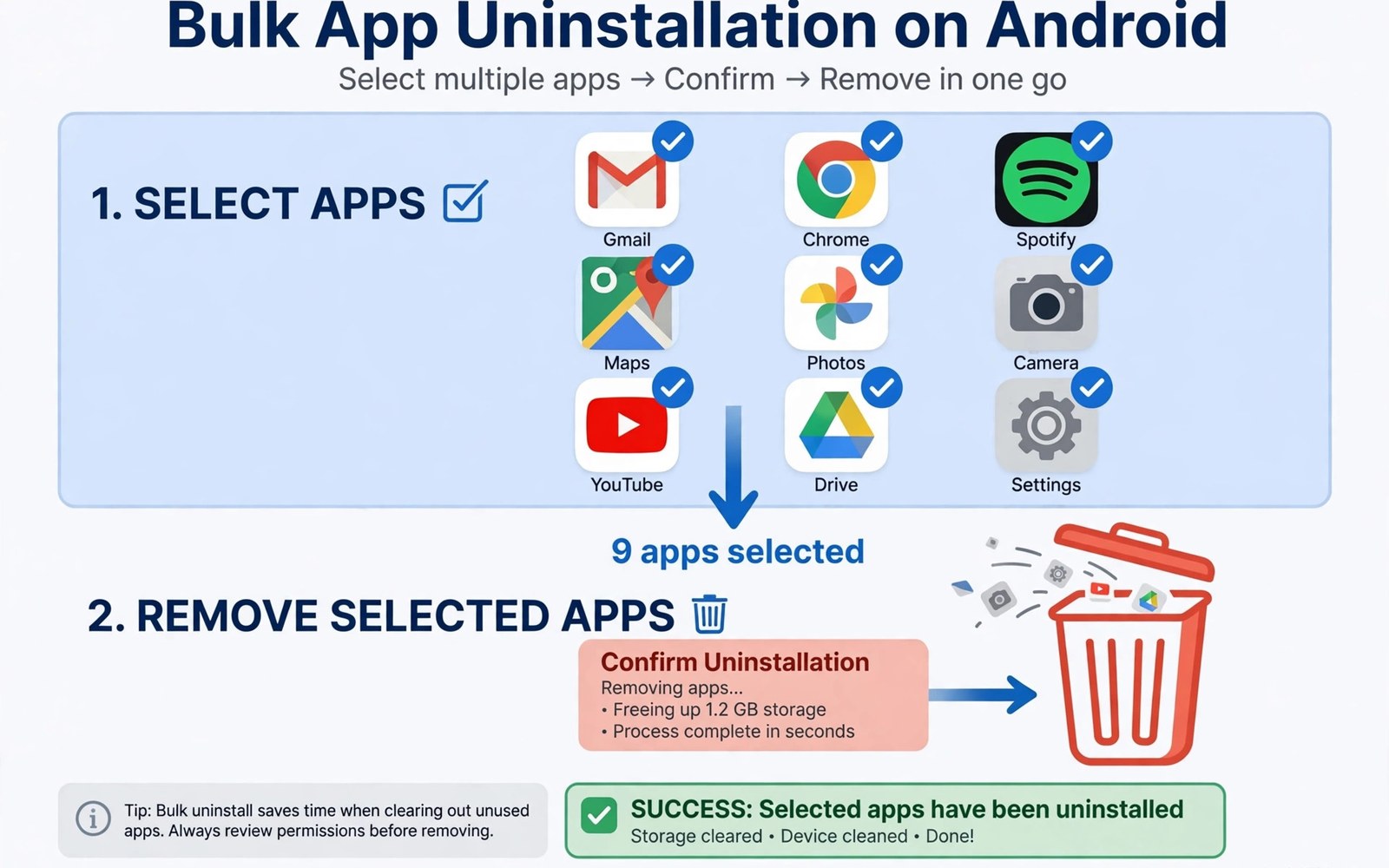
Android normally uninstalls one app per confirmation. A bulk tool queues many apps and walks through confirmations fast. Some tools also find leftover folders after removal. No tool can silently remove normal apps without your approval, and any tool that claims otherwise is lying. That limit is a safety feature, not a flaw.
How bulk uninstall actually works on Android
Bulk tools use the standard uninstall flow for each app. Android still asks for confirmation per app on most phones. The tool just organises the queue and reduces taps. The underlying removal mechanism stays the same Android flow, so no third-party tool removes apps more deeply than Settings does for normal apps. The value lies in organisation and speed rather than deeper power.
System apps behave differently. Many cannot be uninstalled at all, and some can only be disabled. A good tool labels system apps clearly and warns before you touch them. That warning is the line between a cleaner phone and a broken feature. Disabling stops an app and hides it without deleting its files. Disabled apps use no battery and show no notifications, and they can be re-enabled in seconds. That reversibility makes disabling the smart first step for any doubtful app.
Root tools can remove true system apps completely, and that power is dangerous. Removing a system service can break updates or boot. Even removing a harmless-looking system app can break a feature that depends on it silently. Use root removal only for apps you researched by package name, keep a full backup and a way to restore the system image, and never remove without a restore path.
7 best uninstaller tools for removing bulk bloatware
These seven tools cover every situation: simple batch removal, deep leftover cleanup, root removal, and computer-based debloating. Each one includes what it does, who it suits, and where it falls short.
1. SD Maid SE
SD Maid SE is the most thorough cleaner on Android, and its app control module handles batch uninstalls with leftover scanning built in. After you remove apps, it finds orphaned folders, empty directories, and leftover databases that uninstalls leave behind. The app shows storage per app during decisions, which helps you target large apps first, and it works without root for most tasks.
Pros: the best leftover cleanup of any tool here, clear storage data per app, and a long public record with no ads. Cons: the interface is dense and takes time to learn, and the full feature set needs the paid Pro version. Verdict: the best choice for users who want one tool that uninstalls and cleans leftovers properly.
Who it is for
Owners who want a deep clean, not just a batch delete, and who are willing to learn a powerful interface.
2. Canta
Canta is a free and open-source uninstaller that removes apps without root using the Shizuku service. It lists every app with its package name, flags system apps clearly, and lets you uninstall user apps in batches. Because the code is public, anyone can verify that it does nothing hidden, and it carries no ads and no tracking.
Pros: open-source and free, no ads, clear package names, and batch removal without root. Cons: setting up Shizuku takes a few steps, and system app removal needs ADB rather than a simple tap. Verdict: the best free option for privacy-minded users who do not mind a short setup.
Who it is for
Users who want a clean, open-source uninstaller and are comfortable enabling Shizuku once.
3. App Manager
App Manager is another open-source tool that combines batch uninstall with detailed app inspection. It shows permissions, trackers, activities, and services for every app, so you can judge whether an app deserves to stay. It supports batch operations, exports app lists, and works with root or Shizuku for deeper control.
Pros: the most detailed app information of any free tool, tracker detection, and batch uninstall. Cons: the interface is technical and can overwhelm beginners. Verdict: the best choice for users who want to understand every app before they delete it.
Who it is for
Technical users who inspect permissions and trackers before deciding what to remove.
4. Universal Android Debloater Next Generation
Universal Android Debloater Next Generation, known as UADng, is a computer tool that removes bloatware through ADB. You connect the phone to a computer, and the tool lists every package with a community safety rating: safe, expert, or unsafe to remove. It removes packages for the current user only, which means the files stay on the system partition and the removal is reversible with a factory reset or a matching install command.
Pros: community safety ratings for hundreds of packages, no root needed, and reversible removal. Cons: it needs a computer and ADB setup, and it cannot remove apps permanently without root. Verdict: the safest way to debloat a new phone deeply, because the safety ratings protect you from deleting the wrong package.
Who it is for
New phone owners who want a thorough debloat and are willing to use a computer for ten minutes.
5. ADB AppControl
ADB AppControl is a Windows tool that manages apps through ADB with a clear graphical interface. It shows app size, version, and install date, lets you disable or uninstall in batches, and can restore removed packages. It also manages permissions in bulk, which helps you clean up after a debloat.
Pros: a clean interface for ADB work, batch disable and uninstall, and easy restore of removed packages. Cons: Windows only, and the free version limits some features. Verdict: the easiest computer-based debloater for Windows users who dislike command lines.
Who it is for
Windows users who want a visual tool for ADB debloating without typing commands.
6. Files by Google
Files by Google is the simplest option here. It is not a dedicated uninstaller, but its clean-up suggestions flag unused apps by size and last use, and it uninstalls them with two taps. Its storage tools find large files, duplicates, and leftover folders, which makes it a good companion to any uninstaller.
Pros: simple, free, from a trusted source, and good at finding unused apps by size. Cons: no batch queue, no system app handling, and no leftover scanning after uninstall. Verdict: the best starting point for casual users who want a quick, safe cleanup without learning a new tool.
Who it is for
Casual users who want a simple, safe cleanup and do not need advanced debloating.
7. System App Remover (Root)
System App Remover by Jumobile is a root-only tool that uninstalls system apps completely, moves apps to the system partition, and backs up apps before removal. It is the most powerful option here, and the most dangerous. It labels system apps and warns before removal, but the final decision is yours.
Pros: true system app removal, backup before delete, and batch operations. Cons: root required, and a wrong removal can break boot or updates. Verdict: only for rooted phones, and only for apps you researched by package name first.
Who it is for
Root users who understand package names and keep a full backup before every removal.
Bloatware versus useful preinstalled apps: how to tell them apart
Bloatware means preinstalled apps you never use and cannot remove easily. Carrier apps, duplicate galleries, and trial games often qualify. Useful preinstalled apps include the dialer, messages, and system services. Removing those breaks core functions. Judge each preinstalled app by use and not by brand. Open it once and check what it does. If it duplicates an app you already use, disable it first and live with the disabled state for a week. Uninstall only when nothing breaks in that week.
Some system apps look useless but carry vital roles. Package installers, permission controllers, and system UI services must stay. Removing them can break installs, lock screens, or boot. Research every system package name before any removal action. A carrier app may handle emergency alerts, and an account manager may sync contacts silently. Disabling is reversible and safe for testing. Removal is permanent without a system restore, so prefer disabling for every doubtful package.
Before you delete anything, it helps to know where leftovers hide. If you already know which folders hold leftovers, pair uninstalling with a folder check so storage truly frees up after each batch. A storage scan after a bulk uninstall finds leftover folders fast, and deleting folders you recognise, while backing up anything doubtful, keeps the gain real.
Cleaning leftovers after a bulk uninstall
Uninstall removes the app but may leave folders behind. Chat media folders and config folders often survive, and the Download folder holds installers and exports that linger for months. A storage scan after a bulk uninstall finds these leftover folders fast. Delete folders you recognise and back up anything doubtful. Empty folders are harmless, but they clutter scans, and a monthly leftover check keeps storage honest after every cleanup round.
People often chase every leftover folder aggressively, and that is a mistake. Some leftovers belong to apps still installed, so delete only folders tied to apps you removed. A clear view of cleaner logic helps you judge which leftovers are safe and which flags are just noise, because not every leftover is junk, and deleting the wrong folder can break an app you still use.
Measure gains after each batch with a a storage scan. Real numbers beat claimed savings. If a batch frees little, the apps were small, so focus next on large games and media instead of tiny system tools. Size-aware cleanup beats package-count chasing every time.
Removing bloatware with ADB: the safe method
ADB removal per user is the safest deep debloat method, because it removes the package for your user profile while the files stay on the system partition. A factory reset restores everything, so the change is reversible. Enable Developer options, turn on USB debugging, connect the phone to a computer, and run the command for one package at a time.
The standard command follows this pattern: adb shell pm uninstall --user 0 com.example.bloat. Replace the example package name with the real one, and run it for one app at a time. The command removes the package for the current user so you can test removal without deleting system files permanently. Check that nothing breaks for a day before you remove the next package, and keep a list of everything you removed so you can restore it later with a matching install command.
Never bulk-delete everything unfamiliar. Unfamiliar does not mean useless, because system services have cryptic names and vital jobs. Research each package before you remove it from a batch, and break large queues into batches of five with a review pause between them. Pauses restore attention and catch mistakes before they finalise, because tapping confirm twenty times in a row invites a careless yes on the wrong app.
Storage gains: uninstall versus disable
Uninstall frees storage fully for user apps. Disable frees almost nothing, since files remain. That difference matters on small-storage phones. Uninstall confirmed junk for real space, and disable doubtful apps for safety even though space stays used. If storage is critically full, uninstalling large games and media-heavy apps frees far more than removing tiny system tools.
Games often store saves in the cloud through play services, but some store saves only locally on the device. Local saves vanish on uninstall without warning in many games. Check save location inside game settings before removing a game you may replay, and back up local saves manually when a game offers export. Losing a hundred-hour save to a cleanup spree hurts far more than the storage gained.
Synced apps leave little local loss risk, since data lives in the cloud. Uninstall a synced notes app and your notes return on reinstall. Unsynced apps risk total local loss on uninstall, so check sync status inside each app before bulk removal. Some apps sync only part of their data: photos may sync while settings do not, and chats may sync while drafts do not. Read sync scope carefully for important apps, and when in doubt, export before you uninstall.
Common mistakes when removing bloatware in bulk
The biggest mistake is bulk deleting everything unfamiliar. System services have cryptic names and vital jobs, so research each package before you remove it. Another mistake is removing apps without a backup. A deleted app may hold local notes or game saves, and storage freed today is not worth data lost forever.
People also uninstall games without checking save locations, and they chase every leftover folder aggressively. Some leftovers belong to apps still installed, so delete only folders tied to apps you removed. Bulk uninstaller tools work best when you slow down: disable doubtful apps first, uninstall confirmed junk second, and check leftovers after each batch so storage gains stay real.
Set a quarterly reminder to review unused apps, and pair it with a storage scan for a complete cleanup session. Scan first to see size impact, then uninstall with size knowledge guiding choices. A combined session monthly or quarterly keeps phones lean with minimal effort, and consistency beats intensity for storage health.
Frequently asked questions about bulk uninstaller tools
Can I uninstall system apps without root?
Most system apps cannot be uninstalled without root. You can disable many of them instead, and disabling hides the app and stops it fully. ADB removal per user is another option for advanced users, and it is reversible with a factory reset.
Will bulk uninstall speed up my phone?
It frees storage and stops background work from removed apps. Speed gains are modest unless storage was critically full. The real win is a cleaner app drawer, fewer notifications, and a phone that is easier to manage.
What if I uninstall the wrong app?
Reinstall it from the app store if it was a normal app. If it was a system app, re-enable it or restore from backup. ADB-removed packages can be restored with a matching install command for the user profile, which is why you should keep a list of everything you remove.
Should I use an uninstaller app or system settings?
System settings uninstall one app at a time with full safety. Uninstaller apps add batch queues and leftover scans on top, and the underlying removal mechanism stays the same Android flow. Use whichever view you read faster, because the decision quality matters more than the tool brand.
Your next step: disable five apps today
List every app you have not opened in three months. Disable five of them today, and run a storage scan next week to confirm the cleanup freed real space. If nothing breaks in a week, uninstall the confirmed junk and keep the routine going. A phone with fewer apps is easier to audit, faster to back up, and harder to infect, and that is a trade worth making.

