

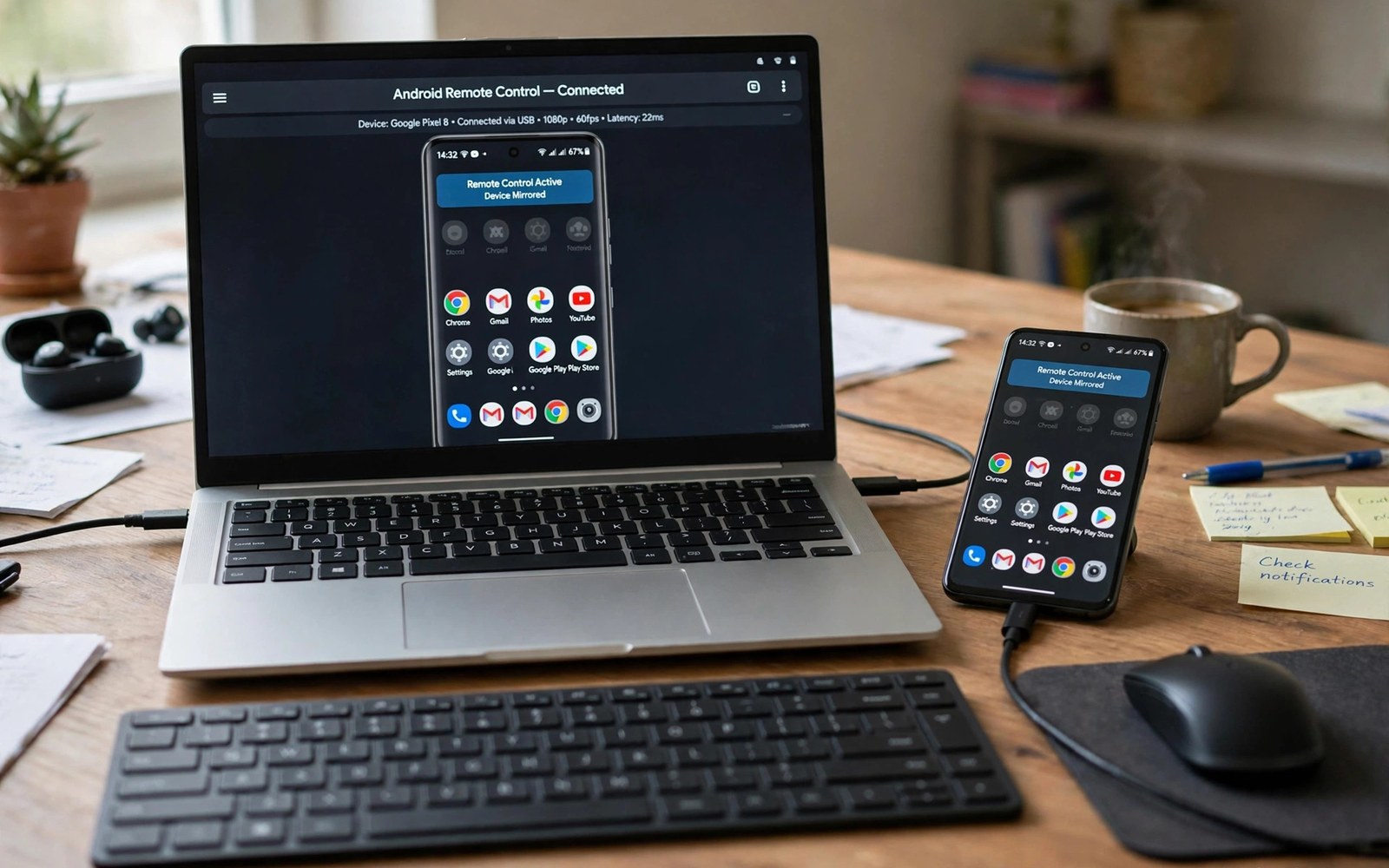
Controlling your Android phone from a PC puts a big screen and a real keyboard behind your phone. You can type messages fast and drag files and run apps without picking the phone up. This guide explains how to control your Android phone remotely from your PC through USB and Wi-Fi and what to secure before you start. This article covers remote control Android phone from PC in plain language for everyday Android users.
Remote control works through a screen mirror plus input forwarding. The PC shows the phone screen and sends your mouse and keyboard back. The link can run over USB for speed or over Wi-Fi for freedom. If you want to automate phone settings while remote then set routines on the phone first so remote sessions stay simple and predictable.
USB connection for speed and reliability
USB gives the lowest latency and the most stable mirror. Enable developer options and USB debugging on the phone. Connect the cable and approve the PC fingerprint on the phone. That approval binds the PC to the phone and prevents unknown computers from connecting.
USB also charges the phone during long sessions. That is a bonus for heavy use. Use a good cable since a cheap cable drops the link under load. Keep the phone awake during the session or the mirror may pause when the screen sleeps.
Wi-Fi connection for freedom of movement
Wi-Fi remote control frees you from the cable. The phone and PC must share the same network. Start the wireless link from the PC tool and confirm the pairing code on the phone. The first pairing needs care and later sessions connect faster.
Wi-Fi latency depends on network quality. A crowded network adds lag to mouse moves. Use the five gigahertz band for smoother control. Keep the phone near the router during important sessions. Lag matters most for games and fast scrolling and less for typing and files.
What you can do from the PC
Type messages with a full keyboard and copy text between PC and phone. Drag files from the PC window to the phone and back. Run apps and change settings and take screenshots. Remote control turns the phone into a window on your desktop.
Some tools also forward phone audio to the PC. Others forward notifications so you can reply without touching the phone. Check which features your tool supports before you rely on it. Audio forwarding varies widely across tools and versions.
Security rules for remote access
Remote access is powerful and it needs strong protection. Approve only computers you own. Revoke debugging approvals after a shared PC session. Never enable remote access on a public network without encryption.
Lock the PC when you step away. An unlocked PC with a live phone mirror is full phone access for anyone nearby. Turn off remote control when the session ends. A dormant remote path is a risk with no benefit.
Use a strong lock on the phone itself. Remote tools respect the phone lock screen in most cases. A weak PIN undermines every other protection. Treat remote access like handing someone your unlocked phone and guard it the same way.
Fixing lag and connection drops
Lower mirror resolution when lag appears. A smaller mirror needs less bandwidth and responds faster. Close heavy PC apps that compete for network. Restart the link rather than fighting a degraded session.
If Wi-Fi drops often then switch to USB for critical work. Check router load and move closer to the access point. Update the remote tool since connection stability improves with versions. A stable link beats a pretty high resolution mirror every time.
Clipboard sharing between phone and PC
Shared clipboard moves text between phone and PC instantly. Copy on the phone and paste on the PC. That flow suits two factor codes and links and addresses. Setup needs both devices on one account or one local tool. Test sharing with a harmless phrase before trusting it with codes.
Shared clipboard raises privacy questions. Copied passwords could cross devices unexpectedly. Disable sharing for password managers where possible. Clear shared history after sensitive sessions. Convenience and privacy need balance in every shared clipboard setup.
Using the phone as a PC webcam or mic
Remote tools sometimes expose the phone camera to the PC. That turns a good phone camera into a webcam. Video quality often beats cheap webcams. Audio from the phone mic can serve calls too. Test latency before an important meeting since wireless camera feeds lag.
Mount the phone steadily for webcam use. A shaky handheld feed distracts meetings. Use a small tripod or a stack of books. Frame your face with light in front and not behind. These basics matter more than camera specs for meeting quality.
File transfer speed over USB versus Wi-Fi
USB transfer beats Wi-Fi for large files consistently. A multi gigabyte video moves in minutes over USB. The same file over Wi-Fi takes far longer and may stall. Use USB for backups and video dumps. Use Wi-Fi for small documents and quick shares.
Wi-Fi transfer speed depends on band and distance. Five gigahertz near the router approaches usable speeds for medium files. Two point four gigahertz across the house crawls. Choose the method by file size and not by habit. Large files deserve a cable every time.
Remote control for accessibility needs
Remote control helps users with limited mobility greatly. A PC keyboard and mouse replace small phone touch targets. Voice control on the PC can drive the phone too. That chain opens phone use to people who struggle with touchscreens.
Set up accessibility remote control with care. Approve only trusted computers. Keep the phone lock strong. Test the full chain with the actual user before relying on it daily. Real world testing reveals friction that setup guides miss.
Ending sessions cleanly every time
Clean session endings protect security and battery. Close the mirror tool on the PC first. Turn off debugging if you enabled it only for the session. Revoke temporary PC approvals after shared computer use. These steps take thirty seconds.
Check the phone after each session for stuck states. A phone left awake drains battery. A phone left unlocked invites misuse. Lock the phone and confirm the mirror closed. A tidy ending habit keeps remote power safe long term.
Latency targets for different remote tasks
Latency needs vary sharply by task type. Typing tolerates moderate latency since keystrokes appear in order anyway. Gaming over remote control tolerates almost none since timing decides outcomes. File browsing tolerates latency well since it is not time critical. Video playback tolerates buffering delays that gaming cannot.
Measure latency by moving the mouse and watching the mirrored cursor follow. A small lag feels fine for typing and settings. A large lag makes precise taps frustrating. Switch to USB when lag crosses your comfort line for the task. Task based latency judgment beats chasing the lowest number for every use.
Remote control over mobile data risks
Remote control over mobile data works when both devices reach the internet. It also exposes the link to wider networks than home Wi-Fi. Latency rises and data use grows fast with screen mirroring. A one hour mirror session can consume gigabytes of mobile data. Avoid mobile data mirroring except for brief urgent tasks.
Security over mobile data needs extra care. Use tools with encrypted links and strong pairing codes. Never pair a new computer over mobile data in a public place. Pair at home on trusted Wi-Fi first. Later mobile sessions then reuse the trusted pairing safely.
Using remote control for presentations
Remote control turns a phone into a presentation clicker. Mirror slides to a big screen and advance them from the phone. Or mirror the phone itself to show an app demo live. Both patterns suit meetings and classrooms. Test the full chain before the audience arrives.
Presentation mirroring needs stable latency above all. A stalled mirror mid demo embarrasses and confuses. Use USB for presentations when possible. Keep a backup plan like local slides on the PC. Rehearsal plus backup beats hoping the wireless link behaves.
Multi device remote management
Managing several phones from one PC suits testers and families. Each phone needs its own pairing and approval. Label pairings clearly by phone owner or purpose. Mixing up devices during remote sessions causes changes on the wrong phone. Careful labels prevent that class of mistake entirely.
Close mirrors for idle devices to save PC resources. Each live mirror consumes CPU and network. Idle mirrors also raise security exposure for no benefit. Open mirrors on demand and close them when done. On demand habits scale cleanly to many devices.
adb connect 192.168.1.50:5555The command above follows the standard syntax for the Android developer bridge and connects to a phone over Wi-Fi so remote tools can mirror and control the device without a cable.
Common mistakes
The biggest mistake is leaving USB debugging on forever with old approvals. Old approvals let old computers connect without a fresh prompt. Revoke approvals after shared use and keep debugging off when you do not need it.
Another mistake is running remote control on public Wi-Fi without care. Public networks expose traffic to strangers. Use your home network or a personal hotspot for remote sessions. Never pair a new PC on a cafe network.
People also expect game level latency over Wi-Fi. Wireless mirrors add delay by nature. Use USB for timing sensitive tasks. A network diagnosis before a session can also show whether your Wi-Fi can even support smooth mirroring.
Frequently asked questions
Can I control my phone from a PC without USB?
Yes over Wi-Fi when both devices share a network. Pair once with a code and later sessions connect fast. Wi-Fi adds some lag compared with USB but it suits typing and file work well.
Is remote control safe?
Yes when you approve only your own computers and use trusted networks. Revoke approvals after shared PCs. Turn remote access off when sessions end and keep a strong phone lock in place.
Does remote control need root?
No. Most remote tools work without root using debugging access. Root adds deeper control on some tools but it is not required for screen mirroring and input forwarding.
Conclusion
Remote control from a PC saves time for typing and files and long sessions. USB gives speed and Wi-Fi gives freedom. Secure approvals and trusted networks keep the power safe.
Your next step is concrete. Connect over USB today and mirror the phone for ten minutes. Try typing a message and moving a file. Then set up universal search so remote sessions find any file in seconds.

