

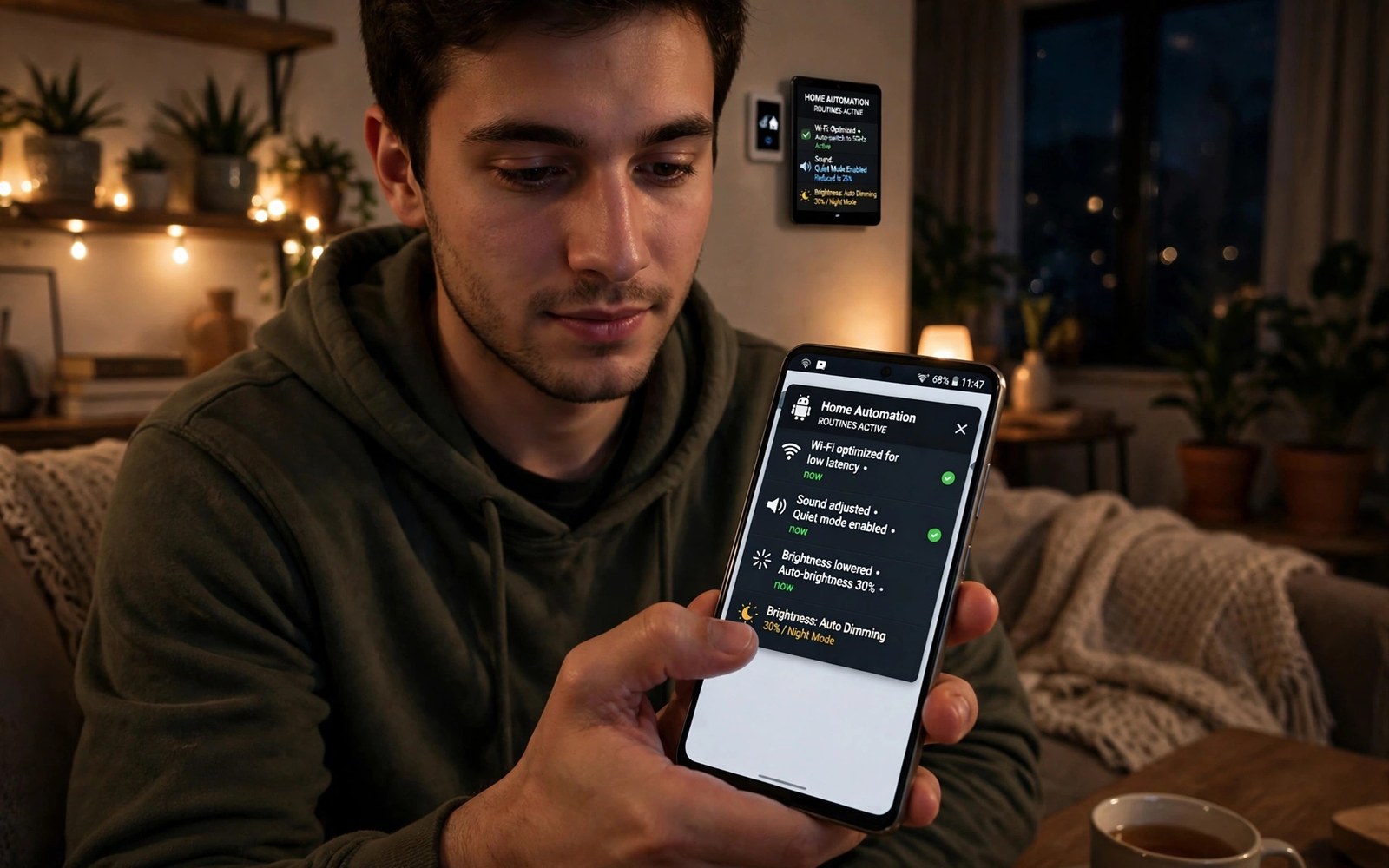
Automation tools change your phone settings for you at the right moment. Wi-Fi turns off when you leave home. Sound silences at bedtime. Brightness adapts to the hour. This guide explains how automation tools automate daily Android system settings and how to build routines that never surprise you.
A routine has two parts. A trigger watches for an event and an action changes a setting. Time and location and app launch are common triggers. The art is picking triggers that fire exactly when you want and never at the wrong time. If you want to manage routines from a PC then test each routine on the phone first so remote edits never break a working setup.
Triggers that work reliably
Time triggers are the most reliable. A bedtime routine at eleven at night fires every night without fail. Location triggers depend on GPS and Wi-Fi and can drift near borders. Use a wide location radius to avoid flapping between home and away states.
App launch triggers fire when you open a specific app. They suit driving mode or reading mode well. State triggers watch charging or headphone connection. Combine two triggers when one alone is too broad. A routine that needs both evening time and home Wi-Fi rarely fires by accident.
Actions worth automating first
Start with sound and display actions. Silence at night and brightness by hour are safe and useful. Wi-Fi and Bluetooth toggles save battery when you leave home. Do not disturb during meetings protects focus without any risk.
Next automate app actions. Open navigation when the car Bluetooth connects. Open a notes app at your morning alarm. Keep actions simple at first. One action per routine is easier to debug than five actions that interact in strange ways.
Permissions and battery trade offs
Automation apps need permissions to change settings. Grant only what each routine uses. An app that wants full device control for a simple bedtime routine asks for too much. Check permission use monthly and revoke anything a routine no longer needs.
Automation apps must run in the background to watch triggers. Exclude them from battery optimization or triggers will miss. That exclusion costs a little battery. The cost is worth it when routines save more effort than the power they use.
Testing routines before you trust them
Test every routine by hand first. Fire the trigger yourself and watch the action happen. Check the log the app keeps for each run. Logs show missed triggers and failed actions that you would otherwise miss for days.
Test edge cases too. What happens when two routines fire at once. What happens when the phone reboots. What happens when location is off. Answering these questions early prevents a routine from silencing your phone during an important call.
Routines that save real daily time
A morning routine can turn off do not disturb and read the weather and open your calendar. A driving routine can raise media volume and open maps and reply to texts with a driving message. A bedtime routine can dim the screen and silence alerts and enable charging protection.
A work routine can silence personal apps during focus hours and restore them after. A travel routine can turn on roaming alerts and offline maps when you land. Build one routine at a time and live with it for a week. Keep what helps and delete what annoys.
Location routines without GPS drain
Location routines can use Wi-Fi instead of GPS to save power. A home Wi-Fi connection signals arrival reliably. An office Wi-Fi signals work hours reliably. Wi-Fi triggers use far less battery than constant GPS polling. They also work indoors where GPS struggles.
Combine Wi-Fi with time for precision. Home Wi-Fi plus evening time means a true evening home routine. Either signal alone could misfire. Together they rarely do. That combination pattern suits most location routines without any GPS cost.
Notification management through automation
Automation can sort notifications by context. Work hours silence social apps and allow calls from favorites. Evening hours reverse the pattern. Driving mode silences all but navigation and calls. These rules protect attention without manual toggling every day.
Test notification routines carefully. A silenced emergency call is a serious failure. Always allow favorite contacts through do not disturb. Review allowed contacts monthly. A routine that blocks the wrong person costs more than the focus it saves.
Automation for battery and charging
Charging routines protect battery health automatically. A routine can alert you at eighty percent charge. Another can enable battery saver at twenty percent. A night routine can slow charging until morning. These small rules compound into longer battery life.
Battery routines need reliable triggers. Charge level triggers work well on most phones. Time triggers suit night charging windows. Combine both for a routine that only slows charging overnight. Daytime fast charging stays untouched and useful.
Voice triggers and hands free routines
Voice triggers start routines without touching the phone. A driving phrase can open maps and raise volume. A cooking phrase can set timers and open recipes. Voice suits hands busy moments better than any button.
Voice routines need clear unique phrases. Short common phrases misfire in conversation. Pick a phrase you never say casually. Test misfire rate for a week. A routine that fires during normal talk annoys fast and gets deleted.
Sharing routines across devices
Some automation apps sync routines to tablets or second phones. Sync saves rebuilding routines per device. Check which triggers transfer cleanly. Location triggers need per device locations. Time triggers transfer perfectly.
Export routines as backup before switching phones. A backup file restores months of tuning in minutes. Store the backup off the phone too. A lost phone should not mean lost routines. Backup discipline applies to automation just like photos.
Automation and privacy permissions audit
Automation apps request broad permissions by nature. Audit those permissions quarterly since routines change over time. A routine you deleted may leave its permission granted. Revoke permissions for deleted routines promptly. Keep a list of active routines next to granted permissions and reconcile the two lists regularly.
Location permission deserves special attention. An automation app with always location access tracks movement continuously. Restrict location to while in use when routines only need foreground triggers. Wi-Fi based home detection avoids constant location tracking entirely. Privacy conscious automation favors Wi-Fi and time triggers over always on GPS.
Automation failures and fallback plans
Every routine needs a fallback for failure days. A silenced phone routine that fails leaves notifications blasting at night. A driving routine that fails leaves maps unopened. Build manual habits as backups for critical routines. Check routine logs weekly for missed runs that you did not notice.
Battery optimization kills automation silently on many phones. The system stops background apps aggressively to save power. Whitelist automation apps from optimization explicitly. Re-check the whitelist after system updates since updates sometimes reset it. A routine that worked for months can die from one update resetting its exemption.
Automation for digital wellbeing
Automation can enforce screen time limits gently. A routine can silence social apps after a bedtime hour. Another can open a reading app instead of a feed app in the morning. These nudges shape habits without willpower battles. The phone itself enforces the boundary you chose calmly.
Design wellbeing routines with kindness toward yourself. Harsh blocks frustrate and get deleted within days. Gentle nudges last for months. Start with one evening routine that dims the screen and silences feeds. Expand only when the first routine feels natural. Sustainable automation beats ambitious automation that collapses.
Multi step routines done safely
Multi step routines chain several actions from one trigger. A morning routine might disable do not disturb and set brightness and open the calendar. Chains save taps but they also multiply failure points. One failed step can leave later steps in a strange state. Log each step result during testing to catch weak links early.
Order steps by safety. Put reversible steps first and disruptive steps last. A brightness change is harmless if later steps fail. A message send is not. Place sending actions at the end after all setup steps succeed. That ordering limits the damage from partial chain failures.
adb shell cmd deviceidle whitelist +com.example.automationThe command above follows the standard syntax for the Android developer bridge and whitelists an automation package from battery optimization so its triggers keep working in the background.
Common mistakes
The biggest mistake is building ten routines on day one. Complex setups interact and fail in confusing ways. Start with one routine and prove it works for a week. Add the next routine only when the first feels invisible.
Another mistake is using tight location triggers. A small radius around home flaps as GPS drifts. The phone toggles Wi-Fi on and off all evening. Use a wide radius or a Wi-Fi trigger instead of a tiny GPS circle.
People also forget routines after they change habits. A bedtime routine from an old job can silence a new alarm. Review routines monthly. A quick search for automation apps on your phone also helps you find old routines hiding in apps you forgot you installed.
Frequently asked questions
Do automation apps need root?
No. Most routines work without root using standard permissions. Root adds deeper toggles like mobile data on some phones. Start without root and add it only for a specific toggle you truly need.
Will automation drain my battery?
A little. Background watching costs power. Well built routines cost less than the manual taps they replace. Exclude the app from battery optimization and keep triggers simple to limit drain.
What if two routines conflict?
Most apps run routines in order and the last action wins. Design routines so their triggers never overlap. Use conditions like time plus location to keep each routine in its own lane.
Conclusion
Automation tools repay a small setup effort every day. Pick reliable triggers and simple actions and test each routine by hand. Review routines monthly so they match your current life.
Your next step is concrete. Build one bedtime routine tonight with a time trigger and a silence action. Test it by hand before sleep. Then explore clipboard utilities for another small daily time saver that pairs well with automation.

