

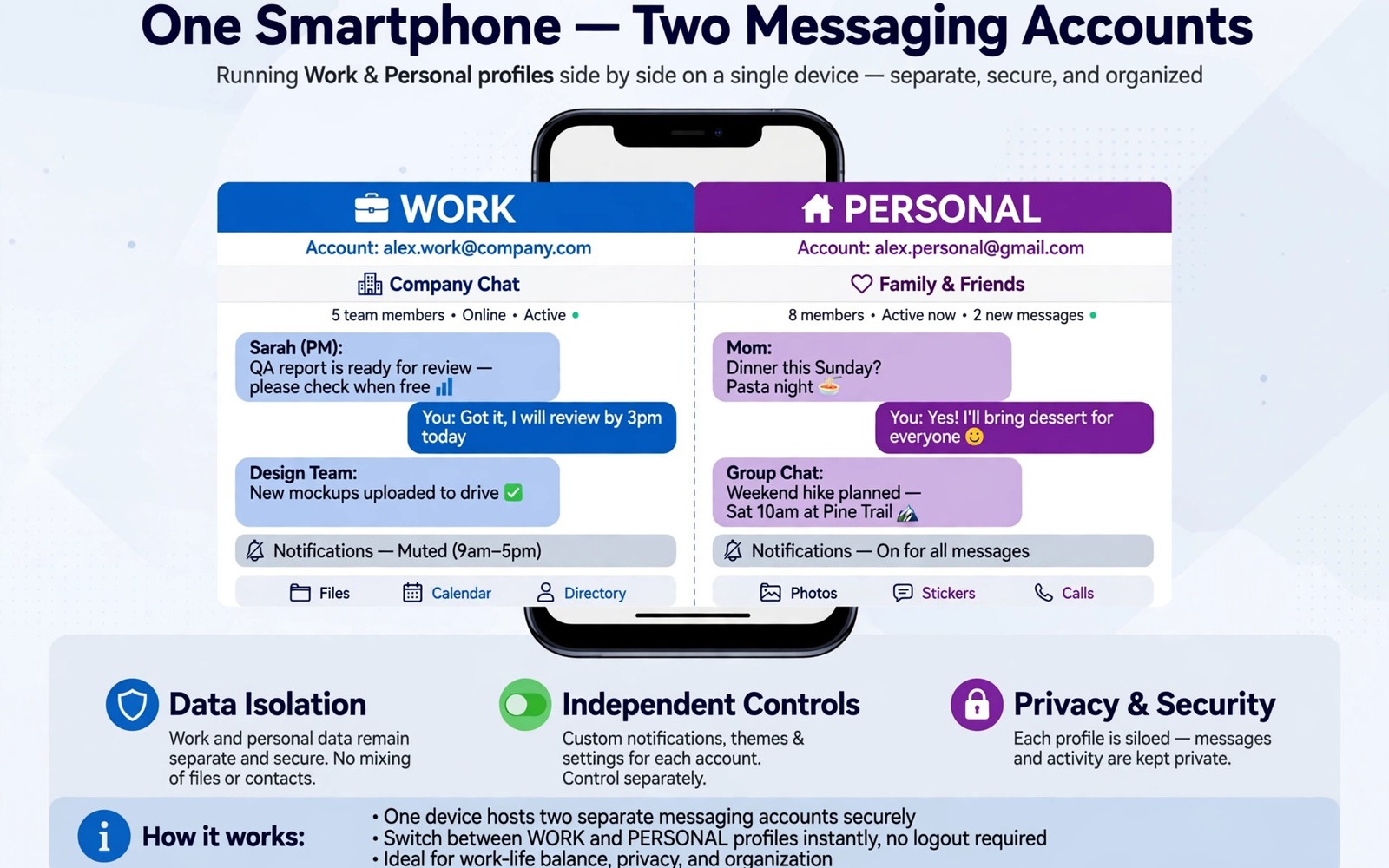
Carrying two phones for work and personal numbers is inconvenient. Many Android phones solve this with a built in clone feature. Learning dual messenger features smartphone interfaces lets you run two accounts side by side. This guide covers setup and limits and safety. You will learn how to tell the two copies apart at a glance.
Start by checking whether your phone maker supports dual messenger. Samsung calls it dual messenger. Xiaomi calls it dual apps. Also check using multiple social accounts without logging out for in app switching alternatives. Maker names differ but the core idea stays the same.
Which phones support dual messenger
Samsung phones support dual messenger for selected messaging apps. Xiaomi phones support dual apps more broadly. Other makers offer similar features under different names. Support depends on model and software version. Check settings search for dual messenger or dual apps on your phone.
Supported apps usually include major messengers and social apps. Not every app can be cloned. Banking apps often block cloning for security reasons. If your target app lacks clone support then use in app switching instead. Forcing a clone through third party tools risks account bans.
Setting up a second messenger copy
Open settings and find the dual messenger menu. Toggle on the app you want to clone. The phone creates a second icon often marked with a badge. Sign into the second copy with your second number or account. Keep the two accounts clearly labelled from the start.
Grant permissions to the clone separately from the original. The clone needs contacts and storage access for full function. Review those permissions as you would for any new app. Test sending a message to yourself from the clone. That test confirms the correct number is active.
Telling the two copies apart
Clone icons usually carry a small badge or colour mark. Learn that mark before daily use. Rename home screen folders to work and personal for clarity. Use different chat wallpapers in each copy. Visual separation prevents wrong account posts.
Set different notification tones for work and personal copies. Tone differences alert you before you even look at the screen. Also read managing notification overload from social networking apps for mute rules. Distinct tones plus distinct wallpapers make mix ups rare.
Data and storage for clones
Clones store data separately from originals. That separation protects privacy between accounts. It also doubles storage use for media heavy apps. Check storage per clone in app info settings. Clear cache for the less used clone regularly.
Backups for clones need separate attention. Cloud backup settings may differ between copies. Verify backup status for each copy before switching phones. A clone without backup loses its chats on phone loss. Treat each copy as a fully separate app for backup purposes.
Limits and problems to expect
Clones may lag behind originals after system updates. Features tied to device identity can behave oddly in clones. Some apps detect clones and limit certain features. Calls and verification codes should still work normally in most cases. Test verification flows early with a low stakes account.
Battery use rises slightly with two active copies. Each copy syncs independently in the background. Mute the less urgent copy during off hours. That mute also improves work life balance. A clone that buzzes all night defeats its purpose.
Security habits for two accounts
Lock both copies separately where locks are available. A lock on only one copy leaves the other exposed. Use different passwords for work and personal accounts. A shared password links both lives if one leaks.
Review linked devices for both copies separately. A forgotten tablet session on one copy is still a risk. Also check securing your messaging apps with biometric app locks for lock setup. Remove clones for accounts you no longer use. Stale clones hold stale chat history.
adb shell pm list packages | grep -i dual
adb shell pm list packages | grep -i clone
These commands follow the standard Android developer reference pattern for listing installed packages. They only read package names and they change nothing on the phone.
Dual messenger for work life balance
Use dual messenger to create a hard boundary between work and personal time. Keep the work copy muted after work hours. Keep the personal copy muted during work hours. That reciprocal muting creates two clean zones. Check the work copy only during work hours except for true emergencies. Define emergencies narrowly with your manager in advance. A vague emergency definition erodes boundaries quickly. Write the definition down and share it with colleagues. Clear boundaries need shared understanding to survive workplace pressure.
Separate contacts lists between the two copies deliberately. Work copy contacts should include colleagues and clients only. Personal copy contacts should include friends and family only. Overlap contacts only for people who genuinely belong in both worlds. That separation prevents work messages from leaking into personal chats. It also prevents personal messages from appearing in work screenshots. Screenshots happen during screen sharing and presentations. A clean work copy protects personal privacy during those moments. Review contact overlap quarterly and prune as needed.
Plan holidays with dual messenger boundaries in mind. Before a holiday set the work copy to full mute and auto reply where available. Tell colleagues who covers urgent work during your absence. That cover person should use the work copy channel. Resist checking the work copy during holiday out of curiosity. Curiosity checking defeats the boundary and ruins rest. Return from holiday by checking the work copy in a single focused session. Triage messages by urgency rather than reading chronologically. A focused triage session restores work readiness faster than scattered checking.
Troubleshooting dual messenger problems
Verification code problems are the most common dual messenger issue. Codes may arrive on the wrong copy if numbers are confused. Check which number is registered in each copy before requesting a code. Request codes only on stable network connections. Weak signal can delay codes beyond their expiry window. If a code expires then wait a full minute before requesting another. Rapid requests can trigger rate limits. Note the correct number for each copy in a private note. That note prevents confusion during future verifications.
Notification confusion is the second common problem. Two copies of the same app can produce identical notification icons. Differentiate tones and vibration patterns immediately after setup. Test notifications from both copies with a friend. Confirm you can tell them apart without looking at the screen. If tones sound similar then choose more distinct sounds. Visual badges on clone icons also help when looking at the screen. Test differentiation weekly until it becomes automatic. Clear differentiation prevents replying from the wrong account.
Storage and backup problems appear after months of dual use. Each copy accumulates media independently. Check storage per copy quarterly and clear cache for the heavier copy. Verify cloud backup status for each copy separately. A backup that covers only the original copy leaves the clone unprotected. Set backup reminders per copy in your calendar. That separate reminder habit closes a gap that single copy users never face. When switching phones restore both copies in order and verify each before wiping the old phone. Patience during restore protects both accounts equally.
Your dual messenger setup checklist
Complete this checklist before using dual messenger daily. First confirm that your phone maker supports dual messenger for your target app. Second open settings and enable the clone for that app only. Third sign into the clone with your second number and verify it with a test message. Fourth set a distinct wallpaper for the clone. Fifth set a distinct notification tone and vibration for the clone. Sixth grant permissions to the clone separately after reviewing each request. Seventh lock both copies separately with biometric locks. Eighth verify cloud backup status for each copy independently. Ninth mute the work copy after work hours and mute the personal copy during work hours. Tenth test notifications from both copies to confirm you can tell them apart. Eleventh review linked devices for both copies separately. Twelfth remove clones for accounts you no longer use. A setup that passes this checklist keeps two numbers cleanly separated on one phone. Separation fails when visual and audio cues look identical. Identical cues cause wrong account posts that embarrass users regularly. Prevention through distinct cues is far easier than recovery after a public mistake. Dual messenger works best as a deliberate system rather than a casual toggle. Deliberate setup takes fifteen minutes and protects you for years. Finish the checklist today and enjoy one phone for two lives without constant confusion.
Common mistakes
Signing into the wrong number in the clone is the classic setup error. Test with a message to yourself immediately. Using identical wallpapers and tones invites mix ups. Differentiate both copies visually and audibly. Forgetting clone backups loses chats on phone loss. Verify backup for each copy separately.
Forcing unsupported apps through third party clones risks bans. Use official support only for main accounts. Leaving both copies buzzing all night ruins separation. Mute the work copy after hours. Locking only one copy leaves the other exposed. Lock both copies.
Granting a clone broader permissions than the original is careless. Audit clone permissions after setup. Keeping stale clones after account closure holds old history. Remove unused clones promptly.
Frequently asked questions
Can dual messenger run two WhatsApp numbers?
Yes on supported Samsung and Xiaomi phones. Each copy uses a different number. Verification works separately per copy. Test both numbers after setup to confirm correct routing.
Does a clone share chats with the original?
No clones store chats separately. Messages in one copy do not appear in the other. That separation is the main benefit. Backups also stay separate per copy.
Will cloning drain battery much?
Only slightly for most users. Each copy syncs independently. Muting the less urgent copy limits extra drain. Overall impact is modest compared with video heavy apps.
Conclusion
Dual messenger turns one phone into a clean two account device. Maker clones beat third party wrappers for main accounts. Visual and audio separation prevents mix ups. Separate backups and locks protect each copy. Review clones regularly and remove stale ones.
Your concrete next step is to enable dual messenger for your main messaging app today. Sign in with your second number and send a test message to yourself. Set a distinct wallpaper and tone for the clone. That setup takes fifteen minutes and it lasts.

