

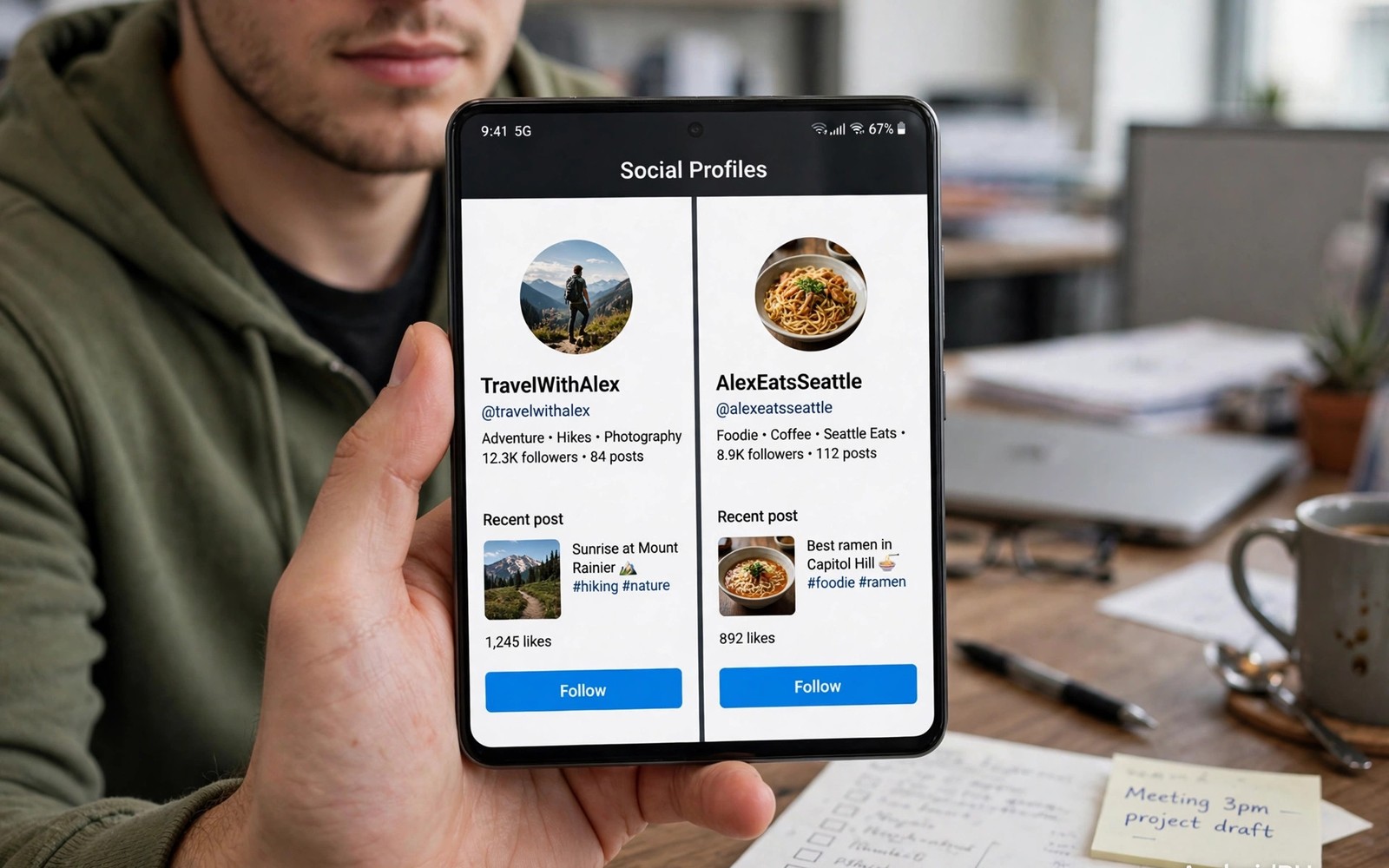
Juggling work and personal life on one phone gets messy fast. Logging out and back in every hour wastes time and breaks notifications. Learning multiple accounts on social media apps without logging out solves that friction. This guide compares the safe methods built into Android and into the apps themselves. You will learn which method fits each app and each risk level.
Start by listing the accounts you truly need daily. Most people need two at most for any single app. More accounts mean more notifications and more chances to post from the wrong profile. Also check using dual messenger features on supported phones if your phone maker offers a built in clone tool. Native tools are usually safer than random clone apps.
Built in account switching inside apps
Many major apps now support switching accounts inside one install. You add a second account once and then tap your profile picture to switch. Notifications can arrive for both accounts without a logout. That is the cleanest method when it exists. It keeps data in one official app with normal updates and security checks.
The catch is that switching is still manual for posting. You must check the active account before every post and every message. A quick glance at the avatar saves embarrassing mistakes. Some apps also limit how many accounts you can add. Read the limit in settings before you plan a five account setup. Two accounts work smoothly almost everywhere.
Dual messenger and app cloning from phone makers
Samsung and Xiaomi and other makers offer dual messenger or dual apps for selected apps. The phone creates a second copy with its own icon and its own data. You can run two WhatsApp or two social accounts side by side. Each copy has separate notifications and separate storage. That separation is stronger than in app switching.
Cloned apps only work for apps the maker supports. A clone may lag behind the main app after a system update. It may also lack some features tied to device identity. Test the clone with a low stakes account first. Also read managing camera and microphone permissions in social apps because a clone needs its own permission review. Never grant a clone broader access than the original.
Work profiles and separate spaces
A work profile creates a managed second space on the same phone. Work apps live in a separate tab with their own data and their own account. Your employer or a profile app manages that space. Notifications can be paused for the whole work profile after hours. That boundary is excellent for work life balance.
Work profiles need setup effort and they change how apps appear. Some apps behave differently inside a profile. File sharing between profiles may be limited on purpose. That limit protects work data but it can annoy users who share photos often. Use a work profile when separation matters more than convenience.
Third party clones and the risks to avoid
Third party clone apps promise unlimited copies of any app. Some work by wrapping the original app in a virtual space. That wrapper can read data passing through it. It can also break when the original app updates. Security updates may lag and account bans are possible on some platforms. The convenience rarely justifies the risk for a main account.
Avoid clones that ask for accessibility access or device admin rights without a clear reason. Those permissions let a clone observe far more than one app. Check reviews and update history before you install any clone tool. If a tool has no clear developer history then skip it. Your main social accounts are too valuable for an untrusted wrapper.
Notifications and battery with two accounts
Two accounts double the notification load if you leave everything on. Mute non urgent accounts during work hours. Keep badges on only for accounts that need fast replies. Group notification channels by account where the app allows it. A calm notification plan prevents the second account from feeling like a second job.
Battery impact is usually small for in app switching. Cloned apps add a second process that can use more memory and battery. Work profiles add a second set of sync jobs as well. Measure battery use for a week after adding an account. If drain jumps sharply then mute background sync for the less important account.
Posting safely and avoiding mix ups
Most mix ups happen when switching is too fast. Build a pause into your routine before you post. Check the avatar and the account name in the composer. Draft sensitive posts and review them after a minute. That pause catches wrong account errors before they go public.
Colour code helps when the app allows themes or labels. Use a distinct avatar for work and a distinct avatar for personal use. Keep work drafts in a notes app until you are sure of the target. Also check top privacy settings for Instagram and TikTok to limit who sees each account. A private personal account plus a public work account is a sensible default.
adb shell pm list users
adb shell dumpsys user | grep -i profile
These commands follow the standard Android developer reference pattern for listing device users and profiles. They only read system data and they change nothing on the phone.
Planning a two account setup step by step
Begin by writing down the purpose of each account in one sentence. A work account serves colleagues and clients during work hours. A personal account serves friends and family outside work. That sentence guides every later choice about notifications and privacy. If you cannot write a clear purpose then you probably do not need a second account yet. Extra accounts without purpose only add noise. Start with two accounts maximum per app. You can add a third later only if a real need appears and the first two run smoothly.
Choose the method that matches the purpose you wrote down. Use in app switching when both accounts belong to the same person and separation is light. Use a maker clone when you need side by side notifications and separate storage. Use a work profile when an employer manages work data or when legal separation matters. Each method trades convenience against separation strength. In app switching is fastest. Work profiles are strongest. Maker clones sit in the middle for most users. Test the chosen method for a week before you commit fully.
Set notification rules on day one for both accounts. Give the urgent account a distinct tone and keep badges on. Give the routine account silent delivery and no badge. That contrast lets you glance at the phone and know which life needs attention. Schedule a daily check time for the routine account. Morning and evening checks cover most non urgent needs. Resist checking the routine account every hour. Constant checking erases the benefit of separation entirely. Separation works only when you respect the boundaries you set.
Avoiding cross posting and account confusion
Create a pre post checklist that takes five seconds. Look at the avatar in the composer. Read the account name aloud in your head. Confirm the audience matches the message content. That tiny pause prevents most public mistakes. Drafts help even more for sensitive posts. Write the post and wait ten minutes before sending. Fresh eyes catch wrong account errors that haste misses. This habit feels slow at first. It becomes automatic within two weeks of daily use.
Use different visual cues for each account wherever the app allows it. Choose a professional photo for work and a casual photo for personal use. Use different bio wording that signals the account purpose clearly. Some apps allow different themes per account through clones. A clone with a dark theme and an original with a light theme is instantly recognisable. Visual cues work faster than reading small account names under pressure. Combine visual cues with the pre post checklist for strong protection.
Plan a recovery step for the inevitable mistake. If you post from the wrong account then delete or edit quickly. Apologise briefly if anyone saw it. Most audiences forgive a fast correction. Do not panic and post follow up explanations that draw more attention. Learn which error caused the mix up. Was it haste or similar avatars or a switch failure. Fix that single cause before the next post. A calm recovery plan turns embarrassment into a minor incident rather than a lasting problem.
Your two account setup checklist
Complete this checklist before you rely on two accounts daily. First write one sentence stating the purpose of each account. Second choose in app switching or a maker clone or a work profile based on that purpose. Third add the second account through the official method only. Fourth set a distinct avatar for each account so you can tell them apart instantly. Fifth set a distinct notification tone for each account. Sixth mute the routine account during work hours and mute the work account after work hours. Seventh post a test message from each account to yourself to confirm correct routing. Eighth review permissions for any clone you created. Ninth enable two factor authentication on both accounts with different passwords. Tenth set a weekly review reminder to check for mix ups and notification creep. A setup that passes this checklist is ready for real daily use. A setup that skips steps will cause a public mistake eventually. Public mistakes are embarrassing and sometimes costly for work accounts. Prevention takes twenty minutes while recovery takes far longer. Finish all ten items today before your next important post. That discipline protects both your personal reputation and your professional reputation at once.
Common mistakes
Posting from the wrong account is the classic mistake and it is almost always avoidable. Check the avatar before you tap send every single time. Adding five accounts to one app is another mistake. You will miss messages and burn out on notifications. Keep the daily set small and archive the rest.
Installing an untrusted clone for a main account risks a ban or a leak. Use official switching or maker clones for important accounts. Forgetting to review clone permissions is equally risky. A clone inherits the same sensitive access as the original app. Audit permissions after every clone install.
Leaving work notifications on all night defeats the point of separation. Pause the work profile after hours. Also avoid sharing passwords between personal and work accounts. A single leaked password should never unlock both lives.
Frequently asked questions
Can I run two WhatsApp accounts on one phone?
Yes on many phones through dual messenger or through linked companion mode. Dual messenger gives a fully separate second install. Companion mode mirrors one account on a second device. Choose dual messenger when you need two different numbers on one phone.
Does a work profile hide apps from my personal space?
Yes work apps appear in a separate tab and their data stays apart. Personal apps cannot read work app data in normal use. File sharing between spaces may be limited by policy. That separation is the main reason to use a profile.
Will two accounts drain my battery fast?
Usually not by much for in app switching. Clones and profiles add background work but the effect is modest. Mute the less urgent account and limit its background sync. Measure for a week before you blame the second account.
Conclusion
The best method is the simplest one that gives real separation. Use in app switching when it exists. Use a maker clone when you need side by side accounts. Use a work profile when work data must stay apart. Avoid untrusted third party clones for main accounts.
Your concrete next step is to add your second account through the official switcher today. Then mute its non urgent notifications and post one test message to yourself. That test proves the setup works before you rely on it for real work.

