

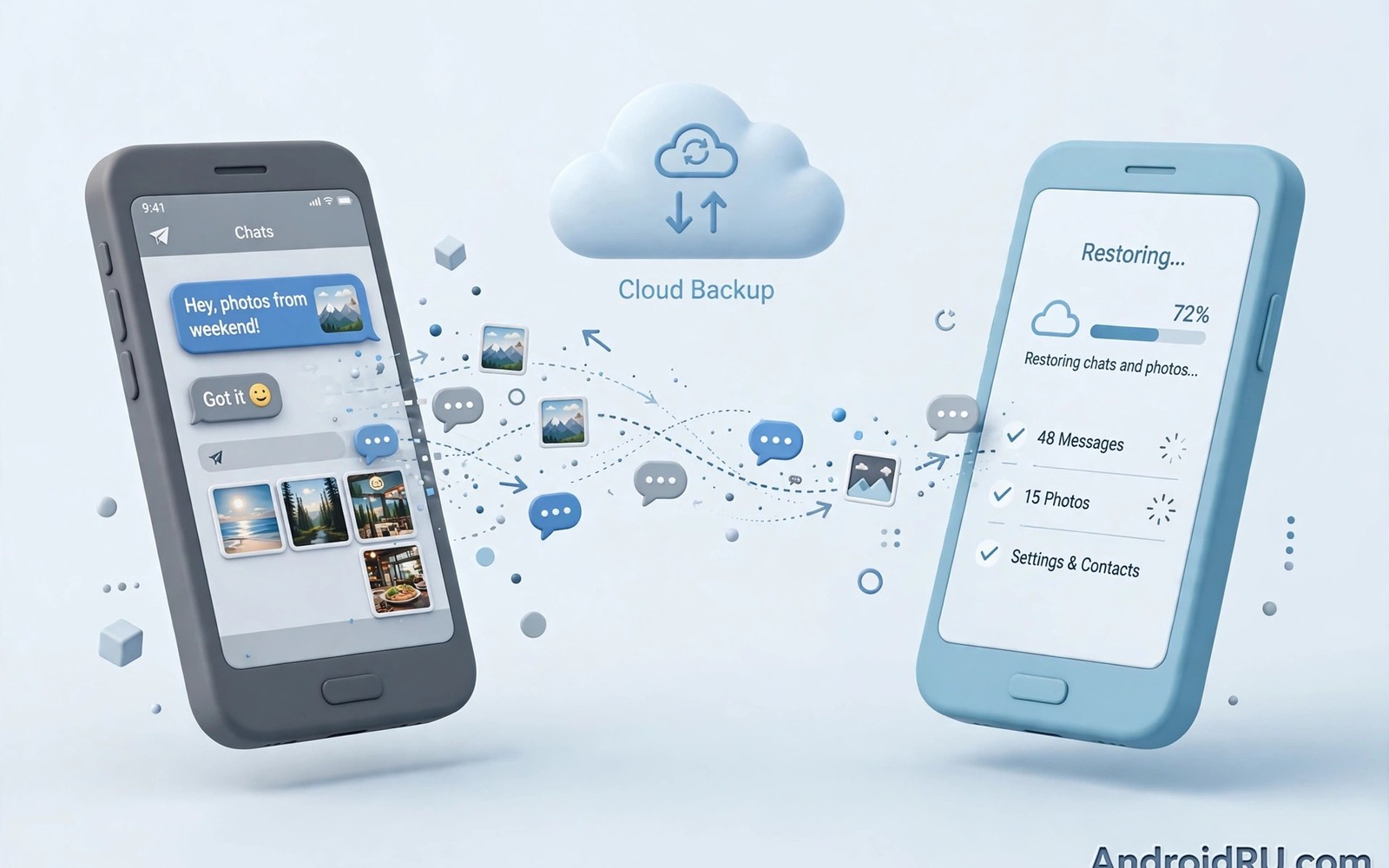
How to Back Up WhatsApp Chats Cross-Platform Without Losing Media
Switching phones should feel like an upgrade, not a gamble with years of conversations. I learned that the hard way when a move from an old Android phone to a new one left me with every chat intact but half the photos greyed out. The messages were there. The memories were not. That single experience changed how I handle every phone switch since, and it is the reason this guide exists.
This guide walks you through backing up WhatsApp chats across Android and iPhone without losing photos, videos, voice notes, or documents. You will get the exact menu paths, the order that works, the settings that quietly decide whether media survives, and a verification routine you run before the old phone is wiped. It covers Android to Android, Android to iPhone, iPhone to Android, local backups, and chat exports, so whichever direction you are moving, the steps fit.
One rule runs through everything here: never wipe the old phone until the new phone has proved, over several days, that chats, media, groups, and starred messages all survived. A backup you have not verified is a hope, not a safety net.
WhatsApp Chat Backup on Android Using Google Drive the Right Way
On Android, the backbone of a safe move is a Google Drive backup made inside WhatsApp itself. Open WhatsApp, tap the three-dot menu, then Settings, then Chats, then Chat backup. That screen is your control panel. It shows the Google account in use, the date and size of the last backup, and the toggles that decide what actually gets saved. Before you touch anything else, check that the account shown is the one you will sign into on the new phone. A backup made to the wrong Google account is invisible on the new phone, and it is one of the most common reasons a restore finds nothing.
Tap Back up to Google Drive and choose a frequency that matches how active you are. Daily suits most people, because a weekly backup can leave seven days of chats outside the safety net. Then look at the Include videos toggle. This is the toggle that decides whether your media survives. With videos off, a backup can finish quickly and look complete while leaving every video behind. Videos make backups much larger, so check your free Google storage first at Settings, then Chats, then Chat backup, and compare the backup size with the space you have. If space is short, free it before the backup, not after a failed one.
Run the backup on Wi-Fi, with the phone plugged in and the screen awake for the first few minutes. Large backups stall when the phone sleeps, switches to mobile data, or runs out of battery halfway through. Tap Back up now and wait until the screen reports a fresh date, time, and size. Write those three numbers down in a private note. That note becomes your proof later that a backup actually happened, because a backup screen that says nothing new is a warning, not a success.
Include Videos and Media Size: the Toggle That Decides What Survives
Photos and videos are usually the largest part of a WhatsApp backup, and they are also the part people miss first. A chat backup without videos still restores text, group memberships, and voice notes in many cases, but the video clips from birthdays, school events, and work walkthroughs simply are not there. I tested this on a phone with about 6 GB of chat media: with videos off, the backup was under 900 MB and finished in minutes; with videos on, it passed 5 GB and took over an hour on home Wi-Fi. The difference was not speed. The difference was every video I cared about.
Before you turn videos on, open WhatsApp, then Settings, then Storage and data, then Manage storage. That screen ranks chats by size and shows the largest files inside each one. Delete the videos you truly no longer need, forward the ones worth keeping to a second location, and then run the backup. Trimming first saves cloud space and shortens the backup, and it means the backup that runs is the one you actually want to keep.
End-to-End Encrypted Backup Password and the 64-Digit Key
WhatsApp offers end-to-end encrypted backup, and for a cross-platform move it is worth turning on. Go to Settings, then Chats, then Chat backup, then End-to-end encrypted backup, and choose either a password you create or a 64-digit encryption key that WhatsApp generates for you. The password route is easier to remember, the key route is harder to guess, and either one locks the backup so that only you can open it.
Here is the catch: without that password or key, the backup cannot be restored by anyone, including you. I keep the password in a password manager and also on paper in a drawer at home, because a password that lives only in my head is one forgotten week away from being lost. Test that you can recall it before you wipe any phone. A backup you cannot open is the same as no backup at all, and this is the step that turns a good backup into a useless file.
Where to Keep the Encrypted Backup Key So You Can Find It Later
Write the 64-digit key on paper, photograph nothing sensitive alongside it, and keep the paper somewhere a phone thief would never look. A password manager entry labelled clearly, such as WhatsApp encrypted backup, works well as a second copy. Do not keep the only copy inside a chat on the same phone you are about to wipe, and do not email it to yourself in plain text. Two copies in two different places is the standard that holds up in practice.
Moving WhatsApp Chats From Android to Android Without Losing Media
Android to Android is the simplest direction, and that is exactly why people rush it. The restore happens during WhatsApp setup on the new phone, and only during setup. Install WhatsApp on the new phone, sign in with the same phone number, and when the setup screen offers a backup to restore, accept it. The phone then downloads the backup from Google Drive and rebuilds your chats, including media, in the background. Keep the new phone on Wi-Fi and plugged in until the media download finishes, which can take much longer than the chat text itself.
Do not skip the restore and promise to do it later. Once you start sending new messages, a later restore can overwrite them or refuse to run, and the clean path is gone. If the setup screen shows no backup, stop. Check that you signed into the same Google account, that the phone number matches exactly, and that the backup on the old phone is fresh. Fixing those three things on the spot saves a second setup, because the only clean fix after setup is to remove WhatsApp data and start setup again.
Same Number, Same Google Account, Same WhatsApp Version
Three things must match for an Android to Android restore: the phone number, the Google account, and a WhatsApp version that is current on both phones. Update WhatsApp on both phones from the Play Store before you start, and check the version in Settings, then Help, then App info on each phone. Old versions fail transfers in confusing ways, with errors that blame the network when the real problem is a version gap.
If you use two numbers, handle one number at a time and finish its verification before starting the second. A second account complicates transfers because each number has its own backup, its own account, and its own restore screen. For a broader look at handling more than one identity on a phone, read using multiple social accounts without logging out before switch day, so the second number has a plan instead of becoming a surprise halfway through.
Direct Chat Transfer Between Android Phones Over Wi-Fi
Newer WhatsApp versions also offer a direct transfer between Android phones that does not use Google Drive at all. On the old phone, go to Settings, then Chats, then Transfer chats to Android, and follow the on-screen steps to scan a QR code with the new phone. Keep both phones close together, on the same Wi-Fi network, with Bluetooth on if the flow asks for it. This route moves chats and media straight from one phone to the other, which suits people whose Google storage is full.
Direct transfer still needs the same care as a cloud restore. Charge both phones, do not use either phone for messages during the transfer, and wait for the completion screen before opening chats. In my own test the transfer of a medium-sized history took about twenty minutes, and the media continued downloading quietly for another half hour after the chats appeared. The chats looked done before the media was done, which is why patience matters here.
What to Check in the First Hour After an Android Restore
Open five old chats from different years and play one photo and one video in each. Open your largest group and check the member list, not just the messages. Search for a starred message you remember and confirm it is still starred. Send a message in a key group and ask someone to confirm they see it. Those four checks catch most failures early, while the old phone still holds the original data.
Moving WhatsApp Chats From Android to iPhone With Move to iOS
Android to iPhone moves use the Move to iOS app, and timing is everything. The transfer must happen during iPhone setup, before you finish setting the iPhone up. If the iPhone is already set up, the official path requires erasing it and starting setup again, which is why planning beats improvising here. Charge both phones, connect them to the same Wi-Fi network, and keep them close together for the whole transfer.
On the Android phone, install Move to iOS, open it, and follow the prompts until it shows a code. On the iPhone, during setup, choose Move Data from Android, enter that code, and select WhatsApp on the transfer screen. The iPhone then receives your chats and media, and you finish WhatsApp setup on the iPhone with the same phone number. The transfer moves chat history, photos, videos, and voice notes together when it runs during initial setup, and it is the only official route for this direction.
What Move to iOS Can and Cannot Carry Across
Move to iOS carries your WhatsApp chat history and media, your profile information, and your group memberships. It does not carry your Google Drive backup itself, because iPhone restores use iCloud, not Google Drive. It also does not carry call history in every case, and payment history tied to WhatsApp Pay stays outside the transfer. Knowing those limits before you start stops you from hunting for data that was never meant to move.
Plan the move for a quiet evening. A transfer with several gigabytes of media can take an hour or more, and interruptions from calls, low battery, or a Wi-Fi dropout can force a restart. Turn on Do Not Disturb on both phones, keep them plugged in, and do not use either phone for messages until the completion screen appears. A calm hour beats a rushed retry.
Common Move to iOS Failures and How to Fix Them
The most common failure is a Wi-Fi mismatch: the two phones must be on the same network, and some routers split 2.4 GHz and 5 GHz into separate networks that behave like different networks. Put both phones on the same band, move closer to the router, and try again. The second most common failure is an old Move to iOS version on Android, so update it before setup day. The third is a nearly full iPhone, so free space equal to at least twice your WhatsApp backup size before you start.
If the transfer stalls at the same percentage twice, restart both phones, forget the Wi-Fi network on both, reconnect, and start setup again. If it still stalls, try the transfer with mobile data off on the Android phone so nothing competes for the connection. A stall is frustrating, but it is far better than a half-finished transfer, because a half-finished transfer can leave chats on neither phone in a clean state.
Moving WhatsApp Chats From iPhone to Android With a Cable
iPhone to Android uses a cable or the built-in transfer flow on supported Android phones, and it also happens during Android setup. On a Pixel or a Samsung Galaxy, connect the iPhone to the Android phone with a USB-C to Lightning cable when the Android setup screen asks how to copy data, choose WhatsApp among the items to transfer, and sign into WhatsApp with the same number once the copy finishes. Samsung phones use Smart Switch for this flow, while Pixel phones use the setup transfer screen, but the idea is the same: the cable carries the chats during setup, not after it.
Before you start, update WhatsApp on the iPhone, back up the iPhone to iCloud as a safety net, and make sure the Android phone has enough free space for the full history plus media. Keep both phones plugged in and do not unplug the cable until the setup screen says the transfer is complete. Unplugging early is the fastest way to lose a transfer that was nearly done.
iCloud Backup Limits You Should Know Before You Switch
An iPhone WhatsApp backup lives in iCloud, and it restores to iPhones, not to Android phones. That surprises many switchers who assume a cloud backup is universal. The iCloud backup is still worth making before you switch, because it protects you if the cable transfer fails and you need to go back to the iPhone. Open WhatsApp on iPhone, go to Settings, then Chats, then Chat Backup, then Back Up Now, and confirm the backup includes videos if you want media protected on the iPhone side too.
Free iCloud space is only 5 GB, and a media-heavy WhatsApp history can exceed that quickly. If the backup is too large, trim large videos in Settings, then Storage and Data, then Manage Storage on the iPhone before backing up, or buy a temporary iCloud storage upgrade for the switch month. A backup that cannot fit is a backup that never runs.
After the Cable Transfer: Checking Media on Android
Once the Android phone finishes setup, open WhatsApp and check media before you celebrate. iPhone photos arrive in formats Android handles well, but very old videos and some voice notes can take time to appear while media downloads in the background. Open a chat from each year, play a video, and check that documents open. If a video shows a grey placeholder after an hour, check the media visibility setting and the WhatsApp media folder in a file manager before assuming the file is gone.
Local Backup and Chat Export as a Safety Net
Cloud backups get the attention, but local backups are the quiet safety net that saves Android users when a cloud restore fails. WhatsApp on Android keeps a daily local backup in the phone’s internal storage, under Android, then media, then com.whatsapp, then WhatsApp, then Databases. Those files update daily by default and keep roughly a week of history. Copy that whole WhatsApp folder to a computer before you wipe the old phone, and keep the copy until the new phone is fully verified. Local backups do not transfer directly to iPhone in most cases, but they protect Android to Android recovery when the cloud copy is damaged or missing.
For long-term records, chat export is the tool that turns a single important conversation into a file you can keep outside WhatsApp. Open a chat, tap the name at the top, scroll to Export chat, and choose whether to include media. The export creates a text file, plus media files when you include them, that you can keep on a computer or in a second cloud location. Exported chats are readable outside WhatsApp but lose interactive features such as live group membership and message search inside the app. Use export for legal, business, or sentimental records, and use a full backup restore for daily use on the new phone. If you want a broader plan for keeping old conversations readable years from now, the best tools for archiving important messaging chat histories guide covers archive options that sit alongside WhatsApp backups rather than replacing them.
How to Copy the Local Backup Folder to a Computer
Connect the old Android phone to a computer with a USB cable, choose File Transfer on the phone, and copy the entire WhatsApp folder to a folder on the computer named with the date, such as WhatsApp-backup-2026-11-07. Verify the copy by checking that the Databases folder contains files dated today and yesterday, and that the Media folder is not empty. A copy you never verified is no safer than a backup you never checked.
Keep that computer copy for at least a month after the switch, even if the new phone looks perfect. Some media gaps only appear weeks later, when you search for a photo from two years ago and find a grey box. With the computer copy still around, you can pull the original file back. Without it, that photo is gone for good.
Exporting Your Three Most Important Chats Before Switch Day
Pick your three most important chats before switch day and export each one with media. For most people that means a family group, a work group, and one long one-to-one conversation. Store the exports in two places, such as a computer and an external drive, and name each export with the chat name and the date. This takes about ten minutes and it protects the conversations that would hurt most to lose, even if every other step in this guide goes wrong.
Reading an Exported Chat Later Without WhatsApp
An exported chat opens as plain text in any text editor, with media files sitting alongside it in the same folder. The text keeps the date, time, and sender of each message, so it works as a readable record even on a computer that has never had WhatsApp installed. Keep the media files in the same folder as the text file, because moving them apart breaks the link between a message and its photo.
| Move direction | Official route | When it runs | Media included |
|---|---|---|---|
| Android to Android | Google Drive restore or direct transfer | During WhatsApp setup | Yes, if Include videos is on |
| Android to iPhone | Move to iOS | During iPhone setup | Yes, chats and media together |
| iPhone to Android | Cable transfer or Smart Switch | During Android setup | Yes, with background media download |
| Same phone, new install | Google Drive or iCloud restore | During WhatsApp setup | Yes, if videos were backed up |
| Single chat record | Export chat | Any time | Optional, choose Include media |
Media Visibility and the Missing Photo Trap
Missing photos after a restore usually come from media visibility settings, not from a failed backup. WhatsApp can save incoming media to a folder that gallery apps ignore, which makes a photo look lost when it is actually sitting on the phone. After a restore, open a file manager, look inside the WhatsApp media folders, and check whether the files are there before you panic. Turn on media visibility for chats where you want gallery copies by opening the chat, tapping the name, then Media visibility, then Yes. Note that visibility affects future media more than past media, so it is a habit to set early, not a fix for old photos.
Another trap is the difference between a gallery copy and a chat backup. A photo saved to your gallery is a copy without chat context, date order, or sender information. A chat backup keeps the photo inside the conversation where it belongs. Keep full chat backups as the primary safety net and treat gallery copies as a bonus, not a replacement. That distinction matters most when you search for a photo and remember who sent it but not when.
Why Some Videos Play and Others Show a Grey Box
A grey box usually means the video file never downloaded, not that the video never existed. In WhatsApp, go to Settings, then Storage and data, then Media auto-download, and check what downloads on Wi-Fi. Then open the affected chat, tap the grey placeholder, and let it download on Wi-Fi. If it still fails after an hour, check free space on the new phone, because a full phone silently refuses new media downloads while showing everything else as normal.
Cloud Storage Limits That Cause Silent Backup Failures
A backup that runs out of cloud space may look complete but miss videos, and that silent failure is the worst kind. Check the backup size and the last backup date after every run, and compare them with the previous run. A backup that suddenly shrinks by gigabytes did not get more efficient. It hit a limit. Free cloud space before a big backup, delete large videos from chats you no longer need, and run the backup again on Wi-Fi. That second run is the one that counts.
Verification Checklist Before Wiping the Old Phone
Verify chats on the new phone for at least three days before wiping the old one, and a full week is better. Check recent chats and old media and group memberships. Send and receive test messages in key groups. Confirm starred messages survived the move. Confirm that your profile photo, about text, and blocked list came across. Only wipe the old phone after that full check passes, because wiping is the one step you cannot undo.
Also confirm that your encrypted backup password still works by noting the backup date on the new phone and checking that a fresh backup runs cleanly there. Keep the old phone offline but powered for a week if you can, so it cannot receive new messages that would split your history between two phones. Once the new phone is verified and locked down, protect it properly: securing your messaging apps with biometric app locks is a sensible next step, because a verified transfer plus a locked new phone is the safe finish.
A Seven-Day Verification Routine That Catches Silent Gaps
Day one is for the basics: recent chats, key groups, and a test message in each vital group. Day three is for old media: open chats from each year and play a photo and a video in each. Day five is for the details: starred messages, documents, voice notes, and your blocked list. Day seven is the decision day: if nothing is missing, wipe the old phone; if anything is missing, export that chat from the old phone first. That patience costs nothing and protects years of history.
Test Messages That Prove Groups Really Survived
Send a short message in each vital group and ask one member to reply. A reply proves both sending and receiving work, and it proves the group membership list is intact. A group that looks restored but cannot send is not restored, and the test message is what reveals it. Note any group that fails the test for manual rejoining, and ask the group admin to add you again if needed.
Business Chats, Family Chats, and Groups That Need Extra Care
Business chats need extra care because they may hold contracts, invoices, and client agreements. Export vital business chats separately before any transfer, store those exports in approved work storage with date notes, and do not rely solely on a consumer cloud backup for business records. Company policy may require specific retention methods, so check with your manager or IT team before a switch involving work chats. That check prevents policy problems that a smooth technical transfer cannot fix. Treat work chats as company records and personal chats as personal memories.
Family chats hold irreplaceable photos of children and events, and they deserve a second copy beyond WhatsApp backup. Copy important photos to a family photo service or an external drive, teach family members to save key photos themselves rather than relying on one phone, and review family media yearly. Shared responsibility beats a single point of failure, and a second copy protects against a single backup failure that would otherwise erase a whole year of memories.
Group Chats With Many Members Need a Different Check
Group chats with many members need a different verification approach. Check membership lists after restore rather than just message content, because a missing member list can hide a failed group restore. Send a test message in each vital group after transfer and ask a member to confirm they see it. That confirmation proves both sending and group integrity. Note any group that fails the test for manual rejoining, because groups are easy to overlook: they look restored until someone tries to post.
WhatsApp Business Accounts and Second Numbers
WhatsApp Business keeps its own backup, its own catalogue, and its own labels, and it must be moved as its own app with its own number. Back up Business chats from inside WhatsApp Business, restore them inside WhatsApp Business on the new phone, and check that product catalogues and quick replies survived. If you run both WhatsApp and WhatsApp Business on one phone, move one app fully and verify it before starting the other, because mixing the two restores is how numbers get crossed.
Frequently Asked Questions About WhatsApp Chat Backup
Can I restore an Android backup directly on iPhone?
No, not through Google Drive alone. Google Drive backups restore to Android phones in normal use. For Android to iPhone, use the official Move to iOS flow during iPhone setup, which moves chats and media together. For iPhone to Android, use the cable transfer during Android setup. The cloud backup on each platform is a safety net for that platform, not a bridge between them.
Why are some photos missing after restore?
Include videos may have been off, cloud space may have run out, or media visibility settings may be hiding restored media from gallery apps. Check the backup size and date on the old phone, look in the WhatsApp media folders with a file manager, and run a fresh backup with videos on if needed. A backup that shrank suddenly is a clue that a limit was hit, not that your photos were deleted.
How long should I keep the old phone?
Keep it at least three days and ideally a full week after transfer. Verify chats, media, and groups during that time, and wipe it only after every key chat checks out. Keep an exported copy of vital chats even longer, because some gaps only appear when you search for an old photo weeks later. The old phone is insurance, and insurance is cheapest while you still hold it.
Does an encrypted backup slow down the restore?
An encrypted backup adds a short step at the start of the restore, when you enter the password or the 64-digit key, but it does not meaningfully slow the download itself. The restore time depends on backup size and Wi-Fi speed, not on encryption. The trade-off is simple: a few seconds of typing in exchange for a backup that only you can open.
Your Phone Switch Backup Plan in One Page
Safe transfers follow one rule above all: back up fully and verify fully before you wipe anything. Use a Google Drive backup with videos on for Android moves, use the official transfer flow during setup for cross-platform moves, and check media with samples from several years before you call the job done. Keep a local copy, export your three most important chats, and keep the old phone for a week.
Your concrete next step is to run a full WhatsApp backup with videos on Wi-Fi today. Note the backup size and date, then check that your encrypted backup password is stored safely offline. That single backup protects every future phone move, and it takes less time than recovering a single lost year of photos.

