

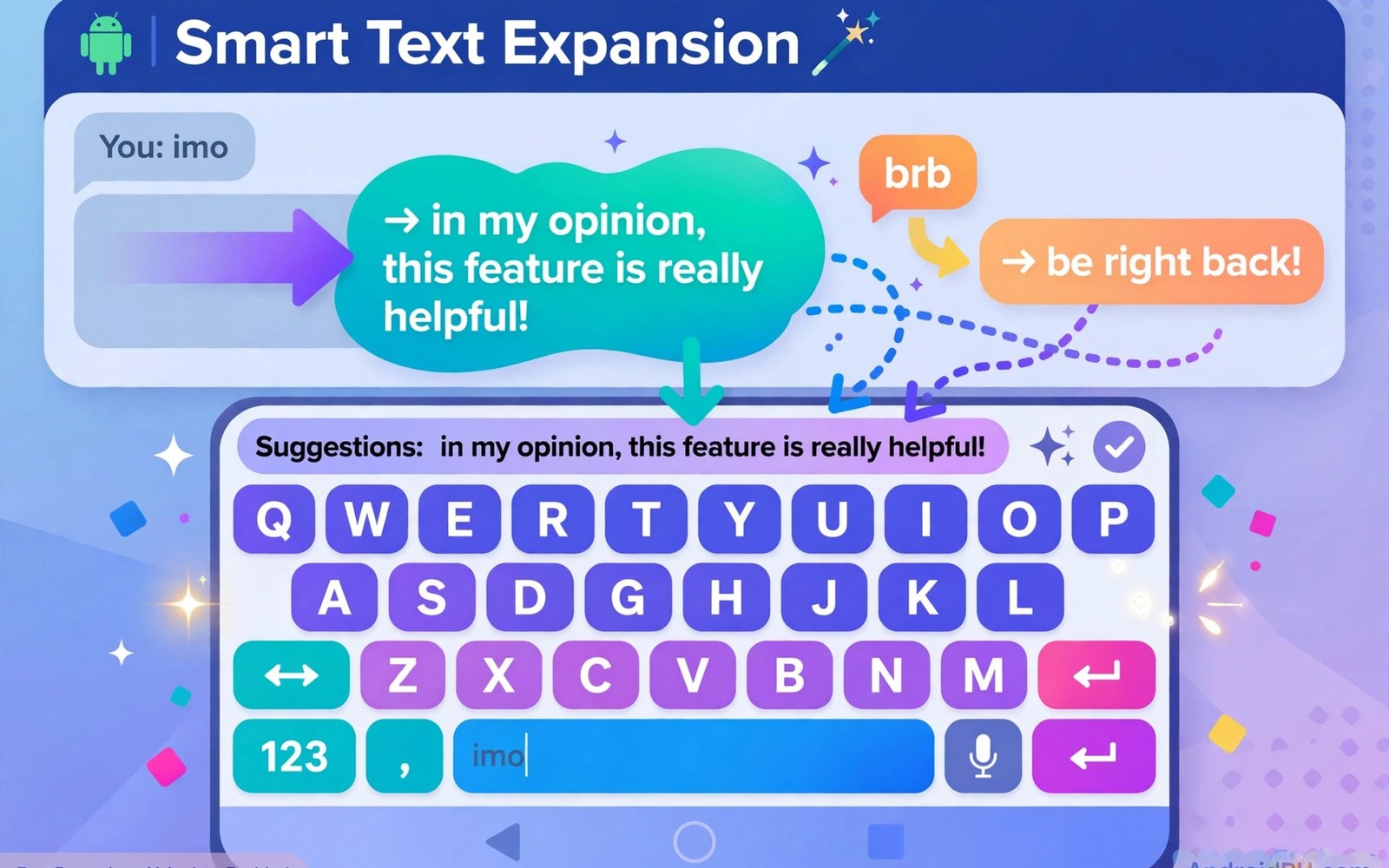
Best keyboard apps with text expansion turn short codes into full text in seconds. A code like sig can expand into a full signature and a code like addr can expand into a full address. This article shows how text expansion saves typing time without forcing you to learn a new keyboard layout.
Many people type the same phrases dozens of times each week and never notice the waste. Email greetings and addresses and common replies repeat across days and apps. Text expansion removes that repetition with a short code that you type once and reuse forever.
Start by listing five phrases you type most often on your phone. Greetings and signatures and addresses and support replies top most lists. Five good snippets will save more time than fifty snippets you never remember. A closer look at mind-mapping apps can help you compare daily tools before you commit to one setup.
What matters most
A snippet needs a short code that is easy to type and hard to trigger by accident. A code with a rare prefix such as a semicolon will expand only when you mean it. A common word as a code will expand at the wrong moment and annoy you daily.
Expansion should work across apps including email and messages and browsers. A keyboard that expands only inside one app will fail during real work. Test expansion in your top three apps before you commit to a keyboard.
Snippet sync matters when you use a phone and a tablet and a computer. A snippet created on a phone should appear on other devices without manual export. Check sync rules before building a large snippet library.
How to choose the right setup
A keyboard with built in expansion suits users who want one app for typing and snippets. A separate expansion app suits users who love their current keyboard and only need snippets. Both paths work and the choice depends on keyboard loyalty.
Privacy matters because a keyboard can see everything you type. A keyboard that processes text on the device suits sensitive typing better than a cloud keyboard. Check network permissions and cloud features before typing passwords or private text.
Prediction and correction quality still matter alongside expansion. A keyboard with poor prediction will slow typing even when snippets work well. Test prediction on your own writing style for a week before judging a keyboard.
A practical daily routine
Start the day by using snippets for greetings and status replies rather than typing them fresh. A snippet for a morning greeting saves seconds and it keeps tone consistent. Consistent greetings also look more professional in work messages. A related look at email client apps can show how a second tool fits the same workday without adding clutter.
Create a new snippet whenever you type the same phrase three times in one week. A three time rule prevents a huge library of rare snippets. A library that stays small will stay memorable and useful.
Review snippets monthly and delete codes you have not used in a month. A bloated library slows recall and it increases accidental expansions. A lean library of twenty snippets will beat a library of two hundred forgotten codes.
Costs and privacy and limits
Many keyboards offer text expansion free with basic limits. Advanced sync and unlimited snippets may need a paid tier. Pay only when sync or snippet limits block real daily use rather than for themes or extras.
Keyboard data can include typed text and snippets that deserve care. A keyboard with cloud sync should explain what data leaves the device. Avoid typing passwords through a snippet system and use a password manager for logins.
Switching keyboards costs time because muscle memory for keys and gestures resets. A keyboard switch during a busy week will slow typing for days. Switch during a quiet period and give the new keyboard a full week before judging it.
A useful example
A quick input check confirms which keyboard is active on the device. The commands below list input methods and show the current default keyboard. Use the same check after installing a new keyboard when typing behaviour changes.
adb shell ime list -a | grep -A2 mInputMethod
adb shell settings get secure default_input_method
adb shell dumpsys input_method | grep -i current
This input method check pattern follows the approach described in the official Android developer documentation for input methods and keyboard settings. The same documentation explains how the system tracks the current keyboard in use.
What to check after a week
After a week check whether snippets fired in every app you use daily. A snippet that fails in one key app needs a setting fix or a different keyboard. Expansion must feel universal or it will not save real time.
After a week check accidental expansions by counting times a code expanded wrongly. A code that expands by accident needs a rarer prefix or a longer code. Fix bad codes at once because annoyance kills snippet habits fast. A practical look at voice recorder apps can help you judge whether your current setup still earns its place on your phone.
After a week check typing speed on a common reply with and without snippets. A real time saving should show in seconds per message. A snippet system with no measured saving needs fewer and better snippets.
Deeper checks for careful users
Multi line snippets can expand into full email templates with placeholders for names. A template with a name placeholder still needs one manual edit per use. Placeholders keep templates flexible without making them fully automatic.
Date snippets can insert today date in a chosen format with one code. A date code saves errors when logging work or writing reports. Test date format in each app because some apps reformat dates on paste.
Clipboard integration can combine snippets with copied text for faster replies. A snippet that pastes clipboard content into a template suits support replies. Test clipboard behaviour because some keyboards clear clipboard content quickly.
Making the choice stick
A snippet habit sticks when the first five codes cover greetings and signature and address. Use those five codes daily for a week before adding more. A library that starts too large will overwhelm memory. A small library that works daily will grow naturally as needs appear. Add a sixth snippet only when a phrase repeats three times in a week.
Snippet codes need a consistent prefix so your fingers learn the pattern. Use a semicolon before every code so expansion never surprises you. A consistent prefix turns snippet use into muscle memory within weeks. A mixed prefix system will slow recall and cause errors. Teach the prefix to yourself by using it in every message for a week.
A snippet library needs a backup because rebuilding it from memory is painful. Export snippets monthly to a safe file and store the export with other backups. A backup test means importing the export on a second device. A backup never tested may fail when you need it most. Keep the export updated after any large library change.
Snippet privacy matters when codes expand into sensitive text such as account details. Avoid snippets for passwords and sensitive codes altogether. A snippet for an address is safe and useful while a snippet for a password is risky. Use a password manager for logins and snippets for public phrases. Review snippets monthly for any sensitive text that slipped in.
A keyboard switch needs a snippet migration plan before the old keyboard leaves. Export snippets from the old system and import them into the new one. A switch without migration will lose months of saved phrases. A migration test on a second device will reveal format problems early. Keep the old keyboard installed until migration passes fully.
Snippets earn a permanent place when they save measurable time each week. Time a common reply with and without snippets after a month. A saving of seconds per message adds up to minutes per day. A snippet system with no measured saving needs fewer and better codes. Keep codes that save time and delete codes that only add complexity.
A week of practice
Day one of practice should create five snippets for greetings and signature and address and two common replies. Use those five codes in every message during the day. A code used daily will enter memory fast. A code unused on day one may need a better phrase or code. Note which codes felt natural and which felt forced.
Day three of practice should test snippets in every app you use daily. Try a greeting snippet in email and messages and a browser form. A snippet that works everywhere proves the keyboard choice. A snippet that fails in one app shows a setting or app limit. Fix the failing app before building a larger library.
Day five of practice should check accidental expansions from the week. Count times a code expanded when you did not mean it. A code with no accidents proves the prefix choice works. A code with accidents needs a rarer prefix or a longer code. Fix bad codes at once because annoyance kills snippet habits.
Day seven of practice should time a common reply with and without snippets. A saving of seconds per message proves the system works. A saving that adds up across a day will motivate more snippets. A system with no measured saving needs fewer and better codes. Keep codes that save time and delete the rest.
Common mistakes
Most text expansion failures come from snippet libraries that grow too fast. The list below names the mistakes that break expansion habits most often.
- Using common words as codes that expand by accident.
- Building fifty snippets before five core snippets prove useful.
- Testing expansion in one app instead of every daily app.
- Typing passwords through snippets instead of a password manager.
- Keeping dead snippets that slow recall and cause errors.
- Switching keyboards during a busy week without a trial period.
Each mistake above is easy to avoid with short rare codes and a monthly review. A lean snippet library will save time every day without surprises. Keep codes you remember and delete the rest without guilt.
Frequently asked questions
Do keyboard text expansion apps work in all Android apps?
Text expansion works in most apps when the keyboard supports it system wide. Some apps with custom text fields may block expansion. Test snippets in your top apps before building a large library.
Are keyboard apps safe for typing passwords?
Keyboard apps can see typed text so privacy settings deserve care. Use a password manager for logins rather than snippets. Choose a keyboard that processes text on the device when possible.
How many snippets should I create?
Start with five phrases you type most often and add more only after repeated use. Twenty well chosen snippets beat two hundred forgotten codes. Review the library monthly and delete unused codes.
Conclusion and next step
Text expansion works when codes are short and rare and snippets stay lean. A keyboard that expands across apps will save minutes every day. A bloated library will slow recall and create errors instead of savings.
Your concrete next step is to create five snippets today for greetings and signature and address and two common replies. Use them for seven days and measure time saved per message. Add new snippets only when a phrase repeats three times in a week.

