

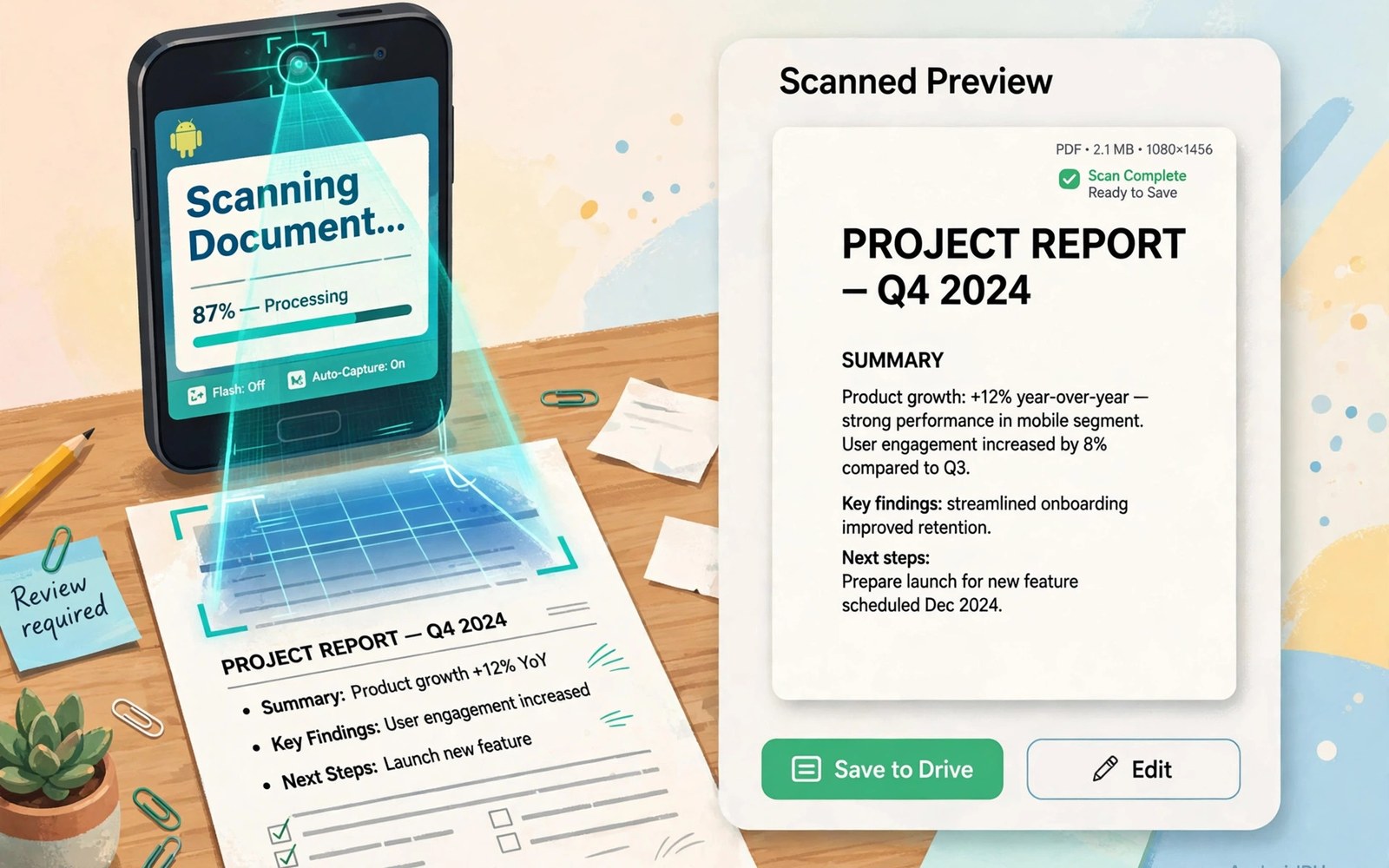
Document scanning apps for Android raise a simple question for Android users and the answer depends on the document in front of you. A phone camera can scan a receipt in seconds and a dedicated scanner app can clean and crop and recognise text far better. This comparison shows when each path wins and when each path fails.
Many people scan with the default camera and then wonder why text looks grey or edges look bent. A camera captures a photo and a scanner app corrects perspective and contrast and page edges before saving. That correction turns a photo into a document that others can read and search.
Start by sorting your scans into quick captures and important records. Receipts and whiteboard notes suit quick capture and contracts and IDs suit careful scanning. A clear split keeps daily scanning fast without risking an important record. A closer look at time-tracking apps can help you compare daily tools before you commit to one setup.
What matters most
Edge detection decides whether a scan looks like a flat page or a tilted photo. A good scanner finds page corners even on a busy desk and crops to the page alone. A poor scanner leaves desk clutter in the frame and that clutter distracts every later reader.
Text recognition turns a picture of words into searchable text that you can copy. Recognition quality depends on light and focus and page flatness more than on app branding. A sharp flat scan in good light will beat a fancy app used on a bent page in dim light.
File size and format decide whether a scan is easy to share and store. PDF suits multi page documents and image files suit single pages for quick sharing. A scan saved at huge resolution will fill storage fast without adding readable detail.
How to choose the right setup
Receipts need fast capture and automatic cropping and a clear date in the file name. A receipt scanner that needs many taps will lose receipts during a busy shopping trip. Keep a receipt folder with monthly subfolders so tax time stays simple.
Contracts need high resolution and careful edge correction and a check of every page. A contract scan with a missing page or a cut off signature can cause real trouble later. Count pages after scanning and open the final PDF before you send it.
Whiteboard notes need contrast boost and colour handling that keeps marker text readable. A scanner that turns a whiteboard grey will hide light colours and fine writing. Test whiteboard scans in the same light where you usually capture them.
A practical daily routine
Place the page on a plain dark surface and hold the phone steady above the centre. Good light from the side reduces shadows from your hand and from the phone. Take the scan slowly because a rushed capture creates blur that no filter can fix. A related look at tablet workstation setup can show how a second tool fits the same workday without adding clutter.
Check the preview for cut off edges and blur and shadows before you save. A ten second preview check saves a rescan later when the original page is gone. Retake a bad page at once rather than hoping a filter will rescue it.
Name the scan at once with a topic and a date and a page count. A name like invoice supplier 12 May tells you exactly what the file holds. Vague names turn a scan library into a puzzle within months.
Costs and privacy and limits
Free scanner apps often limit pages per month or add a watermark to exports. A watermark on a contract scan looks unprofessional and it can hide text near the edge. Pay for a scanner only when free limits block a real weekly need.
Scans can hold IDs and contracts and medical papers that deserve strong privacy. Some scanner apps upload pages to a server for recognition and others process pages on the device. Local processing suits sensitive pages far better than cloud upload.
Storage grows fast when scans save at full camera resolution. A receipt does not need the same resolution as a contract with fine print. Set a standard resolution for routine scans and raise it only for important records.
A useful example
A scanned page often improves with a simple cleanup before text recognition runs. The script below converts a scan to grayscale and enlarges it for clearer text. Use the same idea inside a scanner app by raising contrast before you save.
from PIL import Image
im = Image.open("scan.jpg").convert("L")
im = im.resize((im.width * 2, im.height * 2), Image.LANCZOS)
im.save("scan-clean.jpg", quality=88)
print(im.size)
This image cleanup pattern follows the approach described in the official Pillow documentation for opening and resizing images. The same documentation explains how grayscale conversion can improve text clarity before recognition.
What to check after a week
After a week check text recognition on your own handwriting and printed pages. Recognition that works on printed text may fail on notes and receipts with small fonts. A real test with your own documents beats a demo with perfect sample pages.
After a week check a multi page scan on a computer for missing pages and order. Page order errors happen when capture runs fast and preview gets skipped. A computer check catches order problems before a document reaches a client. A practical look at office suites on Android can help you judge whether your current setup still earns its place on your phone.
After a week check storage use and file names across your scan library. Duplicate scans and vague names waste space and time during searches. Delete duplicates weekly and keep one clean copy of each document.
Deeper checks for careful users
Batch scanning helps when a long document needs many pages in one PDF. A batch mode that keeps pages in order and shows a thumbnail strip prevents missing pages. Pause between pages to let focus settle rather than rushing through a thick file.
Colour mode matters for documents with stamps and signatures and highlighted text. Grayscale suits plain text and colour suits official stamps and signatures. Choose colour for legal pages even when the file grows larger.
Backup rules matter because a phone scan is often the only copy of a paper original. Sync scans to a second location at once and keep the paper until the digital copy is checked. A scan without a backup is a risk rather than a record.
Making the choice stick
A scanning habit sticks when the scanner app opens faster than the default camera. Place the scanner shortcut on the first home screen beside the camera. A scanner hidden in a folder will lose to quick camera photos every time. A visible shortcut turns scanning into a reflex during errands. Test the shortcut for a week and move it if you keep opening the camera first.
A scan library needs a folder rule that you can follow without thinking. Use one folder per year with subfolders per month for receipts and records. A folder rule that needs a decision for every scan will break during busy weeks. A simple year and month rule works for almost every personal and work scan. Review the library monthly and move misfiled scans at once.
Receipt scanning works best when you scan at the point of purchase rather than later. Scan a receipt before leaving a shop while the paper is still flat and clean. A receipt kept in a pocket for weeks will crease and fade before scanning. A creased receipt scans poorly and text recognition will fail on faded print. A point of purchase habit will save tax time and expense reports.
Contract scanning needs a page by page check before the original leaves your hands. Count pages and check signatures and stamps on the final PDF. A missing page in a contract scan can cause trouble months later. A page check takes a minute and it protects the whole document. Keep the paper original until the digital check passes fully.
Batch scanning suits long documents when the app keeps pages in order. Pause between pages to let focus settle and check the thumbnail strip often. A rushed batch can duplicate a page or skip a page without warning. A thumbnail check after every ten pages catches order problems early. A careful batch will produce a clean PDF that needs no repair.
A scanner earns a permanent place when it passes your worst real documents. Test it on a creased receipt and a glossy page and a handwritten note. A scanner that passes only perfect pages will fail on daily life. A real document test reveals edge and contrast limits early. Keep the scanner that passes messy real pages rather than the scanner with the cleanest demo.
A week of practice
Day one of practice should scan a receipt and a handwritten note in good light. Check edge detection and text clarity on both scans at once. A scanner that passes both types will serve daily life well. A scanner that fails on handwriting needs a contrast setting fix. Note which document type needed a retake and why.
Day three of practice should scan a multi page document and check page order. Open the final PDF on a computer and count pages in order. A clean order proves batch mode works for your documents. A missing or duplicated page shows a capture speed problem. Slow down between pages if order errors appear.
Day five of practice should test text recognition on a printed page and a receipt. Copy recognised text into a note and check accuracy line by line. A high accuracy result proves the scanner can feed searchable archives. A low accuracy result shows a light or focus problem to fix. Retake poor pages in better light rather than accepting bad text.
Day seven of practice should review the scan library for file names and duplicates. Rename any vague file and delete any duplicate scan. A clean library at week one will stay clean with a weekly check. A messy library at week one will grow worse each month. Decide on evidence and keep the scanner that passed real documents.
Common mistakes
Most scanning failures come from rushed capture rather than from app limits. The list below names the mistakes that ruin scans most often.
- Scanning a bent page in dim light and hoping a filter will fix it.
- Saving scans with vague names and no date or page count.
- Skipping the preview check and sending a scan with cut off edges.
- Using a watermark free plan for contracts that need a clean copy.
- Uploading sensitive IDs to a cloud scanner without checking privacy rules.
- Keeping duplicate scans instead of one checked final copy.
Each mistake above is easy to avoid with a slow capture and a preview check. A clean scan taken once will serve you for years. Keep the scanner that passes your own documents rather than the scanner with the flashiest demo.
Frequently asked questions
Is a phone camera enough for document scanning?
A phone camera suits quick captures of receipts and notes when light is good. A dedicated scanner app adds edge correction and contrast and text recognition. Use a scanner app for contracts and any document you must share or archive.
Can scanner apps recognise handwriting?
Scanner apps recognise printed text far better than handwriting in most cases. Neat handwriting may partly convert and messy notes often stay as images. Keep handwritten originals until you check the recognised text.
Are scanned documents legally useful?
Scanned documents often serve as useful copies for records and sharing. Original paper may still matter for some legal and official purposes. Keep the paper original for important contracts until you confirm the rules that apply.
Conclusion and next step
A phone camera wins for speed and a dedicated scanner wins for quality and search and sharing. The best choice depends on whether the document is a quick note or an important record. Use both paths with clear rules for each kind of document.
Your concrete next step is to scan one receipt and one contract with both methods this week and compare edge quality and text search. Keep the method that passes the contract test for important records. A clear rule will save rescans for months.

