

Top Apps to Extend Your Smartphone Battery Life Life Span
Top apps to extend your smartphone battery life span work best when they reveal real drains instead of promising magic. A monitor that names the hungry app beats a cleaner that kills apps all day, because Android relaunches killed apps and the relaunch costs more power than the kill saved. Battery life improves through measured changes to screen use, background work, and charging habits, and the right app is the one that shows you where the power actually goes.
Start with the built in battery screen before you install any saver app. It shows which apps used power since the last charge and whether the screen or the network caused the drain. That screen alone often names the culprit. Owners who need deeper detail can add system monitoring apps for RAM and storage to track patterns across days, because three days of data beat a single screenshot. Facts first and tools second keeps battery advice honest.
How to Read the Battery Screen Before Installing Any App
Battery use splits into screen, apps, system services, and network. A high screen share points to brightness or long screen time, while a high app share points to background work. Compare usage across similar days instead of judging one unusual day, because patterns across a week reveal the true drain. Check battery use after a full charge cycle for a fair comparison, since a partial charge skews percentages and hides the real leader. Note the apps at the top after three normal days and focus fixes there.
Permissions deserve a quick review before you trust a new app with daily work. Grant only the access the app truly needs for its main job and leave the rest off until a feature asks for it. You can change any permission later in system settings without losing your data. Notifications decide whether an app helps you or interrupts you all day: keep alerts on for messages that need a fast reply and silence the rest, because a quiet phone still delivers urgent news while it protects your focus.
Three Days of Data Beat One Screenshot
Judge battery life from a week of similar use, not from a single day. One unusual day, a long call, a hot afternoon, or a system update can skew every number. A pattern across three normal days tells you which app to restrict and which setting to change.
Top Battery Apps Compared: Monitors, Savers, and Automation Tools
The eight apps below cover the three jobs that actually help: monitoring what drains power, reducing idle drain, and automating the settings you would otherwise forget. Each entry names the app, explains what it does, who it suits, its strengths and weaknesses, and a verdict. Install one at a time and test each for a day of normal use before adding the next, because a slow start reveals problems early while a rushed setup hides them until they hurt.
1. AccuBattery: Battery Health and Charge Monitoring
AccuBattery measures battery health, tracks charge speed, and shows per-app battery use with estimates of wear per charge cycle. It can sound an alarm at a charge level you choose, so you can unplug before a full charge and reduce long term wear. It suits owners who want to know whether their battery is ageing or an app is misbehaving. Pros: clear health estimates, useful charge alarms, no root needed, and detailed history across days. Cons: health estimates need several charge cycles to stabilise, and the free version limits some history views. Verdict: the best first app for anyone who wants facts instead of guesses.
2. GSam Battery Monitor: Deep Per-App Drain Detail
GSam Battery Monitor shows detailed per-app battery stats, wakelocks, temperature, and time spent awake versus asleep. It suits owners who already know one app is draining power and want proof of which one and when. Pros: precise wakelock detail, temperature tracking, and clear charts. Cons: full detail needs an ADB permission grant from a computer, and the interface is dense for casual users. Verdict: the best detective tool when the built in battery screen is not detailed enough.
3. BetterBatteryStats: Wakelock and Alarm Analysis
BetterBatteryStats analyses wakelocks and alarms to show exactly which app keeps the processor awake at night. It suits advanced owners and rooted users who want to find the one process behind overnight drain. Pros: the most precise wakelock data available on Android, and clear before and after comparisons. Cons: needs root or an ADB grant for full access, and the data needs some learning to read. Verdict: the best tool for stubborn overnight drain that other monitors cannot explain.
4. Naptime: Aggressive Doze for Idle Hours
Naptime forces Android Doze mode to start sooner and stay aggressive, which cuts idle drain when the phone sits untouched. It suits owners whose phone loses several percent overnight with the screen off. Pros: real idle savings, simple controls, and no root needed after a one-time ADB grant. Cons: aggressive Doze can delay notifications from apps that are not exempted, so messaging apps need an exemption. Verdict: the best app for idle and overnight drain when notifications are configured carefully.
5. Greenify: Hibernating Apps That Keep Waking Up
Greenify hibernates apps that wake the phone for no good reason, and it can stop aggressive apps from restarting constantly. It suits owners with social and shopping apps that poll all day. Pros: stops the worst background pollers, works with or without root, and keeps apps usable when opened. Cons: hibernated apps may deliver notifications late, and setup needs care for messaging apps. Verdict: the best app for taming chatty apps without deleting them.
6. Battery Guru: Charging Alarms and Doze Optimisation
Battery Guru combines battery health tracking, charging alarms, and Doze optimisation in one app. It suits owners who want a single tool for both daily monitoring and long term battery care. Pros: charging alarms protect battery health, Doze controls are easy to find, and the interface is friendly. Cons: some features overlap with the built in battery screen, and aggressive Doze needs the same notification care as Naptime. Verdict: a solid all-rounder for owners who prefer one app instead of three.
7. MacroDroid: Automating Battery Saving Settings
MacroDroid automates settings you would otherwise forget, such as dimming the screen at low battery, turning off sync during sleep hours, and silencing non-urgent alerts at night. It suits owners who want battery saving without opening settings every day. Pros: routines match your real schedule, the interface is simpler than Tasker, and automations stick because they are personal. Cons: building a good routine takes a little setup time, and a badly designed routine can silence an alert you needed. Verdict: the best automation app for battery habits, because automation beats aggression for battery life.
8. Servicely: Stopping Background Services That Drain Power
Servicely stops background services that keep the processor awake, and it can apply rules per app rather than globally. It suits rooted owners who have identified one service behind the drain. Pros: precise per-service control, and it stops the exact cause rather than the whole app. Cons: needs root, and careless rules can break notifications or sync. Verdict: a specialist tool for rooted owners who already know which service is at fault.
Restrict Background Work Wisely Instead of Killing Apps
Background restrictions stop an app from waking the phone often for updates it does not need. Restrict social and shopping apps first, because they poll for content you can fetch manually. Keep restrictions off messaging and mail apps that must deliver alerts promptly. Selective restriction saves power without breaking urgent alerts, and you should test each restriction for a day before you restrict the next app. A delayed message after a restriction tells you the app needed background access, so revert that one restriction and keep the rest. Careful testing prevents a battery fix from becoming a missed message problem.
A related saving comes from lightweight apps for small phones alongside the tools above, because a light app that does the same job with less background work saves power every day without any setting change. Compare two similar apps on the same task on the same day, pick the winner promptly, and remove the loser so data never splits across two tools.
When a Saver App Helps and When It Hurts
A saver app helps when it automates settings you would otherwise forget, such as dimming the screen at low battery. Choose a saver that changes system settings with your approval rather than one that force closes apps constantly, because force closing apps makes Android relaunch them, which can use more power. Automation beats aggression for battery life. Avoid saver apps filled with ads and cleaners that run all day: an app that wakes the phone to clean it defeats its own purpose. Read recent reviews for battery complaints about the saver itself, because a saver that drains power is worse than no saver at all.
Screen and Network Settings Save More Than Any Saver App
Screen brightness and refresh rate shape battery life more than most apps do. Lower brightness indoors and use adaptive brightness so the phone adjusts to light. A high refresh rate feels smooth but costs power all day, so try a standard rate for a week. Small screen changes often save more than any saver app. Network choices matter too: a weak signal forces the radio to work harder, so turn on Wi-Fi when available, use airplane mode in dead zones instead of letting the phone hunt for signal, and download media over Wi-Fi before travel so playback never relies on a weak connection. Radio discipline is free battery life, and it costs nothing to practise.
Charging Habits and Storage That Protect Battery Life Long Term
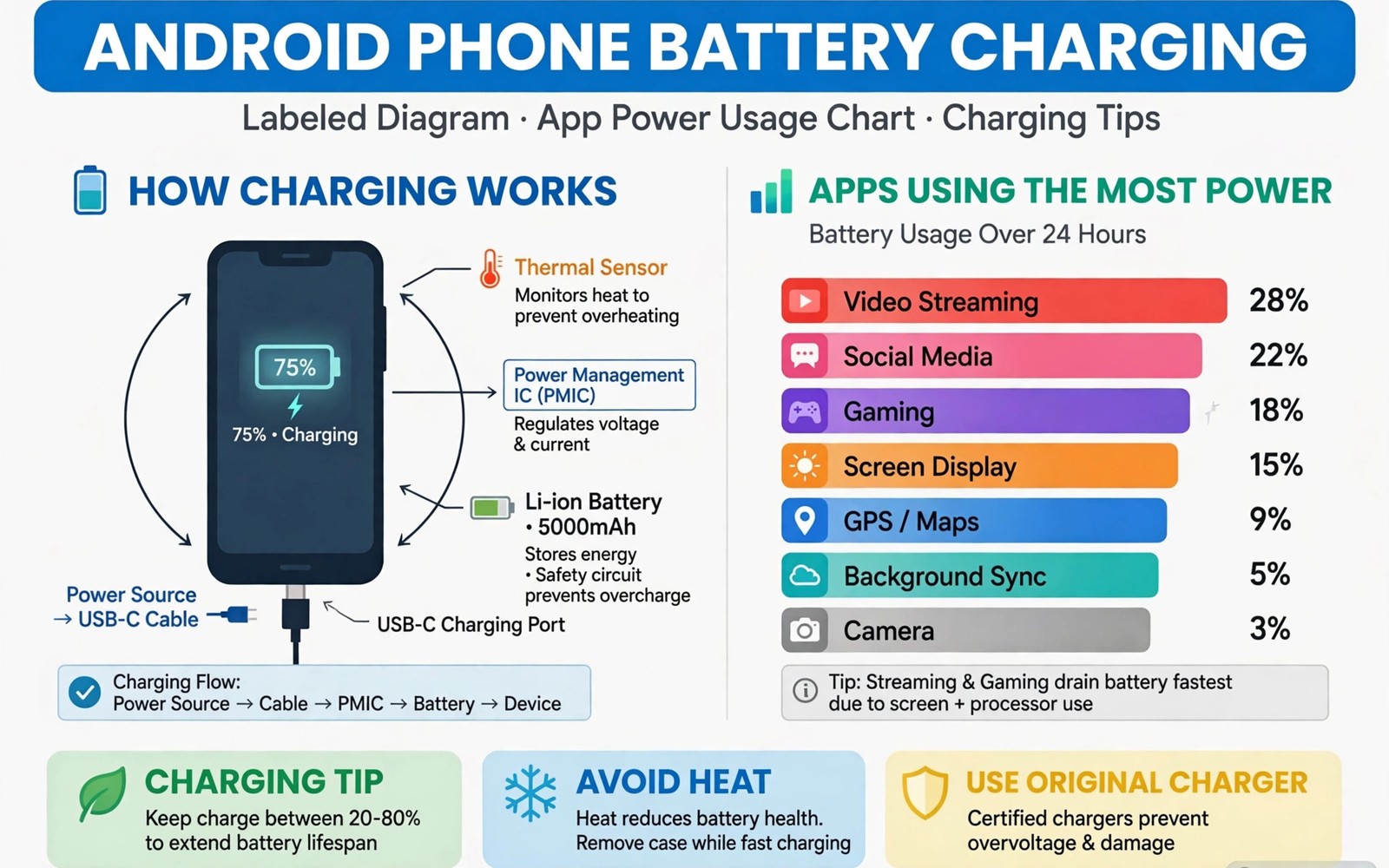
Charging habits affect long term battery health as well as daily life. Avoid leaving the phone at full charge on a hot charger for hours each night. Charge to a comfortable level and unplug when convenient instead of chasing a full battery every time. Gentle charging extends the years a battery serves well, and a cooler charge is kinder than a fast hot charge.
Charge to a Comfortable Level, Not Always Full
A battery kept between 20 and 80 percent most of the time ages more slowly than one held at 100 percent every night. Charge alarms from a monitoring app can remind you to unplug at 80 percent, and that small habit adds months to a battery’s useful life.
Storage and battery shape how well any app performs over time. Check storage use once a month and clear cached files that grow without adding value. A phone with free space runs smoother, and updates install without errors. For daily phone jobs you may also add essential utility apps for the same routine, because a tidy phone with fewer background services is a phone that sleeps better at night.
Automation for Charging Habits
Automation can lower brightness at night and turn off sync during sleep hours. A night routine that silences non-urgent alerts also reduces wake ups that drain power. Set routines that match your real schedule rather than copying a generic template, because personal routines stick while generic ones get disabled. Learn one advanced feature per month inside an app you already love: small steady learning beats a weekend of tutorials that you forget by Monday, and one feature per month compounds into mastery within a year.
Common Mistakes When Choosing Battery Apps
A common mistake is installing a saver that kills apps aggressively and then wondering why messages arrive late. Another mistake is chasing a single magic setting while ignoring screen brightness and weak signal drains. A third mistake is judging battery life from one day instead of a week of similar use. Measure, restrict selectively, and the gains last. Try one change at a time when you rebuild your phone setup: install two or three apps first, use them for real tasks, and add more only after a week. A slow start reveals problems early while a rushed setup hides them until they hurt.
Check the data use of a new app during its first week. An app that syncs large files in the background can surprise you on a capped plan, so use Wi-Fi only sync for heavy apps and keep mobile data for urgent use. Updates matter because developers fix bugs and close security gaps in each release: turn on automatic updates for trusted apps, read the changelog when an update changes a feature you rely on, and skip an update only when you have a clear reason and a backup plan.
Frequently Asked Questions About Battery Saving Apps
Do battery saver apps really work?
Saver apps work when they automate sensible settings such as brightness and background limits. They fail when they rely on force closing apps that Android relaunches. Pick a saver that changes settings with your approval, and measure the result over three days before you trust it.
Should I use battery saver mode all day?
All day saver mode limits performance and background sync, which can delay alerts. Use it at low battery, and use selective restrictions for daily life. That combination saves power without breaking the alerts you need.
Does fast charging harm battery life?
Occasional fast charging causes little harm, while constant heat harms more. Charge in a cool place, avoid heavy gaming while charging, and unplug when the phone is full rather than leaving it hot on a charger overnight.
Which battery app should I install first?
Start with AccuBattery, because it shows health and per-app use without root and without changing any setting. Add GSam or BetterBatteryStats only if the first app cannot name the drain, and add Naptime or Greenify only when you know which app or idle pattern is the problem.
Your concrete next step is to open the battery screen tonight and restrict the top background app that you do not need urgently. Track battery for three days and keep the restriction if life improves. One measured fix beats a folder of saver apps, and a tidy phone setup is a habit, not a one-time project. Revisit your apps each month and your choices will stay aligned with your life. Measure first, restrict selectively, and let the numbers decide which app earns a place on your phone.

