

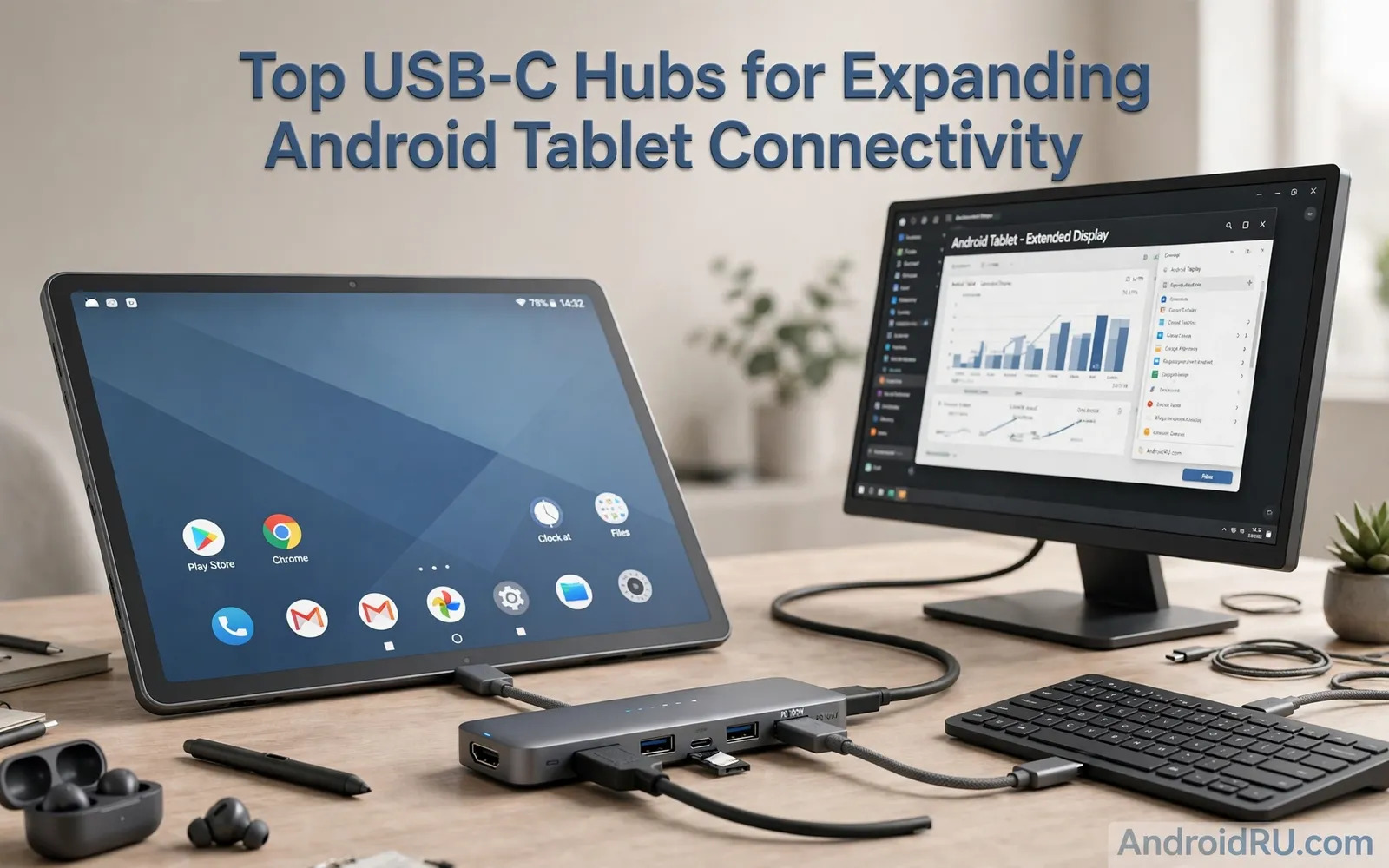
Why A Tablet Needs A USB-C Hub
A modern Android tablet often ships with a single USB-C port. That single port must handle charging and data and video at once. A hub splits that one port into many useful ports. You gain video output and USB ports and card readers in one small box. You also gain a wired network port on some larger hubs. The tablet suddenly behaves like a small desktop computer. Students can type essays on a real keyboard. Workers can present slides on a large monitor. Photographers can import photos from a card without a laptop nearby. A hub turns a portable tablet into a flexible work station.
The key idea is that one cable carries many kinds of traffic. Video traffic and storage traffic share the same cable. Power traffic can share it as well when the hub supports pass through charging. That sharing has limits that buyers must respect. A hub with too many busy devices can slow each device down. A hub with a weak power supply can drain the tablet while it works. Choosing a hub means balancing port count against power and speed. A small travel hub suits light daily tasks very well. A larger desktop dock suits a fixed desk setup much better. Match the hub to the place where you will use it most.
Ports That Matter Most On A Hub
Video output is often the first port buyers want from a hub. A video port lets the tablet drive a monitor or a television. Check whether your tablet supports video output over USB-C before you buy. Some tablets only support data and charging through that port. A hub cannot add video support that the tablet lacks. The tablet maker specs page will state video support clearly. Look for display output support in the connectivity section. If video support is absent then focus on data and storage ports instead. A hub still adds real value without video output for many users.
USB ports for keyboards and mice and storage come next in importance. A mix of older USB ports and newer USB-C ports covers most gear. A card reader helps photographers and drone owners move files fast. A wired network port helps in offices with weak wireless coverage. An audio jack on a hub can rescue a tablet that lacks one. Each port adds size and cost and power demand. Do not pay for ports you will never use. List your real gear first and then match a hub to that list. A focused hub beats a bloated hub for daily travel and desk use.
Power Delivery And Pass Through Charging
Pass through charging lets the tablet charge while the hub works. The hub takes power from a brick and shares it with the tablet. The tablet keeps working without draining its battery during long sessions. This feature matters for monitor use and long file transfers. Without it a tablet can run flat during a long work session. Check the power rating of the hub before you buy. Check the power rating of your brick as well. The brick must supply enough power for the hub and the tablet together. A weak brick turns a good hub into a frustrating product. Use the brick guidance from the hub maker as your starting point.
Cable quality also shapes power delivery in a hub setup. A thin long cable can lose power along its length. A short thick cable keeps power stable for the tablet. The cable between hub and tablet deserves the same care as the brick. Swap cables during testing when charging looks weak. The wider cable picture matters here because speed and power travel together on USB-C. Readers can study how USB-C cable speeds and wattage ratings interact before they pick a cable for a hub setup. That knowledge prevents a good hub from looking slow due to a poor cable choice.
Storage And File Transfers Through A Hub
A hub makes a tablet a strong file management station. Plug in a flash drive and copy photos in seconds. Plug in a card reader and back up a full shoot on the spot. Plug in an external drive and free space on the tablet. File manager apps on Android handle these drives with ease. Some drives need more power than a tablet port can supply alone. A powered hub solves that problem by feeding the drive itself. An unpowered hub may fail with large spinning drives. Solid state drives usually fare better on unpowered hubs. Test your own drives on the hub before a critical trip.
File transfer speed depends on the hub and the drive and the tablet together. A fast drive on a slow hub will still move slowly. A slow drive on a fast hub will still move slowly. The slowest part sets the pace for the whole transfer. Large video files expose weak links faster than small documents do. Copy a large folder as a test before you trust a hub for work. Time the copy and compare it with a direct connection. Keep the hub firmware updated when the maker offers updates. A hub is a small computer in its own right and it benefits from care.
Desk Setups And Travel Setups
A desk dock stays in one place and connects many devices at once. A monitor and a keyboard and a mouse and a drive can all stay plugged in. You connect the tablet with one cable when you sit down. You disconnect with one pull when you leave. That single cable ritual saves time every single day. A desk dock should feel heavy and stable on the desk. It should not slide when you plug in a cable. It should offer enough ports that you never swap cables mid task. Cable management becomes simpler when one dock holds everything together.
A travel hub must be small and light and tough. It should fit a small pocket in a laptop sleeve. It should survive rattling around in a bag for months. A travel hub with a built in short cable avoids a loose cable hunt. A travel hub with only the ports you need stays small. Power users on the road face the same matching puzzle as desk users. The power bank guide for high capacity power banks for long travel explains how to size a power source for a full day away from sockets. A hub plus a strong power source turns a tablet into a road office that works anywhere.
Compatibility Checks Before You Buy
Check tablet support before you spend money on any hub. Confirm video output support when you need a monitor. Confirm storage support when you need external drives. Confirm that your tablet case leaves room for the hub plug. A thick case can block a wide hub connector. A right angle connector can solve some case clearance problems. Test the hub within the return window with your real gear. Plug in every device you plan to use at once. Run them together for an hour and watch for drops. A hub that works with one device may fail with five devices at once.
Charging behavior deserves a dedicated test as well. Connect the hub and the brick and the tablet together. Watch the battery icon for a charging symbol. Watch whether the battery level rises during heavy use. A tablet that drains while plugged in needs a stronger brick. A hub that disconnects when the brick is added may have a power fault. Return such a hub rather than working around its fault. Charger design knowledge helps here too. A look at how GaN chargers compare with traditional adapters can guide your brick choice for a hub that must feed several devices at once. A good brick is the quiet foundation of a good hub setup.
Final Advice For Tablet Hub Buyers
Buy the smallest hub that covers your real gear list. Add one spare port for future gear if the size penalty is small. Prefer hubs with pass through charging for any desk or long session use. Prefer powered hubs when you use large external drives often. Read the port list twice before you order. Marketing photos can hide missing ports behind nice angles. Check user feedback for disconnect reports with your tablet brand. A pattern of disconnects with one brand is a warning worth heeding. Keep the box and receipt until your full test passes.
A good hub should disappear into your routine within a week. You stop thinking about ports and you simply work. The tablet becomes a desktop when you sit down. It becomes a tablet again when you unplug one cable. That flexibility is the real product you are buying. It is not the metal box itself. It is the freedom to work anywhere with the same gear. Choose carefully and test thoroughly. Your future self will thank you on every busy workday and every long trip ahead.
Using One Hub With Several Devices
A single hub can serve a tablet and a phone on different days. The same monitor and keyboard can stay plugged into the hub permanently. You swap only the small cable between tablet and phone. That shared desk saves money on duplicate gear. It also keeps your workspace tidy and consistent. Each device may behave slightly differently on the same hub. One tablet may drive a monitor while a phone may not. One phone may support external storage while another needs an app. Test each device separately on the hub before relying on it. A hub that serves two devices well is a genuine bargain for a small home office.
Some phones offer a desktop style mode when connected to a monitor. That mode turns a phone screen into a windowed desktop view. A hub with video output unlocks that mode for work. A keyboard and mouse complete the desktop feeling. Documents and spreadsheets become far easier in that mode. Not every phone offers such a mode so check your phone features first. A tablet with a large screen may not need a desktop mode at all. Its apps already use space well on a monitor. Match the hub to the device that will use it most. A hub bought for a phone may still serve a tablet beautifully later.
Disconnects frustrate hub users more than any other problem. A drive that vanishes mid copy needs methodical testing. Test the drive directly on the tablet without the hub first. Test the hub with only the drive attached and nothing else. Add devices one at a time until the fault returns. The last device added often reveals the power or bandwidth limit. A powered hub solves many disconnects caused by power hunger. A shorter cable solves disconnects caused by signal loss. Firmware updates from the hub maker can also fix stability bugs. Patience during testing saves money on needless hub replacements.

