

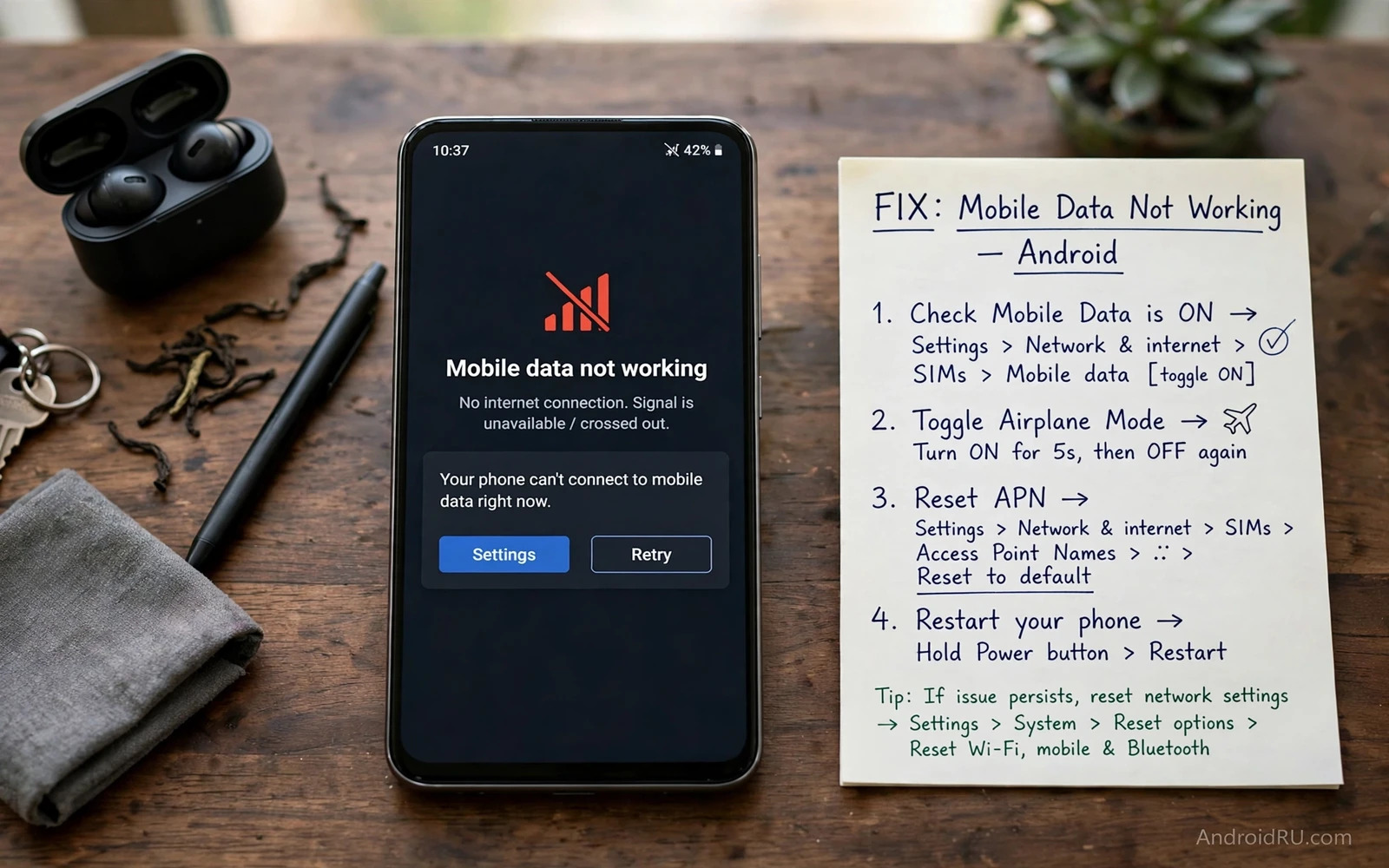
Why Mobile Data Stops Working
Mobile data can stop working suddenly even when calls still work and Wi-Fi still works. The phone may show a signal icon yet no page loads and no message sends. The cause can be a toggled setting or a wrong access point name or a carrier outage or a SIM fault. A data plan that has run out can also look like a technical fault. A calm check of settings before a carrier call saves time and it often restores data in minutes.
Start by confirming the exact symptom in plain terms. Note whether no app can use data or whether only one app fails. Note whether the signal icon shows 4G or 5G or no data symbol at all. Note whether the problem started after a system update or after a SIM change or after travel. Those notes separate a setting fault from a carrier fault and from a single app fault. A clear symptom description also helps carrier support if you need to call them.
Check The Basic Data Switches
Open Settings and tap Network and internet and then tap SIMs or Mobile network to find the mobile data switch. Confirm that mobile data is turned on for the SIM that you use for data. Check that data roaming is set correctly if you are travelling because a roaming block can stop data abroad. Turn mobile data off and on again and wait a few seconds for the connection to rebuild. A simple toggle can clear a stuck data session.
Check whether Airplane mode is truly off and not stuck halfway after a recent toggle. Turn Airplane mode on for thirty seconds and then turn it off again to force a fresh network registration. Check whether a data saver mode is blocking background data for apps that you need. Turn off data saver for one test and see whether apps load again. A data saver that is too strict can look like a total data failure.
Test Signal And Carrier Status
Move to a different location and check whether data returns with a stronger signal. A weak signal in a basement or a lift can block data while calls still work on a lower band. Ask a friend on the same carrier whether their data works in the same place. A shared failure points to a carrier outage in that area. A failure that follows only your phone points to your device settings or SIM.
Wi-Fi faults can confuse a data test and the connection steps in How to Fix Wi-Fi Dropping Connection Frequently on Mobile help you separate Wi-Fi trouble from mobile data trouble. Turn Wi-Fi off during a mobile data test so the phone cannot switch to a weak Wi-Fi network silently. A phone that clings to a dead Wi-Fi network will show no data even when mobile data is healthy. A clean test uses one connection at a time.
Check APN Settings Carefully
An access point name tells the phone how to connect to the carrier data network. A wrong or missing APN can block data while calls still work normally. Open Settings and tap Network and tap Access point names to see the current APN list. Compare the APN name and type with the official APN for your carrier from its support page or from a trusted carrier message. Do not copy an APN from a random forum post without checking the carrier name first.
If the APN list is empty then reset APN settings to default from the menu on that page. A reset restores the carrier default APN without deleting personal data. Restart the phone after a reset and test data again. If you must enter an APN manually then type each field exactly and save it and select it as the active APN. A single typo in an APN field can block data completely so double-check every character.
APN reset path
Settings > Network > Access point names > Menu > Reset to default > Restart
SIM Card And Dual SIM Checks
Power off the phone fully before you remove the SIM card. Inspect the SIM for scratches and dirt and clean its gold contacts gently with a dry cloth. Insert the SIM firmly and power on again and test data. A loose SIM can cause intermittent data even when the signal icon looks normal. Test the SIM in another phone if you can because a SIM that fails in two phones is likely faulty.
Dual SIM phones need extra care because data may be assigned to the wrong SIM. Open SIM settings and confirm which SIM is set as the preferred SIM for mobile data. A data plan on SIM one will not help if the phone tries to use SIM two for data. Set the correct SIM as the data SIM and test again. A wrong data SIM is a common cause of a sudden data failure after a SIM swap.
App Data And System Settings
Check whether a single app fails while other apps use data normally. Open app info for that app and confirm that mobile data access is allowed and that background data is not blocked. A VPN app can also block data if its connection fails. Turn off the VPN for one test and see whether data returns. A VPN that cannot connect will block all traffic and look like a carrier fault.
Reset network settings only as a later step because it clears saved Wi-Fi networks and Bluetooth pairings as well as mobile settings. Open Settings and search for reset network settings and confirm the reset. Restart the phone and test mobile data before you reconnect Wi-Fi networks. A network reset can fix a corrupted network profile that no single toggle can reach. Keep your Wi-Fi passwords ready before you use this step.
Data Plan And Carrier Account Checks
Check your data balance and plan status through the carrier app or a carrier short code if your carrier offers one. A plan that has expired or a balance that has run out will stop data even when settings are perfect. Top up or renew the plan and restart the phone after payment. Check whether a data limit in phone settings is blocking data after a monthly cap. Turn off a phone data limit for one test if the carrier plan still has balance.
Contact carrier support with a clear summary if settings and SIM tests both fail. Tell support your phone model and the APN that is active and the locations where data fails. Ask support to check whether your line has a data block or a provisioning fault. A provisioning fault on the carrier side cannot be fixed from the phone alone. A clear summary helps support fix the line faster.
Hotspot And Tethering As A Test
A hotspot test can reveal whether data works at all and the hotspot steps in How to Use Android Phone as a Wi-Fi Hotspot for Laptop show how to share a working connection safely. Turn on hotspot briefly and connect a laptop to see whether the laptop can load a page through the phone. A working hotspot proves that mobile data works and the fault lies in a phone app or setting. A failing hotspot points to the carrier or SIM or APN instead.
Turn hotspot off after the test to avoid unexpected data use by other devices. A hotspot left on can drain battery and data quickly. Use hotspot only for a short diagnostic test unless you need it for work. A short test gives a clear answer without a large data cost.
Bluetooth And Accessory Confusion
Some connectivity faults mix Wi-Fi and Bluetooth symptoms and the accessory steps in How to Fix Bluetooth Pairing Failures on Android Accessories help you rule out a paired device fault. Disconnect Bluetooth accessories during a data test because a faulty accessory rarely blocks data but it can distract the diagnosis. Focus on signal and APN and SIM first. A clean test with no accessories gives the clearest result.
Restart the phone after you disconnect accessories and test data again. A restart clears a stuck network service that an accessory app may have triggered. Test one change at a time and note the result after each change. A methodical test beats a random reset of every setting at once.
Final Checklist For Working Data
Confirm that mobile data is on for the correct SIM and that data saver is not blocking the apps that you need. Confirm that the APN matches your carrier and that the SIM sits firmly in its tray. Confirm that data works in a strong signal area and that Wi-Fi is off during the test. Confirm that your plan has balance and that no data limit blocks the connection. A short checklist covers the most common causes in order.
Monitor Data Use After The Fix
Check mobile data usage in settings after the fix and confirm that apps load normally on mobile data alone. A working connection should load a web page within a few seconds on a strong signal. Test a messaging app and a map app separately because different apps can have different data permissions. A full test covers more than one app.
Set a data usage warning at a level that matches your plan so a restored connection does not lead to unexpected overuse. A warning alerts you before the plan limit is reached. Review data usage once a week during the first month after a fix. A weekly review catches a new fault early.
Keep a note of the APN that works for your carrier in a safe place outside the phone. A written APN note lets you restore settings quickly after a future network reset. Share the note only with trusted family members who use the same carrier. A saved APN saves time during a future fault.
Test data after every system update because an update can reset network settings on rare occasions. A quick test after an update catches a reset before it ruins a travel day. Reapply the APN reset step if data fails after an update. A short post-update test is cheap insurance for connectivity.
Ask carrier support to confirm that your line is provisioned for data and not only for calls and texts. A line that was set up for calls alone can show full signal yet block data completely. A provisioning check on the carrier side takes only a few minutes once you reach the right team. A clear request for a data provisioning check speeds up the support call greatly.
Record the exact steps that fixed your data in a short note for future reference. A note that lists the APN reset and the SIM reseat and the data toggle in order saves time during a future fault. Keep the note in a cloud note app so it survives a phone reset. A personal fix note is a small habit with a large payoff.
Work through settings and APN and SIM and carrier checks in order and test after each step. Mobile data should return once the true weak link is fixed. Keep a note of the APN that works for your carrier so a future reset is easy. A phone that connects reliably keeps you online wherever you travel.

