

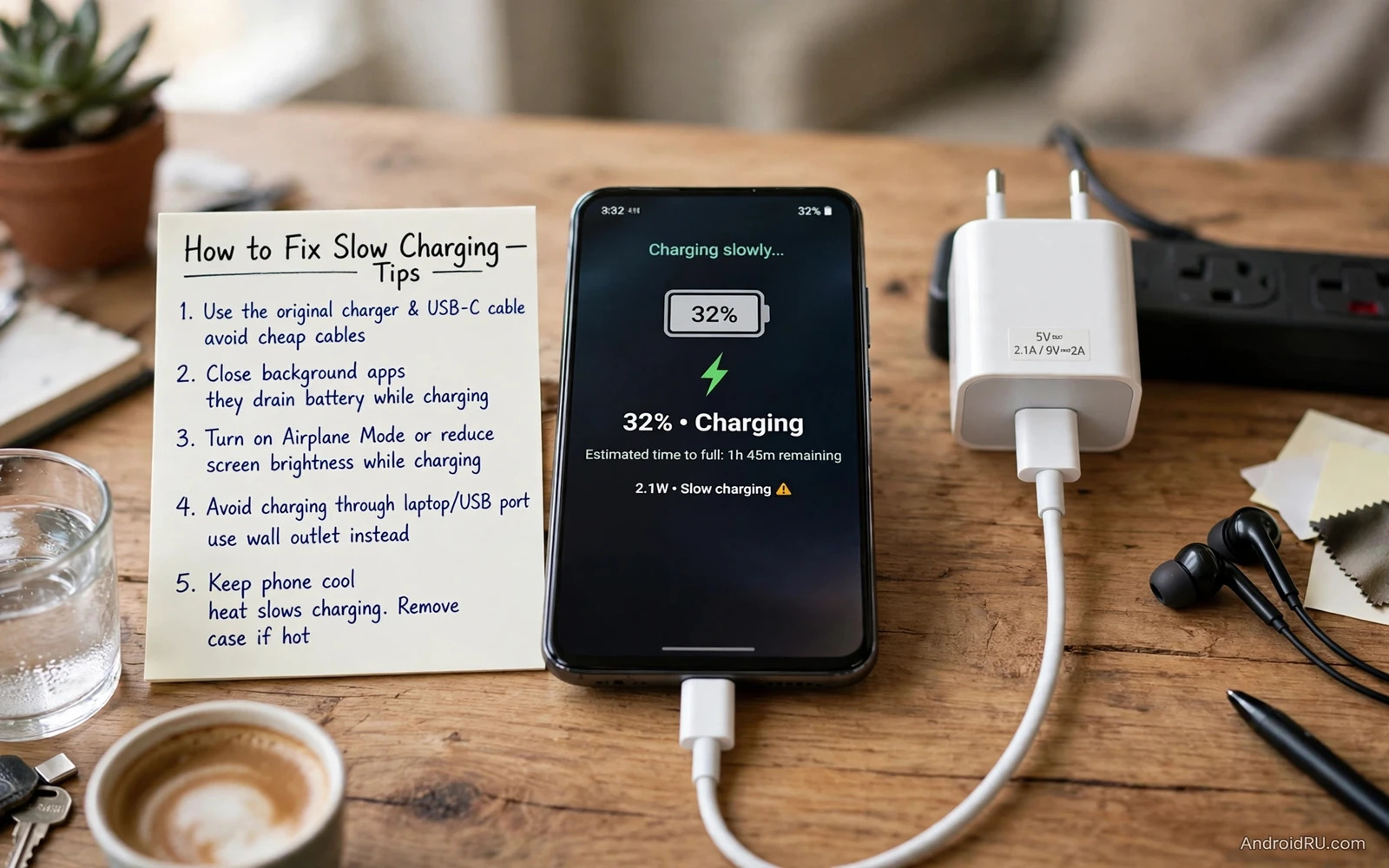
Why A Phone Charges Slowly
Slow charging feels frustrating because the phone shows a charging icon yet the percentage barely moves. The cause is rarely a single broken part and it is usually a weak link in a chain that includes the charger and the cable and the port and the software. A charger that cannot deliver enough power will charge slowly even with a perfect cable. A damaged cable will limit power even with a strong charger. A dirty port will add resistance and heat and slow the whole process. A calm check of each link finds the weak one without buying parts blindly.
Start by noting the charging behaviour in plain terms before you buy anything. Note whether the phone charges slowly from every outlet or only from one outlet. Note whether the percentage rises faster when the screen is off than when the screen is on. Note whether the phone feels warm during charging. Those three observations separate a charger fault from a usage fault and from a heat fault. A clear note saves money because it points to the right part first.
Check The Charger Power First
Look at the small print on the charger brick and check its output rating in watts or in volts and amps. A low power brick that came with an old device may charge a modern phone very slowly. Use the charger that came with the phone or a charger that matches the fast charging standard that your phone supports. A charger that supports a different fast standard may still charge the phone but only at a basic speed. Matching the standard matters more than buying the largest wattage number on the shelf.
Test the phone with a second trusted charger before you blame the phone itself. Borrow a charger from a family member or use a charger that you know works well on another phone. If the second charger restores normal speed then the first charger is the fault. If both chargers give slow speed then the fault lies in the cable or the port or the phone. A second charger test is free and it prevents a wasted purchase.
Inspect The Cable Closely
A cable can look fine on the outside while its internal wires are damaged near the plug. Bend the cable gently near each end and watch whether charging stops or restarts. A cable that only works at one angle is damaged and should be replaced. Check the plug for bent pins and check the sheath for cuts and swelling. A damaged cable can also heat up and that heat is a warning to stop using it at once.
Battery habits and charging behaviour are linked and the daily routines in How to Improve Battery Life on Any Android Smartphone explain why heat and full charges shorten battery health over time. Use a short high quality cable for a desk charger because a very long thin cable can lose more power. Keep the cable free from tight knots and from heavy objects pressing on it. A cable that is treated gently lasts longer and charges faster.
Clean The Charging Port Safely
Pocket lint packs tightly into a USB port over months of daily use. That lint prevents the plug from seating fully and it reduces the contact area for power delivery. Power off the phone and inspect the port with a bright light. Use a soft wooden toothpick or a plastic pick to lift lint out gently and never use a metal pin that can short the pins inside. Blow out loose dust with a short puff of air and test the plug fit afterwards. A plug that clicks in firmly is a good sign.
Do not use water or cleaning liquid inside the port and do not charge the phone while the port is wet. A wet port can trigger a moisture warning and it can damage the connector if power is forced through it. Let a wet phone dry fully in open air before you plug it in again. If the port feels loose even after cleaning then the connector itself may be worn. A loose connector needs professional repair and not a tighter cable.
Safe port check
Power off > Bright light > Soft pick > Firm plug fit > Test charge
Screen Use And Background Apps During Charging
A phone that runs games or video while it charges will gain percentage slowly because the screen and the processor consume power at the same time. The charger must feed both the battery and the active apps and the net gain becomes small. Turn the screen off during a test charge and compare the speed with the screen on. A large difference proves that usage is the main slowdown and not a hardware fault. Charge the phone while you do another task for the fastest result.
Background apps can also drain power during charging especially after an update. Open battery usage in settings and look for apps that consumed a large share in the last day. Restrict background use for apps that you rarely open and close heavy apps before you plug in. A clean background gives the charger a clear path to the battery. Check battery usage again after a few days to confirm that the change helped.
Heat And Charging Speed Limits
Phones slow charging deliberately when the battery gets hot because heat damages battery chemistry over time. A phone left in direct sun or on a warm car dashboard will charge slowly even with a perfect charger. Move the phone to a cool shaded spot and remove a thick insulating case during charging. Let a hot phone cool for a few minutes before you plug it in again. A cool phone charges faster and keeps its battery healthier for longer.
Heat also affects overall performance and the cooling steps in How to Fix Android Overheating Problems During Normal Use show how to spot apps and settings that push temperature up. Avoid charging under a pillow or inside a closed bag where heat cannot escape. Avoid running heavy games while the phone charges on a hot day. A small change in placement can restore normal speed without any new part.
Software Settings That Limit Charging
Some phones include a battery care setting that limits charging speed or caps the charge level to protect long term health. That setting can make charging feel slow even though the phone is working as designed. Open battery settings and look for optimised charging or battery protection options. Read what each option does before you turn it off because a slower charge can be a trade for a longer battery life. Choose the setting that matches how long you plan to keep the phone.
Check for a system update because a charging driver fix can arrive inside a normal update. Install the update and restart the phone before you test charging again. Also check whether a power saving mode is active because that mode can limit charging behaviour on some models. Turn off extreme power saving for one test charge and compare the speed. A software limit is easy to miss and easy to fix once you find it.
Wireless Charging And Power Banks
Wireless charging is slower than wired charging on most phones because energy is lost as heat across the pad. A misaligned phone on a wireless pad charges even slower and may stop and start repeatedly. Centre the phone on the pad and remove a thick case or a metal plate that blocks the coil. Use a wireless charger that matches the power level that your phone supports. A well aligned pad gives a steady charge while a poor alignment wastes time.
A power bank can also limit speed if its output is lower than the phone expects. Check the power bank output rating and use its fastest port for the phone. A power bank that is nearly empty may deliver less power than a full one. Charge the power bank fully before a trip and test it with the phone at home. A reliable power bank is worth more than a large capacity number on a weak unit.
When Slow Charging Signals Battery Wear
An old battery can accept charge more slowly because its internal resistance rises with age. Signs of wear include a battery that drops quickly after unplugging and a phone that shuts down at a higher percentage. Check battery health in settings if your phone model shows that figure. A worn battery may need replacement even when the charger and cable are perfect. A replacement from a trusted repair shop can restore both speed and daily runtime.
Do not ignore swelling or a screen that lifts away from the frame because a swollen battery is a safety risk. Stop charging a swollen phone at once and keep it away from heat and pressure. Take it to a repair shop promptly and do not try to puncture or press the battery. A swollen battery is rare but it must be treated as urgent. Safety always outranks a fast charge.
A Methodical Charging Checklist
Work through charger and cable and port and heat and software in order and the cleanup routine in How to Free Up Storage Space on Android Without Deleting Apps can help when a sluggish phone hides a deeper issue. Test after each change and keep notes on what changed the speed. A methodical order prevents buying a new charger for a dirty port problem. A short note also helps a repair shop if you later need professional help.
Build A Healthy Charging Routine
Charge the phone in a cool room and on a flat surface where air can move around it. A phone that charges on a soft bed can trap heat and slow charging without any visible warning. A hard table gives better airflow and a cooler battery. A cooler battery charges faster and it lasts longer over the years that you keep the phone.
Avoid letting the battery drop to zero every day because deep discharges stress battery chemistry. Plug in when the level falls to a low but not empty point and unplug when the charge is full enough for your day. A moderate charge range keeps the battery healthier than constant full cycles. A healthy battery also accepts charge more quickly than a worn battery.
Keep one trusted charger at home and one trusted charger at work so you never rely on a random low power charger. Label your good chargers so family members do not swap them for weaker ones. A labelled charger set removes guesswork and it keeps charging speed consistent. Consistency helps you spot a real fault quickly when speed drops.
Check charging speed once a month by noting the time needed for a fixed charge gain with the screen off. A sudden slowdown after a month of stable speed points to a new cable or port problem. A gradual slowdown over many months points to battery wear. A simple monthly note turns vague frustration into a clear diagnosis.
Keep a trusted charger and cable as your daily pair and keep a spare cable for travel. Clean the port gently every few months and keep the phone cool while it charges. Review battery settings once after each major update. A small routine keeps charging fast and it protects the battery for the years that you keep the phone.

